

I was sitting in my home office last Tuesday, the kind of quiet where you can hear the clock ticking, when it started. A thin, needle-like whistle. It wasn’t the usual fan whir. It was a high-pitched whine coming straight from my old reliable 4TB mechanical drive. My heart sank. I’ve been around computers long enough to know that sounds are the language of hardware, and a whine usually means “help me.” If you’re hearing that right now, I know that knot in your stomach. It’s that nagging fear that your photos, documents, and years of work are about to vanish into the digital ether. But before you panic and start yanking cables, let’s take a breath. I’ve been through this dance dozens of times, and I can tell you that while a whine is rarely good news, it doesn’t always mean your data is gone forever.
Why That Whistle Means Your Spindle Motor Is Struggling
It’s a sound that’s hard to ignore once you notice it. You might be wondering if it’s the spindle motor struggling or if the fluid dynamic bearings are finally giving up after years of spinning at thousands of rotations per minute. In my early days, I made the boneheaded mistake of thinking I could “fix” a noisy drive by giving the computer case a firm tap—a classic case of computer repair for beginners gone wrong. Spoiler alert: I turned a noisy drive into a paperweight. Today, we’re going to look at the mechanics of that sound and decide whether you need to save your files fast or if it’s just a harmless quirk of aging hardware. According to a long-term reliability study by Backblaze, sudden changes in acoustic signatures are one of the most reliable leading indicators of imminent mechanical failure. If your drive is singing a high-pitched solo, the clock is likely ticking.
Is it actually worth worrying about if the drive still works?
This is what everyone asks me when they bring their tower into the shop. “But it’s still reading files and booting up, so I’m fine, right?” Not necessarily. A whine is often the precursor to a total mechanical seizure. If you’re managing a small fleet of office PCs and hear this, it’s time to consider managed IT solutions before a single failure turns into a weekend of recovering data from a corrupted drive. Have you ever had a drive start whistling at you only to die ten minutes later? I want to hear about it. Tell me, have you encountered this specific high-pitched noise before, and did you manage to save your data in time? We are going to dive into the immediate steps you should take to protect your life’s work before that whine turns into a silence you can’t undo.
Stop the Spinning Before You Lose Everything
The moment that whistle hits your ears, your first instinct is to see if everything is still there. You click through folders, open a few photos, and maybe try to copy a most important folder. Stop. Every second that platter is spinning while the motor is failing, you are risking a catastrophic head crash. Think of your hard drive like a jet engine; that high-pitched whistle is the sound of metal-on-metal friction or a motor failing to maintain altitude. If the bearings are seized, the heat generated can warp the platters in minutes.
Cut the Power the Second You Hear the Pitch Change
Your first actionable step is immediate power-down. Do not use the Windows shutdown menu if the drive is the OS drive; just hold the power button or pull the plug. I once worked on a client’s rig where the whistle was so loud it sounded like a tea kettle in the next room. She kept it running because she was trying to finish an upload. By the time I arrived, the friction had literally charred the internal label of the drive. If you act fast, you can often bypass common computer repair issues before they become permanent data loss.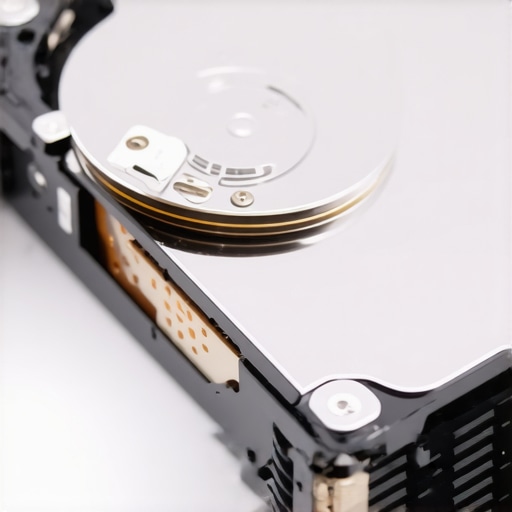
Identify Where the Scream is Coming From
Before you assume the worst, verify it is actually the hard drive. Open the case and use a cardboard tube (like a paper towel roll) as a makeshift stethoscope. Point it at the hard drive, then the GPU fans, then the CPU cooler. If the sound is coming from a fan, you might just be looking at a cheap dead fan replacement. But if that tube confirms the sound is vibrating out of the silver 3.5-inch box, you are officially in the danger zone. High-pitched whining specifically points to the spindle motor, whereas a clicking external drive usually signifies a head-stack failure.
Clone the Drive Now Because You Might Only Have One Shot Left
If the drive still mounts, do not try to copy-paste files via File Explorer. This creates massive mechanical overhead as the OS tries to read file metadata. Instead, use a bit-for-bit cloning tool. This process treats the drive as a stream of raw data, which is much easier on a struggling motor. I have seen this technique save 90% of a drive that was throwing constant cyclic redundancy check errors during normal usage.
Professional Help for Hardware That Is Physically Dying
When the whistle turns into a grind, or if the drive is no longer recognized by the BIOS, your DIY journey ends. This is a hardware failure that requires a clean-room environment. For companies, this is the exact moment where having managed IT solutions pays for itself ten times over. They ensure that a documented disaster recovery plan was already in place, meaning that whistling drive is just a minor hardware swap rather than a business-ending event. If you are a solo user, look for a specialist who mentions platter swaps and firmware repair, not just software recovery.
Let’s dig deeper into why that whistle is so dangerous and why the common advice you find on tech forums might actually be the final nail in your drive’s coffin. Everyone on the internet seems to have a ‘hack’ for reviving a dead drive, but when you are dealing with a mechanical whine, those hacks are often recipes for disaster.
Don’t Put Your Hard Drive in the Freezer
You’ve probably heard the old wives’ tale: if your hard drive is dying, stick it in the freezer for an hour. The logic is that the cold will shrink the metal components and free up a seized spindle motor. In my experience, this is one of the most dangerous computer repair for beginners myths out there. While it might have worked on 20GB drives in 1998, modern drives have tolerances measured in nanometers. When you take a freezing drive out into a warm room, condensation forms inside the sealed chamber. The second you power it up, the heads hit those microscopic water droplets and fly straight into the platters. You aren’t just failing to save your files fast; you are physically destroying the data surface.
Windows Scan and Repair Can Be Your Worst Enemy
The ‘Oops’ factor I see most often happens the moment you plug a failing drive into a healthy PC. Windows detects a file system error and helpfully suggests: ‘Repair this drive?’ Do not click yes. If your drive is making a high-pitched noise, the hardware is failing, not the software. Windows ‘Scan and Repair’ attempts to move data around and rewrite the file table, which puts immense mechanical stress on the motor. I’ve seen drives that had a few hours of life left die within minutes because the OS tried to ‘fix’ the file structure while the bearings were melting. If you are a business owner, this is why managed IT solutions are so vital; an expert knows to bypass these automated traps immediately.
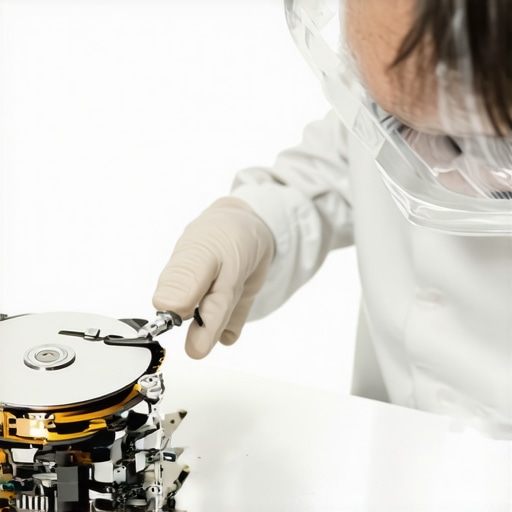
What Happens Inside a Professional Clean Room?
When the DIY route ends, the professionals take over. According to experts at Ontrack, physical drive damage requires intervention that standard software simply cannot provide. In a professional lab, they don’t just run software; they may perform a physical spindle swap or a head-stack replacement in a Class 100 clean room. This level of troubleshooting common computer repair issues isn’t about clicking buttons; it’s about surgery. This is also why a documented disaster recovery plan is your best defense. It’s much cheaper to pull from a cloud backup than to pay a lab $2,000 for a platter swap. Have you ever fallen into the freezer trap or let Windows ‘repair’ a drive into oblivion? Let me know in the comments. Even if you’re just looking for DIY tips for clearer displays, understanding the limits of your hardware is the first step toward becoming a pro.
Once you’ve escaped the immediate threat of a whistling drive, the real work begins: making sure it never happens again. I’ve spent enough time in server rooms to know that the difference between a minor hiccup and a total business shutdown is usually just one or two specific tools. If you’re serious about your data, you need to stop guessing and start measuring. I personally swear by CrystalDiskInfo for Windows or Smartmontools for Linux. These aren’t just toys; they allow you to peek into the S.M.A.R.T. (Self-Monitoring, Analysis, and Reporting Technology) attributes of your drive. I look specifically for ‘Reallocated Sectors Count’ and ‘Spin Retry Count.’ If those numbers are anything other than zero, the drive is a ticking time bomb, and it’s time to consult the power of data recovery tools before the mechanical failure becomes total.
Stop Running Blind with Proactive Monitoring
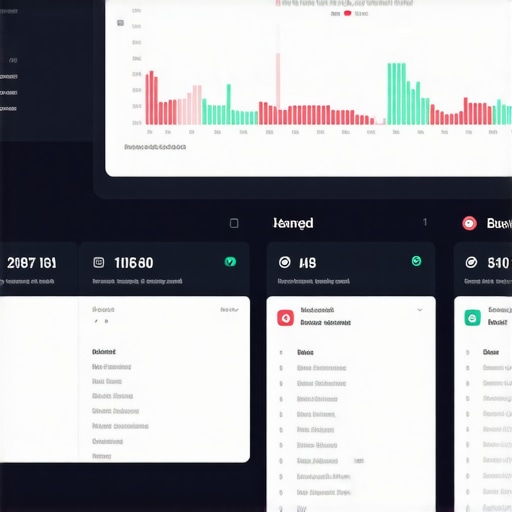
For my personal rigs and the systems I manage for clients, I don’t just check these stats once a year. I set up automated alerts. This is where effective managed IT solutions for growing companies really shine. Instead of a lone technician checking individual PCs, a centralized dashboard monitors every drive in the building. According to a landmark study by Google titled ‘Failure Trends in a Large Disk Drive Population,’ drive temperatures and usage patterns are less predictive of failure than the actual S.M.A.R.T. error signals. If you aren’t monitoring these signals, you’re essentially driving a car without a dashboard. When you’re managing more than five computers, doing this manually is impossible. You need managed IT strategies to keep your business secure in 2025 that include real-time hardware health telemetry.
How can I keep my storage healthy for the long haul?
Maintenance isn’t just about software; it’s about environment. Keep your towers off the carpet to avoid static and dust buildup, which leads to overheating. Heat is the silent killer of spindle motors. For laptop users, similar rules apply to your display hardware; learning DIY tips for clearer displays often starts with just keeping the vents clear. If you find your drive is already failing, my go-to for cloning is Macrium Reflect. Its ‘Rapid Delta Cloning’ feature is a lifesaver because it minimizes the time the failing motor has to spin. Even if you’ve already experienced a loss, you can still use the ultimate guide to data recovery after accidental deletion to piece your digital life back together.
The Future is Moving Toward Silent Reliability
The trend is clear: mechanical drives are becoming archival storage only. In the next few years, I predict we will see the total phase-out of HDDs in even budget consumer laptops. Moving to NVMe SSDs doesn’t just make your computer faster; it removes the moving parts that cause that dreaded whistle in the first place. However, don’t let a lack of noise lull you into a false sense of security. SSDs fail too, often without any acoustic warning at all. This makes a documented disaster recovery plan more important than ever. Whether it’s a mechanical grind or a silent flash failure, the result is the same if you aren’t prepared. My advanced tip for you today? Download a portable version of CrystalDiskInfo right now and check your ‘Power On Hours.’ If you’re over 30,000 hours, that drive owes you nothing—replace it before it starts its swan song.
The Most Expensive Lesson My Screaming Drive Taught Me
Over the years, I’ve learned that a whistling hard drive isn’t just a nuisance; it’s a final warning. If I could go back to that first failed drive, I’d tell myself these three things:
- The One Last Try is a Lie: Every time you power up a clicking or whistling drive, you are physically grinding away your chances of recovery. If the data matters, stop touching it.
- Software Can’t Fix a Broken Motor: I wasted hours trying to run fix-it utilities on a drive that needed a physical transplant. Don’t make that computer repair for beginners mistake.
- Prevention is Cheaper Than Surgery: A $100 backup drive is infinitely better than a $2,000 professional recovery bill.
A Few Tools That Keep My Sanity Intact
I don’t leave my data to chance anymore. For anyone who wants to avoid the panic of a dying spindle motor, I recommend building a small toolkit. First, the power of data recovery tools like CrystalDiskInfo cannot be overstated for early warnings. For accidental slips, the ultimate guide to data recovery after accidental deletion is my go-to resource. If you are running a company, please don’t DIY this—rely on managed IT solutions to handle the heavy lifting for you. These tools aren’t just software; they are your digital life insurance policy.
#IMAGE_PLACEHOLDER_E#
Your Data Deserves a Second Chance
Hearing that high-pitched whistle doesn’t have to be the end of the story. Whether you choose to clone the drive yourself or hand it off to a professional for troubleshooting common computer repair issues effectively, the most important thing is that you act with intention rather than panic. Technology will always have a shelf life, but your memories and hard work shouldn’t have to vanish because of a faulty bearing. By staying proactive and having a documented disaster recovery plan, you can turn a potential catastrophe into a minor hardware swap. Don’t wait for the silence—protect your files today. Have you ever ignored a strange computer noise only to regret it later? Let me know your story in the comments below!