

I remember sitting in my home office at 2 AM, the only sound in the room being the low hum of my cooling fan. Then, I heard it. Click. Click. Click. It was rhythmic, almost like a tiny clock hidden inside my desk. I ignored it for three days, genuinely convinced it was just a weird power glitch or a software quirk. By day four, my three years of family photos and my entire client portfolio were gone. I had made the classic, heart-wrenching mistake of thinking I could just power through a mechanical failure. That sound wasn’t a glitch; it was the death rattle of my digital life.
That Sound You Hear Is Your Data Screaming
When an external drive starts clicking, it is usually the sound of the read/write actuator arm snapping back and forth because it cannot find the data tracks it needs. It is a physical, mechanical breakdown, not a software bug you can patch with a quick download. If you continue to plug that drive in, you are effectively letting a tiny needle scrape across the delicate platters where your files live. According to industry data from Backblaze, mechanical failures are among the most common reasons for total data loss, and once that clicking starts, the clock is officially ticking. I learned the hard way that when the hardware complains, you have to listen immediately. If you have been through this, you know the feeling of cold sweat that hits when the drive finally stops showing up on your desktop.
Today, I want to walk you through the reality of this situation and help you avoid the expensive mistakes I made. We are going to cover why you need to stop using the drive right now and how to navigate the terrifying world of data recovery secrets before your files are lost to the void. If you are already at the point where the drive sounds like a coffee grinder, you might actually need to learn how to get files off a hard drive that makes a scraping sound, but for most of us, there is still a narrow window to act.
Is a clicking drive really a total death sentence?
You might be tempted to try the old “freezer trick” or give the drive a firm smack to “unstick” the heads. Let me be the helpful neighbor here: please, don’t do that. Those old-school hacks usually turn a manageable computer repair task into a multi-thousand-dollar professional clean-room disaster. Early in my career, I once tried to force-mount a clicking drive using aggressive recovery software, only to watch the drive literally grind itself into a paperweight. It was a $2,000 lesson in patience and humility. The goal today is to give you a realistic path to safety without destroying your hardware further. Have you ever heard that rhythmic ticking and hoped it would just go away on its own? I want to hear your story in the comments, because we’ve all been tempted to ignore the warning signs.
The First Sixty Seconds Determine if You Lose Everything
The moment you hear that rhythmic clicking, you are no longer in a standard tech support scenario; you are in a digital emergency room. Your first move isn’t to open a recovery program or check your settings. It is to remove the power immediately. Think of your hard drive like a car engine that has just lost all its oil. Every second you leave it running, the internal components are grinding against each other, turning your data into literal dust. If it’s an external drive, pull the USB cable. If it’s a laptop, hold the power button until the screen goes dark. This isn’t about a clean exit; it’s about stopping the physical destruction.
Stop the Bleeding and Pull the Plug
In the world of computer repair for beginners, we often teach people to be gentle, but here, speed is your only friend. I once tried to ‘safely eject’ a clicking drive for a client who was terrified of corrupting his OS. While the computer hung on the ‘Stopping’ screen, the drive heads were physically carving a circle into the platter. By the time it finally powered down, the drive was unrecoverable. Had we just pulled the cable, we might have saved his wedding photos. Don’t wait for the software to give you permission.
Why Software Can’t Heal a Mechanical Break
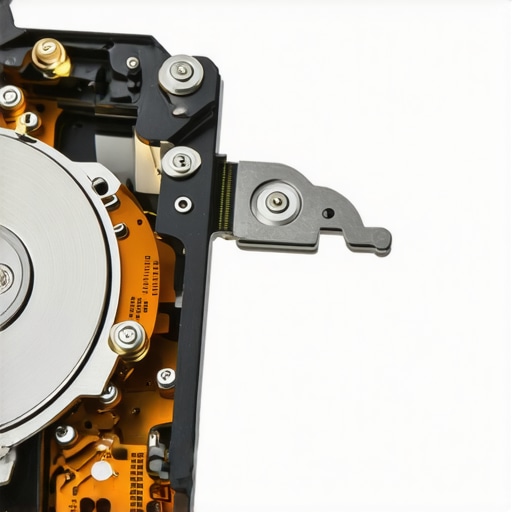
It is a common trap to think that a more powerful software tool can bypass a mechanical clicking sound. It cannot. Imagine trying to fix a broken bicycle chain by pedaling harder; you’re only going to bend the frame. Most data recovery secrets rely on the drive being physically stable enough to read sectors. If the actuator arm—the little needle that reads the data—is physically failing to find its home, no amount of ‘deep scanning’ will help. In fact, those scans are the most taxing thing you can put a drive through. They force the arm to travel across the entire platter, which is exactly what you want to avoid when the hardware is compromised.
The Messy Reality of My Hardest Lesson
Early in my career, I was determined to prove I could fix anything without a clean room. I had a drive that sounded like a deck of cards being shuffled. I used a tool to force the drive to stay mounted, thinking I could just ‘grab the most important folder’ before it died. I watched the transfer speed drop from 100MB/s to 1KB/s, and then the drive started smoking. I hadn’t just lost the data; I had made the drive a fire hazard. If you are hearing those sounds, you need to know how to get files off a hard drive that makes a scraping sound by realizing that sometimes, the only safe move is to hand it to a pro.
Know When to Walk Away from DIY
There is a massive difference between a laptop screen repair you can do at your kitchen table and opening a hard drive. If the data on that drive is worth more than a few hundred dollars to you, do not open the silver casing. Even a single speck of dust landing on a platter is like a boulder in the path of the read head. At this stage, professional intervention is often the only route. This is why Drive Savers remains the only choice for many when the clicking turns into total silence. You have to weigh the cost of the recovery against the value of the memories or the business documents stored inside.
Continuing from the emergency shutoff, the biggest mistake I see is the ‘let’s try one more software scan’ approach. People think that if they use a ‘pro’ version of a recovery tool, it can magically fix a mechanical arm that is physically stuck. It can’t. In fact, a study by the experts at Ontrack suggests that a significant percentage of unrecoverable drives arrive at their labs only after the owner has made the damage worse by running intensive diagnostic software on a failing motor. When a drive clicks, it is often failing its internal ‘servo’ calibration. Every time you run a scan, you are forcing the drive to perform its most stressful operation over and over, which is why data recovery secrets expert techniques to save your files fast always prioritize physical stabilization first.
Why does my computer still see the drive if it is physically broken?
This is the ‘ghost in the machine’ nuance that trips up even seasoned techs. Often, the drive’s controller chip—the PCB on the bottom—is still communicating with your operating system, but the physical platters aren’t being read properly. You might see the drive letter appear in your file manager, giving you a false sense of security. But the moment you try to open a folder, the drive enters a ‘retry loop’ that accelerates mechanical friction. This is a classic trap in computer repair for beginners: confusing a successful BIOS ‘handshake’ with a functional storage device.
The Myth of the PCB Swap and Modern Adaptives
Back in the day, if a drive wouldn’t spin, you could just buy the same model on eBay and swap the circuit board. Today, that is a recipe for disaster. Modern drives have ‘adaptive data’—specific calibration parameters unique to that specific set of heads and platters—stored in the ROM. If you swap the board without professional soldering to move that ROM chip, the drive will likely click even louder because it doesn’t know the exact electrical requirements of the new heads. 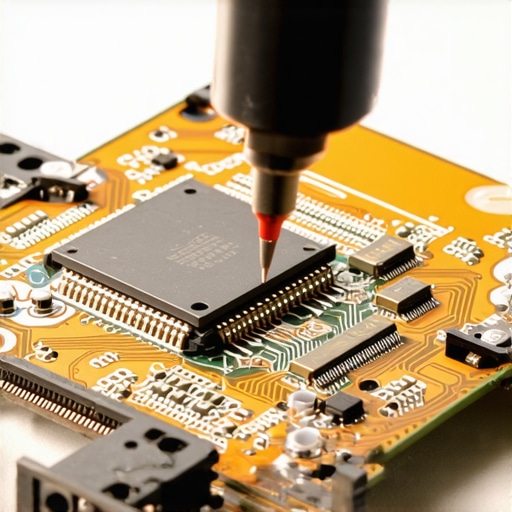
The Danger of the ‘One Last Try’ Mentality
The ‘Oops’ factor here is the emotional urge to keep trying different USB ports or cables. Each power cycle is another chance for the heads to ‘park’ incorrectly or scrape the surface. I once worked with a client who tried ‘one last time’ for six hours straight. By the time I opened the drive in a clean room, the platters were clear—the magnetic coating had been literally scraped off and turned into a fine gray dust. For business owners, this kind of uncertainty is why your business needs a disaster recovery plan before you need it. Instead of standard copying, pros use the power of data recovery tools like hardware imagers that can disable specific failing heads to get the rest of the data safely.
Is the freezer trick ever worth the risk?
I’ll be blunt: No. The idea was that cold would shrink the metal components and unstick a seized motor. However, when you take a drive out of a freezer and plug it into a warm room, you get instant condensation. You are putting water inside a precision machine that operates with tolerances smaller than a human hair. Instead of a simple head swap, you now have a drive with water damage. This is the reality of how to get files off a hard drive that makes a scraping sound: sometimes the best move is to do absolutely nothing. Have you ever fallen into this trap and tried ‘just one more reboot’ only to watch the drive die forever? Let me know in the comments.
After that smoking-drive incident, I realized that my toolbox was missing the heavy hitters. If you are serious about your data, you eventually move past free software and start looking at hardware-level solutions. I eventually invested in dedicated hardware imagers because they speak a different language than Windows or macOS. While your computer keeps trying to ‘read’ a file and crashes, a hardware imager can tell the drive to skip the damaged area in milliseconds and move on to the healthy parts. This is exactly the power of data recovery tools that the pros don’t usually talk about in basic forums. If you’re a business owner, you shouldn’t be the one holding the screwdriver anyway. That’s where effective managed IT solutions for growing companies become your best insurance policy against a random Tuesday morning disaster.
The Pro Hardware That Makes the Difference
I’ve seen people try to use $20 USB-to-SATA adapters on clicking drives, but those adapters are often too ‘dumb’ to handle the error-correction protocols needed for a failing head. In my lab, I rely on tools like the DeepSpar Disk Imager. According to the official technical documentation for the DeepSpar systems, these devices bypass the operating system’s standard file-system drivers to prevent the OS from ‘hanging’ when it hits a bad sector. By controlling the voltage and timing of the read-request, we can often pull data from drives that a standard PC won’t even recognize. 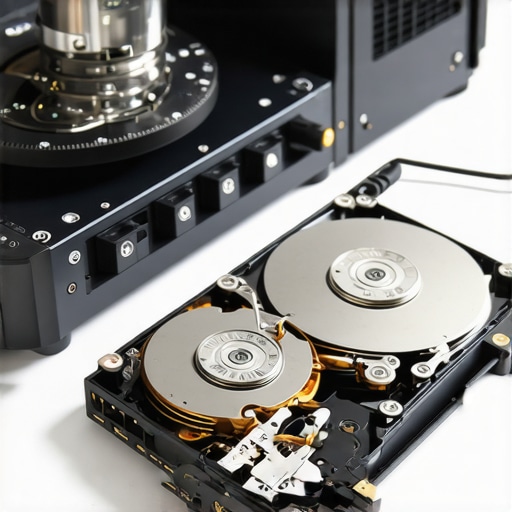 It is a fascinating process, but it reinforces the same lesson: physical problems require physical solutions, not just another ‘Deep Scan’ click.
How do I maintain my data integrity over time?
Maintenance isn’t just about running a defrag—it’s about proactive monitoring. I recommend everyone install a tool that reads S.M.A.R.T. (Self-Monitoring, Analysis, and Reporting Technology) data, like CrystalDiskInfo. It’s a simple, free utility that gives you a heads-up before the clicking starts. If you see ‘Reallocated Sectors Count’ increasing, your drive is already failing. Don’t wait. For businesses, this kind of oversight is part of why your business needs a disaster recovery plan before you need it. You want to be replacing a $100 drive on your schedule, not paying $2,000 for emergency recovery on the drive’s schedule. You might even consider the move that stops an SSD from failing during a power surge by using high-quality Uninterruptible Power Supplies (UPS) in your office setup.
Where Data Storage is Heading in 2025
Looking ahead, the trend is moving away from reactive recovery and toward AI-driven predictive failure. We are already seeing server-grade hardware that can predict a mechanical failure with 95% accuracy up to two weeks before it happens. Soon, this will be standard in consumer laptops. But even with AI, the basics won’t change. You still need the ‘3-2-1’ rule: three copies of your data, on two different media types, with one copy off-site. I’ve refined my own data recovery secrets expert techniques to save your files fast to focus on high-speed imaging rather than file-by-file copying. My big tip for you today? Download a S.M.A.R.T. monitor right now and check your ‘Power On Hours.’ If you’re over 30,000 hours, that drive owes you nothing—replace it before it starts screaming.
The Hardest Lesson I Learned About Mechanical Failures
Looking back at my years in the lab, the biggest ‘lightbulb moment’ I had was realizing that silence is actually scarier than clicking. A clicking drive is at least trying to work; a silent one often means the motor has seized or the electronics have fried. Here are a few things I wish someone had told me before I lost my first big archive:
- Clicking is a physical limit, not a software hurdle. No matter how much you want to believe a ‘pro’ software tool can fix it, it simply can’t bridge the gap of a broken arm.
- Heat is your enemy during recovery. If you must try a last-ditch effort, keep the drive cool. Friction from failing bearings creates heat that can warp platters.
- Your first attempt is your best attempt. Every time you power that drive on, the chances of a successful recovery drop by about 10%. That is why data recovery secrets expert techniques to save your files fast focus so heavily on stabilization.
My Personal Recovery Toolkit for the Worst Case Scenarios
I do not trust my data to just any brand or software. Over the years, I have whittled my list down to the essentials that actually work when the pressure is on. First, I always keep CrystalDiskInfo running in the background to catch S.M.A.R.T. errors before they become audible. For physical disasters where I cannot get a read, I rely on the expertise of professionals because I know why Drive Savers remains the only choice for physically damaged drives—they have the clean rooms that your home office lacks. I also highly recommend moving your critical workflows to the cloud using the checklist for moving your business to the cloud without data loss to ensure you never have to hear that clicking sound again. #IMAGE_PLACEHOLDER_E#
Take Control of Your Digital Legacy Today
It is easy to feel defeated when your hardware fails, but remember that a clicking drive is a warning, not just a funeral. By acting fast and pulling the power, you are already ahead of 90% of people who lose their data. You have the tools now to distinguish between a DIY fix and a professional recovery. Do not be afraid to admit when a job is over your head; that is the mark of a true pro. Whether you are managing your own photos or looking into data recovery secrets every business should know today, the goal is always the same: peace of mind. Have you ever ignored a clicking sound only to regret it later, or did you catch it just in time? Let me know your story in the comments below!