

I was sitting in my home office when the sky turned that ominous, bruised purple. A sudden crack of thunder, a millisecond flicker of the desk lamp, and the hum of my PC vanished. I didn’t panic at first; I had a surge protector, after all. But when the power came back and I hit that power button, the screen stayed black. My expensive, lightning-fast SSD had effectively committed digital suicide. It wasn’t the surge that killed it; it was the sudden silence while it was mid-sentence. If you’ve ever felt that pit in your stomach when a drive disappears from the BIOS, you know exactly why I’m obsessed with this topic now. I spent way too much time hunting for data recovery secrets that night, only to realize the physical damage was already done. Today, I am going to show you the specific hardware move that prevents this heartbreak. We are going to look past the marketing fluff and focus on the internal components that actually keep your files safe when the grid fails. [image placeholder]
Why Your High-End SSD Is Actually More Fragile Than You Think
Most people believe that buying the fastest drive on the market means they are buying the best. I made that exact mistake early on. I poured my budget into raw read/write speeds, completely ignoring how the drive handled a hard shutdown. When the power cuts, an SSD still needs a few milliseconds of juice to finish its current task. Without it, the data gets stuck in limbo. It’s like someone pulling a book out of your hands while you are halfway through writing a sentence.
Is this just a marketing trick to make me spend more?
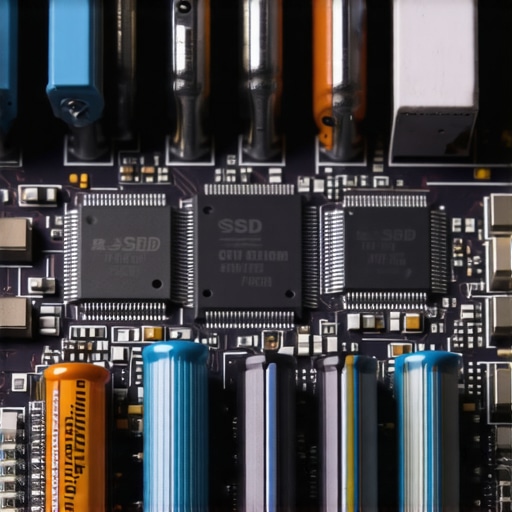
It is easy to be skeptical. However, the science of NAND flash is unforgiving. According to technical documentation from Kingston Technology, a sudden power loss during a write cycle can cause ‘lower page corruption,’ which can scramble the drive’s internal mapping table and make it completely unreadable. This is where Power Loss Protection (PLP) comes in. You need to look for drives that include tantalum capacitors. These tiny components act like lifeboats, providing just enough electrical charge to let the drive finish its ‘last words’ before going dark. This is why having a disaster recovery plan before the storm hits starts with the hardware you choose to install. Even if you are diligent about avoiding costly mistakes, ignoring the quality of your storage controller’s power management is a gamble. Have you ever had a drive simply vanish after a storm, or are you still trusting a $10 power strip to protect your entire digital life? Tell me your story, because it is a lesson I learned the hard way so you don’t have to.
The Hardware Swap That Actually Protects Your Workflow
Switching to a drive with integrated capacitors is the single most effective move you can make. While a cheap power supply can cause its own set of problems, the SSD is where your most valuable assets live. By ensuring your drive has the physical capacity to finish its write-commands, you bridge the gap between a simple reboot and a total system failure.
How to Spot a Drive That Won’t Die in the Dark
Finding a drive that survives a blackout requires you to look beyond the colorful packaging. Most consumer-grade ‘Pro’ drives focus on burst speeds for gamers, but for those of us doing serious work, we need hardware designed for stability. I remember setting up a small office server for a client who insisted on saving fifty dollars by using a standard retail NVMe drive. A month later, a transformer blew down the street. That drive didn’t just lose a few files; the firmware locked itself into a permanent ‘read-only’ panic mode to prevent further damage. We ended up spending hours using data recovery secrets just to pull their database off the crippled hardware. That is a mess you can avoid by looking for ‘Enhanced Power Loss Data Protection’ in the technical specifications. This isn’t just a software feature; it is a physical requirement.
The Specs You Must See Before You Buy
When you are shopping, ignore the ‘read/write’ numbers for a moment and search the PDF spec sheet for ‘Tantalum Capacitors’ or ‘PLP.’ In the world of managed IT solutions, we prioritize drives that protect ‘Data-in-Flight.’ Think of your data like a bucket brigade. In a cheap drive, when the power cuts, the person holding the bucket just drops it. In a drive with PLP, the capacitors provide enough ‘reserve’ electricity to ensure that the last bucket makes it into the barrel before everyone goes home. This physical bridge is the only thing standing between you and a corrupted file system.
Perform This Hardware Check After You Install
Once you have the right drive, the work isn’t done. You need to verify the drive is actually communicating its health to your system. Many people make the mistake of avoiding costly mistakes early on by buying the right gear, but then they forget to update the firmware. Manufacturers often release updates that refine how the drive handles emergency shutdowns. I always use a tool like CrystalDiskInfo or the manufacturer’s proprietary software to check the ‘S.M.A.R.T.’ status immediately. Look specifically for the ‘Unexpected Power Loss’ count. If that number rises and your system feels sluggish, your drive is struggling to keep up with your power environment.
Why Firmware Is Your Second Line of Defense
Firmware acts as the traffic controller for those capacitors. If the firmware is outdated, the drive might not trigger the emergency flush fast enough. In cases where the hardware fails to sync properly, you might find yourself needing the move that saves your data when a partition table is corrupted. By keeping the drive’s internal software current, you ensure the controller knows exactly how much millisecond-reserve it has to play with. This level of preparation is what separates hobbyist setups from professional workstations that can withstand the unpredictability of the local power grid. If you’ve ever had to pull data from a drive with a corrupted file system header, you know that ten minutes of preventative maintenance is worth ten days of recovery stress.
Most tech-savvy users believe that a ‘drive not found’ error is just a software glitch that a quick download can fix. I used to think the same until I watched a client’s database vanish in real-time because they ignored the risk of ignoring that SMART status bad warning. Here is the contrarian truth: if your drive is physically failing, running consumer-grade recovery software is the quickest way to turn a recoverable situation into a permanent paperweight. These tools are designed to scan every sector repeatedly, which generates intense heat and forces a struggling actuator arm to work overtime. If the problem is mechanical, you are literally grinding the platters into dust while the software bar says ‘3% complete.’
Stop Trusting Recovery Software for Physical Drive Damage
This is the ultimate ‘oops’ factor in DIY computer repair. People see a partition error and immediately reach for free tools, but the danger of using free file recovery tools on a failing mechanical drive is that they lack the granular control required to handle read-timeouts gracefully. According to a study by the IEEE Reliability Society, mechanical stress during high-intensity recovery attempts is a leading cause of head crashes in drives that were initially salvageable. When you hear a click or a grind, the only move is to cut the power immediately. Have you ever fallen into this trap and heard the dreaded clicking start? Let me know in the comments.
Does your managed IT agreement actually monitor hardware health?
Many business owners assume their service provider is watching everything, but there are often red flags in your managed IT service agreement that suggest they only monitor software uptime. If they aren’t looking at your SSD’s remaining life percentage or the capacitor health on your server’s RAID controller, you are flying blind. Professional-grade managed IT solutions should include proactive hardware telemetry, not just reactive patches. This is why data recovery secrets every business should know start with knowing exactly when a component is about to cross its MTBF (Mean Time Between Failures) threshold.
The Nuance of Data-in-Flight Protection
We often talk about backups, but we rarely talk about ‘Data-in-Flight.’ This is the data currently moving from your RAM to your SSD. Even with the best managed IT strategies, if your hardware lacks physical power buffers, that data is vulnerable. It is a common myth that the cloud solves this. In reality, why your business needs a local backup even if you use the cloud is because local hardware failure can corrupt the local file system headers before the cloud even knows a sync is happening. By the time you realize the local copy is dead, you might find you’ve synced a corrupted file to your ‘safe’ cloud storage, effectively ruining both copies. Learning how to avoid costly mistakes means understanding that hardware and software must work in a perfect, buffered harmony to keep your life’s work from disappearing in a single millisecond power dip.
The Software I Trust When Everything Else Fails
If you are serious about your data, you need to stop playing with ‘one-click’ recovery apps that promise the world but deliver corrupted headers. I personally use R-Studio by R-Tools Technology because it allows me to bypass the operating system’s often-corrupted file system mounting process. It is a bit more complex, but the power of data recovery tools lies in their ability to reconstruct virtual RAID arrays or find files based on raw hex signatures rather than just file names. When I am dealing with a client’s drive, I never scan the original hardware directly. I use a dedicated StarTech hardware duplicator to create a bit-for-bit clone first. This is a core part of avoiding costly mistakes; you always work on the clone, never the original ‘patient’ drive.
How do I maintain my storage reliability over time?
Maintenance isn’t about running an old-fashioned defrag—it is about telemetry and proactive observation. I recommend setting up automated alerts for S.M.A.R.T. threshold changes so you aren’t surprised by a failure. For my business clients, this is a standard part of our effective managed IT solutions. We use specialized agents that ping our dashboard the second a drive reallocates a sector. If you are a solo user, you should check your stats manually at least once a month. If you see the ‘Current Pending Sector Count’ go above zero, that drive is a ticking time bomb. This proactive approach is exactly how managed IT strategies to keep your business secure prevent total work stoppages. You want to replace a failing drive on a Tuesday morning when you’re prepared, not recover it on a Sunday night at 2 AM.
Your Laptop Screen Might Be the First Warning Sign
It sounds strange, but your display can actually warn you about incoming hardware failure before your drive even blinks. I’ve seen numerous cases where subtle flickering or horizontal lines were actually caused by a failing power rail on the motherboard—the same rail feeding the SSD. By troubleshooting common computer repair issues effectively, you realize that hardware exists in a delicate ecosystem. If your screen is acting up, don’t just ignore it as a visual glitch; check your system logs for disk errors as well. If you have already lost a file due to these fluctuations, don’t panic, but do follow the ultimate guide to data recovery after accidental deletion to ensure you aren’t overwriting the very data you’re trying to save.
AI Will Soon Predict Your Drive’s Death Before It Happens
The future of hardware maintenance is moving toward predictive failure analysis driven by machine learning at the controller level. According to the annual Backblaze Drive Stats report, which analyzes failure rates across over 200,000 drives, certain failure patterns are nearly identical across specific models. We are reaching a point where SSD controllers will use internal AI to move data off ‘weak’ flash cells before they even fail. This will change the game for data recovery secrets every business should know because the ‘failure’ will happen in the background, invisible to the user. Until that becomes the standard, my advice is simple: download a tool like CrystalDiskInfo today and look at your raw values. If any number in the ‘Normalized’ column is approaching the ‘Threshold,’ it is time to back up and bail. Don’t wait for the click; act while the lights are still on.
The One Thing I’ll Never Ignore Again When Buying Storage
I spent years chasing gigabytes per dollar until I realized I was actually buying anxiety. Here is what I’ve learned from the front lines of data recovery: Speed is a vanity metric; stability is a sanity metric. If your drive can’t survive a power flicker, it doesn’t matter how fast it is. Cheap power strips are a lie; they protect against massive surges but do nothing for the micro-fluctuations that scramble SSD mapping tables. The best time to think about data recovery is when your computer is running perfectly. This is why I always tell my clients that avoiding costly mistakes starts with the very first component you plug into the motherboard.
My Personal Toolkit for Keeping Drives Healthy
I trust these specific tools to keep my workflow running without interruption. First, CrystalDiskInfo is non-negotiable for monitoring that critical S.M.A.R.T. status and looking for the ‘Unexpected Power Loss’ count. Second, I swear by StarTech hardware duplicators because they remove the human (and OS) error from the cloning process when you suspect a physical failure. Finally, for the most stubborn file system issues where you need data recovery secrets that actually work, R-Studio is my go-to for raw hex reconstruction. [image placeholder]
Make Your Hardware Disaster-Proof Today
You don’t need a degree in computer engineering to protect your life’s work. It starts with one small move: check your drive health today. Whether you are implementing effective managed IT solutions for your team or just tightening up your home setup, being proactive beats being desperate every single time. Don’t let a millisecond of darkness steal years of memories. Take control of your hardware before the grid takes control of you. Have you ever had a drive fail right when you needed it most? Let me know in the comments below.