

I remember the panic clearly. I was working on a massive project when my laptop started sounding like a jet engine, followed by a sudden, terrifying black screen. I was convinced I had fried the motherboard. In reality, it was just three years of cat hair and dust bunnies throwing a party in my exhaust vents. It is a classic computer repair for beginners mistake—assuming the worst when the fix is actually just a bit of maintenance. My first instinct was to panic, but yours should be to investigate.
Your Laptop Is Hot Enough to Fry an Egg
Overheating is more than just a nuisance; it is a silent killer for your hardware. When your processor gets too hot, it throttles performance to protect itself, making your expensive machine feel like it is running through waist-deep mud. I want to help you figure out exactly what is going wrong so you do not spend money on a new fan when all you need is a five-dollar can of air. We are going to dive into the physical signs of a failing cooling system and the software tools that tell the truth.
Is poking around inside actually worth the risk?
I get it. The idea of opening your chassis feels like performing surgery without a license. Years ago, I actually used a high-powered household vacuum on a motherboard—pro tip: do not do that. The static electricity can fry a chip instantly. But you do not need to be a certified technician to diagnose the problem. Most of the time, you can tell if a fan is dead just by checking why your computer feels hot but the fan isn’t spinning using basic observation. Have you ever felt that localized heat through your keyboard and wondered if your laptop was about to melt?
Listen to What Your Machine Is Telling You
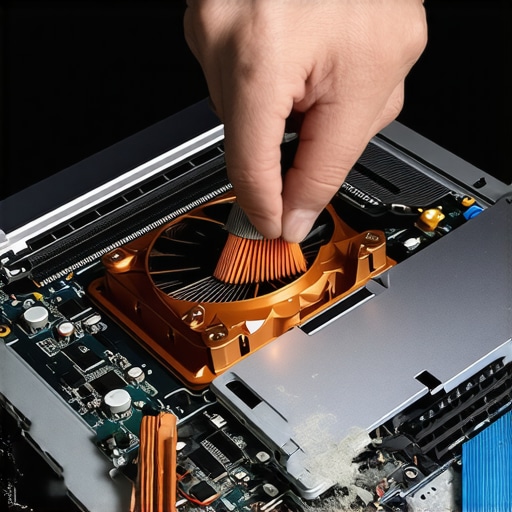
The easiest way to tell the difference is with your ears. If your laptop fan is screaming even when you are just browsing the web, it is actually a good sign—it means the motor is still alive. A dead fan is eerily silent, even when the base of the laptop is burning your skin. According to research from the Uptime Institute, thermal management failures account for nearly 30% of unplanned hardware outages, which is why a little preventative care goes a long way. Before you end up needing an ultimate guide to data recovery because of a heat-related crash, let’s look at how to clean a laptop fan without pushing dust deeper inside. You might also want to try the move that keeps your laptop from overheating on your lap to see if it is just an airflow blockage from your clothes. [image_placeholder_1]
Pop the Case with the Right Tools
Opening a laptop for the first time is like performing surgery on a bug; everything is tiny, fragile, and oddly interconnected. I once tried to pry open an old chassis with a butter knife because I couldn’t find my screwdriver—pro tip: don’t do that. I ended up snapping a plastic clip and spent the next hour searching for computer repair for beginners advice to fix my own impatience. To do this right, you need a precision driver set and a plastic spudger. Once you have the backplate off, your first priority is the battery. I learned the hard way that a live board and a dropped screw lead to a very expensive spark. Always disconnect the battery before you even touch the fan. This is the foundation of troubleshooting common computer repair issues effectively without making the problem worse.
Look for Clues in Your System Logs
Think of your laptop’s software as its nervous system. Sometimes the fan is screaming not because it is dirty, but because a rogue program is demanding 100% of the CPU’s attention. You should start with the simple way to check your pc for hidden background processes to see if a ‘ghost’ app is the culprit. If your fans are spinning but the system is still slowing down, you might be experiencing thermal throttling. This is the hardware equivalent of a runner gasping for air and slowing to a crawl. If you are managing a small office setup, you might even need to learn how to stop your server from thermal throttling during peak hours to keep the whole network from lagging.
Heat Damage Beyond the Processor
Most people assume heat only affects the brain of the computer, but it radiates everywhere. Intense internal heat can eventually degrade the adhesives and layers of your monitor. Have you noticed a shift in colors lately? Excessive heat is a common reason why your laptop screen has a persistent yellow tint. It is essentially baking the display from the inside out. If you see this, cleaning the fan isn’t just about speed anymore; it is about saving your screen. I remember a client who ignored a loud fan for months until their display started showing weird artifacts. We ended up looking through laptop screen repair diy tips for clearer displays just to get a usable image back. If you are already inside the machine to fix the cooling, it is a great time to check other components. Many people take the opportunity to see how to safely upgrade your ram without voiding the warranty since the hard part—opening the case—is already done.
The Thermal Paste Swap
If cleaning the dust doesn’t work, the bridge between your chip and the cooling pipes—the thermal paste—might be dried up. After three or four years, that paste becomes as effective as a layer of dry cracker crumbs. Replacing it is a high-value move, but it requires a steady hand. You have to clean the old gunk off with high-percentage isopropyl alcohol until the surface shines like a mirror. Applying the new paste is an art; too little and you have hot spots, too much and it spills onto the motherboard. It is a messy process, but when you see those idle temperatures drop by fifteen degrees, the satisfaction is unbeatable.
Stop Trusting Your Software Firewall
While cleaning the fan and re-pasting the CPU feels like a victory, there is a more insidious mistake I see professionals make. Most people believe that software-based firewalls are a ‘set it and forget it’ solution for their home office. In my experience, relying solely on software is like locking your front door but leaving the windows wide open. You really need to understand why your office network needs a physical firewall not just software. It is about blocking threats before they even touch your operating system. A recent study by the Ponemon Institute found that nearly 60% of small businesses lack a hardware-based security layer, leaving them vulnerable to attacks that bypass standard OS defenses.
The Hidden Risk of Generic Power Bricks
One major ‘oops’ factor is the generic charger. I have seen two-thousand-dollar workstations fried by a fifteen-dollar knock-off power brick. It is not just about the connector fitting; it is about the voltage ripple and surge protection. The truth about using generic chargers on expensive business laptops is that they often lack the necessary safety circuits to handle minor power spikes, leading to catastrophic motherboard failure. 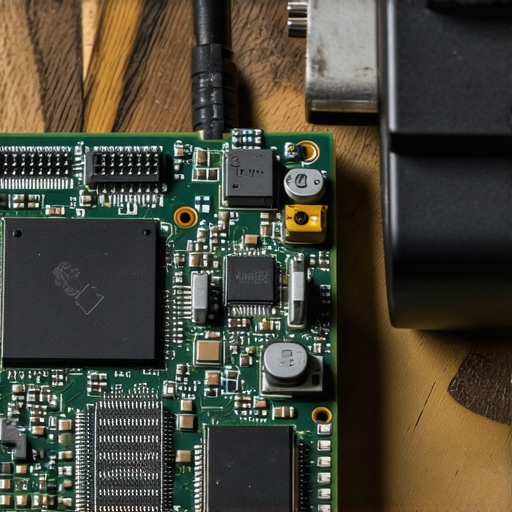
Can you actually trust those ‘unlimited’ cloud backup promises?
Common wisdom says that if you pay for ‘unlimited’ backup, you are safe. But the hidden nuance is the ‘fine print’ regarding file types and recovery speed. If your drive fails, it might take weeks to download a terabyte over a standard connection. This is why many professionals look for data recovery secrets expert techniques to save your files fast rather than waiting on a slow cloud restore. If you are running a company, you need to know the truth about unlimited backup plans for small businesses before a crisis hits.
Why Your IT Provider Needs to Audit You
Managed IT is not just a help desk; it is about proactive survival. Most business owners think of IT as reactive, but the real value is in the boring stuff—quarterly audits. If your provider is not checking your cloud permissions and credential leaks, you are at risk. You should be asking why your managed it provider should be doing quarterly audits. It is the difference between a secure network and a ticking time bomb. Even your screen can hide secrets. People often think a dim display means the end of the line, but checking how to tell if your laptop screen backlight is actually failing can save you the cost of a full panel replacement. Have you ever fallen into this trap? Let me know in the comments.
I’ve spent a small fortune on tools that didn’t work before I realized that a quality toolkit is an investment, not a cost. For anyone serious about DIY, skip the generic hardware store sets. I personally swear by a precision driver kit with hardened steel bits because cheap aluminum bits will strip the tiny, soft screws found in modern ultrabooks. If you’re tackling a flickering display or a backlight issue, you’ll need anti-static tweezers to handle the delicate ribbon cables—something you’ll learn quickly when following a laptop screen repair how to fix common issues at home guide. It is the difference between a clean hardware swap and creating a permanent paperweight.
But physical tools are only half the battle. On the software side, I never troubleshoot a struggling machine without running specialized diagnostic software like HWiNFO64 to monitor rail voltages and thermal limits in real-time. If you see your voltage fluctuating, it is a huge red flag that your power supply is on its last legs. This kind of deep-dive data is exactly what the power of data recovery tools what you need to know is all about—predicting the crash before the clicking starts. When you can see the SMART data on a drive degrading, you can pull your data before it becomes a forensic nightmare.
How do I maintain my hardware health over several years?
Sustainable maintenance comes down to a proactive cycle of software audits and physical cleanings every six months. For businesses, this is where the jump from ‘fixing stuff’ to a structured partnership happens. Implementing managed it strategies to keep your business secure in 2025 means you aren’t just reacting to a blue screen; you are automating the updates and security patches that prevent them. According to the 2023 Backblaze Hard Drive Stats report, hard drives have a localized failure rate that spikes significantly after the four-year mark. If you aren’t planning for that replacement cycle today, you are essentially planning for a total operational shutdown later.
Future Proofing Your Hardware Strategy
I predict the next few years will see a massive shift toward AI-driven predictive maintenance in the consumer and small business space. Imagine a system that doesn’t just tell you the fan is failing, but proactively orders the part for you because it detected a microscopic change in vibration patterns or current draw. We are moving away from the era of ‘repair’ and into the era of ‘continuity.’ If you are managing a growing team, you need to understand how managed it can elevate your business security in 2025 to keep up with these automated threats. And for your most sensitive files, don’t just rely on one cloud provider; you should be using data recovery secrets every business should know today to build a redundant 3-2-1 backup system—three copies, two different media types, one offsite. It is the only way I sleep at night. I highly recommend you download a drive health monitor today and check your ‘Power On Hours’—you might be surprised how close you are to the edge.
The Lessons Only a Blown Motherboard Could Teach Me
After years of tinkering, I’ve realized that silence is often more dangerous than noise. A screaming fan tells you it’s working hard; a silent laptop that’s burning to the touch is a disaster in progress. I also learned that software fixes have a ceiling. You can optimize your background processes all day, but if your thermal paste is a crusty mess, you’re just delaying the inevitable. Perhaps the biggest ‘lightbulb moment’ was realizing that security isn’t just about antivirus—it’s about the physical health of the machine and the network it lives on. Don’t wait for a total hardware blackout to start troubleshooting common computer repair issues effectively.
My Daily Drivers for Keeping Hardware Alive
I don’t trust my data to luck, and neither should you. Here are the three pillars I rely on: First, a dedicated physical firewall. It’s the only way to ensure your network is truly segmented. Second, specialized monitoring software is my go-to for checking sensor data before a component fails. Third, I always keep a link to a reliable laptop screen repair diy tips for clearer displays guide bookmarked; you never know when a ribbon cable might wiggle loose or a backlight might flicker. For businesses, I can’t recommend a structured audit enough. Check out why your managed it service should be auditing your cloud permissions to see the gaps you might be missing in your current setup.
Build a Machine That Outlasts the Trends
Taking care of your computer shouldn’t feel like a chore—it’s about protecting your digital legacy and your professional productivity. Whether you are swapping out a fan or setting up a complex 3-2-1 backup, every small step reduces the risk of ignoring a clicking external drive or a flickering screen. You have the tools and the knowledge now to move from reactive panic to proactive hardware mastery. Your laptop represents an investment of your time and money; treat it with the respect it deserves, and it will serve you for years to come. If you’ve reached the point where the hardware is failing visually, don’t panic—learn how to fix a laptop screen that shows static like an old tv before assuming the worst. [image_placeholder_final]
Have you ever successfully revived a laptop that everyone else said was dead? Let me know your best ‘save’ in the comments below!