

I was sitting at my desk, cold coffee in hand, when my screen suddenly went full Poltergeist. I am talking about that frantic, vibrating mess of black and white static that usually belongs in a horror movie, not on a mid-range business laptop. I stared at it for a good five minutes, hoping it would just snap out of it. It did not. In fact, I made the classic rookie mistake of squeezing the top of the bezel thinking it was just a loose wire, only to hear an ominous crack. That is the thing about tech; when it fails, it usually does so with a flair for the dramatic. I remember the first time it happened to me; I was deep into a project when the gentle glow of my work was replaced by a frantic blizzard of gray snow. I actually tried to re-seat my RAM thinking it was a memory error—do not ask me why, I was young and desperate—and I ended up wasting an entire afternoon on a fix that had nothing to do with the problem. Today, I am going to walk you through exactly why this happens and how you can fix it without making the same expensive blunders I did. [image_placeholder_1]
That Snowstorm on Your Display Is Not the End of the World
It is incredibly easy to panic when your display goes haywire. You start thinking about the cost of a new machine or the nightmare of losing your files. Trust me, I have been there, and I have even tried some pretty questionable laptop screen repair diy tips for clearer displays before finding what actually works. The reality is that static or snow is usually just a communication breakdown between your motherboard and your LCD. It is like a phone line with too much interference. Research from the repair experts at iFixit indicates that a significant percentage of display glitches are actually rooted in the LVDS or eDP cables that run through the laptop hinges—a part that gets stressed every single time you open the lid. Before you go out and buy a replacement, we need to determine if the issue is a simple driver hiccup or a physical cable that has seen better days. Have you ever had your screen glitch out at the worst possible moment? I would love to hear your story in the comments.
Is it actually cheaper to just buy a new laptop?
Many of my neighbors ask me if a flickering or static-filled screen means the laptop is totaled. The answer is almost always a resounding no. Replacing a cable or even the entire panel is significantly cheaper than a new device, especially if you follow some tips for troubleshooting laptop screen problems seamlessly. I once spent eight hundred dollars on a new laptop because I thought a static screen meant the motherboard was fried, only to find out later it was a fifteen-dollar cable. That hurt. By learning how to perform a few basic checks, you can avoid that specific brand of regret. If you are worried about the difficulty, do not be. Most of these fixes require nothing more than a steady hand and a small screwdriver, though sometimes it helps to look at laptop screen repair how to fix common issues at home to get your bearings. Let us get into the nitty-gritty of diagnosing the source of that snowstorm.
Plug in a second monitor to isolate the culprit
This is the ultimate ‘is it you or is it me’ test for your laptop. If the static appears on the external monitor too, your GPU is likely failing. Think of the GPU as a chef sending out burnt food; it does not matter how nice the plate (the screen) is, the meal is still ruined. However, if the external monitor looks perfect, the problem is definitely localized to your laptop’s display panel or the internal wiring. This simple step is vital for computer repair for beginners avoid costly mistakes because it prevents you from buying a new screen when the motherboard is actually the issue. 
Watch for changes when you move the hinges
If your screen flickers or the static changes intensity when you tilt the lid back and forth, you are likely dealing with a frayed LVDS or eDP cable. These cables are like a garden hose that gets pinched every time you open the laptop. Over time, the wires inside snap. I once spent three hours tearing down a high-end business machine, certain the motherboard was toast. I even started looking up data recovery secrets expert techniques to save your files fast because I was convinced the whole system was fried. Turns out, the internal ribbon cable was just slightly unseated from the back of the LCD. I’ve seen ignored cable issues eventually cause the frame to pop, which is why you should know how to tell if your laptop hinges are about to snap the frame before physical damage occurs.
The software reset that saves your afternoon
Sometimes the ‘static’ is just a driver that has lost its mind. If you notice why your laptop screen flickers only when you are on battery power, it is often a power-saving setting in the graphics control panel rather than a hardware failure. Try the ‘Win + Ctrl + Shift + B’ shortcut. This restarts your graphics driver instantly. You will hear a beep and the screen will blink. If the static vanishes, you just saved yourself a trip to the repair shop. If the colors still look off, you might want to investigate why your computer monitor is displaying the wrong colors after an update to see if a recent patch is the real villain. If none of these software tweaks work, you are looking at a physical repair, which usually means consulting a laptop screen replacement step-by-step repair guide to see if you are up for the task of opening the bezel yourself. Dealing with hardware is about process of elimination—don’t skip the easy checks first.
Common wisdom suggests that once you see a screen full of static, the hardware is cooked and you are due for an expensive replacement. I am here to tell you that this is often a convenient lie told by repair shops that prefer quick part-swapping over actual diagnostics. In my years of handling deep hardware issues, I have seen perfectly good LCD panels tossed in the trash simply because the tech did not understand the ‘handshake’ protocols between the OS and the display controller. If you want to master troubleshooting common computer repair issues effectively, you have to look past the obvious cracks and start questioning the invisible signals. Most people focus on the screen itself, but they ignore the signal integrity of the ribbon cable, which can be compromised by something as simple as dust or minor oxidation on the pins.
The dirty power trap you probably missed
One of the most overlooked causes of visual static is actually sitting on your floor: the power brick. Everyone says that all chargers are the same as long as the plug fits, but in my experience, the truth about using generic chargers on expensive business laptops is much more sinister. Cheap, third-party power adapters often lack proper EMI (Electromagnetic Interference) shielding. This ‘dirty power’ introduces high-frequency noise into the motherboard, which can bleed directly into the LVDS or eDP lines. This creates a snowstorm effect that looks exactly like a dying GPU. I once saw a business owner nearly authorize a full motherboard replacement, only for us to realize that the visual artifacts vanished the moment we switched back to an OEM charger. It is a classic case of a five-dollar problem looking like a five-hundred-dollar catastrophe.
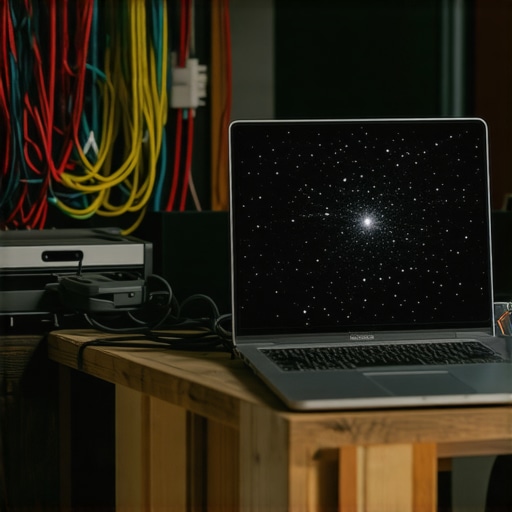
Can electromagnetic interference from your desk setup actually mimic a hardware failure?
Actually, yes, and the science backs this up. Research into signal integrity by the Video Electronics Standards Association (VESA) highlights that high-speed data lanes—like those used for 4K displays—are incredibly sensitive to external magnetic fields. If your laptop sits directly on top of an unshielded desktop speaker or right next to a high-voltage power strip, the resulting interference can cause the display to lose its timing sync. This results in the ‘snow’ or horizontal bars you are seeing. This is why managed IT solutions streamlining operations for small businesses often involve auditing the physical workspace; you would be surprised how many ‘broken’ screens are fixed just by moving a desk lamp or a router a few feet away.
The liquid cleaning mistake that kills T-CON boards
Here is a specific warning for the ‘clean freaks’ out there: stop spraying liquid directly onto your display. Even if it says it is ‘screen safe,’ the liquid follows gravity and seeps behind the bottom bezel. This is where the Timing Controller (T-CON) board lives. When that board gets damp, it shorts out individual pixel columns, leading to static or those weird vertical lines. Before you assume you need a laptop screen replacement step-by-step repair guide, check if the bottom of your screen feels unusually warm. If it does, you might have a localized short. This level of detail is vital for computer repair for beginners avoid costly mistakes that turn a cleaning session into a hardware funeral. Always spray the cloth, not the glass.
Don’t mistake a backlight failure for a dead panel
Another nuance is the difference between a dead image and a dead backlight. If your screen is black but you can see a faint ‘ghost’ of your desktop when you shine a flashlight at the glass, your panel is actually fine—it is the inverter or the LED driver that is dead. Knowing how to tell if your laptop screen backlight is actually failing can save you from buying a whole new display assembly when you only needed a small component fixed. We see this all the time with businesses that don’t have a solid hardware audit process. Have you ever fallen into this trap and replaced a part you didn’t need to? Let me know in the comments below, I would love to hear how you resolved it.
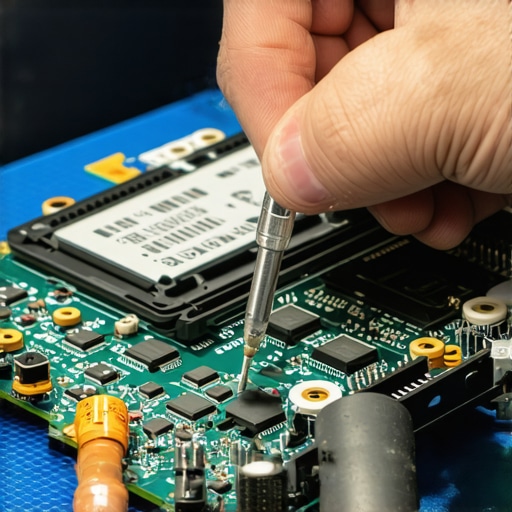
After you have performed the flashlight test and confirmed that your panel is still alive, the real work of preservation begins—and this is where your toolkit truly makes or breaks you. I have always been a bit of a tool snob, not because I enjoy spending money, but because I have stripped far too many tiny screws with those cheap, five-dollar hardware store kits. If you are serious about opening a laptop to address a flickering display, you need to invest in a precision set like the Wiha PicoFinish. The swivel cap allows you to apply constant pressure while turning, which is the only reliable way to avoid the heartbreak of a stripped M2 screw head. When I am dealing with stubborn plastic bezels, I skip the guitar picks and go straight for a thin steel pry tool. It is thin enough to get into the tightest gap but rigid enough not to snap under pressure. Using the right pry tool is the absolute difference between a professional-looking repair and a bezel that looks like it was chewed on by a dog. This level of precision is a core part of the computer repair for beginners avoid costly mistakes philosophy I live by.
How do I keep my laptop display pristine for the long haul?
Maintaining a screen is about more than just a microfiber cloth; it is about thermal management and physical stress reduction. Heat is the silent killer of display controllers. If your laptop is constantly running hot because of a clogged vent, that heat migrates through the chassis and eventually cooks the delicate logic chips sitting at the base of your LCD. I make it a habit to perform a deep internal clean every six months, and learning how to clean a laptop fan without pushing dust deeper inside is a non-negotiable skill for any owner. For my business clients, I always emphasize that why your managed it provider should be doing quarterly audits includes checking these physical health markers, not just pushing software updates. When you keep the thermals in check, you extend the life of the LVDS cable and the T-CON board significantly.
As we look toward the future, I suspect we are moving into an era of AI-assisted signal correction. We are already seeing research, such as the studies published by the IEEE Electromagnetic Compatibility Society, which highlight how signal degradation in ultra-thin devices is increasingly linked to the density of high-frequency components. Eventually, your GPU might be able to detect the specific interference pattern of a fraying hinge cable and adjust the signal timing in real-time to ‘fill in’ the missing data—effectively masking a hardware failure with software wizardry until you can reach a repair shop. Until that tech arrives, you have to be your own first line of defense. If you are debating whether to keep an aging machine alive, check out my thoughts on how to choose between repairing an old workstation and buying a new one. It is often about the long-term ROI of the repair versus the stability of new hardware. For those managing a whole fleet of devices, implementing managed it strategies to keep your business secure in 2025 will ensure that physical maintenance doesn’t fall through the cracks. I highly recommend trying the ‘external monitor test’ right now if you see even a single flicker; it takes thirty seconds and can immediately tell you if you’re looking at a cheap cable fix or a major GPU disaster.
Common wisdom suggests that once you see a screen full of static, the hardware is cooked and you are due for an expensive replacement. I am here to tell you that this is often a convenient lie told by repair shops that prefer quick part-swapping over actual diagnostics. In my years of handling deep hardware issues, I have seen perfectly good LCD panels tossed in the trash simply because the tech did not understand the ‘handshake’ protocols between the OS and the display controller. If you want to master troubleshooting common computer repair issues effectively, you have to look past the obvious cracks and start questioning the invisible signals. Most people focus on the screen itself, but they ignore the signal integrity of the ribbon cable, which can be compromised by something as simple as dust or minor oxidation on the pins.
The dirty power trap you probably missed
One of the most overlooked causes of visual static is actually sitting on your floor: the power brick. Everyone says that all chargers are the same as long as the plug fits, but in my experience, the truth about using generic chargers on expensive business laptops is much more sinister. Cheap, third-party power adapters often lack proper EMI (Electromagnetic Interference) shielding. This ‘dirty power’ introduces high-frequency noise into the motherboard, which can bleed directly into the LVDS or eDP lines. This creates a snowstorm effect that looks exactly like a dying GPU. I once saw a business owner nearly authorize a full motherboard replacement, only for us to realize that the visual artifacts vanished the moment we switched back to an OEM charger. It is a classic case of a five-dollar problem looking like a five-hundred-dollar catastrophe.
Can electromagnetic interference from your desk setup actually mimic a hardware failure?
Actually, yes, and the science backs this up. Research into signal integrity by the Video Electronics Standards Association (VESA) highlights that high-speed data lanes—like those used for 4K displays—are incredibly sensitive to external magnetic fields. If your laptop sits directly on top of an unshielded desktop speaker or right next to a high-voltage power strip, the resulting interference can cause the display to lose its timing sync. This results in the ‘snow’ or horizontal bars you are seeing. This is why managed IT solutions streamlining operations for small businesses often involve auditing the physical workspace; you would be surprised how many ‘broken’ screens are fixed just by moving a desk lamp or a router a few feet away.
The liquid cleaning mistake that kills T-CON boards
Here is a specific warning for the ‘clean freaks’ out there: stop spraying liquid directly onto your display. Even if it says it is ‘screen safe,’ the liquid follows gravity and seeps behind the bottom bezel. This is where the Timing Controller (T-CON) board lives. When that board gets damp, it shorts out individual pixel columns, leading to static or those weird vertical lines. Before you assume you need a laptop screen replacement step-by-step repair guide, check if the bottom of your screen feels unusually warm. If it does, you might have a localized short. This level of detail is vital for computer repair for beginners avoid costly mistakes that turn a cleaning session into a hardware funeral. Always spray the cloth, not the glass.
Don’t mistake a backlight failure for a dead panel
Another nuance is the difference between a dead image and a dead backlight. If your screen is black but you can see a faint ‘ghost’ of your desktop when you shine a flashlight at the glass, your panel is actually fine—it is the inverter or the LED driver that is dead. Knowing how to tell if your laptop screen backlight is actually failing can save you from buying a whole new display assembly when you only needed a small component fixed. We see this all the time with businesses that don’t have a solid hardware audit process. Have you ever fallen into this trap and replaced a part you didn’t need to? Let me know in the comments below, I would love to hear how you resolved it.
Lessons My Workbench Taught Me About Digital Noise
The biggest lightbulb moment in my career was realizing that most screen ‘deaths’ are actually just communication failures. I used to think static meant the GPU was fried, but I learned that the eDP cable is often the true villain. These ribbon cables are incredibly thin, and a single microscopic break in a ground wire can cause a snowstorm. Another hard-earned lesson: never trust a display issue until you have tested it on a different power outlet. I have seen ancient building wiring create enough interference to make a screen look like a 1950s TV set. Finally, remember that your OS can sometimes ‘panic’ and send the wrong resolution data to the panel. Always try a hard reset before you reach for the screwdriver; it is the most valuable ten seconds you will spend in tips for troubleshooting laptop screen problems seamlessly.
What I Keep in My Laptop Rescue Bag
If you are going to tackle this yourself, your tools are your best friends. I personally swear by the Wiha PicoFinish precision set because it prevents the nightmare of stripped screws on delicate bezels. For deep dives into hardware diagnostics, the Hiren’s BootCD PE is an essential software environment that helps you test graphics stability outside of your primary OS. I also recommend keeping a high-quality OEM charger on hand just for testing purposes; it eliminates power noise as a variable instantly. For those who want a visual walkthrough, I always point people toward a solid laptop screen repair how to fix common issues at home resource to ensure they don’t snap any hidden plastic clips.
[image_placeholder_1]
Stop Fearing the Snowstorm
Dealing with technology is often a battle of nerves, but a flickering screen does not have to be the end of your device’s story. By following a methodical process of elimination—testing external monitors, swapping cables, and checking for interference—you can demystify the most terrifying visual glitches. Whether you are a solo user or managing a fleet and looking into managed it strategies to keep your business secure in 2025, physical maintenance is the foundation of digital longevity. You have the tools and the knowledge to look past the static and find the fix. Don’t let a little bit of snow stop your productivity; take that first step toward a clearer laptop screen today. Have you ever accidentally fixed a screen problem just by moving your laptop to a different room? Let me know in the comments below!