

I still remember the acrid smell of ozone and melting plastic that filled my home office about three years ago. I was in the middle of a massive project deadline, my expensive business workstation was sitting at a terrifying 4% battery, and I had just realized I left my original power brick at a client’s office across town. In a total panic, I ran to the nearest big-box store and grabbed a $15 generic “universal” charger that claimed to be compatible with every brand under the sun. It worked for exactly twenty minutes. Then, with a pathetic little crackle, my screen went black and my $2,500 investment became a very heavy paperweight. It was a visceral lesson in why cutting corners on power is never worth the savings. Today, I’m going to pull back the curtain on why those cheap bricks are a gamble you can’t afford to take and show you how to actually protect your hardware without being a slave to overpriced brand-name accessories.
Why Your $20 Amazon Find Is a Ticking Time Bomb
It is so tempting to think that a charger is just a cable and a plastic box, but when you are dealing with high-end business hardware, that brick is actually a sophisticated power management system. I used to think a volt was just a volt, and a watt was just a watt. I was wrong. When I first started out in tech support, I made the classic computer repair mistake of assuming that if the plug fits, the power is “good enough.” It really isn’t. Cheap generic chargers often lack the shielding and internal voltage regulators that your laptop expects to see. This results in what we call “dirty power” or high ripple voltage. Essentially, the power is not a smooth stream; it is a jagged, flickering mess that puts immense stress on your laptop’s internal capacitors. This lack of regulation is often why your laptop charger gets burning hot when you are doing something as simple as a video call. It’s not just working hard; it’s failing to manage the heat.
Is the “OEM Only” Warning Just a Marketing Scam?
You have probably seen that annoying pop-up on your screen: “Non-brand power adapter detected.” You might roll your eyes and think it is just a way for manufacturers to squeeze more money out of your pocket. While there is definitely a bit of brand protection involved, the primary reason is safety. According to research from the Electrical Safety First organization, nearly 98% of counterfeit and generic chargers they tested failed basic safety checks, often leading to fire hazards or catastrophic hardware failure. If you use a generic brick, you aren’t just risking a slow charge; you are risking a situation where you will need to get files off a laptop with a broken charging port because the cheap tip surged and melted the connector. In many ways, a cheap power supply is the biggest threat to your office hardware today. Have you ever noticed your touchpad acting jumpy or your screen flickering only when your laptop is plugged in? That was your laptop’s way of screaming that the power quality was garbage. Tell me, have you ever risked it with a drugstore charger only to regret it later?
How to Spot a Quality Power Source Without Getting Ripped Off
To avoid the acrid smell of ozone and the heartbreak of a fried motherboard, you need to treat power selection as a technical audit, not a bargain hunt. Think of your laptop’s power intake like a high-end espresso machine; if you try to force muddy, pressurized water through it, the internals will eventually clog or fail catastrophically. Your laptop requires a consistent, “clean” stream of voltage to function. The first step is verifying the output rating—specifically the Volts (V) and Amps (A). If your original brick specifies 19.5V, you cannot compromise on that number. While amperage can be higher (your laptop only draws what it needs), a lower amperage rating will force the brick to work at 100% capacity, leading to extreme heat and potential melting.
Decode the Label Like a Pro
Before you buy, look for the safety certification marks. A genuine, safe charger is covered in a literal “alphabet soup” of logos: UL (Underwriters Laboratories), CE, and FCC. These symbols aren’t just for show; they signify that the device has passed rigorous testing to ensure it won’t catch fire or leak electricity into the laptop chassis. I once consulted for a small firm that bought twenty generic chargers to save a few hundred dollars. Within six months, four of those laptops had batteries that had physically expanded, warping the aluminum frames. We had to implement the 3 hardware swaps that stop your office pc from freezing every hour just to salvage the remaining workstations. The “savings” vanished instantly when they had to replace three $1,200 machines. 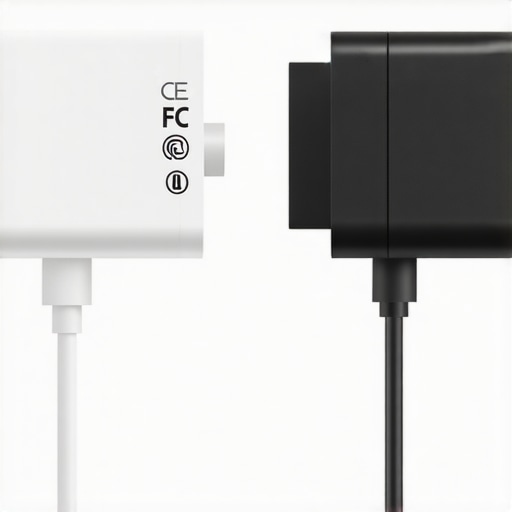
The Real Cost of a Loose Connection
The physical tip of the charger—the barrel or USB-C connector—is a massive failure point that many ignore. Cheap manufacturers use low-grade solder and thin, brittle plastic. When these components heat up during a fast charge, they can spark or melt, which is exactly how to get files off a laptop with a broken power charging port becomes a frantic midnight search. If the tip feels loose or you find yourself “wiggling” the cord to get the charging light to turn on, you are playing with fire. That arcing electricity is essentially a tiny lightning storm occurring inside your motherboard’s delicate circuitry.
Choosing the Right Middle Ground
If the manufacturer’s original replacement is too expensive, seek out reputable third-party brands that specialize in power electronics, such as Anker or Satechi. These companies provide clear spec sheets and actual warranties. Modern GaN (Gallium Nitride) chargers are often superior to the bricks that came with your computer because they run significantly cooler and take up less space. This reliability prevents power-related throttling, which is often why your computer takes ten minutes to reach the desktop screen when the BIOS detects unstable power and slows down the CPU to protect itself. For those running a growing team, this is where managed IT solutions streamlining operations for small businesses can be a lifesaver by standardizing hardware and eliminating the risk of employees using dangerous, off-brand accessories.The mistake I see most often in my consulting work isn’t just about a single bad charger; it’s a fundamental misunderstanding of how hardware longevity actually works. Most people believe in the ‘binary health’ myth—the idea that if a computer turns on and loads Windows, it is perfectly healthy. This is a dangerous oversimplification. In reality, your hardware exists in a state of gradual, often invisible degradation. For instance, many business owners assume that effective managed IT solutions for growing companies are simply an expensive insurance policy for when things break. It’s actually the opposite. True IT management is about telemetry—detecting when a capacitor is beginning to bulge or a voltage regulator is fluctuating slightly before the entire system crashes and takes your data with it. Waiting for a failure is the most expensive way to run a company.
Can software alone save your fried hard drive?
One of the most catastrophic ‘oops’ factors I encounter is the misguided attempt to use DIY software on a physically failing drive. If you hear a mechanical clicking or a faint whirring sound, the very last thing you should do is download a ‘recovery’ tool. This is the danger of using free file recovery tools on a failing mechanical drive; every second those platters spin while the read/write head is unstable, you are effectively sanding the data off the magnetic surface. Experts at Kroll Ontrack have frequently pointed out that secondary damage caused by amateur recovery attempts is a leading cause of permanent data loss. If your drive is making noise, you need to understand how to get files off a hard drive that makes a scraping sound through professional clean-room services, not through a $30 app you found on a forum. Another nuance that separates the pros from the amateurs is how we diagnose display issues. A flickering screen is rarely just a ‘loose wire.’ Often, why a cracked laptop screen can eventually damage your motherboard is due to the way modern LED backlights are integrated. A hairline fracture can lead to a voltage leak that travels back through the ribbon cable, eventually frying the display power rail on the logic board. Furthermore, you should pay attention to why your laptop screen flickers only when you are on battery power, as this is frequently a sign that your power management integrated circuit is failing to negotiate the lower, noisier voltage of the battery cells compared to a wall outlet. Finally, never overlook the long-term impact of software hygiene on your physical components. Many don’t realize the risk of running your core business operations on end-of-life software extends beyond security. Outdated drivers can force CPUs to run at higher voltages than necessary, shortening the lifespan of your entire workstation. This is precisely why your managed IT provider should be doing quarterly audits to ensure every firmware and driver is optimized for the specific thermal limits of your hardware. Have you ever ignored a ‘small’ glitch only to have it turn into a total system failure a month later? Let me know in the comments.That transition from a ‘minor glitch’ to a ‘total failure’ usually happens because we lack visibility into our machines. I don’t rely on luck; I rely on telemetry. In my personal workflow, I use Remote Monitoring and Management (RMM) tools to keep a pulse on every workstation I manage. It is a level of insight that most users never see. For instance, by the time you realize your computer is sluggish, an RMM tool could have flagged a rising temperature trend three weeks ago. This is exactly why your managed IT service should be doing regular security audits and hardware health checks. They are essentially ‘weather satellites’ for your silicon.
The Professional Toolkit You Actually Need
When I am troubleshooting common computer repair issues effectively, I always reach for HWInfo64. It is free for personal use and provides a granular look at voltage rails and thermal limits that the Windows Task Manager simply ignores. If you see your CPU ‘thermal throttling,’ you are losing performance you already paid for. One hardware upgrade that actually speeds up your daily workflow more than a new CPU is often just better cooling or a faster NVMe drive. Heat is the silent killer of all electronics. If you let it go too long, you will find yourself looking up data recovery secrets every business should know today because a fried controller chip has locked away your client files.
Why High-Quality Thermal Paste is Non-Negotiable
I have seen thousands of laptops, and most manufacturers use the cheapest, most mass-produced thermal interface material available. Over two or three years, this stuff dries out and becomes an insulator rather than a conductor. I personally recommend using Thermal Grizzly Kryonaut for any high-performance laptop or workstation. Technical studies from Puget Systems—a boutique workstation builder known for extreme reliability—consistently show that high-quality thermal paste can reduce operating temperatures by nearly 10 degrees Celsius under load. That is a massive margin for stability.
How do I maintain professional hardware over time?
Maintenance is a physical and digital hybrid. Physically, you must clear out the dust. When using compressed air, always hold the fan blades still with a small toothpick or your finger; if they spin too fast from the air pressure, they can generate back-EMF and fry the motherboard header. Digitally, you need to be proactive. If you see a warning during boot, do not just hit F1 to bypass it. You need to know how to fix a laptop that keeps telling you the fan has failed before the heat permanently warps the board. I predict that in the next few years, we will see more ‘predictive failure’ sensors built into standard consumer hardware, but until then, the burden is on you. If you really want to protect your investment, you need to understand the power of data recovery tools what you need to know before a crisis occurs. Try this right now: download a monitoring tool and check your SSD’s remaining life percentage. If it is under 10%, stop what you are doing and clone that drive immediately.
What I Learned the Hard Way About Hardware Longevity
After years of diagnosing fried motherboards and recovering data from “dead” laptops, I’ve realized that the biggest threat to your productivity isn’t a sudden virus; it’s the silent, cumulative stress of unregulated electricity. Most users assume that if a machine boots, it’s perfectly healthy, but that’s a dangerous myth. Real computer repair starts with prevention, and the most overlooked preventative measure is clean power. I’ve learned that the acrid smell of ozone is a permanent memory you don’t want. The “it works for now” mindset when using a $15 drugstore charger is the most expensive strategy you can have because it slowly degrades the sensitive capacitors on your logic board.
One of the most important data recovery secrets every business should know today is that physical health and data integrity are inseparable. When your power supply fluctuates, your drive’s controller works overtime to compensate for noise, which can lead to premature failure. This is exactly why managed IT is a game changer for growing companies—it replaces this dangerous guesswork with real-time telemetry and hardware health monitoring.
The Survival Kit Every Professional Needs
If you want to move beyond the “plug and pray” method and treat your hardware like the professional investment it is, you need better visibility. Here are the three resources I personally use to keep my fleet running smoothly:
- HWInfo64: This tool is essential for monitoring your laptop screen voltage rails and thermal limits. If your power brick is sagging under load, this software will flag it before you see smoke.
- Gallium Nitride (GaN) Technology: If you can’t get an OEM charger, only trust GaN chargers from reputable brands like Anker or Satechi. They run cooler and have the sophisticated safety logic that generic brands skip to save costs.
- Professional Audits: Implementing effective managed IT solutions for growing companies ensures that your firmware and power profiles are always optimized for the specific thermal limits of your hardware.
Stop Waiting for the Crackle
You’ve invested thousands of dollars into your digital workspace; don’t let a cheap accessory be the single point of failure that brings it all down. Whether you are a hobbyist learning computer repair for beginners avoid costly mistakes or a business owner managing a fleet of workstations, your priority should be the quality of the energy entering your machine. Being proactive is always cheaper than being desperate. Have you ever noticed your laptop acting weird—like a jumpy touchpad or a flickering screen—only when it’s plugged into a specific outlet or charger? Let me know your experiences in the comments below!