

I remember sitting on my favorite velvet armchair last winter, trying to finish a project while the snow fell outside. It felt cozy until my thighs started to feel like they were being grilled. My laptop’s fan was screaming so loud I couldn’t hear the TV, and then—click—the whole thing just died. I’d effectively choked my machine to death with a fuzzy blanket. It was a classic rookie mistake that nearly sent me hunting for laptop repair tips before I realized the problem was much simpler. Today, I’m going to show you how to avoid that panic without spending a dime on fancy gear.
Stop Grilling Your Thighs Every Evening
It’s a common trap we all fall into. We buy these portable computers specifically to use them in bed or on the couch, yet most are designed with air intakes that seem to absolutely hate soft surfaces. When you block those tiny vents with your jeans or a quilt, the internal temperature skyrockets. Scientific American has noted that excessive heat is the primary enemy of internal components, significantly shortening the lifespan of your battery and processor. If you’ve ever felt that phantom burn through your clothes, you know exactly what I’m talking about. I’ve seen people assume their hardware is dying when their fan starts screaming, but often it’s just gasping for air. Have you ever had your computer suddenly shut down in the middle of a task because it felt like a space heater?
Does a simple shift in posture really beat a fifty dollar cooling pad?
I used to think the only solution was a bulky USB-powered cooling stand that looked like a piece of alien technology. But I learned the hard way that you don’t need fancy gear; you just need to understand basic airflow. Early in my tech journey, I tried to fix a hot laptop by placing it on an ice pack—don’t ever do that, by the way. Condensation is a silent killer. Instead, there’s a specific way to bridge your legs to create a natural chimney effect. It’s the difference between a machine that lasts five years and one that ends up with a failed fan error or a fried motherboard. We’re going to dive into the physics of the ‘thigh-bridge’ and why your choice of pants might actually be slowing down your CPU.
Ditch the Bedsheets and Create an Air Channel
To keep your machine running at peak performance, you have to treat it like a living, breathing entity. Most laptops draw cool air from the bottom and exhaust the hot air through the back or sides. When you place that device on a soft blanket, the fabric fills the gap where the rubber feet should be, acting like a cork in a bottle. This doesn’t just slow down your CPU; it can actually lead to permanent hardware damage. If the internal heat gets high enough, it can warp the chassis or cause you to search for laptop screen repair advice because the heat has affected the delicate panel layers. The first and most vital step is transition to a hard, flat surface. Think of a desk or a simple wooden board as a heat sink for your posture.
Why Household Objects Beat Expensive Cooling Pads
You don’t need a USB-powered fan setup to see a double-digit drop in temperature. I remember being in a cramped hotel room in Chicago, trying to render a massive video file for a client. My laptop was practically smoking on the bedspread, and the cursor was lagging so badly I thought I’d lost the work. I grabbed two thick room-service menus, folded them into sturdy tents, and slid them under the back corners of the laptop. This simple ‘lift’ created a two-inch gap that allowed the fans to finally move air. Within minutes, the screaming slowed to a hum, and I avoided a scenario where I’d be desperately researching the power of data recovery tools after a motherboard failure. You can achieve this at home with a pair of bottle caps, two identical erasers, or even a couple of books. The goal is elevation without obstruction. 
Kill the Invisible Processes Stealing Your Performance
Sometimes the heat isn’t just about where the laptop is sitting, but what it’s doing internally. If your hardware is constantly redlining, it’s going to get hot regardless of the airflow. A common culprit is background software that you didn’t even know was running. It’s a classic part of computer repair for beginners to check the task manager first. Heavy background updates or synced cloud drives can push your processor to its limits. I’ve seen cases where a user thought they needed hardware swaps to stop freezing, when in reality, a single rogue app was chewing through resources. You should proactively find out which background program is eating your network bandwidth and CPU cycles. By lowering the workload, you lower the thermal output.
Adjust Your Power Settings for a Cooler Experience
Most people keep their laptops on ‘High Performance’ mode, which is like keeping a car engine at 5,000 RPM while sitting at a red light. Switching to ‘Balanced’ or ‘Power Saver’ when you’re just browsing the web or writing can drastically reduce the voltage sent to the CPU. This is the ultimate secret to cooling down a gaming laptop or any high-end workstation. Lower voltage means less heat, which translates to a quieter fan and a much longer lifespan for your battery cells. It’s an immediate, software-based fix that requires no tools and zero dollars.But even if your fans are spinning perfectly, there’s a deeper level of hardware health that most people ignore until it’s too late. I often see people assume that as long as they can boot into Windows, their hardware is ‘fine.’ This is a dangerous gamble that usually leads to a frantic search for professional help.
The Dangerous Myth That Software Can Fix a Dying Drive
We’ve been conditioned to think there’s an app for everything. If the computer is slow, run a cleaner. If a file is gone, download a recovery tool. However, the danger of using free file recovery tools on a failing mechanical drive cannot be overstated. Most people believe these tools are harmless, but the reality is that they stress the drive at its most vulnerable moment. I’ve watched users try to ‘deep scan’ a drive that was physically grinding its internal platters. Every second that software runs, it’s like taking sandpaper to your precious data. If you hear a click, a scrape, or even a faint buzz, stop everything. In my experience, professional data recovery secrets often boil down to one thing: the discipline to turn the machine off immediately. 
Can You Truly Recover Data After a Mechanical Head Crash?
The short answer is yes, but only in a controlled cleanroom environment. A study by the hardware experts at Backblaze on drive durability suggests that annual failure rates for older drives can spike unexpectedly, often without a software-based warning. This is why the risk of ignoring that smart status bad warning on your pc is so high—it’s often the only ‘polite’ notice your hardware gives you before it commits digital suicide.
Why Your Screen Flicker Might Not Be the Screen at All
Another nuance involves that annoying flicker on your display. The common reaction is to buy a new panel, but you might be throwing money away. Sometimes the issue is just a loose ribbon cable or a failing inverter. You should learn how to identify a dying backlight before your screen goes dark. It’s a subtle art. If the image is still there but very faint, your screen is fine; it’s the light source that’s failed. Jumping straight to laptop screen repair without diagnosing the backlight or the cable is the ultimate ‘oops’ factor for DIYers.
Don’t Fall for the ‘Set It and Forget It’ Security Trap
This brings me to a massive mistake I see in the business world: assuming a one-time IT setup equals permanent safety. Companies often think that once they hire a tech guy for a day, they’re safe forever. But the landscape of 2025 demands a proactive approach. You need to understand how managed IT can elevate your business security through constant monitoring, not just emergency fixes. I’ve seen small firms lose weeks of work because they lacked a disaster recovery plan before the storm hits. They thought their ‘cloud sync’ was a full backup—it’s not. A sync just means if you delete a file on your laptop, it’s gone from the cloud too. Have you ever fallen into this trap of thinking sync is a backup? Let me know in the comments. We need to stop looking at computer repair for beginners as a series of quick patches and start viewing it as a long-term commitment to hardware and data integrity.
Moving from basic survival to long-term hardware health requires a shift in mindset. You shouldn’t wait for a flicker or a fan stall to take action. I’ve spent a decade opening up laptops, and the number one killer isn’t just heat—it’s the static-heavy dust bunnies that act like little sweaters for your motherboard. I never use a standard vacuum on my gear because the static discharge can fry a chipset instantly. Instead, I rely on a high-velocity electronic blower. Learning how to clean a laptop fan without pushing dust deeper inside is the single most effective way to extend the life of your machine by years. It’s the difference between a device that chokes at year three and one that runs smoothly for six.
Invest in Quality Tools Before You Need Them
When it comes to maintenance, I have a ‘no-compromise’ rule for my toolkit. I don’t use the cheap screwdrivers from the bargain bin that strip screws and leave you with a permanent headache. I use precision driver sets with hardened steel bits. If you’re serious about computer repair for beginners, start with a good static-safe mat. It sounds overkill until you realize one tiny spark can lead to a search for data recovery secrets after your boot drive refuses to initialize. For the software side, I always keep a bootable Linux USB drive in my pocket. It allows me to bypass a corrupted Windows environment and see if the hardware is actually at fault or if it’s just a messy OS update.
How do I maintain my hardware longevity without a technician?
The secret is a quarterly ‘health check-up’ that goes beyond just looking at the screen. Every three months, I run a dedicated health scan on my SSD. Western Digital’s technical documentation highlights that monitoring Mean Time Between Failures (MTBF) through SMART data is the only way to predict a crash before it happens. This proactive habit is exactly the power of data recovery tools in action—using them to see the future rather than mourn the past. If you notice your drive’s ‘health percentage’ dropping, don’t wait. That’s when the hardware upgrade that actually speeds up your daily workflow becomes a necessity rather than an option. 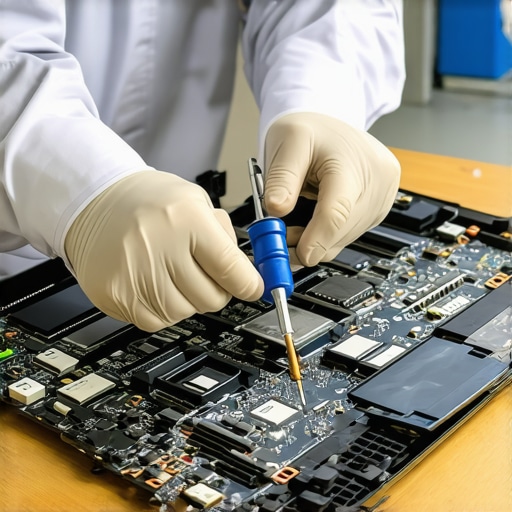
Scale Your Business Performance with Managed Support
As your needs grow, the ‘DIY and hope’ method starts to fail. For small businesses, this is the point where you need to look at managed IT strategies to keep your business secure in 2025. It’s no longer about fixing a broken keyboard; it’s about ensuring the signs your business is outgrowing its current IT infrastructure are addressed before they become a total blackout. I predict that within the next two years, we will see AI-driven hardware diagnostics become standard, where your laptop will literally email you (or your IT provider) to say its thermal paste is drying out before you even feel the heat. Until then, you need a disaster recovery plan before the storm hits. My challenge to you: download a hardware monitor today and check your CPU temperatures under load. If you’re hitting over 90 degrees Celsius while just browsing, it’s time to use one of the elevation tricks I mentioned earlier.
Hard Truths from a Decade Under the Hood
After years of opening up everything from budget netbooks to high-end workstations, I’ve realized that most hardware failures aren’t due to bad luck—they are due to a lack of awareness. One of the biggest lightbulb moments for me was realizing that static electricity isn’t just a myth; it’s a silent killer that can turn a simple cleaning session into a nightmare. I’ve also learned that software fixes have a limit. When you are troubleshooting common computer repair issues effectively, you have to be honest about when the hardware is physically exhausted. Finally, remember that data isn’t safe just because it’s in the cloud. I once lost a month of work because I relied on a sync service that glitched and deleted files on both ends. Always keep a physical, offline backup.
The Gear I Carry in My Tech Bag
You don’t need a warehouse full of equipment to maintain your devices. I personally trust and use a few specific items every single week. First, a high-quality precision driver set is non-negotiable; I recommend tools with hardened bits so you don’t strip the screws. Second, for software health, hardware monitoring sensors are my go-to for checking thermal levels in real-time. For businesses, I always suggest looking into effective managed IT solutions for growing companies to handle the heavy lifting of security and updates. Lastly, keep a bottle of 99% isopropyl alcohol and some lint-free microfiber cloths nearby—they are the only things that should touch your motherboard or that delicate laptop screen repair job you’re attempting.
#IMAGE_PLACEHOLDER_E#
Give Your Machine the Respect it Deserves
Your laptop is more than just a tool; it’s the gateway to your professional and personal life. Taking ten minutes a month to blow out the dust and check your drive health can save you thousands of dollars and the massive headache of an ultimate guide to data recovery after accidental deletion. Don’t wait for the screaming fan or the flickering screen to act. Start by lifting that machine off the blanket and giving it some room to breathe today. Computer repair doesn’t have to be a reactive panic; it can be a proactive habit that keeps your tech running fast for years to come.
What is the highest temperature your laptop has ever reached before you realized there was a cooling problem? Let me know in the comments below!