

I was sitting in my living room last Tuesday, nursing a lukewarm coffee and enjoying a rare moment of absolute silence, when it happened. My laptop, which was sitting peacefully on the coffee table with the lid closed, suddenly let out a high-pitched whir that sounded like a miniature jet engine preparing for takeoff. It was eerie. It hadn’t been touched for hours, yet there it was, screaming its head off in an empty room. I remember a few years back when I first started tinkering with hardware, I made the classic rookie mistake of thinking a loud fan just needed more air. I blasted it with a high-pressure air compressor while it was still spinning and ended up snapping a fan blade. Don’t do that. It’s a costly way to learn that beginner mistakes in computer repair can be avoided with a little patience. If your machine is currently howling at you from across the room, don’t panic—I’ve been there, and we are going to fix it together today.
Your Laptop Isn’t Angry It’s Just Working Too Hard
The truth is, your computer rarely does “nothing.” Even when the screen is dark, there’s a complex digital ecosystem humming underneath. Most of the time, that screaming fan is a symptom of a hidden workload that the system is struggling to manage. It might be a rogue Windows update, a background backup, or one of those dozens of browser tabs you forgot to close that are secretly refreshing in the background. If your machine feels like a space heater, you need to know the secret to cooling it down before the internal components start to throttle. According to thermal management experts at Puget Systems, sustained high heat is one of the fastest ways to shorten the lifespan of your silicon and cause permanent hardware degradation. Today, I’m going to help you hunt down those invisible tasks and finally get some peace and quiet.
Is My Computer Actually About to Explode?
That’s the fear, right? That the screaming is a prelude to a puff of blue smoke and a dead motherboard. While modern laptops have safety switches to shut down before they literally melt, a fan that never stops is a major red flag for your hardware’s health. Sometimes it’s just accumulated dust, but other times it’s a sign that you need to identify which background program is eating your resources and forcing the CPU into overdrive. Have you ever felt that surge of panic when your laptop starts sounding like it’s about to hover off the desk? Reach out if your machine has developed its own loud personality—I’ve seen it all and likely fixed it. We’re going to walk through the steps to diagnose if this is a simple software glitch or if you’re looking at a mechanical fan failure that needs a physical replacement. Setting the stage for a quiet workspace starts with understanding why the noise began in the first place.
Stop the Digital Chaos Before Opening the Case
The fastest way to silence a fan isn’t always a screwdriver; it’s often a few clicks. Think of your CPU as a chef in a busy kitchen. If twenty people suddenly order a 12-course meal, that chef is going to start sweating—and in laptop terms, sweating means heat. Your fan is the exhaust system trying to keep the kitchen from catching fire.
Kill the Hidden Apps Stealing Your Speed
Open your Task Manager (Ctrl + Shift + Esc) or Activity Monitor if you’re on a Mac. You’re looking for “CPU %.” If something is sitting at 90% and you aren’t rendering a 4K video, you’ve found your culprit. Often, it’s a browser process that has gone rogue. I’ve seen cases where too many browser tabs act like a slow-motion car crash for your processor. Highlight the offender and hit “End Task.” To prevent this from recurring, you should find out which background program is eating your bandwidth and resources regularly.
Check for Stuck System Updates
Sometimes the system is its own worst enemy. I once spent two hours trying to figure out why a client’s laptop sounded like a hair dryer, only to find a Windows Update had failed and was retrying itself every thirty seconds in an infinite, heat-generating loop. You should troubleshoot common computer repair issues effectively by looking at your update history first. If it’s stuck, clear the update cache and restart the machine to reset the thermal demand.
Get Hands-On with the Physical Cooling System
If your software is clean but the heat persists, it’s time to look at the plumbing. Laptops use tiny copper heat pipes to move warmth away from the chips. If those pipes are blocked by “carpet monsters” (dust bunnies), the heat has nowhere to go but back into the motherboard.
Blast the Dust Out Safely
Remember my air compressor disaster from the intro? Don’t repeat it. Use a can of compressed air and short, controlled bursts. If you can see the fan blades through the vents, use a toothpick to gently hold the blade in place so it doesn’t spin too fast while you’re cleaning it. High RPMs from compressed air can actually generate enough electricity to fry a circuit—a lesson most people learn the hard way when they skip beginner computer repair tips.
Renew Your Thermal Connection
If your laptop is more than three years old, the thermal paste—the “bridge” that carries heat from the CPU to the heatsink—has likely turned into a dry, brittle cracker. This is the secret to cooling down a laptop that stays hot regardless of what you’re doing. Applying a pea-sized drop of fresh silver-based paste can drop your temperatures by 10 or 15 degrees Celsius instantly.
Listen for the Grind of a Dying Fan
Not all noise is air movement. If you hear a rattling or a grinding sound, the bearings inside the fan motor are shot. No amount of software tweaking or cleaning will fix a mechanical failure. In these cases, you’ll need to identify a fan failure and order a replacement part. Ignoring a rattling fan is dangerous because if it stops entirely, the heat buildup can lead to severe issues like motherboard damage from excessive heat expansion. While you’re in there, it’s also a good time to check if your internal connections are secure, ensuring you follow DIY tips for clearer displays if you notice any flickering caused by heat-weakened cables.But here is where things get nuanced. Sometimes that screaming fan isn’t just a cooling issue; it’s the sound of a system trying desperately to read data from a dying hard drive, causing the CPU to spike while it waits for a response that never comes. This is where most people make a critical mistake. They assume that if the computer is still ‘on,’ the problem is purely software. They’ll download ‘free’ recovery tools and run a four-hour deep scan on a drive that is physically disintegrating.
Stop Believing the Software Recovery Myth
The most common misconception I see is that software can fix a hardware problem. It cannot. In fact, the danger of using free file recovery tools on a failing mechanical drive is that these programs are incredibly ‘aggressive.’ They force the read/write heads to travel back and forth over the same damaged sectors hundreds of times. If your drive is making a clicking or grinding noise, every second it is powered on is a second closer to permanent data loss. Experts at DriveSavers, a leader in the industry, have noted that the mechanical failure rate increases exponentially the longer a compromised drive is kept under power. If you suspect hardware failure, the best ‘repair’ is to hit the power button and leave it off until you can learn the power of data recovery tools that actually work in controlled environments.
Can Your Local IT Guy Actually Handle a Physical Drive Failure?
It’s a tough question, but the answer is usually no. Most general repair shops—myself included for a long time—don’t have a ISO Class 5 cleanroom. Attempting to open a hard drive in a normal room is like performing open-heart surgery in a dusty attic; a single speck of dust is a mountain to a hard drive head. While I’m a huge advocate for learning how to troubleshoot common computer repair issues effectively, you have to know where your expertise ends. If the platter is scratched, you need professional-grade data recovery secrets and specialized equipment. 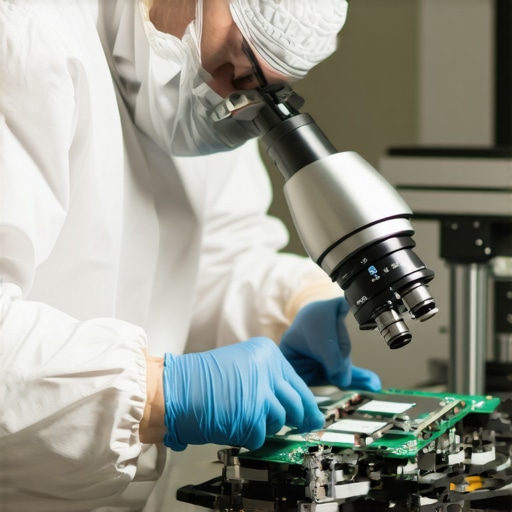
Avoid the Deadly Trap of Ignoring S.M.A.R.T. Warnings
The ‘Oops’ factor usually hits right after a Windows pop-up warns you about a ‘S.M.A.R.T. Status Bad’ error. Most people click ‘Ignore’ because the computer seems to be working fine. This is a massive trap. That warning is your motherboard’s way of telling you that the drive has already exceeded its internal threshold for reallocated sectors. The risk of ignoring that smart status bad warning on your pc is that your next reboot might be your last. In a business setting, this is exactly the reason your managed IT provider needs a disaster recovery plan for you. You shouldn’t be relying on luck; you should be relying on a tiered backup system that assumes hardware *will* fail eventually. Have you ever fallen into the trap of ‘just one more reboot’ and lost something important? Let me know in the comments—I’ve had my own close calls, and sharing these stories helps others avoid the same heartbreak. Balancing the urge to DIY with the wisdom to stop is the hallmark of a true pro.
Invest in the Right Tools Before You Need Them
I learned the hard way that a five-dollar screwdriver set from a gas station is actually more expensive than a professional kit because it eventually strips every screw it touches. Nowadays, I don’t go anywhere without my iFixit Pro Tech Toolkit. I use it because the steel bits are precisely machined to fit the shallow recesses of modern ultra-books, which is vital when you are following laptop screen repair DIY tips for clearer displays. If you use the wrong bit, you risk rounding off a screw head and permanently sealing your laptop shut. For software-side maintenance, I swear by HWiNFO. It provides granular data on every thermal sensor in your system. I check it once a month to see if my idle temperatures are creeping up, which is usually the first sign that it is time to re-apply thermal paste or clear out dust before a failure occurs.
Scaling Up Beyond the Single Desk
As your setup grows from a single laptop to a home office or a small business network, the DIY approach starts to hit a ceiling. This is where you have to shift your focus from ‘fixing things’ to ‘preventing things from breaking.’ This mindset shift is exactly why managed IT is a game-changer for growing companies. When you have ten or twenty machines, you can’t manually check the fans on all of them every Tuesday. You need centralized monitoring that alerts you the moment a drive shows a single reallocated sector. I’ve transitioned many clients toward managed IT strategies to keep your business secure in 2025, moving away from reactive ‘break-fix’ habits and toward automated health reporting. 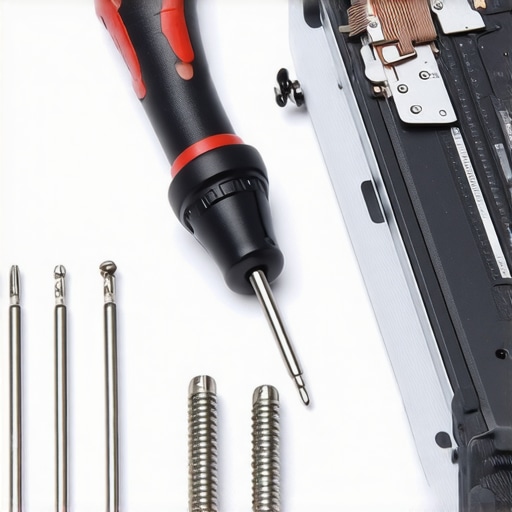
How do I maintain my hardware performance over the long haul?
The secret to longevity isn’t just cleaning; it’s consistency. Every six months, I perform a ‘deep audit.’ I check the S.M.A.R.T. data using professional utilities to ensure I don’t need to how to pull data from a drive with a corrupted file system header later because of a preventable crash. I also look for the hardware upgrade that actually speeds up your daily workflow, like swapping an aging NVMe drive for a higher-end model with better endurance ratings. According to the latest Backblaze Hard Drive Stats, certain drive models have significantly higher annualized failure rates, so I cross-reference my own hardware with their data to see if I’m sitting on a ticking time bomb. Looking forward, I predict we will see AI-integrated BIOS systems that don’t just throttle your speed when things get hot, but actually predict part failure weeks in advance based on subtle voltage fluctuations. If you want to stay ahead of the curve, I challenge you to download a free tool like CrystalDiskInfo today and check your ‘Total Host Writes’—you might be surprised how close your SSD is to its end-of-life rating.
Hard Lessons from the Silicon Trenches
- A laptop fan that stays at 100% is often a cry for help from a dying hard drive, not just a dusty vent. I’ve seen countless people ignore the noise only to lose years of photos because they didn’t realize the risk of ignoring that smart status bad warning on your pc until it was too late.
- Precision is your best friend. After years of beginner computer repair mistakes, I learned that a mismatched screwdriver or a heavy hand can turn a $20 fix into a $500 replacement.
- Maintenance is cheaper than recovery. It takes ten minutes to troubleshoot common computer repair issues effectively, but it takes weeks and thousands of dollars to perform deep data recovery once the drive heads physically crash.
The Pro-Grade Kit for Your Home Office
If you want to move from amateur to expert, you need to stop guessing and start measuring. I trust HWiNFO for real-time thermal data because it shows you exactly which sensor is overheating. For physical teardowns, I never touch a machine without my iFixit Pro Tech Toolkit—it prevents stripped screws and broken clips. If you are managing a small team, look into why managed IT is a game-changer for growing companies to automate this health monitoring so you don’t have to check every machine manually. Finally, keep a copy of data recovery secrets every business should know in your digital notes for that inevitable rainy day.
Stop Reacting and Start Protecting
Computer repair isn’t just about fixing what’s broken; it’s about building a system that respects your time and your data. Whether you are replacing a fan or migrating to a more robust server model, taking action today prevents a catastrophe tomorrow. You have the tools, the knowledge, and the links to get it done right. Have you ever had a laptop fan make a noise so loud it actually scared you? Let me know in the comments what the culprit turned out to be!