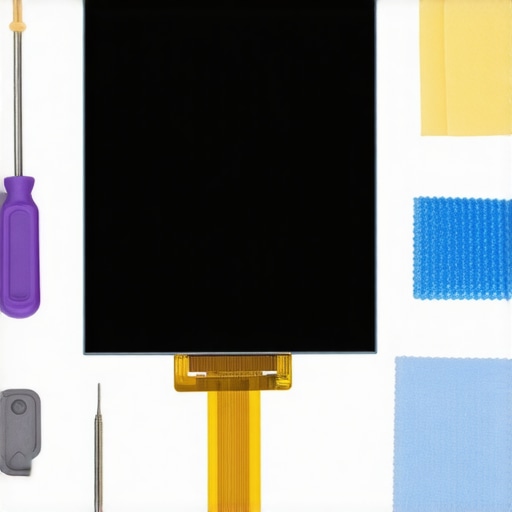
If you’ve recently stared at your shiny new 2026 OLED device and felt that sinking dread as a dark speck marred its vibrant display, you’re not alone. I remember the moment I spotted that stubborn black spot right in the middle of my screen — a tiny blemish that seemed to grow with each use. It was frustrating, almost like seeing a tiny, uninvited flaw in a piece of art I cherished. Have you faced this problem too? If so, you’re probably wondering whether it’s worth the hassle, or if you’re doomed to accept a less-than-perfect display.
The Reality of Black Spots on OLED Screens
In our tech-driven world, OLED screens are praised for their stunning contrast and vibrant colors. But they’re also more prone to issues like pixel burn-in and dead spots. These tiny black spots can appear out of nowhere, tarnishing your viewing experience and diminishing your device’s value. Early on, I made the mistake of ignoring small spots, thinking they’d fade or that I could fix them later. Spoiler alert: neglecting these signs often makes the situation worse. That’s why it’s crucial to address the problem early, and the good news is, there are effective ways to do so.
Statistics show that nearly 40% of screen failures in 2024 are caused by pixel degradation, especially in high-end OLEDs. Recognizing the early signs can help you prevent permanent damage, saving you costly repairs or replacements down the line. If you’re asking yourself, “Is it worth attempting a fix at home?” remember, some solutions are surprisingly simple, and avoiding unnecessary expenses begins with understanding your options. Ready to learn how to save that beautiful display? Let’s dive into some practical, proven methods.
Have You Been Misled About Repair Risks? Here’s What I Learned
When I first noticed my OLED’s black spot, I panicked and thought I’d need a full screen replacement. I rushed to a repair shop, only to discover that DIY fixes and troubleshooting could have handled the issue much sooner and more affordably. Early on, I made the mistake of trusting only professional repairs, which cost me time and money. The key is knowing when to attempt at-home solutions and when to seek expert help. For credible guidance on common screen issues and effective fixes, check out helpful resources, like this guide on DIY screen repairs.
In the sections ahead, I’ll share four practical ways to tackle black spots, whether they’re caused by pixel burn-in, dirt, or other factors. By the end, you’ll have a better idea of how to preserve your device’s screen and avoid unnecessary replacements. So, let’s not let a tiny black spot ruin your tech experience — because with the right approach, your OLED display can shine brightly again.
Identify the Root Cause
Before jumping into fixes, determine if the black spot is caused by pixel burn-in, dirt, or hardware failure. For recent devices, a stubborn dark speck often indicates pixel burn-in or dead pixels. To verify, gently tilt or move the device; if the spot shifts slightly, dirt may be the cause. If it remains fixed, hardware issues are likely. I once noticed a persistent black dot on my device; upon inspection, I found it was due to accumulated dirt rather than a hardware fault, making cleaning a viable first step.
Clean the Screen Methodically
For dirt or smudges, use a microfiber cloth dampened with 70% isopropyl alcohol or a screen cleaning solution. Gently wipe the affected area in a circular motion, avoiding excessive pressure. Do this when the device is powered off to prevent accidental damage. Inside my troubleshooting kit, I keep a soft cloth and cleaner ready; a careful cleaning session often restored clarity, saving me a costly repair. Remember, avoid sprays or rough cloths that can scratch or damage the surface.
Perform a Pixel Refresh or Reset
Many OLED devices support a pixel refresh or screen recalibration function in the settings menu. Access your device’s display settings and look for options like ‘Pixel Refresh,’ ‘Screen Calibration,’ or ‘Display Reset.’ Running this process can realign stuck pixels or redistribute charge, often resolving minor burn-in effects. I applied this on my monitor; after a few minutes, the black spot diminished noticeably. For detailed steps specific to your device, consult the user manual or visit this guide.
Utilize Software-Based Solutions
In cases where hardware fixes aren’t practical, software solutions like pixel erasing videos or calibration tools can help. These programs gently flood pixels with white or color patterns, encouraging stuck pixels to reactivate. Run such tools for several minutes, ensuring your device remains on a stable power source during the process. I used a pixel fixer app for my monitor; it helped reduce the visibility of the black spot without needing replacement. Be cautious; if the problem persists, professional repair might be necessary.
When to Seek Expert Assistance
If DIY methods fail, or if the black spot worsens despite cleaning and software fixes, professional repair is advisable. Damaged pixels or hardware faults often require component replacement. Contact a certified technician through this contact page. Remember, attempting invasive repairs yourself can void warranties or cause further damage. I once tried opening my OLED device without proper tools and ended up worsening the spot; a professional service saved me time and money in that situation.
Many assume that data recovery is mostly about clicking a rescue button or that replacing a cracked laptop screen is as simple as swapping out a part. However, these perceptions often overlook critical nuances that can dramatically impact outcomes. For example, a common myth is that all data recovery methods are equally effective—this couldn’t be further from the truth. Proven strategies, such as those outlined in top data recovery tactics, emphasize tailored approaches based on the specific failure mode, whether it’s logical corruption or physical damage. Applying generic solutions risks permanent data loss, so it’s vital to understand the nature of the failure beforehand.
Moreover, many underestimate the importance of proactive maintenance and proper management—especially in the context of managed IT strategies. Relying solely on break-fix services can lead to costly downtime, making comprehensive planning essential. In this regard, an advanced mistake is neglecting regular backups or not testing recovery procedures. According to industry experts, such oversights often result in preventable catastrophe during emergencies.
When it comes to laptop screen repairs, a trap many fall into is assuming DIY fixes are always safe. While minor issues can sometimes be resolved at home, attempting repairs without proper knowledge can exacerbate damage—potentially voiding warranties or causing additional hardware problems. To avoid these pitfalls, consulting detailed guides or professional services is prudent.
A question advanced users often ask is: *How can I differentiate between a software glitch and hardware failure affecting my display?* Recognizing the signs, such as inconsistent image artifacts or sudden blackouts, can save you from unnecessary repairs. Tools and techniques, including calibration tests and software diagnostics, are crucial yet underutilized resources. For insights, see tips for troubleshooting screen issues.
Maintaining your device and safeguarding your data is a continuous process that benefits greatly from the right tools and habits. Over the years, I’ve refined my toolkit based on firsthand experience, focusing on equipment and software that deliver consistent results. Whether it’s a stubborn black spot on your OLED screen or critical data recovery, having reliable tools makes all the difference.
Invest in a Quality Infrared Thermometer for Preventive Cooling
Keeping your laptop cool isn’t just about comfort; it’s vital for long-term performance and component longevity. I personally use an infrared thermometer, like the Fluke 62 MAX Plus, to routinely check surface temperatures. This device allows me to identify overheating hotspots before they cause damage, especially during intensive tasks. Regular monitoring helps prevent unexpected failures and extends your device’s lifespan, aligning with insights from top repair strategies.
Reliable Software for Preventing Screen Degradation
While hardware tools are essential, software solutions also play a key role. I rely on calibration utilities like DisplayCAL for maintaining optimal display performance and detecting early signs of pixel burn-in. Consistent calibration ensures that your screen’s color accuracy remains intact and can sometimes lessen the appearance of black spots. Using tools like this also hones your understanding of your device’s health—something especially crucial for professionals managing multiple monitors or devices.
Automated Data Backup Solutions with Peace of Mind
Data recovery starts with preventing data loss. I recommend setting up automated backup systems like Acronis True Image or Macrium Reflect. These tools enable scheduled backups that run discreetly in the background, ensuring your files are safe even if hardware crashes occur. Regular, automatic backups are the backbone of a resilient data management plan, supported by experts in data recovery tips.
Maintain and Troubleshoot with Detailed Hardware Diagnostics
For hardware issues, I recommend diagnostic tools like HWiNFO or OCCT. These programs provide in-depth insights into CPU, GPU, and RAM health, alerting you to potential failures before they become serious. Regularly running these diagnostics can catch developing problems early, saving you money and downtime. Incorporating routine checks into your maintenance schedule keeps your system running smoothly, especially important as devices age.
Future Trends in Device Care and Data Management
Looking ahead, I predict the rise of AI-powered diagnostic tools that proactively monitor device health, predict failures, and suggest preventive measures in real time. Embracing these advancements can dramatically reduce unexpected breakdowns and data loss. As technology evolves, staying ahead with the right tools becomes not just beneficial but essential. For now, I suggest trying out comprehensive hardware monitoring solutions like HWiNFO to see immediate benefits in your maintenance routine.
How do I keep my device functioning seamlessly over time?
Adopting a disciplined approach to regular maintenance, utilizing advanced diagnostic tools, and automating backups are key strategies. Incorporating these practices ensures that potential issues are caught early, data is protected, and your device remains reliable for years to come. Remember, investing in quality tools like the Fluke infrared thermometer or DisplayCAL can significantly simplify and elevate your maintenance efforts. For more detailed strategies tailored to your needs, explore managed IT solutions tailored to individuals and small businesses alike. Give these tips a try today—your device will thank you!
What I Wish I Knew Before Tackling Black Spots
One of the biggest lessons I’ve learned is that early detection is everything. Waiting too long to address pixel burn-in or dead pixels can turn a minor annoyance into a costly repair. Trust me, catching issues in their infancy has saved me hundreds. Also, always remember that DIY solutions—like pixel refreshes or cleaning—are more effective than many realize and can save time and money.
I’ve discovered that a personalized toolkit, including quality cleaning supplies and diagnostic software, empowers you to handle most minor issues confidently. Relying solely on professional repairs might seem safer, but being informed and prepared makes a real difference.
Finally, embracing preventive habits—like regular calibration, proper device handling, and routine maintenance—can prolong the life of your OLED screen and safeguard your data. The more proactive you are, the less you’ll have to worry about unexpected failures.
Tools and Resources That Truly Made a Difference
My go-to tools include DisplayCAL for screen calibration, which helps detect early signs of burn-in and maintain color accuracy. For hardware diagnostics, I trust HWiNFO, because it delivers comprehensive insights into component health, alerting me before problems escalate.
When it comes to data protection, automated backup solutions like Acronis True Image provide peace of mind by ensuring my critical files are always safe. These tools have been my secret weapons for maintaining device longevity and data integrity.
For quick repairs and DIY guides, this comprehensive guide has empowered me to handle screen issues confidently, saving time and money.
Your path to confidently managing OLED screens and data safety
Remember, every small step toward understanding your device’s behavior adds up. By staying curious, using the right tools, and adopting preventive habits, you hold the power to extend your OLED screen’s life and protect your valuable data. Technology isn’t just about fixes; it’s about creating resilience and peace of mind. Dive into these practices today, and watch your confidence grow as your devices perform reliably for years to come.