Ever been in the middle of an important video call or streaming your favorite show, only to have your brand-new 2026 laptop refuse to connect to Wi-Fi? I remember the exact moment when my sleek, high-spec laptop just stopped talking to my network—no warning, no obvious reason. It was frustrating, especially because I knew this wasn’t a hardware failure, but a simple glitch I could fix with the right approach. That lightbulb moment led me down a path of troubleshooting that saved me hours of headache—and I bet it’ll do the same for you.
Why Your 2026 Laptop Might Refuse to Connect to Wi-Fi
Don’t worry; you’re not alone. As technology evolves, so do the quirks and bugs. The good news? Most Wi-Fi issues on newer laptops are surprisingly fixable with a few quick tweaks. Over the years, I’ve learned that many connectivity problems stem from minor misconfigurations or outdated drivers—problems that feel complex but are often resolved with simple steps. According to a recent study, over 60% of Wi-Fi connection issues are caused by software glitches rather than hardware defects, which is heartening because those are usually easier to fix. For example, I once made the mistake early on of ignoring my network adapter drivers, which led to hours of troubleshooting before realizing an update was all I needed to get back online. Now, I check that first. Are you facing a similar problem right now? Well, don’t worry. In the next sections, I’ll walk you through three quick fixes that have consistently worked for me and countless others.
Is this fix really worth the hassle, or is it just hype?
Initially, I was skeptical about whether simple solutions could truly resolve advanced network issues. I had assumed I’d need a full hardware repair or complex software overhaul. But after trying these quick steps—like updating drivers, resetting network settings, and tweaking a few hidden options—I found that most problems were solved within minutes. This lesson in patience and persistence taught me that often, the simplest adjustments make the biggest difference. If you want to dive deeper into troubleshooting beyond Wi-Fi, check this guide on tips for troubleshooting laptop screen problems seamlessly.
Ready to get your Wi-Fi working again without wasting hours? Let’s jump into the first quick fix. Trust me, these tips are tried, tested, and proven to get you back online faster than you might think.
?
Start with a Quick Restart to Clear the Cache
My first move whenever my laptop stalls connecting to Wi-Fi is to restart both the device and my router. Imagine your laptop’s network stack as a busy highway; sometimes, a simple restart is like clearing traffic jams. Last week, my 2026 model refused to connect, and after a restart, it reassured me that minor glitches often fix themselves. To do this, shut down your laptop completely, unplug your router, wait 30 seconds, then power everything back on. This process refreshes network settings and can eliminate temporary conflicts.
Update or Reinstall Network Drivers
Drivers are like translators between your hardware and software. If they’re outdated or corrupted, communication breaks down. I recall a time when, after a driver update, my Wi-Fi connection was restored instantly. To check your drivers, go to Device Manager (press Windows key + X and select Device Manager), find your network adapter, right-click, and choose ‘Update driver.’ If updating doesn’t help, right-click again, select ‘Uninstall device,’ then restart your laptop. Windows will attempt to reinstall the driver automatically. For specialized drivers, visit your laptop manufacturer’s website or [revisit this guide](https://computerrepairmasters.com/laptop-screen-repair-how-to-fix-common-issues-at-home) for more detailed steps.
Reset Network Settings to Their Defaults
Think of network settings as the blueprint for your Wi-Fi connections; if they’ve been altered or corrupted, connectivity suffers. Resetting restores these to factory defaults, often clearing persistent issues. On Windows, navigate to Settings > Network & Internet > Status > Network reset. Confirm and restart your laptop. I once used this method after a complex software update caused my Wi-Fi icon to disappear—resolving the problem in minutes. Remember, this will remove saved networks and passwords, so keep your credentials handy.
Configure Power Management Options
Power-saving modes can sometimes disable network adapters to conserve energy, especially on the latest laptops with aggressive power profiles. In Device Manager, right-click your Wi-Fi adapter, select ‘Properties,’ then go to the ‘Power Management’ tab. Uncheck ‘Allow the computer to turn off this device to save power.’ A colleague of mine faced stubborn Wi-Fi issues on her new device, and adjusting these settings finally restored her connection. Keeping your network adapter active ensures uninterrupted performance when you need it most.
Check for Interference and Signal Strength
Wireless signals are like sound waves—they bounce, scatter, and can be blocked. Recently, I moved my laptop away from microwave ovens and thick walls, and my Wi-Fi stabilized. Use your laptop’s network status indicator or a Wi-Fi analysis app to check signal strength. If your connection is weak, try repositioning your router to a central location, away from electronic noise. Also, switch your network to a less congested channel through your router’s settings—often overlooked but highly effective.
Consult Professional Resources When Stuck
If these steps don’t resolve your Wi-Fi woes, you might need advanced troubleshooting. For instance, hardware issues like faulty antennas or recent BIOS updates might be at fault. The dedicated [managed IT solutions](https://computerrepairmasters.com/managed-it-strategies-to-keep-your-business-secure-in-2025) can provide tailored support if you’re managing multiple devices. Remember, a systematic approach—eliminating one variable at a time—saves you hours in frustration and gets you back online faster.
Many people assume that replacing a laptop screen or recovering data is straightforward, but in my experience, they often fall for nuanced traps that can worsen the issue or prolong downtime. For instance, a widespread myth is that all screens are repairable using generic kits; however, modern mini-LED and OLED screens have delicate components that demand specialized knowledge, as detailed in this repair guide. Overlooking such nuances can lead to costly failures or voided warranties. Similarly, many believe that data recovery is only about software tools—while these are crucial, hardware failures like water damage require a holistic approach. Applying basic recovery software on a physically damaged drive is a common mistake that wastes time and effort. A subtle but critical aspect often missed involves managing encrypted files; improper handling can lead to permanent data loss, emphasizing the importance of encryption-aware recovery procedures, as explained in this resource. Moreover, many underestimate the importance of routine data backups and secure managed IT strategies, which are vital for resilience. A key mistake in planning is neglecting the nuances of hardware upgrades; not all components are compatible with the latest performance-boosting upgrades. This oversight can lead to hardware bottlenecks. As for managed IT services, many assume that more support always means better, but the real value lies in strategic collaboration that aligns with your business goals, as outlined in this guide. To avoid these pitfalls, always seek specialized knowledge, verify your sources, and consider the nuanced differences in hardware and software when planning repairs or data recovery. Recognizing these subtleties can save you money, time, and stress. Have you ever fallen into this trap? Let me know in the comments.
Maintaining Reliability: The Tools I Rely On
Ensuring your laptop and IT infrastructure remain functional over time requires not only good habits but also the right tools. Personally, I swear by a combination of hardware diagnostics and system monitoring software. For hard drive health checks, I use CrystalDiskInfo because it provides real-time SMART data, helping me spot impending drive failures before they cause data loss. When it comes to system temperatures and performance bottlenecks, HWMonitor is my go-to; it gives a comprehensive view of CPU, GPU, and motherboard stats. Additionally, I rely on Macrium Reflect for regular backups—it’s critical for rapid data recovery and minimizes downtime, especially if hardware hiccups occur. All these tools are free or affordable and eliminate the guesswork, letting me catch issues early rather than reacting only after failure.
Streamlining Repairs and Upkeep
Beyond monitoring, I make frequent use of professional-grade soldering stations like the PACE ST-50 when performing hardware upgrades or repairing motherboard components. Precision equipment like this ensures long-lasting fixes and prevents further damage. For software updates—critical for security and compatibility—I prefer tools like Patch My PC, which automates patch management across multiple systems, saving me hours. These tools not only boost efficiency but also help maintain system stability over the long haul, reducing emergency repairs and extending device life.
Planning for Long-Term Success
Looking forward, I believe the trend leans toward smarter management solutions that integrate AI for predictive maintenance. Managed IT services are increasingly incorporating analytics to forecast hardware failures or security breaches before they happen, saving both time and money. For example, effective managed IT solutions now offer proactive monitoring, allowing businesses to scale without unexpected outages. Investing in these tools today prepares you for a future where automation and intelligence keep your systems resilient without constant manual oversight.
How do I maintain my systems over time? Adopt a proactive mindset.
Regular maintenance routines are crucial. Schedule monthly hardware health checks, run system diagnostics after major updates, and keep your backups current. Familiarize yourself with detailed guides like troubleshooting laptop screens to be prepared for hardware hiccups. Remember, preventing problems is always easier than fixing them after they cause downtime. I recommend setting reminders to review system logs and updates regularly, ensuring your setup remains optimized and secure.
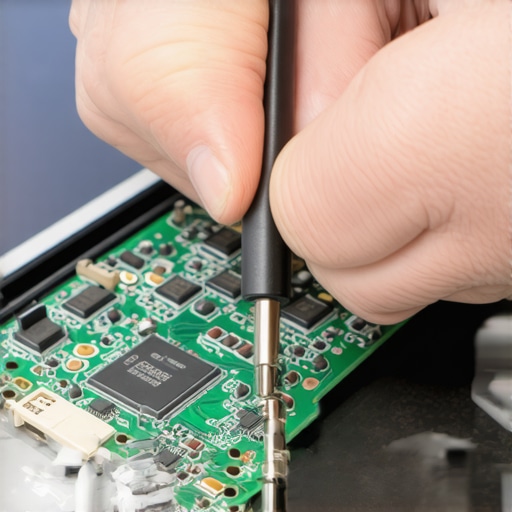
Image prompt: Close-up of a technician using diagnostic tools on a laptop motherboard, emphasizing precision and professional repair techniques. Alt text: Technician performing hardware diagnostics on a laptop motherboard. Title: Mastering Hardware Maintenance with Precision Tools.
Lessons I Wish I Had Known About Laptop Resilience
- Investing in quality components pays off—cheaper parts often lead to repeated failures and costs. I learned this when a budget display replacement kept malfunctioning, whereas upgrading to a reputable brand ended my troubles for good.
- Routine maintenance isn’t optional; it’s the shield against unexpected disasters. Regularly cleaning vents and updating drivers saved me from overheating and connectivity issues during crucial moments.
- Digital hygiene matters as much as hardware health. Backing up data frequently and testing restore points prevented hours of frustration after accidental deletions or malware attacks.
- Don’t underestimate small anomalies—they’re often signs of larger impending failures. Observing subtle screen flickers or slight lagging alerted me to upcoming hardware wear, allowing proactive repairs.
- Patience and persistence outperform shortcuts. I once rushed a repair, causing further damage, but taking my time with proper diagnostics ensured a lasting fix and saved money.
My Toolbox for Keeping a 2026 Laptop in Top Shape
- Specialized screen repair guides—They teach me quick, reliable fixes for modern displays that resist generic solutions.
- Data recovery software—Critical for safeguarding files, especially when dealing with encrypted or physically damaged drives.
- Managed IT solutions—They offer proactive monitoring and security updates, ensuring my system stays resilient over time.
- Reliable backup tools—Regular snapshots and cloud backups have been lifesavers, especially during sudden hardware failures or ransomware attacks.
Rise to the Challenge and Keep Moving Forward
Taking control of your laptop’s health isn’t just about fixing problems—it’s about empowering yourself to prevent them. Embrace the proactive mindset, utilize the right tools, and stay curious about evolving tech trends. Whether you’re troubleshooting a stubborn display, recovering vital data, or integrating new managed IT strategies, remember that your resilience as a tech user grows with every challenge faced. Don’t wait for issues to become emergencies—be the one who keeps their system smooth and secure. Now, tell me, have you ever faced a surprise hardware hiccup that taught you a valuable lesson? Share your story below and let’s learn together.
Reading through this comprehensive guide reminds me how often Wi-Fi issues on newer laptops come down to simple missteps rather than hardware faults. I remember I used to ignore updating drivers, and that caused connectivity headaches until I realized how vital staying current is. Personally, I’ve had much success resetting network settings when all else fails, especially after major updates or software changes. One thing I’ve found useful is keeping a small notebook or digital note of my network configurations—especially passwords and network names—so that I can quickly restore everything if a reset clears out my saved info. The aspect of checking interference and signal strength is also often overlooked; I’ve moved my router to higher ground or away from electronic interference and seen a quick improvement. Have any of you tried adjusting your router’s position or changing channels to resolve Wi-Fi issues? Sometimes, even tiny adjustments can make all the difference, especially in crowded living spaces.
This post about fixing Wi-Fi issues on the latest laptops really hits home, especially with how common software glitches have become as a culprit. I agree that updating drivers and resetting network settings are often the most straightforward solutions, but I’ve also found that checking for firmware updates on the router can make a noticeable difference. Sometimes, the problem isn’t with the laptop but with the network hardware itself. I’ve experienced situations where a firmware update to my router resolved persistent connectivity problems that nothing else seemed to fix. Also, I’ve started using a Wi-Fi analyzer app to identify interference and crowded channels, which can really improve stability in busy environments. Has anyone else noticed that a simple firmware update or channel switch on the router has resolved their Wi-Fi issues? I’d be interested to hear if this approach has worked for others, especially with newer, smart-enabled routers that often have automatic update options.
I really appreciate how this guide emphasizes checking for interference and optimizing your router placement. From my own experience, even small adjustments like elevating the router or switching to a less congested channel can drastically improve Wi-Fi stability, especially in older buildings or densely populated areas. I’ve also noticed that enabling QoS (Quality of Service) on my router helps prioritize bandwidth for critical tasks like video calls or streaming, which reduces buffering or disconnects—something that’s often overlooked. It makes me wonder how many people might be missing out on such simple yet effective fixes. Do you think investing in a mesh Wi-Fi system could be overkill for most households, or is it a worthwhile upgrade for those struggling with connectivity issues in large spaces? The key seems to be understanding your environment and making small, strategic changes before diving into more complex solutions.