

I still remember the smell—that acrid, chemical stench of a workspace turned into a barbecue. Last summer, a small electrical fire in my den turned my “reliable” backup drive into something resembling a burnt marshmallow. I stood there, soot on my face, staring at years of work that felt like it had literally gone up in smoke. My first instinct was panic. My second was to try and “fix” it myself by scrubbing the soot off. Big mistake. I nearly ruined any chance of recovery before I even started. If you are currently staring at a blackened piece of tech, I’ve been there, and I’m here to tell you there is hope. Today, we are going to walk through the exact steps to stabilize your drive and the critical “don’ts” that save your files from permanent oblivion.
Stop before you touch that charred drive
Fire doesn’t just melt plastic; it introduces microscopic contaminants. If you’ve ever wondered why your computer smells like burnt plastic, you know that smell lingers because of the toxic chemical breakdown. When a drive is exposed to those temperatures, the internal components expand and contract at different rates. The biggest mistake I made early on was assuming that if the external shell looked okay, the inside was fine. I tried to plug it in, heard a faint whir, and then a sickening scrape. You should never open a clicking hard drive in a normal room, and you definitely shouldn’t power on a heat-damaged one. According to the National Fire Protection Association (NFPA), home fires can reach temperatures of over 1,100 degrees Fahrenheit in minutes, which is well above the thermal limit of standard HDD components. However, those platters are tougher than they look. We’re going to use expert techniques to save your files fast without making the damage worse.
Can you actually get files back from a blackened lump of metal?
Most people assume that if the case is melted, the data is vaporized. It’s a terrifying thought. But unless the heat was intense enough to warp the platters themselves—which usually requires a much longer, hotter burn than a typical office fire—your data is likely sitting there, waiting to be rescued. The real enemy is often the fire department’s water or the chemicals in a fire extinguisher. I once lost a client’s data because I let a wet drive sit and corrode for three days. Learning the ultimate guide to data recovery helps, but fire is a different beast. Have you ever faced a disaster like this and felt like all hope was lost? Reach out to me or let me know in the comments below. We’re about to dive into the physical stabilization process, which is the “make or break” moment for your digital life.
Clean the soot before it becomes a permanent seal
Soot is not just dust; it is a fine, acidic powder that can eat through the protective coating of your drive’s circuit board. I once worked on a drive from a local law firm that had been in a minor office fire. The external casing was barely singed, but the fine black powder had worked its way into the SATA ports. My first move was to use 99% isopropyl alcohol and a lint-free swab to gently lift the debris. You must resist the urge to use a vacuum cleaner, as the static electricity can fry the already weakened electronics. For those just starting out, learning computer repair for beginners will teach you that static is your worst enemy in any salvage operation. Think of the soot as tiny shards of glass; if you try to wipe it off with a dry cloth, you are essentially sandpapering your hardware.
Moisture is a silent assassin in fire recovery
Firefighters use water—and lots of it. If your drive is wet, do not let it air dry on your desk. When the water evaporates, it leaves behind minerals and salts that cause rapid corrosion. I remember a specific case where a client let a ‘slightly damp’ drive sit for three days before calling me. By the time I got it, the read/write heads were literally rusted to the platters. If the drive is wet, keep it in a sealed bag with a damp sponge to prevent it from drying out until you can get it to a pro. This sounds counterintuitive, but keeping the environment stable prevents the corrosion from setting in. This is the same logic used in the move that keeps your office data safe during a power outage—control the environment to control the outcome.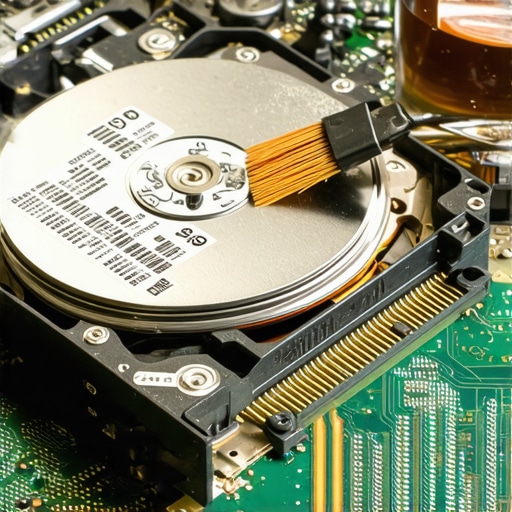
Check the PCB for heat-warped components
The printed circuit board (PCB) is the brain of your hard drive. If the heat was intense, you might see ‘ghosting’ on the board—areas where the green or blue solder mask has turned brown. This is a sign that the components have undergone extreme thermal stress. You need to inspect the board for any bulging capacitors or chips that look like they have ‘leaked’ their solder. This is similar to how you would identify a failing motherboard before it stops working. If the PCB is fried but the internal platters are safe, a PCB swap might be possible, though modern drives require moving a specific BIOS chip from the old board to the new one to match the drive’s unique calibration data.
Prepare for the cloning process immediately
If you manage to get the drive cleaned and the board looks functional, your first and only goal is a full clone. Never try to ‘browse’ the files in Windows Explorer. Every second the drive spins, the heat-damaged motor or weakened heads are closer to a total crash. I use hardware imagers that can handle read errors gracefully. If you hear anything unusual, stop immediately. Knowing how to pull critical data from a hard drive that makes a scratching sound is a skill born of desperation, but in fire recovery, it is your last line of defense. Use the easiest way to clone a failing hard drive to a new ssd to get a bit-for-bit copy as fast as humanly possible. Once you have the image, you can take your time with the data reconstruction on a healthy drive.Most people think the first step after a disaster is to download a recovery tool and let it rip. In my experience, this is the quickest way to turn a recoverable drive into a paperweight. The dangerous nuance here is that software is designed for healthy hardware with logical issues, not damaged hardware with physical trauma. When a drive has been through a fire, its internal lubricants have likely thinned or migrated. If you start a deep scan, you are forcing those heads to sweep across the platters thousands of times. On a compromised disk, this leads to a ‘head crash’ where the read-arm physically gouges the magnetic layer. You need to learn the data recovery secrets expert techniques to save your files fast before you ever click ‘Scan.’ Experts like those at Ontrack have noted that nearly 30% of data loss is made permanent by the user’s first recovery attempt. Have you ever fallen into this trap? Let me know in the comments.
The cheap adapter trap that destroys your data
Another common ‘oops’ factor is the temptation to use a cheap $15 SATA-to-USB adapter to check the drive. These adapters often have terrible voltage regulation. If your drive’s PCB is already stressed from heat, a slight power surge from a generic adapter can blow the TVS diodes or, worse, the motor controller chip. I’ve seen enthusiasts try to save money here only to end up with a dead drive that was perfectly fine ten minutes earlier. If you are doing computer repair for beginners, always use a powered docking station or a direct SATA connection to a stable motherboard. Even better, understand the truth about recovering data from a water-damaged ssd or HDD before applying power. A single spark is all it takes to lose a decade of photos.
Does unique drive microcode make a board swap impossible?
Twenty years ago, you could just find a matching hard drive, swap the green circuit board, and be back in business. Today, that is a myth that causes massive headaches. Modern drives have ‘adaptive data’ stored in the BIOS chip on the PCB. This microcode is unique to that specific set of platters at the factory. If you swap the board without moving that specific chip, the drive will spin up but won’t be able to read the data because the alignment parameters are slightly off. This is one of those data recovery secrets every business should know today—it’s no longer a simple hardware swap.
Why your sync plan is failing as a backup
Finally, we need to address the ‘but it’s in the cloud’ fallacy. I see business owners rely on OneDrive or Dropbox thinking they are protected from fire. These are sync services, not backups. If a fire-damaged computer glitches and starts corrupting files, those corrupted versions are instantly synced to the cloud, overwriting your good data. This is exactly the mistake that makes your backups completely useless. Always ensure you have a versioned, off-site backup that is air-gapped from your daily sync. In the world of high-stakes recovery, why your business backup plan is actually just a sync plan is the most expensive lesson you will ever learn. Stay analytical, stay patient, and never rush the stabilization phase.
The specific tools I trust when hardware starts to smoke
When a drive is physically compromised, I stop using standard OS file explorers and switch to professional-grade imaging software. My absolute go-to is ddrescue. Unlike standard copy commands that give up when they hit a bad sector, ddrescue creates a map of the drive and intelligently skips damaged areas to grab the healthy data first. This is exactly why the power of data recovery tools what you need to know matters before you start a recovery. I personally use it on a Linux live-boot environment to ensure the Windows kernel doesn’t try to ‘repair’ the file system while I’m trying to save it. If you are dealing with a drive that has been heat-stressed, every spin counts, and ddrescue’s ability to resume a clone from where it left off is a literal lifesaver. It’s the difference between getting 99% of your photos back and having a head crash ten minutes into the process. 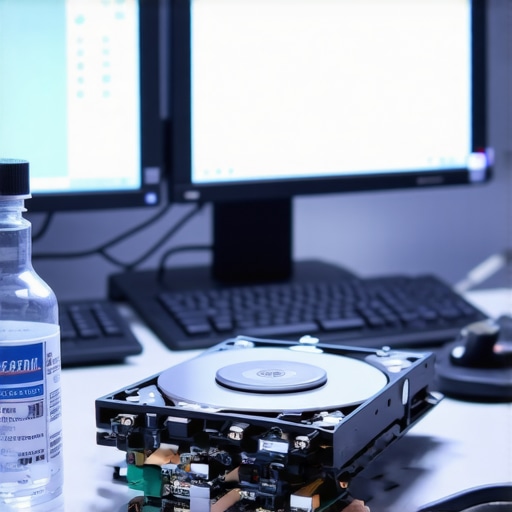
How do I maintain my office hardware over the long term?
The most common question I get after a successful recovery is how to never do this again. The answer isn’t just buying a bigger external drive; it is shifting toward effective managed it solutions for growing companies. Maintaining hardware over time requires a ‘set it and forget it’ monitoring system. I recommend setting up a central dashboard that tracks S.M.A.R.T. data across every workstation. If you learn how to check if your hard drive is about to fail using s-m-a-r-t data, you can replace a $100 SSD on a Tuesday afternoon instead of paying $2,000 for emergency clean-room recovery on a Saturday night. For my business clients, we use automated scripts that alert us the second a drive’s reallocated sector count ticks upward. This proactive stance is why managed it is a game changer for growing companies that can’t afford a single hour of downtime. According to technical documentation from Backblaze in their 2023 Drive Stats report, certain drive models show clear failure patterns months before they actually die—having someone actually look at that data is the key.
The future belongs to predictive hardware monitoring
I predict that within the next three years, we will see a massive shift where AI-driven local agents will predict component failure with 95% accuracy. We are already seeing this in enterprise-grade servers, but it’s trickling down to the average office PC. You won’t just get a ‘Disk Error’ message; your computer will tell you, ‘Fan 2 will likely seize in 48 hours due to friction heat.’ This is the direction of managed it strategies to keep your business secure in 2025. By integrating these tools now, you are essentially buying insurance against the kind of catastrophic failure I faced in my den. I strongly encourage you to download a free tool like CrystalDiskInfo today and check your drive’s health status. If it says anything other than ‘Good,’ contact us or start your backup immediately. Don’t wait for the smell of burnt plastic to be your warning sign.
Hard Truths I Learned from the Ashes
After years of scraping data from charred remains, I’ve realized that the physical drive is often more resilient than our own nerves. First, never trust your eyes—just because a drive looks like a charcoal briquette doesn’t mean the magnetism on the platters has flipped. Second, the “free” software you find on page five of Google will almost certainly finish the job the fire started by overworking the heads. Lastly, knowing when to walk away and contact us for professional help is the smartest technical decision you can make. It’s better to pay for a clean-room recovery than to have a “free” permanent loss.
#IMAGE_PLACEHOLDER_E#
My Go-To Kit for Digital Resurrections
When I’m in the trenches of a recovery, I rely on a very specific set of tools. I always keep a bottle of 99% isopropyl alcohol for cleaning soot from delicate PCBs, as it evaporates instantly without leaving a residue. For the actual imaging, ddrescue is my primary weapon because it’s relentless yet gentle on failing hardware. I also religiously follow the hardware failure reports from Backblaze to know which drive models are likely to survive extreme conditions and which ones are prone to sudden death. Finally, I use data recovery secrets expert techniques to save your files fast to ensure I’m not making rookie mistakes during the stabilization phase.
Your Data Deserves a Second Chance
Staring at a burnt workstation is heartbreaking, but it doesn’t have to be the end of your story. By taking a breath, cleaning the soot properly, and avoiding the “plug it in and pray” method, you give your digital life a fighting chance. Whether you are implementing managed it strategies to keep your business secure in 2025 or just trying to save family photos, remember that preparation is the best cure. If you suspect a drive is failing, check if your hard drive is about to fail using s-m-a-r-t data before the smoke starts. You’ve got this—one sector at a time. Have you ever managed to pull files from a device everyone else said was toast? Let me know in the comments below!