

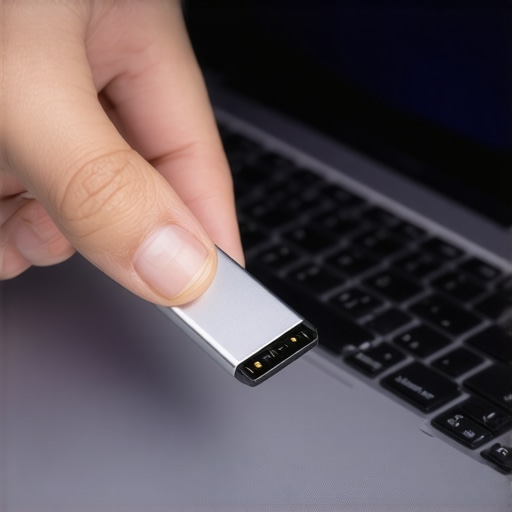
I was sitting at my kitchen table, lukewarm coffee in hand, ready to transfer three months of client project files to my main workstation. I plugged in my reliable old thumb drive, and instead of the familiar folder pop-up, Windows slapped me in the face with a terrifying ultimatum: “You need to format the disk in drive D: before you can use it.” My heart didn’t just drop; it plummeted through the floor. Every instinct told me to click ‘Format’ just to make the error go away, but I knew better. If you have ever stared at that message while your palms started to sweat, I want you to take a deep breath. You are not alone, and your files are likely still there, hiding behind a corrupted curtain. Today, I am going to walk you through exactly how I saved my career that morning and how you can do the same without spending a fortune on professional services.
The Morning My Heart Dropped to My Stomach
I have been around computers long enough to know that computer repair for beginners usually starts with a minor panic. In my case, it was a major one. That USB drive contained the only copy of a branding project I had spent weeks perfecting. The mistake I made? I was in a rush the night before and yanked the drive out of my laptop without hitting the ‘Eject’ button. It seems like such a small thing until the file system header gets scrambled and your computer suddenly thinks the drive is a blank slate. I have spent years helping people realize that how to recover data from a usb stick that was pulled out while writing is actually a very common puzzle to solve. Most people assume the hardware is dead, but usually, it is just a logical error that we can fix with the right approach. Have you ever lost a file because you were too quick to pull the plug? Drop a comment and tell me I am not the only one.
Is My Data Gone for Good?
It is the question that keeps every DIYer up at night. The skepticism is real—how can a drive that Windows doesn’t even recognize still hold your precious photos? The truth is that the “Format” prompt is just the operating system’s way of saying it doesn’t understand the current language the drive is speaking. According to research from the University of California, San Diego, flash memory can actually be incredibly resilient even when the controller or the file system fails. Before you consider tossing that drive in the trash, you need to realize that the power of data recovery tools lies in their ability to bypass those Windows errors and read the raw data directly. We aren’t going to format anything today; we are going to perform a rescue mission.
The Roadmap to Reclaiming Your Files
I used to think that the ‘Drive not accessible’ error was the final nail in the coffin for my hardware. But think of your USB drive like a local library. The books are your actual files, and the file system is the card catalog. When you yank a drive out without ejecting it, you aren’t burning the books; you are just shredding the index. To fix this, the first thing I always do is check if the computer even knows where the library is located. Sometimes, Windows just loses the map, and we need to hand it a new one.
Give Your Drive a New Identity in Disk Management
Before you touch any recovery software, you need to see if Windows recognizes the drive at all. I once helped a local florist who was frantic because her entire spring inventory list was on a ‘dead’ drive. We opened Disk Management (right-click the Start button to find it) and realized the drive was ‘Online’ but didn’t have a drive letter. By simply right-clicking the volume and selecting ‘Change Drive Letter and Paths,’ we assigned it a new letter like ‘Z:’. Suddenly, the files appeared. It was like the computer finally remembered which shelf the books were on. This is a crucial first step in computer repair for beginners because it involves no risk to your data.
Let the Command Prompt Do the Heavy Lifting
If a simple letter change doesn’t work, we have to talk to the drive directly. This is where we use CHKDSK. This tool acts like a digital janitor, walking through the sectors of your drive to see what’s broken. Open your Command Prompt as an administrator and type chkdsk X: /f (replace X with your actual drive letter). I remember doing this for a client whose external hard drive keeps disconnecting during file transfers. The command hummed along for twenty minutes, fixing logical fragments, and eventually spit out a success message. If the error says ‘CHKDSK is not available for RAW drives,’ don’t panic. It just means the index is too messy for the janitor, and we need to bring in a specialist.
When Software Becomes Your Best Friend
If the built-in Windows tools fail, it is time to look at data recovery secrets and expert techniques to save your files fast. When you learn how to pull data from a drive with a corrupted file system header, you start using tools that ignore what Windows says and look at the raw binary of the drive. These programs scan every single ‘page’ of the library, even without a card catalog. I prefer tools that allow for a ‘Deep Scan’ which can take hours, but the results are often miraculous. You will see a list of files that look like they are from a ghost ship—files you deleted months ago alongside the ones you need right now. This is where the power of data recovery tools really shines; they see the ghost of the data before the OS overwrites it. Just make sure you never save the recovered files back onto the same broken drive while you are working.
Most people think that the more times you scan a drive, the better your chances are of finding that one missing file. In reality, it is the exact opposite. Every time you run a ‘Deep Scan’ on a drive that is physically struggling, you are putting a massive amount of mechanical stress on the hardware. I have seen too many people fall into the danger of using free file recovery tools on a failing mechanical drive. If you hear a faint clicking or if the drive keeps disconnecting, software won’t save you—it will bury you. This is a common nuance: logical errors (software) can be DIYed, but physical errors (hardware) require a professional cleanroom.
When is the DIY Approach a Disaster Waiting to Happen?
The ‘Oops’ factor here is huge. If you are dealing with a clicking drive and you keep trying to ‘fix’ it with software, you are likely grinding the read/write heads into the platters. Research from Backblaze on drive failure trends suggests that once a drive starts reporting SMART errors, the risk of total failure increases exponentially within days. This is why why drive savers remains the only choice for physically damaged drives. If your business depends on this data, skipping the professional assessment to save a few dollars on a consumer tool is a gamble you usually lose. 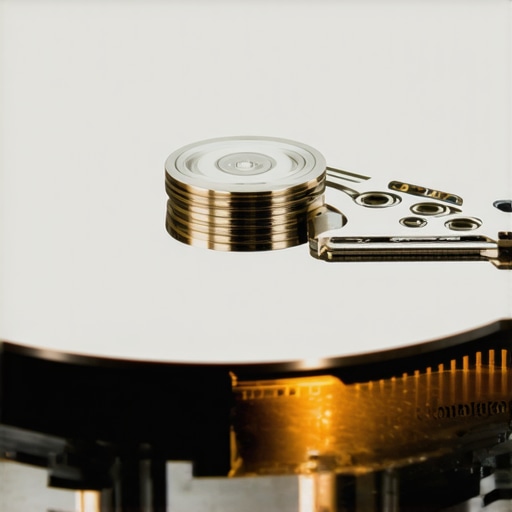 I often tell my clients that data recovery secrets every business should know today start with knowing when to stop. If you have already looked at the ultimate guide to data recovery after accidental deletion and the files still aren’t appearing, you might be facing a degrading controller chip. If your drive shows up as ‘Raw’ but the hardware sounds healthy, go ahead and try the software tools. But if the drive is sluggish or makes any noise, unplug it immediately. Have you ever fallen into this trap of trying ‘one more scan’ only to have the drive die completely? Let me know in the comments—I have definitely been there in my early days.Once you move past the initial panic of a failing drive, you start to see that real professionals don’t just run scans; they create bit-for-bit clones. Whenever I am faced with a drive that is acting up, I never work on the original hardware if I can help it. I use a hardware-based duplicator or software like ddrescue to create a forensic image. This is one of the most critical data recovery secrets and expert techniques to save your files fast because it ensures that if the original hardware finally gives up the ghost, I still have a digital replica to work from. If you have ever wondered why the power of data recovery tools is so highly praised, it is this ability to work in a safe sandbox where you cannot cause further physical damage to the platters.
How do I maintain my data integrity over the long haul?
The secret to long-term digital health is not just buying a ‘better’ hard drive; it is building a better system. I have transitioned most of my small business clients toward managed IT strategies to keep your business secure in 2025. We focus heavily on the ‘3-2-1 backup rule’: three copies of your data, on two different media, with one copy stored offsite. In the realm of managed IT solutions streamlining operations for small businesses, we automate these processes so the human element is removed. I have seen far too many people lose everything because their external hard drive keeps disconnecting during file transfers and they lacked a cloud failover. According to the NIST Special Publication 800-88 Revision 1, the durability of media and the methods of sanitization are evolving rapidly, making consistent auditing a necessity, not an option. If you are not checking your backup logs at least once a month, you do not have a backup; you have a wish.
Predicting the end of hardware failure as we know it
Looking ahead, we are moving toward a world of ‘Proactive AI Diagnostics.’ Tech giants are already integrating machine learning models that can predict a drive failure weeks before the first clicking sound is heard. This shift is exactly why managed IT is a game changer for growing companies because we will be replacing hardware during scheduled downtime rather than during a 2 AM emergency. We are seeing a move toward ‘self-healing’ file systems that automatically migrate data to healthy sectors the moment a spike in temperature or a SMART error is detected. The era of ‘repairing’ things after they break is ending; the era of ‘predicting’ is here. I strongly encourage you to download a utility like CrystalDiskInfo today and check your drive’s health status. If it is anything other than ‘Good,’ treat it like a ticking time bomb and move your files immediately.
Hard Lessons from My Most Stressful Data Salvage Jobs
Over the years, I have learned that the biggest threat to your data isn’t actually the hardware failure—it is the panic that follows. When you see that ‘Format Disk’ message, your brain goes into flight-or-fight mode, and that is usually when people make fatal mistakes. One lightbulb moment for me was realizing that every second a failing drive is powered on, its lifespan shrinks. If a drive is struggling, professional data recovery secrets and expert techniques to save your files fast always prioritize speed and stabilization over everything else.
Another hard truth: ‘Free’ software often comes with a hidden cost of sector-thrashing that can turn a simple logical error into a physical nightmare. I always tell my students that if you cannot see the drive in Disk Management, no software in the world will magically fix it; you are likely looking at a controller failure. Lastly, remember that a ‘successful’ recovery doesn’t mean the drive is healthy. Once a drive fails you once, it is dead to me. I never trust it with a single byte of data ever again. #IMAGE_PLACEHOLDER_E#
Your New Defense Kit Against Data Loss
If you want to move beyond basic computer repair for beginners, you need a reliable toolkit. I personally swear by CrystalDiskInfo for monitoring SMART data; it is the early warning system every PC needs. For the actual heavy lifting, I use ddrescue because it handles read errors far better than standard Windows copy commands. I also highly recommend reading the NIST 800-88 guidelines if you really want to understand how data persists on modern storage media. For those who want a comprehensive roadmap, the ultimate guide to data recovery after accidental deletion is an incredible starting point for mastering these skills.
Take Charge of Your Digital Future
Data loss feels like a personal violation, but it doesn’t have to be a permanent tragedy. By staying calm and following a structured rescue plan, you can beat the system. Whether you are learning how to pull data from a drive with a corrupted file system header or setting up managed IT strategies to keep your business secure in 2025, you are taking the steps to ensure your hard work stays safe. Don’t let a single error message ruin your day. You have the tools, the knowledge, and now, the plan to get your files back. Have you ever stared at that ‘Format Disk’ prompt and actually hit ‘Yes’ by mistake? Let me know your story in the comments below.