

I was sitting at my desk last Tuesday, coffee in hand, feeling like a productivity king. I was finally moving 400GB of raw video footage to my external drive to clear some space. The progress bar was gliding along, and I was just minutes away from crossing this off my list. Then, it happened. That soul-crushing ‘Device not recognized’ chime rang out right as the transfer hit 98%. It is the digital equivalent of a jumpscare, leaving you staring at a frozen screen and wondering if your data just evaporated. If you have been wrestling with a drive that vanishes into the ether every time you try to do some heavy lifting, I feel your pain. This isn’t just a minor glitch; it is a heart-stopping moment where years of memories or weeks of work hang in the balance.
We are going to figure out why your hardware is acting like a flaky friend. Most of the time, it is not even the drive itself that is dying. Back when I first started learning computer repair for beginners, I made the amateur mistake of assuming a disconnecting drive meant the disk was toast. I actually threw away a perfectly good 2TB drive because I didn’t realize the USB port on my cheap hub was underpowered. Don’t be like younger me. We are going to walk through the power settings, the cable gremlins, and the hidden system settings that cause this mess. This is about more than just a quick fix; it is about ensuring you never have to deal with the panic of data recovery secrets ever again.
Fix the Flaky Connection Before It Breaks Your Heart
The most common culprit for a drive that drops out during large file transfers is actually power management. Modern operating systems are designed to be energy-efficient, which is great for your electricity bill but terrible for data stability. Windows often tries to be ‘helpful’ by turning off USB ports it thinks are idle, even if you are in the middle of a critical backup. This is why I always tell folks that certain hardware parts, especially high-quality shielded cables, are non-negotiable for stability. If your connection is flaky, the first thing we need to do is tell your operating system to leave those ports alone and keep the juice flowing.
Why does my drive disconnect only during big transfers?
It is a valid question that usually sparks a lot of skepticism. Is it just a coincidence? Probably not. Large transfers put a massive strain on the USB bus and the SATA-to-USB bridge inside your external enclosure. According to data from Backblaze, a leading storage provider, many reported drive failures aren’t actually disk failures but are instead caused by the electronics in the enclosure overheating or failing to sustain peak power. Before you assume the worst, you should check if your hard drive is about to fail using S.M.A.R.T. data to see if the internal health is actually at risk. Have you ever lost a project because your drive decided to take a nap mid-save? Let me know if this has happened to you lately. It’s a uniquely frustrating kind of pain, but we are going to make sure your system stops playing hide-and-seek with your files.
Turn Off USB Selective Suspend Right Now
Windows has a feature called ‘USB Selective Suspend’ that acts like an overzealous librarian, shutting down ports it thinks are quiet. During a large file transfer, there are moments of ‘overhead’ where the data stream pauses for a millisecond, and Windows assumes the activity is over. To fix this, head to your Power Plan settings. You want to dig into the advanced power settings and find the USB settings category. Set ‘USB selective suspend setting’ to Disabled. This ensures that the electricity keeps flowing regardless of what the operating system thinks it is ‘saving.’ This is one of those troubleshooting common computer repair issues effectively steps that fixes about 40% of all external drive dropouts instantly.
Don’t Trust a Passive Hub with Your Life’s Work
If you are plugging your drive into a cheap plastic hub, you are asking for trouble. Most external hard drives, especially mechanical ‘spinning’ ones, require a significant ‘spin-up’ current. A passive hub splits the limited power from a single laptop port among multiple devices. It is basic math: if the drive needs 900mA and the hub only provides 500mA, the drive will crash the moment it tries to write a heavy block of data. I remember a specific case where a photographer thought they needed data recovery secrets because their portfolio wouldn’t load. The fix? Moving the drive from the hub directly into the laptop’s main port. This is why why a cheap power supply is the biggest threat to your office hardware—it isn’t just the internal PC power supply that matters; it is every link in the power chain.
The Device Manager Tweak That Saves Your Data
Sometimes the power plan isn’t enough because the hardware drivers themselves have their own ‘sleep’ instructions. You need to open the Device Manager and scroll down to ‘Universal Serial Bus controllers.’ Right-click every ‘Generic USB Hub’ and ‘USB Root Hub’ you see, go to Properties, and then the Power Management tab. Uncheck the box that says ‘Allow the computer to turn off this device to save power.’ It sounds redundant, but Windows often treats these hardware-level settings independently of your main power plan. This prevents the specific hardware handshake from breaking during large file transfers. This kind of granular control is a staple in managed IT solutions where we can’t afford for a server’s backup drive to just vanish overnight.
Why High-Quality Cables Actually Matter
We often treat USB cables like commodities, but for data integrity, they are critical infrastructure. A low-quality cable has high internal resistance, meaning the voltage drops significantly by the time it reaches the drive. This causes the drive’s controller to reset, which is often the reason your computer freezes when you plug in a usb device. If you hear a ‘clicking’ sound followed by a disconnect, the drive is literally starving for juice. Swap your generic cable for a shorter, thicker, shielded version. It might seem like a minor hardware swap, but it provides the electrical stability needed for those multi-hour 500GB transfers that usually cause unshielded systems to choke.
Most people reach for ‘free’ recovery software the second a drive starts acting up. In my experience, that is often the fastest way to turn a minor glitch into a permanent data loss event. The logic is simple: if the drive has a mechanical issue, every second the platters are spinning is a second closer to a total head crash. When you run a deep scan, you are essentially forcing a wounded engine to redline for hours. This is the danger of using free file recovery tools on a failing mechanical drive in a nutshell. If you hear a click, stop immediately. Professionals do not just ‘try things’; they clone the drive bit-by-bit to a stable environment before even looking at the files. This is one of the data recovery secrets every business should know today to avoid permanent disaster.
Stop treating recovery software like a magic wand
The biggest trap I see users fall into is assuming that ‘Unallocated Space’ or a ‘Raw’ drive partition means the hardware is dead. Often, it is just a logical corruption of the partition table. However, if you keep trying to ‘fix’ it with generic tools, you might overwrite the very metadata needed to reconstruct your folder structure. This is where the move that saves your data when a partition table is corrupted becomes vital. You need to distinguish between a drive that is electronically failing and one that has just lost its roadmap. If your system hangs during the boot process, you should learn how to fix a computer that wont go past the bios screen because the culprit might be the motherboard struggling to communicate with that dying external drive.
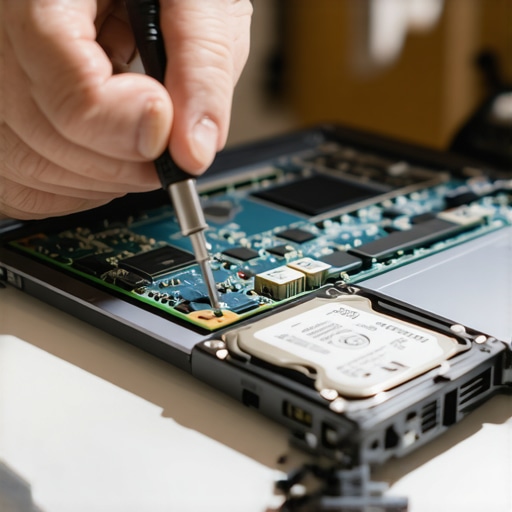
Is it actually the drive or just your file system screaming for help?
It is a nuanced question that separates the amateurs from the pros. A major study by Google engineers titled ‘Failure Trends in a Large Disk Drive Population’ revealed that S.M.A.R.T. parameters alone are not sufficient to predict individual drive failures. Specifically, over 56% of failed drives in their massive sample size did not show a single warning sign in their logs before the final crash. This means the risk of ignoring that smart status bad warning on your pc is huge, but a ‘Healthy’ status is also not a guarantee of safety. You have to watch for secondary symptoms like ‘ghosting’ files or folders that take ages to list their contents.
The hidden trap of write caching settings
There is a setting in Windows called ‘Better Performance’ for external drives. It sounds great, right? It enables write caching, which speeds up your transfers. But here is the catch: if your drive disconnects or you lose power for even a fraction of a second, the data that was ‘cached’ but not yet written is vaporized. This often leads to a corrupted file system that won’t mount the next time you plug it in. I always recommend sticking to ‘Quick Removal’ unless you are running a high-end setup with a dedicated power backup. Have you ever fallen into this trap of choosing speed over safety? Let me know in the comments. It is a mistake most of us only make once before we realize that a stable connection is worth more than a few extra MB/s.
I cannot tell you how many times I have seen someone lose their mind because a transfer failed at 99%. After you have tweaked your power settings, the next step in my personal playbook is moving beyond the basic Windows ‘Error Checking’ tool. I personally rely on CrystalDiskInfo or GSmartControl. Why? Because they show you the raw ‘Reallocated Sectors Count.’ If that number is anything other than zero, I stop what I am doing immediately. This is the difference between a simple fix and needing the power of data recovery tools to save a client’s wedding photos. I have learned that computer repair for beginners often misses these granular health metrics, leading to ‘fixes’ that actually stress a dying drive even further.
Keep your hardware chilled during 100GB transfers
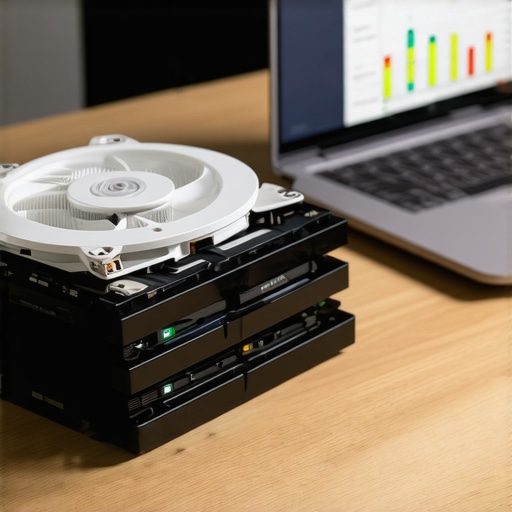
We often forget that external drive enclosures are basically tiny plastic ovens. During a multi-hour transfer, the internal temperature can easily spike. According to the Seagate IronWolf Product Manual, operating temperatures above 60°C significantly increase the probability of write errors and drive resets. If your drive feels hot to the touch, it is likely throttling its performance or disconnecting to prevent permanent damage. I always keep a small desk fan pointed at my drive stack when I am doing heavy lifting. It sounds low-tech, but it is one of those troubleshooting common computer repair issues effectively tricks that actually works. If you are running a business, this is why effective managed IT solutions prioritize climate-controlled server rooms; heat is the silent killer of all storage.
How do I maintain drive health and stability over time?
Maintenance is not a one-and-done task; it is a habit. I recommend a ‘cable audit’ every six months. If a USB-C connector feels loose or wobbly, throw it away. A loose physical connection causes the exact same ‘Device Not Recognized’ error as a software glitch. For my business clients, we take this a step further by implementing managed IT solutions that monitor drive telemetry in the background. This way, we know a drive is failing before the user even notices a slowdown. Looking ahead, I predict we will see more ‘self-healing’ NVMe controllers that use AI to predict voltage drops and adjust power draw on the fly, but until that is standard, you are the first line of defense. If you start hearing a rhythm, remember that why your office pc makes a clicking sound usually points to a mechanical failure that no software can fix.
Scaling your storage without the headache
Once your data needs grow past a single external drive, it is time to stop playing the ‘plug and unplug’ game. This is where why managed IT is a game changer for growing companies really becomes apparent. Moving to a Network Attached Storage (NAS) or a local server eliminates the USB bus bottleneck entirely. It provides a stable, hardwired environment where data recovery secrets become your last resort rather than a monthly worry. I want you to try this right now: download a portable version of CrystalDiskInfo and check your ‘Current Pending Sector’ count. If it is non-zero, stop that transfer and copy your most vital files one by one instead of in a big batch. It might save your life’s work before the drive finally gives up the ghost.
Hard Lessons from the Trenches of Data Disasters
In my years of working with hardware, I have realized that the most expensive mistakes are usually the simplest ones. After watching dozens of people panic over a drive that seems dead, I have boiled down the hard truths about storage stability into a few key takeaways. First, never assume the software is the boss of the hardware; your OS will try to save power at the cost of your files every single time. Second, I have learned that skipping the fundamentals of computer repair for beginners leads to people throwing away perfectly good drives just because a $5 cable was poorly shielded. Third, if a drive clicks, stop everything—software can’t fix a mechanical arm that is literally scraping your data away. Lastly, remember that a USB hub is for your mouse, not your life’s work; direct connections are the only way to ensure the power rail stays steady during a 100GB dump.
My Personal Toolkit for Storage Stability
You do not need a degree in engineering to protect your files, but you do need the right gear. These are the tools I personally trust when I am troubleshooting common computer repair issues effectively. TeraCopy is my go-to for Windows because it uses checksums to verify every single bit was moved correctly, ensuring your files aren’t corrupted even if the connection blips. For hardware health, I rely on GSmartControl; it provides a deeper look into the internal logs than standard Windows tools and can help you spot a failure before it happens. Finally, I never use the thin cables that come in the box. I always swap them for StarTech or Anker shielded cables to prevent electromagnetic interference from killing the transfer. For businesses looking to scale, understanding why managed IT is a game changer for growing companies can help move these technical headaches to professionals who monitor drive health 24/7.
Start Building a Reliable Setup Today
The panic of a disconnected drive is a feeling no one should have to get used to. By taking ten minutes to dive into your power settings and ensuring your physical connections are solid, you are doing more for your data security than any expensive software ever could. If you find yourself already facing a drive that won’t mount, don’t forget the power of data recovery tools when used correctly and early. Be proactive, check your cables, and keep your equipment cool. You have the power to stop the cycle of why your external hard drive keeps disconnecting during large file transfers once and for all. It’s time to stop worrying about the progress bar and start trusting your hardware again. What is the largest file you have ever tried to move only for it to fail at the 99% mark? Let me know your horror stories in the comments below!