

I remember sitting in my home office at 2 AM, the house finally quiet, when I heard it: a rhythmic, metallic tap-tap-tap. It sounded like a tiny ghost was trying to Morse code its way out of my desktop. At the time, I brushed it off. I figured it was just the case settling or maybe a loose wire hitting a fan. Two days later? Blue screen. Dead drive. Total heartbreak. I made the classic rookie mistake of assuming noise just meant old, but in the world of mechanical storage, sound is the only warning shot you get before the digital guillotine drops. Today, I am going to help you decode those hums, whirrs, and clicks so you do not end up like me—staring at a lifeless screen and wishing you had listened sooner. [IMAGE_PLACEHOLDER]
The Difference Between Healthy Hums and Total Hardware Failure
Mechanical hard drives are marvels of engineering, with platters spinning at thousands of rotations per minute. Because of that, they are never truly silent. A healthy drive should have a consistent, low-pitched whirr or a soft chattering sound when it is actively reading or writing files. Think of it like a cat purring; it is rhythmic and predictable. However, when you start hearing a high-pitched whining noise or something that sounds like grinding metal, the purr has turned into a growl. According to hard drive manufacturer Seagate, any sound that is repetitive, loud, or significantly different from the day you bought the device is a red flag that the physical components are struggling. I once ignored a slight vibration in my external enclosure, only to realize later that the enclosure was failing and cooking the drive inside. Have you ever noticed your computer making a sound that suddenly stops when you tilt the tower, or perhaps a click that only happens when you save a large file?
Is my fear of a failing drive actually rational?
Absolutely. In fact, skepticism is your best friend here. People often think I am being paranoid when I tell them to back up their data the second they hear a faint tick, but data recovery secrets usually start with one simple rule: listen to the hardware. If you are recovering files from a drive with a clicking sound, you are already in the danger zone. The click of death happens when the read/write head is trying to find its place and failing, physically snapping back into position. It is not just a glitch; it is mechanical trauma. We need to act before that head touches the platter and turns your family photos into silver dust. Let’s break down exactly what sounds are safe and which ones mean you need to run for your backup drive.
Check the Digital Pulse Before the Physical Crash
The first thing I do when I hear a suspicious tick isn’t reaching for a screwdriver; it’s opening a diagnostic tool. Your hard drive has an internal logging system called S.M.A.R.T. (Self-Monitoring, Analysis, and Reporting Technology). It is basically a black box for your data. You can use the easy way to check your hard drives health using smart data to see if the drive itself is reporting relocated sectors or read errors. I once had a client whose desktop sounded like a coffee grinder. They were convinced the drive was toast. After running a quick check, we realized the drive was actually pristine; the noise was just a cable vibrating against the metal chassis. If you are just starting out, computer repair for beginners avoid costly mistakes by doing this software check first—don’t open the drive casing, ever. If the SMART status says “Caution” or “Bad,” stop everything. #IMAGE_PLACE_HOLDER_B#
Rule Out the Cheap Fixes First
Sometimes the mechanical sound isn’t the drive’s internal motors. If you have an external setup, the signs your external hard drives enclosure is failing often mimic a dying disk. A bad power adapter can cause a drive to spin up and down repeatedly, creating a rhythmic clicking as the motor struggles for juice. I remember a frantic 3 PM call from a local law firm. Their main backup drive was chirping. It turned out they had plugged a 5V power supply into a 12V enclosure. The drive wasn’t dying; it was starving. Before you pay for expensive recovery, try a different cable or a different enclosure. If you are still hearing why your computer case is buzzing, check the mounting screws. A loose screw can turn a normal vibration into a terrifying rattle.
When the Click of Death is Real
If the noise is definitely coming from inside the drive and it is a sharp, repetitive click-clack, you are dealing with a head stack failure. This is the mechanical arm hitting a physical limit because it cannot read the track on the platter. When you are recovering files from a drive with a clicking sound, your time is measured in minutes, not hours. Every click is a potential scratch on the surface where your data lives. I once tried to power through a clicking drive to grab a few more PDFs, and within ten minutes, the drive stopped spinning entirely. The head had literally welded itself to the platter. If you hear this, shut the power off immediately. This is one of those data recovery secrets every business should know today: the freezer trick or tapping the drive usually makes things worse. Pro-grade recovery is the only safe path if the data is irreplaceable.
Priority One is Your Backup Strategy
If the drive is still readable but noisy, do not try to organize your files. Do not delete junk to make space. Just copy. Start with your most critical documents first—financials, photos, and projects. If the system crashes mid-transfer, you want the must-haves already safe. This is why why your business needs a documented disaster recovery plan today. Waiting for the noise to start before thinking about backups is like buying a fire extinguisher while the curtains are already on fire. If you find yourself needing specialized help, you can always contact us for expert diagnostics before the hardware gives up completely.
Stop Trusting Your SSD to Never Fail
People often tell me they switched to SSDs because they are tired of mechanical failures, but here is a contrarian truth: SSDs fail just as often as mechanical drives, but they do it silently and more catastrophically. Unlike the clicking HDD I mentioned earlier, an SSD doesn’t give you a warning chirp; it just disappears. Research from Backblaze, which tracks failure rates across thousands of drives, suggests that while SSDs are more reliable in the short term, their flash cells have a limited lifespan of write cycles. If you are not watching how to tell if your ssd is wearing out from too many writes, you are walking into a trap where your data could be purged by the controller’s TRIM command before you even realize there is a problem.
The Fatal Trap of DIY Circuit Board Swaps
The “Oops” factor I see most often in my lab is the DIY logic board swap. Someone buys an identical drive on eBay, swaps the green PCB, and expects the drive to spin up. It won’t work on 99% of drives made in the last decade. Modern drives store unique adaptive data—essentially a digital fingerprint of the read/write heads’ alignment—on a tiny ROM chip. Swapping the board without migrating that chip via micro-soldering is a fast track to permanent data loss. This is why the truth about hard drive recovery services and pricing reflects the specialized equipment and engineering required for these operations. 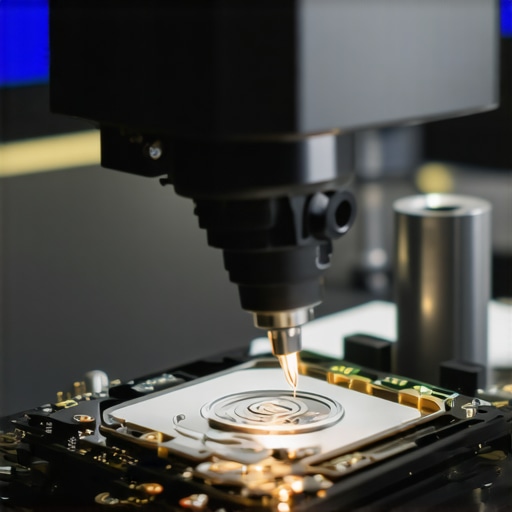
Can you actually recover data from a drive with a cyclic redundancy check error?
Yes, but it requires moving beyond basic software tools. A CRC error is a red flag that the drive has detected a mismatch between the data read and its internal checksum. If you keep hitting that sector with standard Windows copy commands, the drive’s firmware might “retire” the sector, making it inaccessible. When recovering data from a drive with a cyclic redundancy check error, expert technicians use hardware-level imagers that can manipulate the drive’s timing. Furthermore, computer repair for beginners avoid costly mistakes by ensuring you perform the simple check to see if your hard drive is encrypted first. If BitLocker is active and the header is damaged, even a perfect sector-by-sector clone will be useless without the recovery key.
Why Unlimited IT Support is Often a Mirage
In the business world, there is a common belief that hiring a provider solves all security risks. However, the truth about unlimited IT support contracts for businesses is that they often focus on uptime, not deep forensic security. If your provider isn’t actively testing your backups against ransomware scenarios, you’re just paying for a safety net that hasn’t been weight-tested. Have you ever fallen into this trap of assuming “it’s handled” only to find a gap when things went south? Let me know in the comments.
I do not just rely on built-in Windows tools when a system starts acting up. My “go-bag” always includes a bootable USB drive loaded with specialized utilities like Hiren’s BootCD PE or TestDisk because they allow me to bypass a corrupted operating system to run low-level diagnostics. Understanding the power of data recovery tools is about knowing when to use a scalpel instead of a sledgehammer. For example, when I am troubleshooting common computer repair issues effectively, I start by looking at the raw hex data on a drive. If that area of the disk is reporting nothing but zeros, no software in the world will bring it back, and it is time to stop stressing the hardware. I have seen too many people fry their already-dying drives by running intense scan-and-repair loops for six hours straight.
How do I maintain my hardware health over the long haul?
The biggest enemy of digital longevity isn’t just age; it is heat. According to the 2024 Hard Drive Failure Rates report by Backblaze—a niche expert source that monitors over 270,000 drives—there is a direct correlation between sustained high temperatures and accelerated component wear. I make it a non-negotiable habit to use compressed air to blow out my vents and heatsinks every six months. You can often tell if your laptops overheating is caused by dust or a dead fan just by listening for that high-pitched resonance or feeling an localized hot spot on the chassis. For a growing business, this level of care needs to scale; you must implement managed IT strategies to keep your business secure in 2025 that include proactive thermal monitoring across all workstations.
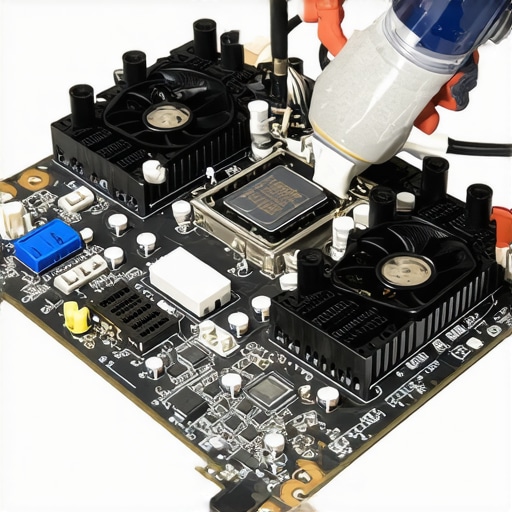
Looking toward the future, I predict we will soon stop manually checking S.M.A.R.T. data altogether. We are rapidly moving toward AI-driven predictive failure analysis. Modern enterprise systems are already deploying algorithms that can predict a drive’s demise up to 48 hours in advance based on microscopic fluctuations in power draw and seek latency. This transition is a core component of effective managed IT solutions for growing companies. Imagine a system that automatically clones its data to a hot-spare drive before the primary drive even makes its first audible click—that is the level of uptime we are aiming for. Try this right now: Download a free tool like CrystalDiskInfo and check your “Reallocated Sectors Count.” If that value is anything other than zero, even if the status says “Good,” do not wait—start migrating your critical data immediately.
What My Lab Taught Me About Silence and Sound
Reflecting on a decade of hardware triage, I have realized that the most dangerous sound isn’t always the loud click—it is the sudden silence of an SSD that just gave up without warning. For those just starting out, computer repair for beginners avoid costly mistakes by not assuming newer technology is invincible. Another hard truth is that most people wait until the drive is actively screaming to care about backups, but by then, you are already paying a premium for data recovery secrets. I have also learned that software fixes for physical problems are like putting a band-aid on a broken bone; if the hardware is grinding, the software cannot save it. Finally, trust your intuition—if your computer sounds different than it did yesterday, it probably is. [IMAGE_PLACEHOLDER]
My Personal Survival Kit for Failing Storage
I do not like guessing when it comes to disk health, so I rely on specific resources that have saved me hundreds of hours. First, CrystalDiskInfo is my primary go-to for health checks because it translates cryptic S.M.A.R.T. data into human-readable warnings. I also religiously follow the Backblaze Drive Stats reports, which provide real-world failure data across thousands of drives. When the situation moves beyond basic home fixes, I lean on the power of data recovery tools that operate at the hardware level. For my business clients, I ensure they never have to hear a click in fear by showing them how managed it can elevate your business security in 2025 through proactive monitoring.
Take the Reins Before the Clicks Take Your Files
The anxiety of a failing drive is real, but it does not have to be your reality. By simply paying attention to the unique language of your hardware, you are already ahead of most computer users. Whether you are troubleshooting common computer repair issues effectively on your own or deciding it is time for professional help, taking action today is what prevents a minor hum from becoming a major catastrophe. Remember, data recovery is a last resort, not a strategy. Secure your files, listen to your machine, and sleep better tonight. Have you ever heard a strange noise from your PC and ignored it only to regret it later? Let me know your story in the comments below!