

I remember the smell of burnt coffee and the cold dread of a frozen screen on a rainy Tuesday. It wasn’t just a simple software crash; it was a silent, permanent death. My four-year-old SSD, the one I had bragged about because it has no moving parts to break, finally gave up the ghost without so much as a whimper. I lost three days of intense client work because I had ignored the subtle slowdowns and the way my apps took just a second longer to breathe. Most people think these drives are invincible compared to the old clunky mechanical ones. They aren’t. They’re just far more secretive about their impending failure. I want to save you that same heart-stopping moment of realization when your computer tells you it doesn’t even know what a primary drive is anymore. Today, we’re diving into the smoke signals of the digital world—the specific warning signs that your SSD is reaching its write limit. [image_placeholder_1]
Why Your SSD Is Quieter and Deadlier Than Your Old Hard Drive
Back in the day, a failing hard drive would give you a courtesy call in the form of a rhythmic clicking sound. It was terrifying, but it was a signal. Modern SSDs are the silent type. They don’t click; they just wear out at a microscopic level. Every time you save a file, a tiny bit of the drive’s physical capacity to hold a charge is used up. It’s called Write Endurance. While ignoring a clicking external drive is a gamble, ignoring an SSD slowdown is practically a guarantee of data loss. I once made the classic beginner mistake of neglecting drive health, thinking that because my OS booted in five seconds, everything was perfect. It wasn’t. A study by the University of Toronto found that while SSDs have lower replacement rates than HDDs, they experience much higher rates of uncorrectable errors. This means your data is actually more likely to vanish without a hardware crash.
Do these drives actually wear out as fast as people say?
It’s the big question every enthusiast asks. You spent good money on that NVMe drive and you want it to last. The truth is, for the average user, an SSD lasts a long time. But if you’re doing heavy video editing, constantly moving large databases, or running a business where you are the one fixing everything, those writes add up fast. Have you ever noticed your computer feeling sluggish during simple file saves, or perhaps seen a strange Read Only error pop up out of nowhere? Let me know if you’ve ever had a drive just vanish on you! Before we dive into the technical tools, you need to know that troubleshooting computer issues effectively starts with knowing your hardware’s limits. We aren’t just looking for total failure; we’re looking for the degradation that happens long before you need an ultimate guide to data recovery. Let’s get into the nitty-gritty of how to check your drive’s health before it’s too late.
Get Your Hands on the Odometer Before It Hits Zero
If an SSD is a fuel tank, most of us are driving without a gas gauge. We just assume there is enough juice until the engine sputters. In the tech world, this gas gauge is your drive’s S.M.A.R.T. (Self-Monitoring, Analysis, and Reporting Technology) data. You do not need a degree in computer science to read it, but you do need to know where to look before you are forced into an emergency search for data recovery secrets expert techniques to save your files fast. Every SSD has a pre-determined lifespan measured in Total Bytes Written (TBW). Think of this as the odometer on your car. Once you hit that number, the drive does not necessarily explode, but it becomes a ticking time bomb for uncorrectable errors. Before you assume your hardware is the only culprit, use the simple way to check your pc for hidden background processes to ensure a rogue application isn’t eating your drive’s lifespan by constantly writing temp files to the disk.
Read the S.M.A.R.T. Signals Everyone Ignores
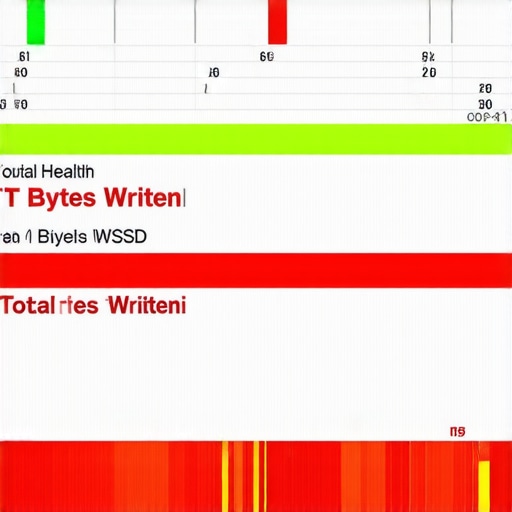
The most direct way to see your drive’s health is through third-party utilities like CrystalDiskInfo or Smartmontools. These programs pull the raw data from the drive controller and present it in plain English. I remember working on a small business server where the owner had skipped every recommendation for managed it strategies to keep your business secure in 2025. One Monday, the system refused to save a single document. The drive had not crashed in the traditional sense; it had reached its TBW limit and locked itself into read-only mode to protect the data. We were lucky to get the files off, but the downtime cost the company thousands. If they had checked the S.M.A.R.T. status once a month, they would have seen the ‘Health Status’ dropping from Good to Caution weeks in advance. If you see a status other than ‘Good,’ you need to stop what you are doing and check the power of data recovery tools what you need to know before the drive decides it has had enough.
Trust the People Who Built Your Drive
Generic tools are great, but manufacturer-specific software is often more accurate. Companies like Samsung, Western Digital, and Crucial provide proprietary dashboards that can update firmware and provide more granular wear-leveling data. I once spent four hours troubleshooting common computer repair issues effectively on a workstation that was lagging during basic tasks. The user thought it was a software glitch. I opened the manufacturer’s utility and saw a massive red warning next to the health status. The drive was essentially a ghost, running on pure luck because it had exceeded its write endurance by 15%. This is why modern managed IT solutions streamlining operations for small businesses prioritize hardware monitoring. You want to replace a failing drive on a scheduled Tuesday afternoon, not during a catastrophic failure on a Friday night. Always check for firmware updates within these tools, as manufacturers often release patches that improve how the drive handles ‘wear leveling,’ which can actually extend the life of the NAND flash cells inside.
Why Your Drive’s Controller Is the Real Weak Link
Most people obsess over Total Bytes Written (TBW) as the ultimate countdown clock, but here is a contrarian truth: your NAND flash cells will likely outlive the controller that manages them. While we focus on the cells wearing out, the actual brain of the drive often fails first due to heat-induced stress or firmware bugs. According to a multi-year reliability study by storage experts at Backblaze, SSD failures do not always follow a predictable wear-and-tear curve; they often experience sudden ‘infant mortality’ or controller-level meltdowns that bypass S.M.A.R.T. warnings entirely. This is why managed it strategies to keep your business secure in 2025 emphasize real-time hardware monitoring over simple periodic checks. If you are only watching the percentage of life remaining, you are missing the forest for the trees.
Does Filling Your Drive to 95% Actually Kill It Faster?
This is the ‘Oops’ factor that catches even seasoned enthusiasts. When your SSD is near capacity, the controller has to work twice as hard to find clean blocks to write to, a process known as garbage collection. This leads to ‘Write Amplification,’ where the drive writes more data internally than your OS actually requested. I have seen countless users think they are saving money by using every gigabyte of a 500GB drive, only to find themselves needing data recovery secrets expert techniques to save your files fast because the drive literally choked on its own data management. You should always leave at least 10% to 20% of your drive unallocated to give the wear-leveling algorithms room to breathe. Have you ever fallen into this trap of ignoring that red storage bar until it was too late? Let me know in the comments.
Even if you are careful, the physical reality of hardware is that it eventually gives up. If you notice your BIOS occasionally fails to see the drive on a cold boot, but it works fine after a restart, do not assume it is just a ‘glitch.’ That is a classic sign of a capacitor or controller failing to initialize. At this stage, computer repair for beginners avoid costly mistakes by not trying to ‘stress test’ the drive. Instead, use the power of data recovery tools what you need to know to mirror your partition immediately. Moving toward managed IT solutions streamlining operations for small businesses can help automate this redundancy, so you are never left staring at a ‘No Bootable Device’ screen on a Monday morning.
Stop the Constant Cycle of Silicon Stress
I’ve learned the hard way that silence isn’t always golden in the tech world. While your SSD isn’t screaming at you with mechanical clicks, it is often suffering from invisible thermal exhaustion. In fact, if you’ve ever wondered why your computer feels hot but the fan isnt spinning, your high-performance NVMe drive might be the silent furnace inside your chassis. Most people install these drives and forget them, but without proper airflow, the controller chip reaches temperatures that degrade the silicon long before the NAND cells reach their write limit. I personally use thermal pads and dedicated heatsinks on every drive I own because preventing that heat-soak is the cheapest form of insurance you can buy.
How do I maintain my SSD health over the long haul?
Maintenance for an SSD is less about ‘cleaning’ and more about ‘breathing room.’ First, ensure the TRIM command is active; this is the process that allows the OS to tell the SSD which blocks of data are no longer considered in use, allowing the drive to wipe them internally and keep speeds high. Second, you must stop the ‘background noise.’ I often see workstations bogged down by phantom writes. You should how to identify a memory leak that is slowing down your workstation because those leaks often lead to excessive ‘paging’ or ‘swapping’ to the disk, which eats into your TBW (Total Bytes Written) faster than any 4K video edit ever would.
The Only Software That Actually Predicts My Failures
I don’t trust the built-in Windows disk checker. It’s too binary—it tells you the drive is ‘OK’ until the very second it isn’t. For my personal rigs and when I am setting up effective managed it solutions for growing companies, I rely on Hard Disk Sentinel. Why? Because it provides a ‘health’ and ‘performance’ percentage that actually fluctuates based on real-world error correction rates. Scott Mueller, the industry legend and author of Upgrading and Repairing PCs, has long noted that the thermal cycling of the controller is often what initiates the death spiral of an NVMe drive. Sentinel tracks these temperature peaks, giving you a historical view of how much stress you’ve put on the hardware.
Before you get too comfortable with your drive’s health, you should also perform the simple check to see if your hard drive is encrypted. If your SSD is using BitLocker or hardware-level encryption and the controller fails, your data isn’t just ‘hard’ to get back; it’s effectively vaporized without the recovery key. I’ve seen clients lose years of work because they had a healthy NAND but a dead controller, and the encryption made a professional bypass impossible. Keep those keys in a physical safe, or better yet, use a managed backup service that stores them securely for you.
What the Next Decade of Storage Looks Like
Looking ahead, I predict a massive shift toward AI-integrated drive controllers. We are moving away from passive reporting and toward active ‘self-healing’ storage. Future drives won’t just tell you they are dying; they will use machine learning to predict which cells are likely to fail based on voltage fluctuations and automatically move that data to fresh blocks before the OS even knows there is a problem. This will make computer repair for beginners avoid costly mistakes much easier, as the hardware itself will handle the most complex maintenance tasks. My advanced tip for you today: Download a trial of a deep-analysis tool like Hard Disk Sentinel and check your ‘Estimated Remaining Life.’ If it shows less than 365 days, do not wait for the ‘Read Only’ lock—clone that drive to a new one this weekend.
The Raw Lessons I Learned After Losing a Week of Work
If there is one thing I have learned from years in the trenches of hardware failure, it is that write endurance is just a number until it hits zero. Here are the lightbulb moments that changed how I treat my own workstations:
- Write endurance acts as a ceiling, but operating temperature is the floor. If you can keep your NVMe drive under 50°C, it will almost always outlive its TBW rating. Heat is the silent killer that cooks the controller long before the cells wear out.
- The “Read Only” lock is a final mercy. When a drive locks itself, it is handing you a golden ticket to save your data. I have seen too many users try to “fix” this with formatting, which effectively kills any chance of recovery. If you see this, the power of data recovery tools what you need to know becomes your only priority.
- Proactive replacement is cheaper than reactive recovery. When my drive hits 10% health remaining, I clone it immediately. Waiting for 1% is like driving a car with a frayed timing belt—you might make it home, or you might end up on the side of the digital highway.
- Software can lie, but latency doesn’t. If your drive consistently takes three seconds to open a folder, it’s likely struggling with internal error correction. This is why computer repair for beginners avoid costly mistakes starts with trusting your intuition about system speed.
The Tech Stack I Carry to Every Client Site
I don’t rely on luck or Windows built-in alerts. These are the specific resources I use to maintain high-uptime environments:
- CrystalDiskInfo (Standard Edition): It is free, lightweight, and gives you the raw S.M.A.R.T. data without any corporate bloat. It is the first thing I install on any new machine.
- Hard Disk Sentinel: This is my go-to for managed it strategies to keep your business secure in 2025. It provides a historical log of temperature and health, which is vital for spotting trends before a crash.
- The Backblaze Reliability Reports: I trust this data because it comes from thousands of drives running in real-world server environments. It is the best way to see which brands are actually walking the walk.
- Manufacturer Dashboards: Whether it’s Samsung Magician or Western Digital Dashboard, these tools are essential for firmware updates that can literally patch out bugs that cause premature drive death.
Secure Your Digital Legacy Today
Storage technology is evolving faster than ever, but the laws of physics still apply to every NAND cell in your computer. You don’t have to be a tech wizard to keep your files safe; you just have to be observant. By checking your health stats and understanding effective managed it solutions for growing companies, you move from being a victim of hardware failure to a master of your own digital domain. Take ten minutes tonight to check your drive’s remaining life percentage—it is the best insurance policy you can have for your hard work and memories. Have you ever had an SSD lock you out or vanish without warning? Let me know your story in the comments below!