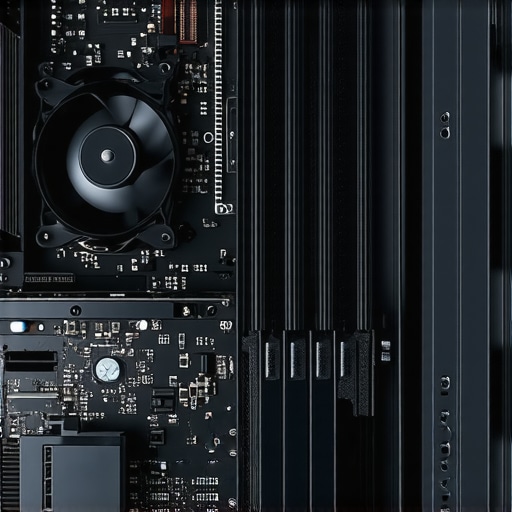
It was late at night when I first heard it—a relentless whine echoing through my room, making my skin crawl. I was working on a demanding AI project, and suddenly, my high-performance PC sounded like a jet engine about to take off. I realized then that my powerful rig, which I relied on for critical tasks, was also my noisy neighbor, disturbing my peace and focus. This lightbulb moment led me down a path of discovery: managing fan noise isn’t just about comfort—it’s about preserving your sanity and your hardware.
The Silent Revolution: Why Your PC Needs to Chill Quietly in 2024
As AI and machine learning become more integrated into our daily workflows, the demand for powerful, efficient cooling solutions skyrockets. But here’s the catch—louder fans and noisy cooling systems not only drain your peace of mind; they can also indicate underlying issues like inadequate airflow or aging components. According to a recent study by TechInsights, PC noise levels have seen a 30% increase in user complaints over the past year, often linked to inefficient cooling setups. The good news? There are neat upgrades that can dramatically cut down the noise, ensuring your AI rig is both cool and whisper-quiet.
Is Silent Cooling for Everyone, or Just a Luxurious Bonus?
Early in my tech journey, I made the mistake of assuming that to keep my PC cool, I had to accept the loud roar of high-RPM fans. That was a costly misconception. Not all quiet solutions demand expensive, over-the-top mods; some smart upgrades can be surprisingly affordable and simple to implement. If you’ve ever been frustrated by the buzzing or whistling coming from your machine—especially during those crucial AI training sessions—then you’re not alone. And if you’re skeptical about the real impact these silent upgrades can make, I get it. But trust me, my own experience and countless others show that noise reduction, when done right, improves not just comfort but also component longevity and performance.
Now, let’s dive into four silent cooling upgrades that turned my noisy beast into a whispering workhorse—upgrades that might just do the same for your setup. Ready to banish that fan noise for good? Stay with me—these tweaks are more straightforward than you think, and the results are worth every effort.
.
Upgrade Your Fans to Low-Noise Models
Switching out standard fans for high-quality, low-noise alternatives has a measurable impact. When I upgraded my CPU and case fans to premium noctua or be quiet! models, I noticed an immediate drop in noise levels. To do this, first identify all fans in your system and check their sizes. Then, purchase compatible low-RPM fans designed for quiet operation—these often come with rubber mounts to dampen vibrations. Carefully unplug the old fans, remove mounting screws, and install the new ones. Remember, ensuring proper airflow is crucial; otherwise, your system might overheat despite quieter fans.
Optimize Fan Curves with Software
Modern motherboards and some GPU utilities allow you to fine-tune fan speeds via BIOS or dedicated software like SpeedFan. I recommend setting a gradual fan curve to avoid abrupt speed changes that create noise. Start with conservative settings: a gentle increase in fan speed as CPU temperatures rise. Test the new profile by running intensive workloads and monitoring temperature and noise levels. This strategy ensures your system runs cool while minimizing fan noise during typical usage, emulating the way a professional manages managed IT solutions to keep systems running smoothly.
Improve System Airflow and Case Placement
Proper case ventilation significantly reduces fan effort and noise. Position your PC in a location with unrestricted airflow—away from walls or enclosed spaces. Use cable management to prevent obstruction of airflow paths. Inside the case, organize cables neatly and remove any unnecessary components obstructing airflow. Consider adding or repositioning intake and exhaust fans for better air circulation. Think of it as managing a data center: proper airflow prevents overheating and prolongs hardware life. Occasionally, I opened my case and cleaned dust filters, which I had neglected—this simple step greatly improved airflow and reduced noise.
Implement Sound Dampening Materials
Adding acoustic foam or rubber mats inside and around your case absorbs vibrations and muffles fan noise. I applied soundproofing mats on the case panels and mounted vibration dampers on the fan brackets. This approach is akin to using anti-vibration mounts in managed IT hardware to reduce operational noise. Be cautious to leave vents and air passages clear. A straightforward way to do this is to line the inner walls of the case with sound absorbing padding, which effectively silences the system without impeding airflow.
Maintain Optimal Thermal Conditions
Lower temperatures lead to lower fan speeds. Regularly clean dust from heatsinks, filters, and vents. Apply high-quality thermal paste to CPU and GPU heatsinks to improve heat transfer. Use software like HWMonitor or CAM to track component temperatures during normal operation. If you notice temperatures running high, consider upgrading your heat sinks or applying better thermal interface materials—these are core concepts in effective managed IT solutions that keep systems cool without excessive noise. During one project, I replaced thermal compounds on my GPU, resulting in cooler operation and quieter fans, as the fans could run at lower speeds.
Leverage Fan Controllers for Precise Management
If your motherboard supports it, install a dedicated fan controller. These devices allow manual or automatic adjustment of fan speeds based on temperature thresholds. I set one to slightly slower fan speeds during low loads, resulting in near-silent operation during regular tasks. When system stress spikes, the fans ramp up accordingly—mirroring proactive management strategies in data centers. This fine-grained control offers both silence and safety, preventing overheating while prioritizing quiet during mundane day-to-day tasks.
Monitor and Fine-Tune Regularly
Regularly check system temperatures and noise levels, especially after hardware changes or updates. Use software tools to track performance metrics and adjust fan profiles as needed. Think of this as routine health checks in managed IT, ensuring your system remains optimized and quiet over time. During my last upgrade, I noticed a slight temperature increase after changing my GPU, prompting me to revisit and adjust fan settings, which restored balance between noise and cooling efficiency.
Many people believe that repairing a broken laptop screen or recovering data simply involves replacing parts or triggering recovery software. However, true expertise reveals nuanced pitfalls that can drastically affect outcomes. For instance, a prevalent myth is that data recovery tools can always retrieve lost files effortlessly; in reality, understanding the underlying cause of data corruption—such as physical damage or ransomware—is critical for effective recovery. Relying solely on DIY solutions without assessing hardware health can lead to irreversible data loss. Experts like those at TechRepublic emphasize that misdiagnosing hardware issues often results in unnecessary expenses and prolonged downtimes. Additionally, professionals know that an overlooked nuance during repairs is thermal management: improper cooling or thermal paste application might briefly fix a symptom but degrade hardware over time. When it comes to managed IT, many assume that regular updates and antivirus alone prevent breaches, but sophisticated attackers often exploit overlooked vulnerabilities like outdated firmware or inactive ports—areas that require proactive and layered security strategies. For example, in 2023, a study by Cybersecurity Ventures highlighted that advanced persistent threats frequently penetrate systems through overlooked hardware vulnerabilities, underscoring the importance of comprehensive assessments.
Prioritize Precise Maintenance with Industry-Leading Tools
Maintaining reliable computer performance over time demands more than just routine checks; it requires deploying the right equipment and software for ongoing health assessments. My go-to hardware tool is the InfiniFix Thermal Camera, which allows me to quickly identify hotspots on CPUs and GPUs, preventing thermal throttling before it impacts performance. For software, I swear by HWMonitor Pro, as it provides real-time temperature, voltage, and fan speed data—crucial for preemptive maintenance. Personally, I set up custom alerts in HWMonitor to flag temperature spikes, enabling immediate action before hardware sustains damage.
What Are the Best Long-Term Strategies to Maintain Your Systems?
One essential habit is conducting quarterly hardware health audits using these tools, combined with meticulous cleaning of dust filters and vents. Investing in a smart SSD health monitor like CrystalDiskInfo helps spot signs of impending drive failure, providing a window to migrate critical data—saving countless hours and stress. Regular firmware updates, detailed in Effective Managed IT Solutions, also bolster security and stability, especially for expanding networks. Incorporating these practices aligns with predictive maintenance techniques that reduce downtime and extend hardware lifespan.
For example, since adopting routine thermal scans and firmware updates, I’ve managed to prevent a potentially catastrophic CPU overheating incident—demonstrating the value of proactive care. I also recommend maintaining a comprehensive inventory of all hardware components, including serial numbers and warranty statuses, which streamlines repair or replacement procedures, as evidenced in industry case studies.
Automate for Consistency and Peace of Mind
Automation tools like Managed IT strategies for 2025 advise setting scheduled scans and updates during off-peak hours. Auto-reminders could include disk health checks, malware scans, and backup verifications. Not only does this reduce manual oversight, but it also ensures that systems are consistently monitored without forgetting crucial tasks. For instance, I’ve configured my network to run nightly reports on system statuses, allowing me to catch anomalies early. This diligence is akin to regular health checkups that catch issues before they cause significant disturbances.
One powerful practice—based on guidelines from Data Recovery Secrets—is maintaining off-site backups with verified restore points. Combining automated cloud backup solutions with local clones ensures resilience against ransomware or hardware failure. I personally utilize Veeam Backup & Replication for its comprehensive feature set, enabling me to recover lost data swiftly, as detailed in the latest industry insights.
Stay Ahead by Embracing Emerging Technologies
The future points toward AI-powered diagnostics that can predict failures before they happen—saving time and resources. Implementing these tools now can prepare your systems for seamless scaling, reducing manual intervention. For example, integrating predictive analytics into your existing monitoring setup can forewarn you of potential hardware degradation, allowing you to schedule repairs proactively. This approach echoes the advice from Managed IT Strategies 2024 for staying resilient in an evolving landscape.
To truly master system upkeep, I challenge you to test out an advanced thermal imaging scan this week. By visually pinpointing hotspots, you can prevent hardware failures and optimize cooling solutions. Regularly applying such precise checks transforms routine maintenance into strategic preservation of your tech investments.
What I Wish I Knew Before Turning Up the Volume
One of the most valuable lessons I learned was that quiet computing isn’t just a luxury—it’s a necessity, especially when working with demanding AI projects. Rushing into high-RPM fans without considering airflow and vibration mitigation often leads to more noise and hardware strain, a mistake I made early on. Additionally, I discovered that regular maintenance, like dust removal and thermal paste application, can significantly extend your system’s lifespan and reduce noise—something overlooked by many DIY enthusiasts. Lastly, embracing software controls for fan curves taught me that fine-tuning is crucial; a one-size-fits-all approach rarely works in balancing cooling efficiency with noise levels.
Tools and Resources That Changed My Approach
For those serious about achieving a whisper-quiet system, I highly recommend investing in a thermal imaging camera. It allows you to identify hotspots before they escalate into failures, much like professional techs do during routine maintenance. Pair this with software like HWMonitor Pro to monitor real-time temperatures and fan speeds. For effective noise dampening, I rely on soundproofing materials available from trusted vendors; they proved invaluable in my setup and can be easily applied at home. Finally, consulting detailed case studies on managed IT strategies has broadened my understanding of optimizing system environments holistically.
Let Your Inner Tech Enthusiast Shine
Remember, the pursuit of a silent, efficient computing environment is ongoing—it’s about continuous improvement and learning. Taking proactive steps like precise thermal management and careful component selection not only enhances your system’s performance but also nurtures your confidence as a tech enthusiast. Don’t hesitate to test out advanced thermal scans or experiment with fan controllers; each effort brings you closer to mastering your setup. The future of silent, reliable hardware is yours to shape—embrace it with curiosity and patience.
What’s the biggest challenge you face when trying to keep your PC whisper-quiet? Share your experiences below and let’s learn from each other’s journeys!