

I was sitting at my dining room table last Tuesday, deadline looming, when I noticed something highly irritating. My laptop, plugged into the wall for three straight hours, was stubbornly stuck. Eighty percent. Not eighty-one, not one hundred. Just eighty. I unplugged it, plugged it back in, and even blew into the charging port like an old Nintendo cartridge. Nothing changed. My immediate thought went straight to panic: is my motherboard dying, or do I need to run to a shop for some emergency computer repair? It felt like yet another frustrating hardware failure. But as it turns out, the culprit wasn’t a broken machine at all, but rather a silent software feature designed to protect me from myself.
The Secret Limiter Hiding in Your Battery Settings
We have all been conditioned to believe that more is always better, especially when it comes to battery life. We want that sweet 100% icon before we step away from an outlet. However, modern lithium-ion batteries absolutely hate being fully charged all the time. Keeping your battery at maximum capacity while plugged into AC power constantly is the fastest way to degrade its chemistry. To combat this, manufacturers like ASUS, Lenovo, Dell, and Apple have quietly introduced smart charging features. According to a technical study by Battery University, keeping a lithium-ion battery at 100% charge and high temperatures degrades its overall capacity up to 20% faster than storing it at a partial charge. That is why your system is intentionally stopping at eighty percent; it is actively trying to extend the lifespan of your expensive hardware.
Is this 80% limit actually helping your laptop?
It sounds counterintuitive. Why buy a laptop with all day battery life if you can only use eighty percent of it? Early in my tech journey, I made the classic mistake of disabling these battery care utilities because I wanted maximum runtime for a cross-country flight. Within eight months, my battery health degraded so severely that the laptop began shutting down randomly at thirty percent charge. I ended up needing a physical replacement just to keep the machine stable. If you are constantly on the move, you can easily disable this feature in your manufacturer’s companion app (like MyASUS or Lenovo Vantage) for a temporary boost. But if your laptop mostly sits on a desk plugged into the wall, keeping this limiter turned on is the single best thing you can do to prevent your hardware from wearing out prematurely.
Have you noticed your own laptop screen dimming or the system refusing to top up while plugged in? If you are worried about your power delivery, you might also want to learn how to fix a laptop that only charges at a specific angle to rule out a damaged DC jack. Let me know in the comments if your machine is currently locked at eighty percent!
Take Control of Your Battery Management Software
Getting your laptop past that eighty percent roadblock requires diving into the specific companion software pre-installed by your manufacturer. Think of these applications as the dashboard of a modern sports car; they control the internal electronics behind the scenes. Last year, I was setting up a fleet of devices for a client and noticed half of them wouldn’t charge to full. I initially panicked, thinking we needed serious motherboard-level computer repair. It turned out that a simple software profile switch was all we needed to release the battery limiter.
Locate your manufacturer companion app
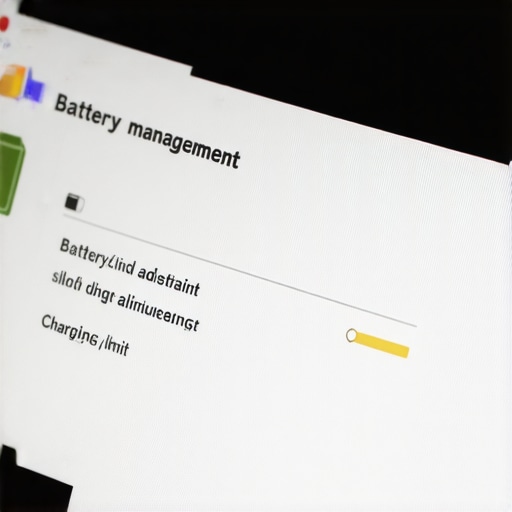
To change these settings, you must open your system’s dedicated control panel. For ASUS machines, search your Windows Start menu for MyASUS and navigate to the Customization tab under Power & Performance. If you are on a Lenovo laptop, open Lenovo Vantage, go to Device, then Power, and look for “Conservation Mode.” For Dell users, the software is called Dell Power Manager. Inside these apps, you will find toggles like “Full Capacity Mode” or “Balanced Mode.” Switching the setting to “Full Capacity” tells the charging controller on the motherboard that you need every single drop of power, overriding the safety limits immediately.
What to do if the battery percentage remains stuck
If you toggled the software switch and your battery still refuses to budge past eighty percent, your battery fuel gauge is likely miscalibrated. The system is misinterpreting the physical charge of the cells. To fix this, you need to perform a manual calibration cycle. Run your laptop battery completely down to zero percent until the machine shuts off. Leave it off for about two hours to ensure the cells are entirely drained. Next, plug in your charger and let it charge uninterrupted back up to one hundred percent. This recalibration process resets the internal battery management chip, ensuring your Windows battery indicator matches physical reality. Keep an eye out during this process; if your chassis looks warped, you should learn how to tell if your laptop battery is swelling before it physically warps your keyboard.
Handle hardware communication glitches directly
Sometimes the issue is not the battery health or the software dashboard, but rather a temporary glitch in the motherboard firmware. This is highly common after a sudden Windows Update. You can force your hardware to redetect the battery by performing a hard EC (Embedded Controller) reset. Shut down your laptop completely, unplug the power adapter, and hold down the physical power button for a full forty seconds. This completely drains any residual electricity from the motherboard capacitors and forces the hardware controller to poll all connected devices from scratch. When you boot back up, the system re-establishes a clean connection with the charging controller. This simple trick has saved me hundreds of dollars in unnecessary diagnostics and component replacements over the years.
We have all been told that to keep our electronics running perfectly, we should just trust the automatic settings. But let’s dig deeper. When it comes to managing hardware, there is a massive misconception that built-in battery limiters are foolproof. While keeping your charge capped at eighty percent saves your battery chemistry from degrading, many users fall into the trap of leaving these limiters active while ignoring their operating system’s power delivery calibration. The truth is, relying blindly on manufacturer software without occasionally cycling your battery actually masks underlying hardware degradation.
Why is your smart battery management software lying to you?
Everyone says to keep your laptop plugged in and capped at eighty percent to double its lifespan. However, in my experience, keeping a laptop permanently connected to AC power with a limiter enabled eventually causes the battery fuel gauge to lose track of the battery’s actual chemical state of charge. Over time, the physical cells lose capacity unevenly. According to electrochemistry research published by the Electrochemical Society, continuous partial state-of-charge cycling without full discharge cycles leads to memory-like effects in modern silicon-graphite anode lithium cells, making the software readouts highly inaccurate.
If you never allow your laptop to experience a full charge-and-discharge cycle, the Windows battery driver eventually starts guessing. This is the exact moment you experience sudden shutdowns at twenty percent battery life, or your laptop screen suddenly goes dark without warning. If you are experiencing other display anomalies alongside power issues, you might want to look into laptop screen repair how to fix common issues at home to make sure a failing display cable isn’t compounding your troubleshooting headaches. Have you ever fallen into this trap of trusting your battery care software too much? Let me know in the comments.
Another critical mistake is confusing a software battery limit with a hardware power supply failure. Often, people assume their power brick is faulty and purchase cheap, third-party replacement chargers. This is a massive gamble. To understand why this is a terrible idea, you should read about the truth about generic laptop chargers and motherboard damage. A cheap adapter can send unregulated voltage spikes straight past your battery controller, frying the delicate charging ICs on your motherboard. If your machine is behaving strangely, always rule out software calibration and OEM charger functionality before assuming you need expensive, deep-level computer repair to get back up and running.
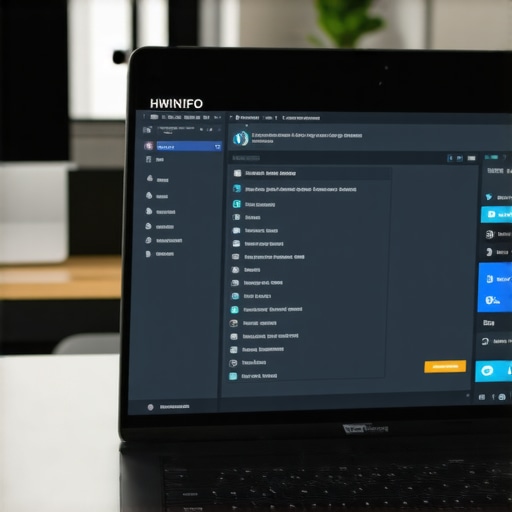
In my years working alongside hardware engineers, I have learned that keeping your machines alive is about building a proactive baseline of maintenance, rather than just waiting for a component to catch fire. When I manage large-scale hardware deployments, we don’t just rely on default operating system settings. We run direct telemetry tests using specialized utilities that dig beneath the surface of generic battery care. For personal laptops, I always install a lightweight open-source tool called HWiNFO. Unlike standard diagnostic applications, HWiNFO gives me real-time readouts of the charge rate in milliwatts and, more importantly, the exact wear level of the battery cells. It lets me instantly see if a machine is limiting its charge because of a smart software profile, or if the chemical health is genuinely tanking.
How do I maintain my laptop power delivery system over time?
To keep your system running reliably year after year, you must treat your power delivery system as a dynamic component that requires regular validation. I recommend performing a dedicated battery health audit every three months. Start by using HWiNFO to check your wear level, followed by a manual recalibration cycle to keep the Windows battery gauge accurate. Alongside this, physical maintenance is paramount. Dust is a silent killer of charging circuits; it accumulates inside the USB-C or DC jack, acting as an insulator that traps heat and increases resistance during high-wattage charging. I routinely use a wooden toothpick and a quick blast of compressed air to clean out my charging ports, ensuring a flawless physical connection that prevents erratic charging behavior.
As we look to the future, the relationship between operating systems and physical hardware is changing rapidly. I predict we will soon see on-device AI models integrated directly into the system firmware, analyzing your actual weekly usage patterns rather than relying on static 80% charging caps. Your laptop will learn that you always unplug at 9:00 AM on Tuesdays for a meeting and will automatically top off your battery to 100% just in time, while keeping it at a safe 80% during your sedentary desk days. For business owners, managing these hardware lifecycles across dozens of machines can quickly become a full-time job. This is where leaning on effective managed IT solutions for growing companies can make all the difference, ensuring your entire fleet remains optimized, secure, and running peak firmware versions without draining your internal resources.
If you are tired of guessing whether your hardware is failing, I challenge you to download HWiNFO today, look up your battery’s current wear level, and run a manual calibration cycle tonight to see how much capacity you can reclaim.
What Experts Won’t Tell You About Your Laptop’s Power Delivery System
Over the years, I have seen countess users fall victim to the set-it-and-forget-it trap. The biggest myth in mobile computing is that software limits are a magical cure-all. While capping your charge at eighty percent protects battery chemistry, keeping your machine permanently tethered to the wall actually degrades its physical calibration. Your operating system starts guessing the remaining power, leading to sudden shutdowns when you need your machine the most.
Another hard lesson is that physical degradation often masquerades as a software glitch. If your system refuses to charge properly even after adjusting your settings, you must check for hardware indicators. For instance, knowing how to tell if your laptop battery is swelling can save your entire machine from catastrophic chassis damage. Regular validation is the only way to ensure your hardware remains safe, balanced, and functional over its lifespan.
My Essential Power Management Toolkit
I do not rely on standard Windows diagnostics to keep my systems healthy. Instead, I build a custom maintenance suite using these trusted utilities:
- HWiNFO: This is my absolute go-to for real-time telemetry. It bypasses generic battery readouts and shows you the exact wear level, charge rate in milliwatts, and thermal throttling status of your system.
- BatteryReport (Windows Built-in): By typing
powercfg /batteryreportinto your command prompt, you generate a highly detailed HTML history of your battery’s charge cycles, design capacity, and actual physical capacity over time. - OEM Custom Companion Apps: Applications like MyASUS, Lenovo Vantage, and Dell Power Manager are crucial for adjusting the physical charging thresholds on the motherboard level.
If you encounter unexpected display glitches or flickering while troubleshooting your power settings, you might also want to look over my guide on laptop screen repair how to fix common issues at home. Having the right diagnostic tools prevents you from paying for costly and unnecessary professional interventions.
Take Control of Your Hardware Today
Your laptop is a dynamic ecosystem, not a static appliance. By actively monitoring your power delivery system, performing quarterly calibration cycles, and keeping your charging ports physically clean, you can easily double the reliable lifespan of your device. Do not let hidden software limiters or miscalibrated gauges dictate how you use your machine. Take charge of your hardware maintenance and enjoy the true peak performance your system was engineered to deliver.
Have you ever struggled with a laptop battery that suddenly drops from twenty percent to zero, or is your machine currently locked at eighty percent? Let me know in the comments below!