

I will never forget the sound of my first laptop “pop.” It wasn’t a loud explosion, just a subtle, sickening cr-ick as I closed the lid for the night. I thought I had just stepped on a stray crumb. In reality, my battery had been silently expanding for weeks, and that tiny noise was the internal mounting brackets finally giving up the ghost. By morning, my trackpad was tilted at a 15-degree angle and the bottom case was bulging like it had just eaten a three-course meal. It was a terrifying, expensive lesson in why you shouldn’t ignore the subtle shifts in your tech’s physical shape. I felt like a total amateur, despite years of tinkering. If I had just known what to look for, I could have saved the chassis and avoided the panic of a potential fire. Today, I am going to walk you through the early warning signs so you can catch a “spicy pillow” before it turns into a total hardware disaster.
Your Trackpad Is Usually the First Victim
Most people assume they will see a giant lump on the bottom of their machine first, but that is rarely how it starts. Because modern laptops are packed so tightly, the battery usually sits directly beneath the trackpad or the palm rest. One of my biggest computer repair mistakes was thinking my erratic mouse cursor was a software bug. I spent hours reinstalling drivers when the battery was actually physically pushing against the underside of the sensor. If you find yourself needing to fix a laptop touchpad that has become erratic, do not just look at the settings—look at the level of the glass. Is it sitting flush with the rest of the case?
Are these batteries actually dangerous or just a nuisance?
It is easy to think a little bulge is just a cosmetic quirk, but Lithium-ion batteries are essentially pressurized chemical sandwiches. According to safety experts at UL Research Institutes, once a battery starts “off-gassing” and swelling, the internal separators are failing, which significantly increases the risk of a thermal runaway event. It is not just about the cost of a potential laptop screen replacement or a new case; it is about your safety. Have you ever noticed your laptop “rocking” on a flat table when it used to be steady? If so, you might already be in the danger zone. Give your machine a quick spin on a desk—if it rotates like a top, that battery is already rounded. Have you ever seen your laptop frame start to separate?
Watch for Gaps in the Chassis Seams
You need to develop a habit of inspecting your machine like a pilot does a pre-flight check. Place your laptop on a perfectly flat surface—a granite countertop or a glass table works best. Does it sit flat? If one corner is lifted or if the machine wobbles when you type, that is a massive red flag. Often, the battery will swell under the trackpad long before the outer shell shows a visible curve. Take a look at the gaps where the top and bottom plates of the chassis meet. If you see even a millimeter of separation or can see the internal silver or black casing through a gap that was not there before, stop using the device immediately. This is the moment where you can still save the machine without needing to get files off a water damaged macbook or deal with a total system failure. Once the metal bends, it is much harder to get everything back in place.
Try the Spin Test on Your Desk
The easiest way to confirm a swelling battery without even grabbing a screwdriver is what I call the spin test. If your laptop has a flat bottom, place it on a smooth surface and give it a gentle twirl. A healthy laptop will stay put or move sluggishly because of its rubber feet. However, if your machine spins like a top, it means the battery has already pushed the bottom casing outward, creating a pivot point. I remember a client brought in a high-end workstation once, complaining about the fan noise. When I put it on my workbench and it spun around with the slightest touch, I knew the fans weren’t the real problem—the battery was literally turning the chassis into a spinning toy. If you see this, stop using the device immediately to avoid a situation where you might need the power of data recovery tools because of a sudden internal short circuit. 
Why Your Trackpad Is Clicking by Itself
Physical deformation often starts internally before it breaks the outer shell. You might notice that your mouse cursor starts jumping or your buttons feel ‘mushy.’ If you have to fix a laptop trackpad that clicks on its own, the culprit is frequently the battery cell expanding and pressing against the underside of the trackpad module. In many modern designs, there is zero clearance between the battery and the input devices. Even a millimeter of swelling can trigger the sensors. I once saw a MacBook where the trackpad had actually cracked from the internal pressure—it looked like a tiny earthquake had hit the glass. This isn’t just a nuisance; it’s a structural warning. Don’t assume it’s a software glitch or a driver issue. If the physical click feels different, the battery is likely the culprit.
Discharge the Power to Minimize the Fire Risk
If you have confirmed the swelling, your first move isn’t to grab a pry tool. It is to reduce the energy density of the battery. A fully charged Li-ion battery is a much higher fire risk than one that is nearly empty. Use the device (unplugged) until the battery is below 25%, or even better, let it run until it shuts off. This reduces the amount of reactive energy stored in the ‘spicy pillow.’ Whatever you do, stop using a high-wattage charger. I have seen people try to ‘power through’ a swelling battery, only for the heat of the charging process to accelerate the gas expansion until the casing finally snapped. If your machine is already acting up, you should also ensure you have a backup of your important files, perhaps by using the move that protects your files when systems become unstable.
Deciding Between DIY and Professional Help
Opening a laptop with a swollen battery requires extreme caution. If the screws are under tension, they can literally fly across the room when you loosen them. I once had a bottom panel ‘pop’ with enough force to startle everyone in the shop the moment the last screw cleared the threads. If you are dealing with a modern thin-and-light, you need to know how to replace a soldered-in battery in a modern ultrabook before you even think about touching it. These batteries are often glued in with heavy-duty adhesive. If you puncture the soft outer pouch of a swollen battery while trying to pry it out, it can vent toxic gas or ignite. For business-critical machines, this is often the time to consider managed IT solutions that include hardware lifecycle management, so you aren’t stuck doing dangerous repairs yourself. If you do replace it yourself, avoid using third-party batteries in professional laptops unless you can verify the cell quality, as cheap replacements are the most common cause of future swelling.If you have survived the swollen battery ordeal, you might think you are in the clear. However, here is where most people make their second biggest mistake: they assume the fix is purely mechanical. In my years at the bench, I have seen countless DIYers swap a part and then wonder why the system still feels ‘off.’ One of the most common myths is that a fresh hardware component magically solves all underlying instability. In reality, a failing power supply or a subtle voltage spike from that old battery could have already started degrading your motherboard. Before you close that case, you need to learn how to spot a failing power supply before it finishes the job the battery started. Wait, what about your data? Everyone tells you to run ‘undelete’ software the moment a file disappears. **This is a dangerous trap.** If your drive is physically failing—which often happens alongside battery swelling due to excessive heat—running scanning software is like forcing a person with a broken leg to run a marathon to ‘find’ where it hurts. The constant read-sector requests can push a weak drive head into a total crash. Instead of DIY-ing it, understanding data recovery secrets involves knowing when to stop touching the hardware. Using the power of data recovery tools requires a stable environment, not a dying laptop. 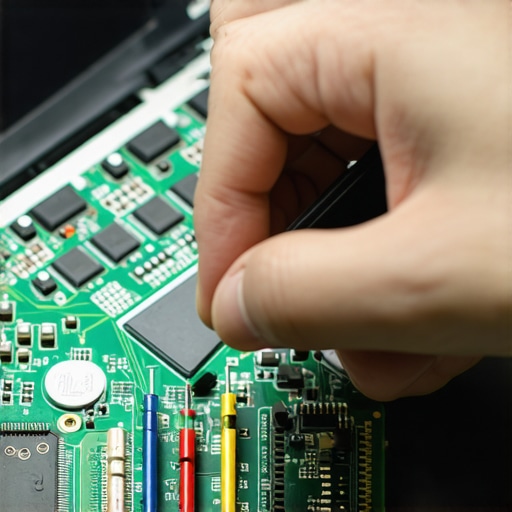
Why do most ‘pro’ data recovery tools fail on modern SSDs?
The hard truth that many tech influencers ignore is the TRIM command. On traditional hard drives, ‘deleted’ meant the index was gone but the data stayed. On a modern SSD, the controller actively wipes those cells to keep the drive fast. According to a study by Backblaze, SSD reliability is high, but when they fail, they fail catastrophically and silently compared to HDDs. If you are trying to recover a word document after your pc crashed, every second the power is on, the TRIM command is your worst enemy. It is literally cleaning up the ‘garbage’ (your data) in the background. If you are managing a fleet for a business, these individual hardware fires are a symptom of a larger problem. You should not be playing whack-a-mole with swollen batteries and ‘blurry’ screens. I often see companies where the it budget is leaking money because they are paying for reactive repairs instead of proactive monitoring. This is where managed IT solutions become the real hero. They catch the thermal spikes in a server room or a laptop fleet long before a trackpad starts lifting. Even if it is just a simple laptop screen repair, a managed approach ensures the parts used are not cheap knockoffs that will fail in six months. Have you ever fallen into this trap of fixing one thing only to have another break a week later? Let me know in the comments!
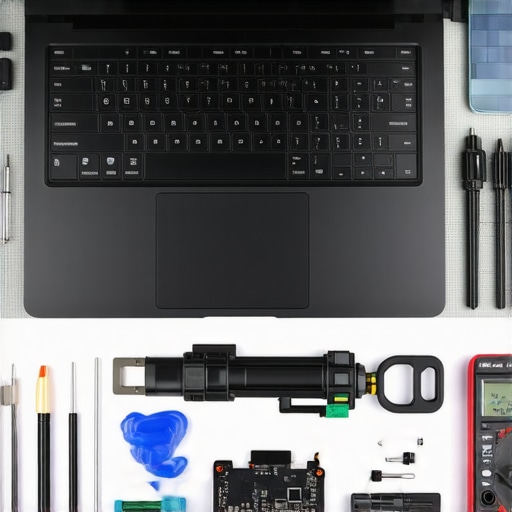
If you have survived the initial panic of a hardware glitch, you have likely realized that the best repair is the one you never have to perform. In my years at the bench, I have seen that the difference between a machine that lasts seven years and one that dies in two usually comes down to the gear you use and the frequency of your checkups. I am a firm believer in the right tool for the job. For me, that means never touching a laptop with a generic screwdriver set. I personally swear by the iFixit Pro Tech Toolkit because the bits are hardened steel; using soft, cheap bits is a fast track to stripped screws, which is one of the most frustrating computer repair mistakes you can make. When you are dealing with precision electronics, the tolerance for error is microscopic.
Stop Killing Your Laptop With Hidden Dust
The number one killer of internal components isn’t age—it’s heat. When your fans get clogged, your battery and CPU bake in a silent oven. I make it a habit to perform a deep clean every six months. If you want to keep your system cool, you need to know how to clean a laptop fan without pushing dust deeper inside the chassis. I use a combination of electronic-safe compressed air and a soft-bristled ESD-safe brush. This simple ritual prevents the thermal throttling that makes your machine feel slow and protects the delicate layers of your laptop screen from heat-induced discoloration. Beyond the physical, I also use software tools like HWMonitor to keep an eye on my thermals in real-time. If I see my idle temps creeping above 50°C, I know it is time to crack the case open.
How Can I Keep My Hardware Healthy for Years?
Maintenance is a marathon, not a sprint. For individual users, it is about heat management and power cycles. According to Isidor Buchmann, the founder of Cadex Electronics and the mind behind Battery University, lithium-ion batteries are most stressed when they are held at a 100% charge in a hot environment. To combat this, I use BIOS-level battery limiters to cap my charge at 80% when I am plugged in all day. This single habit can double the lifespan of your cells. For those running a business, the stakes are higher. You cannot manually check every laptop in the office, which is where effective managed IT solutions for growing companies become essential. These services use RMM (Remote Monitoring and Management) tools to flag a failing drive or an overheating processor before the employee even notices a slowdown.
The Future of Repair Is Modular
I predict we are moving toward a world where ‘disposable’ tech becomes a liability. With the rise of the Right to Repair movement, we are seeing a shift back toward modular designs. In the next few years, I expect more manufacturers to follow the lead of companies like Framework, making it easier to swap a motherboard or a keyboard without needing a degree in engineering. This shift will make managed IT solutions even more cost-effective, as hardware lifecycles can be extended through simple upgrades rather than total replacements. Whether you are a solo freelancer or managing a fleet, the goal is the same: move from reactive ‘fires’ to proactive health. If you are serious about protecting your data, stop relying on luck and start using data recovery secrets that emphasize redundant backups before the hardware fails. My challenge to you today: check your laptop’s battery health in your system settings—if it’s below 80%, start planning that replacement now before it turns into a ‘spicy pillow.’
The Truth About Those Spicy Pillows I Learned the Hard Way
In my decade of tech work, the biggest ‘aha’ moment wasn’t a complex code—it was realizing that hardware is a living, breathing entity. If you treat it like a static brick, it will eventually bite back. I used to think I could wait until the warranty expired to worry about internal health, but that is how you end up with a cracked chassis. One lesson that stuck with me: if the laptop feels ‘different’ in your hands, it is different. Don’t let a small physical change become a reason you need data recovery secrets. Another hard truth? Most users ignore battery cycle counts because they think software will warn them. It won’t. You have to be the one to look for the bulge.
The Only Hardware Gear I Trust for the Job
I don’t gamble with my clients’ hardware, and you shouldn’t either. When it comes to computer repair, the quality of your tools dictates the quality of your result. I always reach for hardened steel bits to avoid the nightmare of a stripped screw on a $2,000 MacBook. For software-side monitoring, I rely on HWMonitor to watch for those invisible heat spikes. If you are running a company and this all sounds like too much to track, exploring managed IT solutions is the best way to move the burden to experts who do this daily. They can perform quarterly audits that catch battery failure before it bends your frame.
#IMAGE_PLACEHOLDER_E#
Take Control Before Your Hardware Decides for You
Tech is meant to serve you, not cause you anxiety. By catching the early signs of a swelling battery and performing basic maintenance, you are extending the life of your investment by years. Whether you are learning how to replace a battery in an ultrabook or just keeping your fans clear, every small action counts. Remember, the goal of computer repair isn’t just fixing what is broken—it is preventing the break in the first place. Stay proactive, keep it cool, and your laptop will thank you with years of loyal service. Have you ever noticed your laptop acting strangely, only to find a ‘spicy pillow’ hiding inside the case? Let me know your experience in the comments!