

I remember one particularly brutal Monday three years ago. I’d just sat down with a fresh mug of dark roast, ready to tackle a mountain of invoices, when my workstation decided it needed a fifteen-minute ‘nap.’ I watched the cursor stutter across the screen like it was wading through molasses. It wasn’t just a minor annoyance; I ended up missing a client call because my email wouldn’t even load. I felt defeated. I’m a tech guy, and yet, there I was, outsmarted by a beige box. It’s a scene I see played out in offices all over town, and honestly, it’s usually not because your computer is ‘old.’ Today, we are going to fix that sluggish start once and for all so you can actually get to work before lunch.
Your Computer Is Fighting a Secret Battle While You Pour Coffee
We often blame the hardware, but more often than not, your system is drowning in a sea of scheduled tasks that all decided to wake up at 8:00 AM. I’ve seen so many small business owners think they need a whole new fleet of machines when they really just need managed IT solutions to streamline operations. Early in my career, I made the classic mistake of just throwing more RAM at every slow PC. I wasted a lot of money before I realized that the mistake that makes your backups completely useless is often the same thing that kills your Monday morning performance: poor scheduling. According to a study by Microsoft research on workplace habits, digital friction caused by slow-loading apps significantly increases stress levels before the workday begins.
Does my PC actually need a trip to the trash bin?
You might be worried that your hardware is simply past its prime. While it’s true that thermal throttling can slow down your work, most Monday morning lag is actually caused by ‘logjam’—a pileup of updates, virus scans, and sync processes that were supposed to run over the weekend but waited for you to log in instead. Have you ever felt like your computer was actively working against your Monday productivity? If you’ve been tempted to throw your laptop out the window by 9:15 AM, you aren’t alone. We’re going to look at how to clear the clutter and get your speed back without spending a dime on new parts yet.First, we need to stop the logjam at the gate. Open your Task Manager (Ctrl + Shift + Esc) and head to the Startup tab. This is where the magic—or the misery—happens. Every app listed with a High startup impact is a heavy brick in your digital backpack. Last year, I worked with a local accountant whose laptop took six minutes to become usable every morning. We found that a printer utility, two different cloud storage apps, and a supposed PC Speed Up tool—which was ironically doing the opposite—were all fighting for the same sliver of processing power. By disabling the non-essentials, we cut her boot time to 45 seconds without spending a dime on computer repair for beginners or new hardware. While you are in there, it is worth knowing how to spot a suspicious process in your task manager so you are not leaving the door open for malware while you are cleaning house.#IMAGE_PLACE_HOLDER_B#
Stop Fighting Your Own Hardware
If your fan sounds like a jet engine taking off before you have even opened Chrome, your computer is not just busy; it is suffocating. This is where the sign your cpu is thermal throttling becomes obvious. When a processor gets too hot, it intentionally slows down its clock speed to prevent physical damage. It is the digital equivalent of trying to run a marathon while wearing a heavy parka in July. Dust is usually the villain, but it can also be a failing hard drive trying desperately to read corrupted sectors. I always tell my clients to check if your hard drive is about to fail using s.m.a.r.t. data before they start deleting files. If the physical drive is dying, no amount of software cleanup will save your Monday.
Audit the Apps That Launch at Startup
Think of your operating system as an office manager. If that manager arrives on Monday morning to find a stack of 500 files labeled urgent left over from Friday, they are going to panic. This is what happens when you leave your PC off all weekend. Windows and your antivirus software see that last check date from Friday and try to do everything at once. Instead of letting this happen at 9:00 AM, change your active hours in your system settings. Tell your computer that your work day starts at 8:00 AM. This prevents Windows from starting a massive update cycle while you are in the middle of a critical meeting. It is a simple move, but it is a foundational part of effective managed IT solutions for growing companies because it controls when the heavy lifting happens.
Check Your Drive Before It Checks Out
Sometimes the lag is not about what is running, but what is struggling to stay alive. I once spent three hours trying to optimize a designer’s workstation only to realize the SSD was reaching its end-of-life cycle. The system was freezing because the drive couldn’t write temporary files fast enough. If you notice that simple tasks like moving a folder take forever, you might be looking at a hardware failure masquerading as a slow OS. It is much easier to clone a drive now than it is to deal with data recovery secrets later when the drive finally gives up the ghost.
People often tell me, “I don’t need a backup, I have OneDrive.” This is the single most dangerous sentence in modern computing. In my experience, relying solely on synchronization is like building a house with a self-destruct button in every room. If you accidentally delete a folder or a virus encrypts your files, that change is instantly “synced” across every device you own. You haven’t protected your data; you’ve just made it easier to lose everything at once. This is why I constantly nag my clients about why your business backup plan is actually just a sync plan and how that distinction can save your business from total collapse.
Can an SSD survive for years without being powered on?
There is a common misconception that SSDs are indestructible because they have no moving parts. While they are great for speed, they have a hidden weakness called data retention loss. Unlike a physical platter in a hard drive, an SSD stores data as electrical charges. If you leave an SSD in a drawer for two years without power, those charges can leak, leading to permanent data corruption. According to research by JEDEC, the industry standards body for microelectronics, the temperature at which you store a drive significantly affects how long it can hold data without power. This is one of those data recovery secrets every business should know today—sometimes the safest place for your archival data is actually a high-quality spinning disk, not a modern flash drive. Have you ever fallen into this trap? Let me know in the comments.
#IMAGE_PLACE_HOLDER_C#
Stop installing recovery software on the drive you’re trying to save
The biggest “oops” I see in the shop involves a well-meaning user who realizes they’ve lost a critical file and immediately downloads a recovery tool. The problem? They download it directly onto the drive that is failing. When you do this, you risk overwriting the very “ghost” of the file you are trying to find. Once those sectors are overwritten with the new software’s data, it is gone forever, no matter how many data recovery tools you use. If your drive starts acting up, stop writing new data to it immediately. This applies to hardware failures too; I have seen users try to “power through” a clicking drive, which only grinds the internal platters into dust. If you hear a noise, it’s time to stop and check if your hard drive is about to fail using s.m.a.r.t. data before the damage becomes physical.
The hidden cost of the cheapest IT support
Many business owners shop for IT support like they shop for paper towels—looking for the lowest price per unit. But why choosing the cheapest managed IT plan always leads to more downtime comes down to the “break-fix” mentality. A cheap provider makes money when your stuff breaks. An elite provider makes money when your stuff works, because their labor costs go down when your uptime is high. It is a complete reversal of incentives. If you’re still paying by the hour for repairs, you’re essentially paying a “failure tax.” Instead, you should be looking for managed it strategies to keep your business secure in 2025 that focus on prevention. This proactive approach even extends to your hardware lifecycle; knowing the best way to phase out old workstations without losing data can prevent that dreaded Monday morning logjam we discussed earlier.
If you want to avoid the emergency repair shop, you have to start thinking like a mechanic, not just a driver. I personally use portable diagnostic utilities on every machine I touch because they provide a clear ‘health’ rating based on raw telemetry. It is the difference between guessing why your system is slow and seeing the exact moment your SSD starts reallocating sectors. This is exactly how to check if your hard drive is about to fail using s.m.a.r.t. data before the blue screen of death becomes your new wallpaper. I have saved countless small businesses from a total wipeout just by glancing at these numbers once a month and spotting the early signs of exhaustion.
How do I maintain system health over time?
Consistency beats intensity every single time. You do not need to spend hours every week; you just need to automate the boring stuff. For my business clients, I recommend managed IT strategies to keep your business secure in 2025. This includes setting up automated patch management so you are never the person manually clicking ‘update’ on twenty different workstations. If you are a solo flyer, at least set a calendar reminder to blow the dust out of your vents. It sounds low-tech, but keeping the airflow clear is the best way to how to extend the life of your office pcs by three years without buying a single new component.
Don’t Let Your Hardware Suffocate in Silence
Don’t ignore the screen either. If you are seeing weird artifacts, it might not be a dying GPU. I have found that many ‘broken’ screens are actually just loose internal ribbon cables or driver conflicts. Learning tips for troubleshooting laptop screen problems seamlessly can save you a two-hundred-dollar repair bill. It is often just a matter of reseating a connector. As highlighted in the annual Backblaze Drive Stats report, certain consumer-grade drives have failure rates that skyrocket after the 36-month mark, which is exactly why I swap out primary drives every three years regardless of how ‘fast’ they feel. This proactive swap is a key part of the best way to phase out old workstations without losing data. 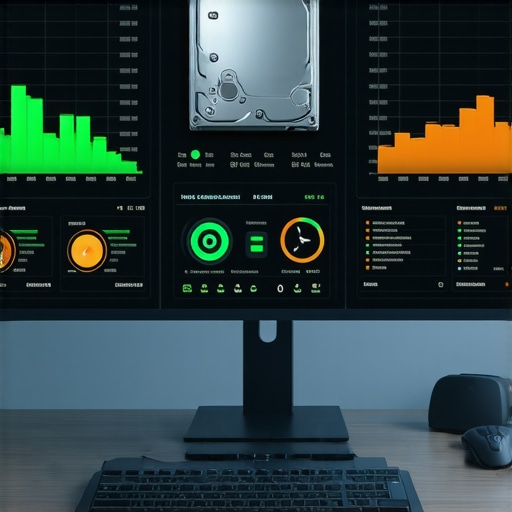 One tool I swear by for messy situations is a dedicated hardware-based drive cloner. When you spot a hardware failure masquerading as a software bug, software-based cloning often fails because the operating system keeps trying to read bad sectors. A standalone duplicator just copies bit-for-bit, which is a lifesaver. Looking ahead, I predict that ‘self-healing’ firmware will become the standard within the next five years. We are already seeing SSDs that can automatically isolate failing NAND cells more aggressively, and soon, your OS might give you a ’30-day warning’ before a component actually dies. If you want to take control today, go download a portable S.M.A.R.T. reader and look at your ‘Power-On Hours’ and ‘Total Host Writes.’ If your SSD is nearing its petabyte limit, you are living on borrowed time. Check the sign your ssd is reaching its write limit and about to die and get that data onto a fresh drive before Monday turns into a disaster.
Hard Truths from a Decade of Dead Hard Drives
After years in the trenches, I’ve realized that most computer failures aren’t sudden—they are the result of ignored whispers. Here is what I’ve learned from thousands of repairs:
- A sync is not a backup. I see businesses lose everything because they thought a cloud folder was enough. Real protection means having an offline copy and understanding why your business needs a local backup even if you use the cloud.
- Dust is a silent killer. Heat causes the CPU to throttle, making your expensive workstation perform like a calculator. Keeping it clean is the easiest way to handle troubleshooting common computer repair issues effectively.
- Cheap support costs more. If your IT guy only shows up when things are broken, his interests aren’t aligned with yours. This is why choosing the cheapest managed IT plan always leads to more downtime.
My Private Tech Survival Kit
I don’t leave for a client site without these specific tools. They turn guesswork into science:
1. Portable SMART Analyzers: Don’t guess if your drive is dying. Use telemetry to check if your hard drive is about to fail using s.m.a.r.t. data before the crash. I trust GSmartControl for a quick, reliable health report.
2. Hardware-Based Cloners: When a drive starts clicking, software cloning is a risk. I use standalone StarTech duplicators to move data bit-for-bit, which is a cornerstone of data recovery secrets.
3. Managed Service Dashboards: For business owners, I recommend managed IT solutions to streamline operations. Having a central dashboard that monitors patch status across your office is the only way to scale without chaos.
Reclaim Your Monday Morning
You don’t have to be a tech wizard to keep your office running smoothly. By taking small, proactive steps—like checking your startup apps or ensuring your fans are clear—you’re doing more for your productivity than any expensive ‘speed up’ software ever could. Whether it’s a simple laptop screen repair or a complex network overhaul, the secret is prevention. Start today, and you’ll never have to fear the ‘beige box’ again. Have you ever lost an entire morning to a ‘Windows is Updating’ screen while a client was waiting? Let me know your worst Monday tech story in the comments below.