

I remember the exact moment my stomach dropped. It was three years ago, and I had just let a visiting consultant hop on our main office Wi-Fi to ‘check a few emails.’ Twenty minutes later, my printer started spitting out gibberish and my file server went dark. It wasn’t intentional or malicious; the consultant’s laptop was simply riddled with malware he didn’t even know existed. By being a ‘nice guy’ and sharing my primary password, I had essentially handed a stranger the master key to my digital safe. This is exactly why your IT guy sounds like a broken record when he insists on a separate guest network. Today, I am going to show you why separating those signals is not just tech-paranoia but a fundamental move to keep your business running. We will look at how to stop a malware infection before it encrypts your data and why that guest network is your first line of defense. Have you ever felt that pang of regret right after shouting your Wi-Fi password across a room full of people?
That one time I let a friend on my network and almost lost everything
[image] I made the mistake of thinking my home-grown security was enough. It wasn’t. When that consultant connected, his infected machine began scanning my network for vulnerabilities—a process experts call lateral movement. I learned the hard way that managed IT strategies to keep your business secure in 2025 aren’t just for giant corporations; they are for anyone who doesn’t want their bank details floating on the dark web. It took me three days of stressful data recovery to get back to normal. I don’t want that for you.
Is setting up a separate network actually worth the hype?
Most people I talk to worry that setting up a second Wi-Fi name will be confusing or slow down their internet. I used to be one of them. However, the risk of a ‘flat’ network is simply too high to ignore. According to a study by the Ponemon Institute, the average cost of a data breach for a small business can exceed $100,000, and many of these breaches are caused by simple negligence like shared passwords. If you’re wondering how to tell if your office Wi-Fi is being tapped by outsiders, the first step is actually ensuring your legitimate guests are isolated.
Your main Wi-Fi is a master key you shouldn’t be handing out
Think of your office network like a hallway in a secure building. If there are no doors, anyone you let into the hallway can walk into your office, your files, or your server room. A guest network acts like a locked door. It lets people into the hallway but keeps them out of the sensitive rooms. This is precisely why your business needs a separate VLAN for guest Wi-Fi immediately. It builds a digital wall between your guests’ potentially ‘dirty’ devices and your clean, professional environment. I’ll be showing you how to set this up so you can stop worrying and get back to work.
Log into your router before the coffee gets cold
To start building your digital fortress, you need to access the brain of your network: the router. Most people think this requires a computer science degree, but it is as simple as typing a few numbers into your browser. Usually, it is 192.168.1.1 or 192.168.0.1. If those do not work, check the sticker on the bottom of the device. This is the foundation of computer repair for beginners-avoid costly mistakes by ensuring you are in the right place before you start clicking things at random. Once you are in, you will likely see a dashboard that looks like a control panel for a spaceship. Don’t panic. We are only looking for one specific tab.
Flip the switch on your guest network
Look for a section labeled ‘Wireless,’ ‘Advanced,’ or ‘Guest Network.’ Modern routers are incredibly helpful and usually have a toggle switch right at the top. When you turn this on, you are creating a second, parallel signal. This is the move that stops lateral movement after a network breach because it places guests on their own isolated island.
Give it a name that makes sense
Don’t just leave it as ‘Linksys_Guest.’ Give it a name like ‘Guest_Lobby’ so people know exactly what to join. More importantly, set a password that is different from your main network. I cannot tell you how many times I have seen businesses set their guest password to ‘password123.’ If you make it too easy, you are essentially inviting trouble.
The checkbox that saves your data
This is the most critical step: look for a setting called ‘Allow guests to access local network resources’ or ‘Client Isolation.’ You want to make sure the box that allows access is unchecked. By isolating the clients, you ensure that if a visitor’s laptop is infected, the malware cannot jump from their machine to your office printer or your server. This simple toggle is why your business needs a separate VLAN for guest Wi-Fi immediately. 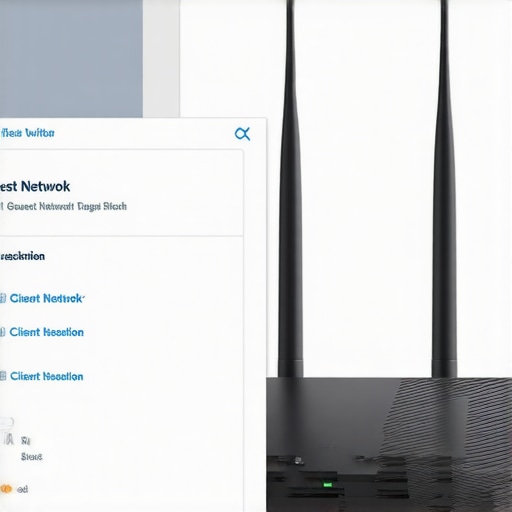
The day I accidentally locked myself out
I remember trying to be clever a few years ago while setting up a new router for a client. I was logged into the interface while connected to what I *thought* was the main network. I changed the admin credentials and restricted the guest network to a specific bandwidth. Ten minutes later, I realized I had actually connected to the guest signal myself. Because I had enabled strict isolation, the router saw me as a stranger and blocked my access to the admin panel. I had to perform a factory reset and start from scratch. It was a messy, thirty-minute detour that taught me a valuable lesson: always double-check which SSID your laptop is currently using before you hit ‘Apply.’ If you are unsure, how to tell if your office Wi-Fi is being tapped by outsiders starts with knowing exactly which devices are on which network.
Test the connection before you walk away
Once you hit save, grab your phone and connect to the new guest network. Try to access your office’s shared drive or ping your printer. If you get an ‘Access Denied’ or ‘Connection Timed Out’ message, give yourself a pat on the back—you’ve done it right. This is the move that stops your business network from crashing during peak hours because it also allows you to set speed limits for your guests, ensuring they don’t hog all the bandwidth while you’re trying to run a Zoom call. It’s about balance, security, and sanity.Most business owners think that if they’ve checked the guest network box, they’re 100% safe. But here is where we need to look at the nuance that separates a hobbyist from a pro. Everyone tells you that ‘data recovery software’ is your best friend when a drive disappears. In my experience, that software is actually the number one reason data becomes permanently unrecoverable.
Stop treating recovery software like a magic wand
If you hear a clicking sound coming from your workstation, the last thing you should do is run a ‘deep scan’ utility. I have seen countless clients turn a simple mechanical failure into a total data loss by forcing a dying drive to read headers over and over. This is the move that protects your data when a hard drive head crashes: stop everything and cut the power. A study by the IBM Cost of a Data Breach Report found that the lifecycle of a breach averages 277 days, and data loss incidents are often discovered too late because people trust software logs over physical warning signs. Real data recovery secrets every business should know today involve knowing when to put the digital tools down and seek physical intervention.
The trap of thinking sync is the same as backup
This is the biggest ‘oops’ in modern office management. People point to their OneDrive or Dropbox and say, ‘I’m backed up.’ No, you are synced. If a ransomware virus encrypts your files on Monday morning, it will sync those encrypted files to the cloud by Monday afternoon, overwriting your good data. This is why your business backup plan is actually just a sync plan if you don’t have versioning and offline isolation. I once saw a law firm lose three years of case files because their ‘backup’ worked exactly as designed—it perfectly synced the corruption across every device they owned. In the world of managed IT strategies to keep your business secure in 2025, we often see businesses over-relying on these automated mirrors without realizing they are one click away from a total wipeout. 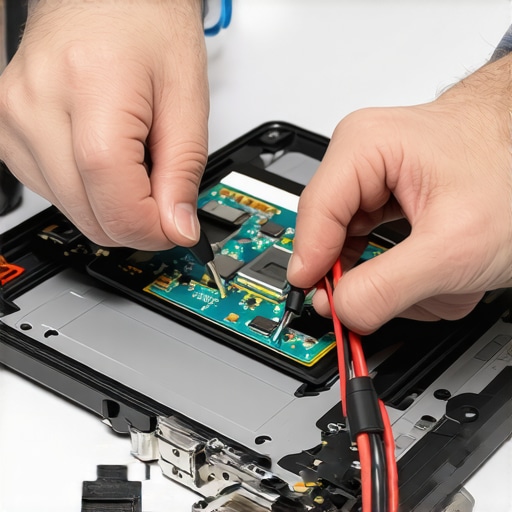
Don’t let software bloat compromise your defense
Many believe that installing three different security suites makes them thrice as safe. In reality, multiple antivirus programs often conflict, causing system instability and leaving gaps that sophisticated malware can exploit. This is the mistake that makes your backups completely useless: assuming that more tools equal more safety. Your IT provider should focus on a lean, hardened stack rather than a bloated one. I recommend performing a ‘fire drill’ recovery every quarter to ensure your recovery time objectives are actually achievable, rather than just hoping the software is doing its job.
Why does your laptop screen flicker only when you move the lid?
I get this question at least once a week from users who are ready to buy a whole new computer. Most people assume the actual LCD panel is dying. However, the nuance is often in the hinge. The eDP (Embedded DisplayPort) cable runs through that moving part, and after thousands of opens and closes, it frays. If you spend $200 on a new screen without checking the cable, you’ve just wasted money and time. Knowing how to tell if your screen flicker is software or a dying ribbon cable is the difference between a ten-minute fix and a week of unnecessary downtime. Have you ever fallen into this trap of over-complicating a simple fix or trusting software a bit too much? Let me know in the comments.I’ve spent a decade fixing computers that were essentially killed by neglect. Most people treat their workstations like a toaster—they expect it to work forever until one day it doesn’t. If you want to avoid a $2,000 emergency bill, you need to look at how to extend the life of your office PCs by three years. It starts with physical airflow. I’ve seen fans so caked in dust they looked like a dryer lint trap, which is exactly the hidden reason your business PC keeps rebooting without warning. Heat is the silent killer of silicon, and it is usually preventable with five minutes of maintenance.
How do I maintain my office hardware over time?
Maintaining your fleet isn’t about being a genius; it’s about consistency. Once every six months, I take a canister of air to the vents. But be careful—you need to know how to tell if your laptop fan is actually broken or just dusty before you start blowing air into it. If the bearing is shot, no amount of cleaning will save it. According to the 2023 Backblaze Drive Stats report, hard drive failure rates significantly increase after the four-year mark, which means you should already be planning your hardware lifecycle before that anniversary hits. I personally recommend learning the easiest way to clone a failing hard drive to a new SSD before the ‘click of death’ starts.
Stop buying the cheapest gear and start buying the right gear
When you scale, the ‘consumer grade’ laptops you bought at a big-box store will start failing you. Business-class hardware is built to be serviced. If a screen breaks on a cheap netbook, it’s often glued in, making laptop screen repair DIY tips for clearer displays almost impossible to follow without breaking the bezel. On a ThinkPad or a Latitude, I can swap a panel in ten minutes. This is why why choosing the cheapest managed it plan always leads to more downtime—because cheap plans usually mean supporting cheap, unserviceable hardware that requires total replacement for minor issues. 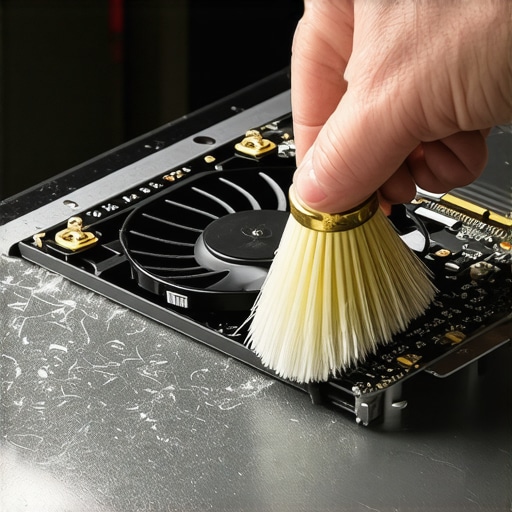
Look for the bottlenecks before you upgrade
Most offices throw money at ‘faster’ computers when their real problem is the network or an old mechanical drive. I always tell my clients that why your hardware upgrades should focus on bottlenecks first is the smartest way to spend a budget. If your CPU is idling while your disk usage is at 100%, a new processor won’t do a thing. We are moving toward a future where AI will likely predict these failures before they happen. In 2025, managed IT strategies to keep your business secure in 2025 will involve sensors that tell us a fan is vibrating at a frequency that suggests imminent failure. For now, we rely on data recovery secrets expert techniques to save your files fast if we miss those physical signs. Go ahead and run a benchmark test on your main workstation today; you might be surprised by what’s actually slowing you down.
The brutal truth about why my first network crash was a blessing in disguise
Looking back at that day the consultant took down my office, I realize it wasn’t just a failure of technology—it was a failure of habit. I had fallen into the trap of thinking “it won’t happen to me.” One of the biggest lightbulb moments in my career was realizing that most computer repair for beginners-avoid costly mistakes involve simply respecting the boundaries between devices. I also learned that “convenience” is often just another word for “vulnerability.” If a password is easy for your guest to type, it’s even easier for a script to crack. Finally, I had to accept that my data wasn’t safe just because it was in the cloud; I had to understand why your business backup plan is actually just a sync plan before I could truly sleep at night.
#IMAGE_WRAPUP#
Tools that stay in my technician bag no matter what
I don’t just rely on software; I rely on a physical and digital workflow that has saved my clients thousands. For hardware, I never go anywhere without a high-quality electronic screwdriver set for precision work and a genuine canister of compressed air—though you must remember to stop using canned air on your motherboard until you read this warning. For data safety, I religiously follow hardware health reports and the Backblaze drive stats to know when to retire a drive before it hits the “click of death.” When things do go sideways, I turn to data recovery secrets expert techniques to save your files fast rather than just clicking “repair” and hoping for the best. These tools represent the difference between a minor hiccup and a business-ending disaster.
Take the first step toward a bulletproof office
You don’t need to be a cybersecurity genius to protect your livelihood. By setting up that guest network and keeping your hardware clean, you are already ahead of most small operations. Start with the small wins today—clean out a dusty fan or change a shared password—and build up to more robust managed IT strategies to keep your business secure in 2025. Your future self, the one not dealing with a massive data breach, will thank you for the effort you put in right now. Have you ever found a guest device on your main network that shouldn’t have been there? Let me know your experience in the comments below!