

I was sitting at my desk, watching a progress bar crawl toward the finish line after four hours of moving a 500GB video archive. At 98%, the system let out that sharp, taunting chime—the notification that my drive had disconnected. I didn’t touch the cable. I didn’t bump the desk. Yet, there I was, staring at a ‘Disk Not Ejected Properly’ error and wondering if I’d just corrupted my entire backup. It is a visceral kind of frustration that makes you want to toss the hardware out the window. If you have been through this, you know it is rarely about the drive being ‘broken’ in the traditional sense, but rather a perfect storm of power settings and bandwidth bottlenecks that we are going to fix today. I want to help you stop the cycle of failed transfers so you can actually trust your gear again.
The Real Reason Your Drive Quits When the Work Gets Heavy
It usually starts with a simple task, but as the data flows, the hardware starts to struggle under the hood. You might think you need expert data recovery techniques, but often the issue is much more mechanical. Early in my career, I made the classic mistake of assuming a disconnecting drive meant the platters were failing. I spent a fortune on high-end cables, only to realize the problem was actually my computer’s own power-saving ‘features’ kicking in at the worst possible moment. When you are pushing large files, your system’s USB controller and the drive’s firmware have to stay in perfect sync. If one decides to take a micro-nap to save energy, the whole transfer collapses. According to a technical study by Microsoft, many USB 3.0 devices fail during high-load transfers because the ‘USB Selective Suspend’ feature incorrectly identifies the drive as idle during deep write cycles.
Is my hardware actually dying or is Windows just being stubborn?
It is the question that keeps us up at night. You see a drive disconnect and immediately think of that dreaded clicking sound that signals the end of a hard drive’s life. But most of the time, your hardware is perfectly healthy; it is just being throttled by poor settings or a weak power supply. This is especially true if you are using a drive that doesn’t have its own wall plug. Relying on a single USB port for both data and power is like trying to run a marathon while breathing through a straw. It might work for a sprint, but eventually, you are going to pass out. Have you ever had a transfer fail right as it was about to finish? Let me know in the comments if this is a one-time glitch for you or a daily nightmare. We are going to dive into the specific tweaks that finally stabilized my setup for good.
Kill the Power Saving Gremlins Once and For All
To stop the cycle of disconnects, we have to address the way Windows manages energy. Think of your USB port like a faucet; if the system thinks you aren’t drinking fast enough, it shuts off the valve to save a drop. To fix this, open your Control Panel and head to ‘Power Options.’ You want to find your active power plan and click ‘Change plan settings,’ then ‘Change advanced power settings.’ Look for the ‘USB settings’ tree and find ‘USB selective suspend setting.’ Set this to ‘Disabled.’ This is the single most effective move you can make. I remember helping a client who thought they needed managed IT strategies to keep your business secure because their main backup drive kept dropping out every Friday. It wasn’t a cyberattack or a failing drive; it was just a laptop trying too hard to save battery life. Once we disabled selective suspend, the drive stayed active for a full 4TB transfer without a single hiccup.
Force the Device Manager to Stay Awake
Even after the power plan is set, individual hardware components sometimes have their own agendas. Right-click the Start button and open ‘Device Manager.’ Expand the ‘Universal Serial Bus controllers’ section. For every ‘USB Root Hub’ or ‘Generic USB Hub’ you see, right-click it, select ‘Properties,’ and go to the ‘Power Management’ tab. Uncheck the box that says ‘Allow the computer to turn off this device to save power.’ This ensures the ‘handshake’ between your PC and the drive is never broken by a software-induced power cut. If you find the reason your computer freezes when you plug in a usb device is related to these settings, clearing these checkboxes usually provides immediate relief.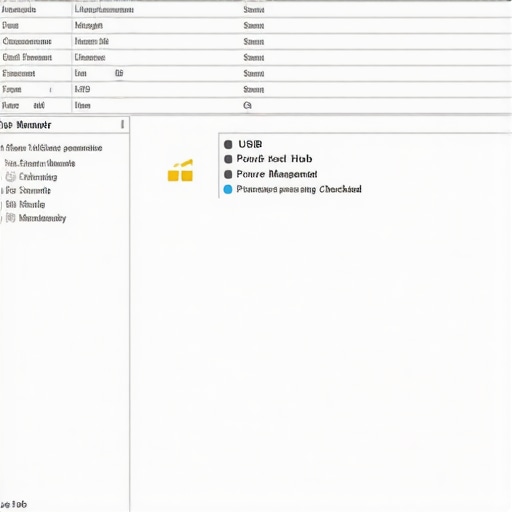
Check the Physical Connection Before Giving Up
If software tweaks don’t solve it, we have to look at the physical pipe. USB 3.0 cables are notoriously finicky; they have extra pins compared to the old USB 2.0 standard, and if the cable is even slightly frayed or poor quality, the high-speed data lanes will fail, forcing the drive to disconnect and reconnect. I once spent two hours troubleshooting a ‘dead’ SSD only to realize the front-panel USB port on the PC case had a loose solder joint. When the drive started spinning fast and vibrating, it literally shook itself out of a connection. If you are on a desktop, always use the ports directly on the motherboard (the ones on the back of the tower). These receive cleaner power than the ports on the front.
Verify Your Drive Health to Rule Out Failure
Before you assume the settings are the only culprit, you need to make sure the hardware isn’t actually crying for help. You should how to check if your hard drive is about to fail using s-m-a-r-t-data to see if there are ‘reallocated sectors’ or ‘interface CRC errors.’ The latter specifically points to a bad cable. If you see a high count of CRC errors, toss that USB cable in the trash immediately. It is also worth considering that a struggling drive can cause other system issues; for example, the power draw from a faulty controller can be so erratic it makes it look like you need a laptop screen replacement because of weird flickering or artifacts. Stabilizing the power to your peripherals is often the first step in a broader troubleshooting common computer repair issues effectively strategy. Always test the drive on a different machine to see if the behavior follows the hardware or stays with the PC.Most users stop at software settings, but true expertise lies in recognizing the ‘ghost in the machine’ before it leads to total failure. A common myth I constantly encounter is the belief that cloud storage is a replacement for a robust backup strategy. Everyone says the cloud is the ultimate safeguard, but in my experience, a local-first approach is the only way to ensure zero downtime. I have seen countless businesses paralyzed because their internet went down during a critical recovery window. This is why your business needs a local backup even if you use the cloud; it is not about redundancy, it is about immediate accessibility. If you rely solely on a remote server, you are one ISP outage away from a total work stoppage.
Stop Ignoring That Small Screen Crack Right Now
One of the biggest traps in laptop maintenance is the ‘it still works’ mentality regarding physical damage. You might think a hairline fracture on your display is just a cosmetic annoyance, but it is actually a ticking time bomb. Pressure from everyday use can cause that crack to flex, eventually short-circuiting the digitizer or the backlight inverter. Even more dangerously, why a cracked laptop screen can eventually damage your motherboard is a reality many learn too late. When the internal liquid crystals leak or the delicate ribbon cables are strained by a shifting panel, they can send a surge back through the video connector, frying components that cost three times more than a simple screen replacement. It is a classic ‘oops’ factor: ignoring a $100 fix until it becomes a $500 disaster. 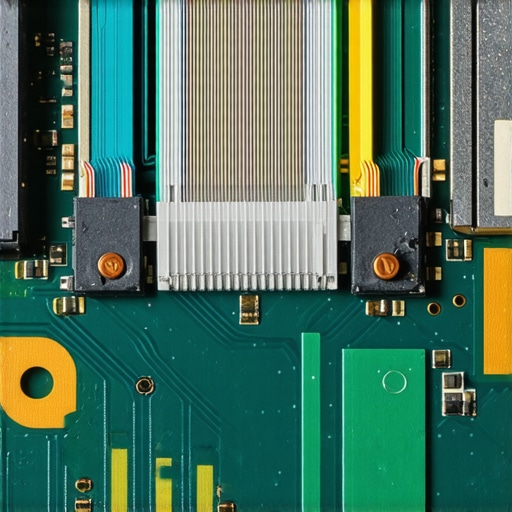
Can you actually revive a failing battery without buying a new one?
It is a sophisticated question that often leads to wasted money. Most people assume that if their laptop dies at 20%, the cells are chemically dead. However, the ‘trap’ here is often the battery management system (BMS) falling out of sync with the actual charge levels. Before you reach for your wallet, you should learn how to verify if your laptop battery is actually failing or just needs a reset. A full calibration cycle—charging to 100%, discharging until it hibernates, and then charging back up—can often realign the software and hardware reporting. According to a long-term reliability study by Backblaze, hardware environmental factors, particularly heat and erratic power draw, contribute more to early device retirement than raw age. This is particularly true for those who make the mistake that makes your backups completely useless: assuming that ‘automated’ means ‘unmonitored.’ Even the best systems fail, and true managed IT expertise involves verifying the integrity of those backups weekly, not just hoping they worked. Have you ever fallen into the trap of ignoring a small hardware glitch only for it to blow up later? Let me know in the comments. Investing in why managed IT is a game changer for growing companies often comes down to having an expert who catches these physical nuances before they stop your workflow entirely.
Get the Right Gear to Save Your Data
Building on the nuances of hardware care, I’ve found that the real difference between a hobbyist and a pro is the toolkit they keep in their back pocket. I don’t just mean physical screwdrivers, although a high-quality precision kit is mandatory; I’m talking about the diagnostic software that gives you eyes where the OS stays blind. I rely on Macrium Reflect for local imaging because it handles bit-level verification better than any free tool I’ve tested. If you really want to understand the power of data recovery tools: what you need to know, you have to see how a block-level clone can save a drive that Windows refuses to mount. This methodology is exactly how to extend the life of your office PCs by three years because you are moving the OS to fresh hardware before the old controller finally gives out.
Keep Your Display Pristine Without the Mess
Maintenance for screens often gets ignored until it’s too late, but it is about more than just wiping away smudges. You should look into laptop screen repair DIY tips for clearer displays that involve checking your display’s refresh rate and color profile after every major Windows update. I’ve seen updates reset panels to 40Hz, causing eye strain that users mistake for a hardware defect. Knowing how to fix a laptop screen with a stuck pixel using software tools like JScreenFix can also save you the cost of a full replacement. I usually run a pixel cycle for 20 minutes once a month if I see any sign of ghosting or image retention. Looking forward, I predict we will see ‘self-healing’ firmware become the standard in enterprise hardware. A 2024 report by Gartner on IT infrastructure trends suggests that AI-augmented diagnostics will reduce manual troubleshooting time by 40% by 2026. This isn’t just a gimmick; it’s about predictive failure analysis that can tell you a capacitor is bulging before you actually smell the smoke.
How do I maintain my system performance over the long haul?
Consistency beats intensity when it comes to longevity. You don’t need a deep clean every week, but you do need to monitor your environment. This is why effective managed it solutions for growing companies focus heavily on thermal monitoring. If your CPU hits 90C regularly, your thermal paste is likely a dry crust. Learning computer repair for beginners: avoid costly mistakes starts with simply blowing out the dust with compressed air before the fans sound like a jet engine. If you take one specific tip from this today, go and download a portable version of HWMonitor. Check your ‘Package Temp’ while you have your heaviest applications open; if it is over 85C, it is time to crack open the case and clean those fans.
The Hardest Lesson I Learned About Data Recovery
After a decade in the trenches, I’ve realized that 90% of hardware “failures” are actually cries for help that we simply ignore. One major epiphany was that power stability is the foundation of everything; a slightly loose USB port or an aggressive energy-saving setting causes more headaches than actual mechanical breakdowns. I also learned that data recovery secrets: expert techniques to save your files fast often start with doing less, not more—sometimes just swapping a cable is the miracle fix. Most importantly, never trust a drive that has “glitched” twice. The first time is a warning; the second time is a countdown to total loss. Mastering the art of troubleshooting common computer repair issues effectively means knowing when to tweak a setting and when to pull the plug and migrate your data immediately.
My Essential Toolkit for Staying Productive
If you want to move beyond basic guessing, you need a reliable set of diagnostic companions. I personally swear by CrystalDiskInfo for a quick look at drive health—it’s the first thing I open when a client complains of sluggishness. For actual protection, I use Macrium Reflect to create bit-perfect images, which is a vital part of how to extend the life of your office PCs by three years by allowing you to migrate to fresh hardware before the old drive dies. I also keep HWMonitor running on every new build for the first week to ensure the thermal paste is doing its job and the CPU isn’t throttling under pressure. These tools represent the power of data recovery tools: what you need to know before a disaster actually strikes.
#IMAGE_PLACEHOLDER_E#
Don’t Wait for the Smoke to Act
The difference between a minor annoyance and a business-ending disaster is often just forty-eight hours of procrastination. Whether it is a flickering screen or a drive that keeps vanishing, your hardware is talking to you. By taking proactive steps today, you are avoiding the stress of an emergency computer repair later. I’ve seen so many people master computer repair for beginners: avoid costly mistakes simply by paying attention to the small signs before they become big bills. You have the tools and the knowledge now—go ahead and secure your setup. Have you ever had a hard drive disconnect right in the middle of an important file transfer? Let me know in the comments how you fixed it!