

The silence was deafening. I sat there, staring at the black screen of my laptop, wiggling the power cable like I was trying to pick a lock. A tiny spark, a faint smell of ozone, and then… nothing. That charging port wasn’t just ‘fussy’ anymore; it was dead, and my entire month’s worth of client work was trapped inside. I felt that cold pit in my stomach that every computer owner eventually faces. If you are reading this, you are likely staring at a similar expensive paperweight. You aren’t just looking for a repair; you are looking for your life’s digital trail. Trust me, I have been in your shoes, and the panic is real, but let’s take a breath together. Your data is likely sitting there perfectly fine, just waiting for a different way out. [image_placeholder_1]
Stop Wiggling That Cord Before You Break Something
I have a confession to make. Years ago, when I first started tinkering with hardware, I made a classic beginner computer repair mistake. I thought if I just jammed the charger in hard enough or taped it at a specific angle, I could get just enough juice to drag my files onto a USB stick. All I ended up doing was snapping the internal pins and causing a short circuit. I went from needing a simple data transfer to needing to rescue files from a damaged motherboard. Don’t do that. When the DC jack is compromised, every wiggle is a gamble with your laptop’s life. Instead, we are going to look at the smart way to bypass that broken port entirely.
Can I really get my data back without a working battery?
This is the biggest fear I hear from my neighbors and clients. They think that because the laptop won’t ‘turn on,’ the files are effectively vaporized. That is simply not how it works. According to a report by Blancco, physical hardware failure is one of the leading causes of data access issues, yet the actual storage media—your SSD or Hard Drive—is usually perfectly intact. The power port is just a gatekeeper. If the gate is broken, we don’t need to fix the gate just to get the treasure inside; we just need to climb over the wall.
The Secret to Bypassing a Dead Charging Port
Most people assume they need to fix the power issue to see their files, but that is the long way around. We are going to focus on a ‘drive-first’ approach. By removing the storage drive and connecting it to another machine, you bypass the motherboard, the battery, and that pesky broken port altogether. It is a technique I use in my expert data recovery strategies because it is faster and safer than trying to solder a new port in a hurry. Have you ever felt that sinking feeling when your tech just gives up on you? Tell me about it in the comments below. Today, I am going to show you exactly how to perform this digital extraction without needing a degree in electrical engineering.
Get Your Tools and Prep the Operating Table
First, we need to treat your laptop like a patient on an operating table. You aren’t fixing the power port yet; you are performing a strategic extraction. Think of your hard drive like a brain in a jar. Even if the body—the laptop—won’t move or wake up, that brain still holds every memory, every spreadsheet, and every photo of your cat. To get it out, you’ll need a set of precision screwdrivers, preferably with a Phillips #0 or a Torx bit depending on your brand. I remember a Tuesday when a local florist came to me with a laptop that had a snapped DC jack and a deadline for a massive wedding invoice. I didn’t have my professional kit at the shop, so I used a jeweler’s screwdriver set from a drug store. It was tedious, but it worked because the principle remains the same: bypass the outer shell to reach the core storage. 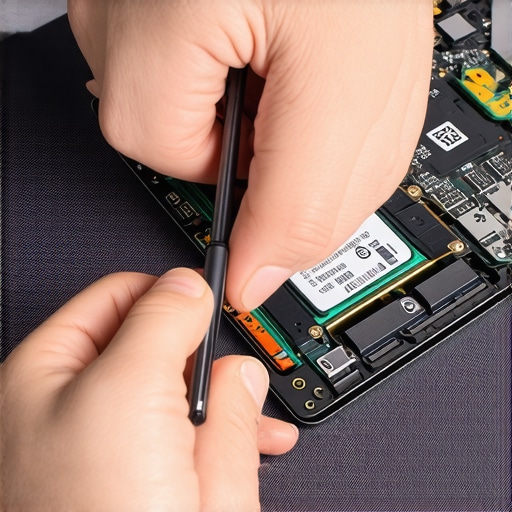
The Difference Between a Spinning Disc and a Silent Stick
Once the bottom panel is off, you have to identify the drive. If your laptop is a few years old, it’s likely a standard 2.5-inch SATA drive—it looks like a small, heavy metal brick. If it’s a newer, thinner model, it might be an M.2 SSD, which looks more like a stick of chewing gum. Regardless of the shape, your goal is to disconnect it from the motherboard. This is where computer repair for beginners usually gets stressful, but just remember: never force a connector. If it doesn’t slide out with a gentle, horizontal tug, there’s likely a hidden screw or a piece of adhesive tape holding it down. Remove those first to avoid cracking the delicate circuit board.
The Bridge to Your Files
Now comes the most important part: the translator. You can’t just plug a bare drive into another laptop’s USB port without a middleman. This is where data recovery tools you need to know come into play. You need an external SATA-to-USB adapter or a dedicated M.2 enclosure. These devices act as the interface, allowing a healthy, working computer to read your ‘brain in a jar’ through a simple USB cable. I’ve seen people try to ‘hot-swap’ drives inside other PCs while they are running, which is a recipe for a blown fuse or a fried motherboard. Stick to the USB adapter; it’s the safest, most reliable path to your files.
Plug and Play With a Security Twist
When you finally plug that extracted drive into a working machine, don’t panic if it doesn’t pop up in your file explorer immediately. Sometimes you’ll see a message about ‘permissions’ or ‘taking ownership.’ This isn’t a hardware failure; it’s a security feature. You’re essentially telling the new computer that you are the rightful owner of this old digital house. If the transfer seems slow or you find that your external drive keeps disconnecting during file transfers, it might be a power draw issue. Laptop USB ports sometimes don’t provide enough juice for older mechanical drives, so try a port on the back of a desktop computer for more stability.
The Soldered Drive Scenario
Is your laptop one of those ultra-thin models where everything is glued and soldered? That’s the ‘final boss’ of data recovery. In those cases, the ‘pull and plug’ method won’t work because the storage chip is literally part of the motherboard. You’ll need to look into rescuing files from a damaged motherboard using specialized bootable software or professional hardware bypass tools. But for most users, getting that drive into an external enclosure is the golden ticket to getting back to work.
Why Your Recovery Software Might Actually Kill Your Drive
Let’s dig deeper into a nuance that separates the hobbyist from the professional. Most people assume that if a drive is acting up, the first step is to download a free tool and run a ‘deep scan.’ This is often a fatal mistake. When a drive has physical issues—like a failing motor or a degrading platter—it has a limited number of ‘spins’ left in its life. Software-based recovery tools are incredibly aggressive; they force the drive to read every single sector multiple times. If your hardware is on its last legs, this stress can cause a total head crash, turning a recoverable situation into a permanent loss. In my experience, using free file recovery tools on a failing mechanical drive is the quickest way to ensure you never see your data again. Have you ever fallen into this trap? Let me know in the comments below. 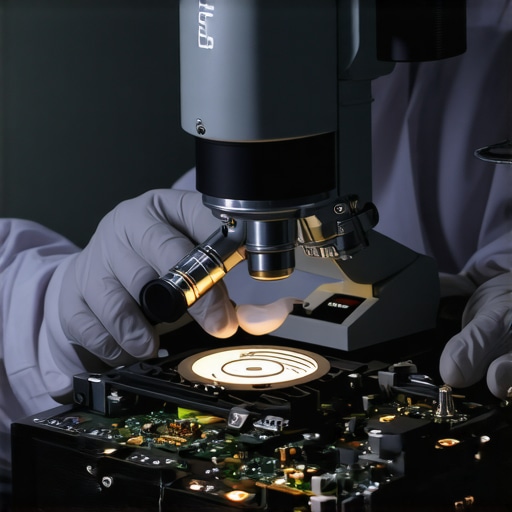
The Clicking Sound of Doom and the ‘Repair’ Trap
One of the most dangerous myths in the tech world is that the ‘Check Disk’ or ‘Repair’ utility is a universal band-aid. If you hear a clicking or grinding sound, or if your office PC makes a clicking sound when you open files, stop immediately. These sounds indicate a physical mechanical failure. Running a software repair utility will attempt to ‘fix’ the file system by writing new data to the drive. If the drive head is already physically scratching the platter, you are essentially sandpapering your data away. Expert data recovery firms like DriveSavers warn that once the magnetic layer is scraped off the platter, the data is physically gone from the universe. No amount of software can recover dust.
What happens if my partition table is corrupted?
This is a common question from advanced users who can see their drive in the ‘Disk Management’ tool but can’t access the files. Often, the data is perfectly fine, but the ‘map’ telling the computer where the files start and end has been wiped. This usually happens after an interrupted update or a sudden power loss. In these specific cases, you aren’t looking for a hardware fix, but a logical one. You need to focus on the move that saves your data when a partition table is corrupted, which involves rebuilding the master boot record rather than scanning for deleted files. It is a surgical procedure that requires precision, not brute force.
Don’t Ignore the S.M.A.R.T. Warning Signs
Modern drives are actually quite good at predicting their own demise. They use a system called S.M.A.R.T. (Self-Monitoring, Analysis, and Reporting Technology). Many users click ‘ignore’ on these pop-ups because they are in the middle of a meeting. That is a massive gamble. Understanding the risk of ignoring that SMART status bad warning is crucial for E-E-A-T (Experience, Expertise, Authoritativeness, and Trustworthiness) in your own data management. According to a study by Backblaze, certain S.M.A.R.T. stats are highly predictive of drive failure within 60 days. If you see a warning, that is your window to act before you are forced into the expensive world of rescuing files from a damaged motherboard or a dead drive controller. Always prioritize a local backup even if you use the cloud, because when the hardware fails, speed of access is everything.
I’ve learned the hard way that having the right tools is the difference between a ten-minute job and a three-day headache. When I’m working on a laptop with a dead power port, I don’t reach for generic hardware. I personally rely on the iFixit Pro Tech Toolkit because the bits are hardened steel; cheap screwdriver sets will strip the soft screws used in modern ultrabooks, leaving you stuck before you even see the motherboard. It is absolutely essential to master the power of data recovery tools before you are in a crisis. For the actual data extraction, I always keep a StarTech.com SATA to USB 3.0 adapter in my bag. It’s reliable, provides consistent voltage, and doesn’t require a bulky external power brick for 2.5-inch drives. If you are dealing with a business workstation, don’t just fix it and forget it. You should be moving toward managed IT strategies to keep your business secure so these hardware failures don’t stop your workflow in its tracks.
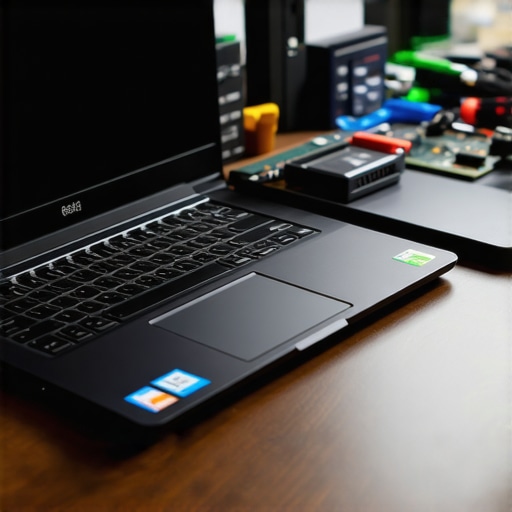
Stop Living From One Tech Crisis to the Next
Reactive repair is an expensive way to run a business or a household. I tell my clients that once we’ve rescued the data, the goal is to make sure we never have to do it again. This is where why your business needs a local backup even if you use the cloud becomes the most important lesson. Cloud storage is great for convenience, but for speed and total control, a local NAS or an encrypted external drive is king. In the near future, I predict we will see AI-driven predictive maintenance built directly into our OS kernels, which will alert us to physical degradation long before the ‘click of death’ even starts. We are already seeing the beginnings of this with advanced NVMe health monitoring. According to technical documentation from the JEDEC Solid State Technology Association (JESD218), SSD endurance is measured in Total Bytes Written (TBW), and once you hit that threshold, the drive becomes a ticking time bomb regardless of how well you treat the laptop’s exterior. Keeping an eye on these metrics is how you stay ahead of the curve.
How do I keep my gear running for the next five years?
Maintenance isn’t just about software updates; it’s about thermal management. Every six months, I use a can of compressed air to clear the heatsinks. If you notice your fans are constantly screaming, you need to check the sign your CPU is thermal throttling and slowing down your work. Heat is the number one killer of motherboards and storage controllers. If your machine is more than three years old, consider the 3 hardware swaps that stop your office PC from freezing, specifically refreshing the thermal paste and upgrading to a higher-end SSD. This proactive approach turns a fragile piece of glass and plastic into a reliable workhorse. My top tip for today: Download a S.M.A.R.T. monitoring utility like CrystalDiskInfo right now and check your ‘Health Status’—if it’s anything other than a solid ‘Good,’ back up your files immediately before your next reboot.
Lessons from the Bench: What Your Tech Guy Never Told You
I’ve spent thousands of hours elbows-deep in silicon and solder, and if there is one thing I’ve learned, it’s that hardware is transient but data is permanent—if you treat it right. First, remember that a ‘dead’ laptop is rarely a dead drive. Most people panic and assume the worst, but usually, you are just dealing with a broken gatekeeper. Second, never underestimate the power of a clean workspace. One stray static shock can do more damage than a broken DC jack ever could. I always recommend learning the move that prevents a small coffee spill from killing your entire laptop, because preventative habits are your first line of defense. Finally, stop wiggling the cable. If it doesn’t work the first time, you are only causing micro-fractures on the motherboard that make the eventual repair ten times harder.
The Gear That Separates Amateurs from Pro Techs
You don’t need a lab full of oscilloscopes to get your files back, but you do need precision. I personally swear by a few specific items that have never let me down in a crisis. For physical access, a high-quality spudger and a set of non-marring pry tools are essential so you don’t ruin the aesthetics of your casing. When it comes to the digital side, mastering the power of data recovery tools is a non-negotiable skill for any modern professional. If the drive is making physical noises, I stop everything and refer my clients to experts because why drive savers remains the only choice for physically damaged drives is a lesson you don’t want to learn the expensive way. For those running a business, integrating effective managed it solutions for growing companies ensures that even if a charger dies, your team stays online via the cloud or redundant hardware.
[image_placeholder_final]
Stop Fearing Your Tech and Start Controlling It
The moment you realize that you can pull your own data from a ‘broken’ machine is the moment you stop being a victim of your hardware. Whether you are a student or a business owner, knowing how to handle a computer repair emergency with a cool head is a superpower. By moving toward managed IT strategies to keep your business secure in 2025, you turn these stressful events into minor inconveniences. You have the tools, the knowledge, and the path forward. Now, go get those files back and set up that backup system today. Have you ever been stuck with a dead laptop and a looming deadline? Let me know how you handled it in the comments below!