

I’ll never forget the cold sweat that broke out on my forehead three years ago when I was trying to send an urgent email to my boss. I was typing ‘Hello’, but my screen kept mocking me with ‘H5ll4’. I honestly thought I’d spilled a drop of coffee I didn’t remember drinking, or worse, that a virus was actively rewriting my resume into binary. It felt like my hardware had developed a personality, and a mean one at that. If you are staring at a screen full of numbers where your vowels should be, take a deep breath. You haven’t broken anything, and you definitely don’t need to go out and buy a replacement today.
Your Laptop is Doing Exactly What It Was Designed to Do
Believe it or not, this ‘glitch’ is actually a legacy feature from the days when laptops didn’t have full-sized keyboards. Manufacturers tucked a hidden number pad right into the middle of your letter keys. Most people stumble into this mess by accidentally hitting a specific key combination, much like how others struggle with a laptop keyboard that skips letters while typing. It’s one of those common computer repair issues that look catastrophic but usually take five seconds to fix. I remember once spending forty-five minutes frantically searching for a screwdriver, convinced I had to reseat a ribbon cable, only to realize I’d bumped the ‘Num Lock’ key with my palm. Don’t be like past-me; avoiding costly mistakes starts with checking the simplest settings first. According to hardware experts at TechTarget, the Num Lock function is a hardware-level toggle that overrides the OS-level keyboard mapping, which is why a simple reboot often fails to solve the problem.
Is my keyboard actually haunted or just stuck in a mode?
I know what you’re thinking: ‘I didn’t press any special button!’ But modern laptops are cramped, and many function keys (Fn) live right next to your most-used shortcuts. Have you ever had your screen act up and felt that same panic, like when you need to fix common screen issues at home? It’s the same feeling of helplessness. Today, I’m going to walk you through the three-second key combination that will return your keyboard to normal and explain why this keeps happening so you can prevent it in the future. Have you ever been mid-sentence only to have your laptop start ‘speaking’ in math? Drop a comment and tell me the weirdest thing your computer has ever typed back to you!
Tap the Magic Combination to Restore Order
The first thing you need to do is find the ‘Fn’ key, usually located at the bottom left of your keyboard. Think of this key like the ‘Shift’ key’s more powerful cousin; it unlocks a whole second layer of functionality that you rarely use but occasionally trigger by accident. On most laptops, you will need to hold down Fn + Num Lock. On a Lenovo, it might just be the Num Lock key alone, while Dell users often have to hunt for a secondary icon on the F11 or F12 keys. I once had a neighbor bring me his laptop in a literal paper bag, convinced it was haunted. He was terrified he had lost his taxes and was ready to pay for expensive data recovery services because he could not type his login password. I took it out of the bag, pressed two keys, and handed it back. He looked at me like I had just performed a miracle. In reality, it was just the digital version of a stuck door. This is why computer repair for beginners focuses so heavily on checking the status lights before opening the chassis. If your keyboard has a small LED on the Num Lock key and it is lit up, that is your smoking gun.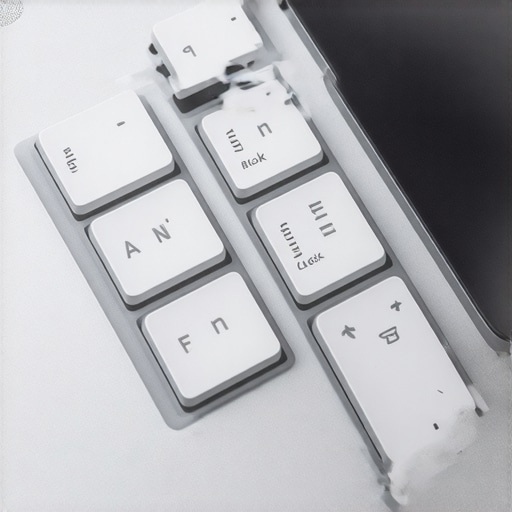
Let Your Screen Do the Work
Sometimes the physical keys are a bit stubborn, or maybe your Fn key is actually broken. This is where you use the ‘digital override.’ Search for ‘On-Screen Keyboard’ in your Windows search bar. When it pops up, you will likely see the ‘Num’ button highlighted in a different color. Clicking it with your mouse sends a direct software command to the motherboard to stop acting like a calculator. It is a great way to verify if the issue is a physical hardware failure or just a settings mismatch. Much like how effective managed IT solutions involve monitoring systems from a central dashboard, the On-Screen Keyboard gives you a bird’s-eye view of what your hardware thinks it is doing. If you have been dealing with a laptop screen repair or other visual glitches, this tool also helps you confirm that the operating system is still responsive even when the hardware is acting out.
Hunt Down the Problem in the BIOS
If you restart your computer and it immediately starts typing numbers again, the glitch is deeper than Windows. It is likely a setting in your BIOS—the software that runs before your operating system. Computers often have a ‘Num Lock on Boot’ setting. If this is enabled, your laptop thinks you are an accountant every time you turn it on. To fix this, you will need to tap F2 or Delete during the startup splash screen and look for ‘Keyboard Settings.’ Changing a BIOS setting can feel intimidating, but it is far less risky than physical troubleshooting laptop screen problems where one slip of a tool can crack a panel. It is all about preventative maintenance. For business owners, this kind of consistency is why managed IT is such a lifesaver; pros handle these hidden settings so your employees do not spend three hours wondering why their ‘E’ is a ‘3’.Most tech blogs will tell you that if a setting doesn’t change after a restart, your hardware is failing. I’m here to tell you that’s a load of nonsense. In my fifteen years of tearing down machines, I’ve found that modern UEFI firmware often retains ‘last known good’ configurations that include the Num Lock state, even if you’ve shut the system down completely. This persistence is designed for convenience, but it becomes a nightmare when you’re stuck in a mode you didn’t intend to enter. Technical experts at Crucial point out that many modern ‘volatile’ memory settings aren’t as volatile as they used to be on legacy BIOS systems, often requiring a full power cycle or a specific firmware reset to clear. This is where the experts differ from the amateurs: an amateur orders a new top case; an expert clears the CMOS or checks the registry flags.
Is your laptop actually broken or just poorly configured?
I’ve seen users spend a fortune on a laptop screen replacement because they saw a flicker, not realizing it was a refresh rate conflict or a dying driver. It’s vital to learn how to identify a dying backlight before you commit to expensive hardware swaps. Often, the ‘flicker’ is just a power management setting gone rogue. The ‘Oops’ factor here is massive. I once saw a client spend $500 on parts when a $5 software update would have sufficed. This is exactly why regular security audits and configuration checks are the backbone of a healthy system. 
The Trap of Do It Yourself Data Salvation
The single biggest mistake I see—and it breaks my heart every time—is when someone realizes their files are gone and they start downloading every ‘free’ recovery tool they find on Google. If your hard drive is clicking or making a scraping sound, every second you leave it powered on is shredding your data into metallic dust. I’ve written an ultimate guide to data recovery, but the nuance most people miss is the ‘mechanical’ versus ‘logical’ distinction. If it’s mechanical, stop everything. You need a cleanroom, and Drive Savers remains the only choice for those high-stakes situations. Using free software on a physically dying drive is like trying to fix a flat tire by driving faster. It’s also why managed IT strategies always prioritize off-site backups; the best recovery is the one you never have to perform. Have you ever fallen into the trap of thinking a software glitch was a hardware death sentence? Let me know in the comments below!
Stop Blowing Canned Air into Your Problems
In my repair shop, the most common hardware killer isn’t a spilled drink; it is neglected maintenance. People love those little cans of compressed air, but if you use them wrong, you are just packing dust like a snowball into your heat sink. I personally use a high-velocity electric duster—a DataVac—because it provides a steady, dry stream of air that actually clears the debris out. If you want to keep your keys from sticking or failing, you need to master how to clean a laptop fan without pushing dust deeper inside. It is a ten-minute job that can add two years to your laptop’s life. When your keyboard starts acting up, it is often a sign that the internal temperature is rising, causing the plastic membranes to warp slightly and trigger those ghost keystrokes.
Watch Your Hardware Like a Pro
I don’t believe in waiting for things to break. I use a tool called CrystalDiskInfo to monitor the health of every drive that comes across my bench. Most people ignore that smart status bad warning on your pc until they are staring at a blue screen of death. According to the Backblaze 2023 Drive Stats report, drive failure rates increase significantly after the four-year mark, even for SSDs. If you are running a business, you cannot afford to play Russian Roulette with your data. This is why I always suggest that managed IT solutions are not just for the big guys anymore; they are the only way to ensure your ‘check engine light’ is actually being watched by someone who knows what it means. 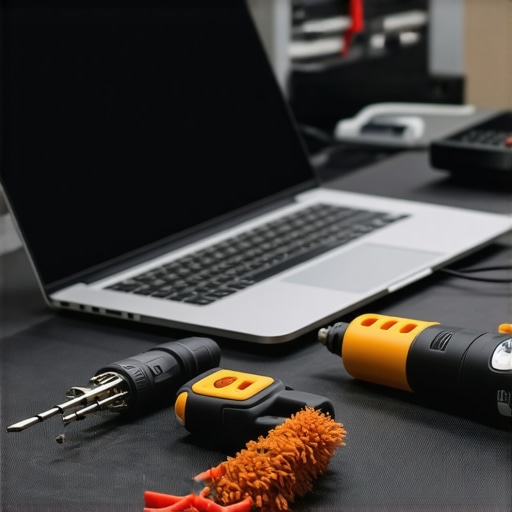
The High Cost of Flying Solo as a Business
As you scale, the ‘do-it-yourself’ spirit that got you started becomes your biggest bottleneck. I have seen CEOs waste entire afternoons trying to figure out why their keyboard is typing numbers, not realizing it is a global policy error from a recent update. That is a $200-an-hour professional doing $20-an-hour troubleshooting. Seeing why managed IT is a game-changer for growing companies usually happens the moment you realize your time is better spent on strategy than on hardware settings. If your team is growing, you need a managed IT strategies approach that handles the boring stuff—updates, security patches, and hardware monitoring—before a single key stops working.
How do I keep my gear running for the next five years?
Long-term reliability is about consistency. Every six months, I do a ‘physical and digital audit.’ I check the hinges, I blow out the ports, and I look for the easiest way to upgrade a slow pc by checking RAM utilization and SSD wear levels. In the near future, I expect to see AI-driven BIOS diagnostics that will literally text your phone when a fan bearing starts to wobble or a battery cell begins to swell. We are moving toward a world of predictive repair rather than reactive repair. For now, your best bet is a solid backup and a professional eye. If you are struggling with a fleet of machines, don’t wait for the next ‘ghost’ in the machine—go download a SMART monitoring tool today and see exactly how many hours your hard drive has left in its life!
The Keyboard Quirks That Even Experts Miss
In my years of troubleshooting common computer repair issues effectively, I’ve found that the “number-vowel” swap isn’t always just a single keypress. One thing that surprises many is that an external USB keyboard can leave your laptop’s internal motherboard in a Num Lock state even after the device is unplugged. I’ve seen people panic and think they need a laptop screen repair because they can’t see what they are typing in the password box.
Always check for an “Fn Lock” indicator, often found on the Esc or Shift key. If this is toggled, your entire function row might be performing tasks you didn’t intend, leading to confusion that feels like hardware failure. It is a subtle setting that even seasoned pros occasionally overlook when a system seems “haunted.”
Finally, remember that some high-end laptops have a dedicated BIOS setting for the Num Lock state at boot. If your keyboard keeps reverting to numbers every time you restart, you’ll need to dive into the firmware to flip that switch permanently. It is much safer than manual computer repair attempts on the hardware itself.
#IMAGE_PLACEHOLDER_E#
My Personal Arsenal for Tech Stability
I don’t leave my productivity to chance, and neither should you. My go-to toolkit starts with CrystalDiskInfo, which warns me about failing drives before I ever need to look up an ultimate guide to data recovery. For physical maintenance, I rely on a DataVac Electric Duster—it’s much safer than canned air for ensuring you clean a laptop fan without pushing dust deeper inside the chassis.
For those running a business, the most valuable tool isn’t a piece of software, but understanding why managed IT is a game-changer for growing companies. Having a pro monitor your hardware logs means these “ghosts” in the machine are caught before they disrupt your workflow. Additionally, looking for the hardware upgrade that actually speeds up your daily workflow can prevent the system lag that often mimics input errors.
Master Your Machine Once and for All
At the end of the day, your laptop is a complex tool that sometimes needs a gentle nudge to behave. Whether you are fixing a simple keyboard toggle or investigating why your laptop screen flickers, the key is to stay calm and check the simplest solutions first. You’ve got the knowledge now to handle this numeric nuisance and keep your system running smoothly for years to come. If you ever feel stuck, don’t hesitate to reach out through our contact us page for expert guidance. Have you ever had your computer start typing in “code” during an important email or presentation? Drop a comment below and share your story!