

I remember sitting in my home office last Tuesday, steam practically coming out of my ears as I waited for a simple Word document to open. My trusty old tower, which had served me well for five years, suddenly felt like it was running through molasses. I was two seconds away from driving to the nearest big-box store and dropping a thousand dollars on a replacement I couldn’t really afford. But then I remembered the last time I made that mistake. Years ago, I fell for the ‘miracle software’ trap, buying every registry cleaner and optimizer under the sun, only to realize I was just adding more bloat to an already suffocating system. We have all been there, wondering why your computer takes ten minutes to reach the desktop screen when it used to be so snappy.
Stop Staring at the Spinning Wheel of Death
The truth is, most people give up on their computers way too early. They see the lag, hear the fan whirring like a jet engine, and assume the processor has simply ‘given up.’ I’m here to tell you that’s almost never the case. You don’t need a new motherboard or a fancy liquid-cooling setup to get back into the fast lane. In fact, there is one specific hardware swap that gives your old office PC a massive speed boost without requiring a degree in engineering. Have you ever felt that urge to just toss the whole machine out the window when a browser tab freezes? Tell me I’m not the only one!
Is spending money on an old clunker actually worth it?
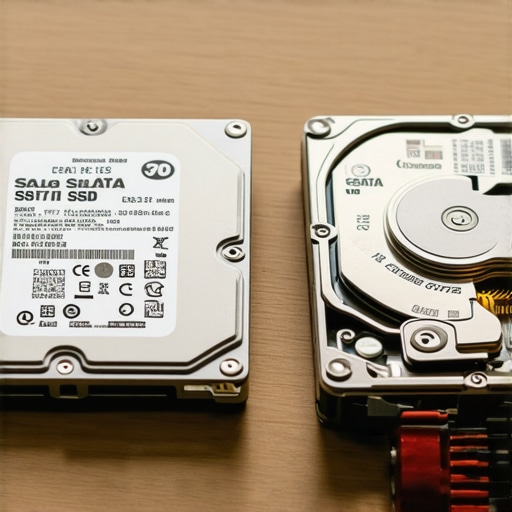
I get the skepticism. Why put fifty or sixty bucks into a machine that feels like a dinosaur? Early in my journey, I made the classic blunder of ignoring the physical health of my machine, thinking I could just ‘software my way’ out of hardware limitations. It was a lesson in computer repair for beginners that cost me both time and money. But the reality is that hardware doesn’t just get ‘tired’; it gets bottlenecked. Even a modest investment can outperform a brand-new budget laptop that’s stuffed with cheap components. According to data from Crucial, upgrading from a traditional mechanical hard drive to a Solid State Drive (SSD) can make your system up to 15 times faster in daily tasks. That is not just a marginal gain; it is a total transformation.
The Simple Change That Outperforms Everything Else
If you want to stop the stuttering and start working (or playing) again, we need to talk about the ‘bottleneck’ effect. Your computer is only as fast as its slowest part, and for 90% of slow PCs, that part is the spinning disk drive. We’re going to walk through how to bypass that hurdle today. I’ll show you why your current setup is dragging its feet and how to fix it without losing a single file or a shred of your sanity.
Stop Guessing and Start Diagnosing
Before you start ripping panels off your computer, we need to verify that your storage drive is actually the culprit. Think of your hard drive like a library: a mechanical drive is a librarian on roller skates trying to find a book in a massive warehouse, while an SSD is a digital search engine that finds the info instantly. If your PC stutters while opening files, you are likely facing a hardware bottleneck. I remember one specific Saturday where I ignored a faint clicking sound from my tower, thinking it was just a dusty fan. Within hours, the drive failed completely, and I had to dive into expert techniques to save my files fast because I hadn’t backed up in months. It was a stressful, messy lesson in why we listen to our hardware.
The Red Flags of a Mechanical Meltdown
You need to look for the ‘Click of Death’ or a 100% disk usage spike in your Task Manager. If your computer stays at 100% disk usage even when you aren’t doing anything, that mechanical arm inside the drive is struggling to keep up. This is often where ignoring that SMART status warning becomes a fatal mistake. Most modern computers will actually tell you they are dying if you know where to look. Check your system logs for ‘Disk’ errors; if you see them, stop what you are doing and prepare for a swap immediately.
The High-Stakes Game of Moving Your Data
Once you’ve confirmed the drive is the problem, you have two choices: a clean install or cloning. Cloning is like moving your entire house—furniture and all—into a new building. It is faster, but if your old ‘house’ was messy and full of viruses, you’re just moving the mess. I prefer a clean install for a truly fresh start, but if you have licensed software you can’t lose, cloning is your best bet. Be extremely careful here; I once botched a clone by pulling the USB cable too early, which led to a corrupted partition. I ended up having to use an ultimate guide to data recovery just to get my tax documents back. It was a four-hour detour I could have avoided with a little more patience.
Why Your Laptop Screen is More Sensitive Than You Think
If you are doing this on a laptop, be warned: the most common casualty of a DIY repair isn’t the motherboard, it’s the display. When prying open the plastic casing, it is incredibly easy to put too much pressure on the bezel. A slight flex can lead to those annoying white pressure spots on your screen that never go away. I always tell people to use plastic spudgers, not metal screwdrivers, to pop the clips. Treat the screen like a thin sheet of ice. If you do manage to crack it, you’ll find that laptop screen repair is a much more expensive and annoying project than a simple drive swap.
Executing the Physical Swap Without a Disaster
Now, for the actual hardware. You’ve got your new SSD, your screwdrivers are ready, and your data is backed up. The first rule is simple: disconnect the power. If it’s a laptop, you must unplug the internal battery connector. I learned this the hard way years ago when a tiny screw fell onto a live motherboard and caused a spark that killed the board instantly. It turned a fifty-dollar upgrade into a six-hundred-dollar nightmare. This is the kind of computer repair mistake for beginners that ends careers. Once the power is killed, simply unscrew the old drive, slide it out of its caddy, and pop the new SSD in. It’s like changing a cassette tape—only this tape makes your computer feel like it just came off the assembly line in 2025.
Don’t Forget the Background Gunk
After the physical swap, your work isn’t quite done. Even with a fast drive, a bloated operating system can slow you down. While large corporations use managed IT solutions to streamline operations and keep their systems clean, you have to be your own admin. Go into your startup settings and disable anything you don’t recognize. You’d be surprised how many ‘update helpers’ and ‘cloud syncers’ are eating your RAM before you even open a browser. Clearing this digital debris is the final step in ensuring your ‘clunker’ stays fast for another three to four years.
Let’s dig deeper into the reality of maintaining a high-performance system. Most people operate under the ‘break-fix’ delusion—the idea that you only need to think about your hardware when it stops working. In my experience, this is the most expensive way to run a business or a home office. While that hardware swap we discussed earlier is a game-changer, the real expertise lies in knowing when the software is actually lying to you about the hardware’s health. We often see users assume that a slow machine just needs a ‘cleaner’ app, but they overlook the fact that their system is gasping for air because of outdated infrastructure.
The Dangerous Illusion of the Proactive Software Fix
Everyone tells you that a slow PC is a software issue, but that is a dangerous oversimplification. I’ve seen countless users fall into a trap where they try to ‘fix’ a clicking hard drive by running intense disk-checking software. This is the fastest way to lose everything. In fact, the danger of using free file recovery tools on a failing mechanical drive cannot be overstated; these tools put immense stress on a physical component that is already disintegrating. According to a 2023 report by IBM Security, the average cost of data loss for small businesses has surged, yet many still risk their entire database on a five-dollar utility app rather than seeking professional intervention.
Don’t Let a Cracked Screen Fry Your Entire Machine
Another nuance that even seasoned DIYers miss is the cascading effect of physical damage. It’s easy to ignore a small hairline fracture on your display, but it’s rarely just a cosmetic issue. I recently consulted for a client who ignored a small crack for months, only for the leaking liquid crystals to cause a short circuit in the display cable. You have to realize why a cracked laptop screen can eventually damage your motherboard. The tension in modern ultra-thin laptops means that any structural compromise is a ticking time bomb for the delicate electronics underneath. If you aren’t careful, a thirty-minute laptop screen repair turns into a full system replacement.
Is your IT provider actually protecting your data or just your uptime?
For those running a business, the trap is even more subtle. Many ‘Managed IT’ providers focus solely on keeping the lights on, which is a ‘bare minimum’ approach. You need to look for red flags in your managed IT service agreement that signal future costs, such as lack of automated security audits or vague disaster recovery protocols. True expertise involves moving beyond simple maintenance and into risk mitigation. For instance, the reason your managed IT provider needs a disaster recovery plan for you isn’t just about ‘backups’; it’s about how fast you can be operational after a total server failure. If they can’t give you a ‘Recovery Time Objective’ in minutes, they aren’t managing your IT—they are just watching it fail.
The Hidden Cost of Good Enough Hardware
We often think we are saving money by stretching the life of an old workstation, but the risk of running your core business operations on end-of-life software and hardware is a silent profit killer. Every time an employee waits thirty seconds for a spreadsheet to load, you are losing billable hours. This is why I advocate for a hybrid approach: upgrade the bottlenecks like storage and RAM, but know when to retire the motherboard entirely. Have you ever fallen into this trap? Let me know in the comments.
I’ve spent years digging through the guts of laptops and servers, and if there’s one thing I’ve learned, it’s that the ‘set it and forget it’ mentality is a recipe for a midnight hardware crisis. Once you’ve done that initial SSD swap or cleared out the dust, you enter the most critical phase: the long-term grind. I don’t just leave my system’s health to chance, and neither should you. I personally rely on a combination of CrystalDiskInfo for real-time health monitoring and a strictly scheduled physical cleaning every six months. If you aren’t watching your drive’s health, you’re essentially flying a plane without a fuel gauge. You need to understand the power of data recovery tools and what you need to know before a failure happens, not after the smoke clears.
The Three-Tool Toolkit That Saves My Sanity
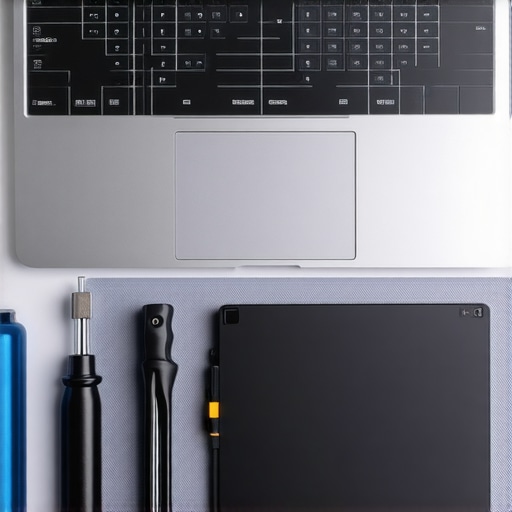
I keep three specific things in my desk drawer at all times: a high-quality compressed air duster, a bootable USB drive with a fresh OS installer, and a precise screwdriver set. But the digital tools are just as vital. I always tell my clients to run a hardware-level diagnostic at least once a quarter. This is how you stay ahead of troubleshooting common computer repair issues effectively. For example, did you know that RAM is often the hardware component that causes the most blue screens of death? Running a simple MemTest86 overnight can save you weeks of frustration trying to fix ‘software bugs’ that are actually just a faulty stick of memory.
Why Your Small Business Needs a Buffer Against Chaos
When you move from a single home office to a small team, the stakes change. You can’t just be the ‘tech guy’ anymore. This is where I see most growing companies stumble—they try to manage five or ten laptops with the same ad-hoc approach they used for one. Scaling requires a shift toward managed IT strategies to keep your business secure in 2025. It’s about creating a environment where a new hire can sit down and be productive in ten minutes, rather than spending three days ‘fixing’ their network permissions. You have to figure out how to keep your remote team secure without slowing down their workflow, or they will simply find ways to bypass your security entirely.
How do I maintain my system’s performance over the long haul?
The secret isn’t a ‘cleaner’ app; it’s a combination of physical care and strict digital hygiene. According to the Backblaze 2023 Drive Stats report, SSDs have a significantly lower annualized failure rate (AFR) of 0.98% compared to HDDs at 1.54%, but ‘lower’ doesn’t mean ‘zero.’ I maintain my performance by never letting my main drive get more than 80% full—SSDs need that ‘over-provisioning’ space to manage data blocks efficiently. If you crowd your drive, you kill the speed gains you paid for. Furthermore, I predict that within the next two years, we will see ‘Predictive Failure AI’ become a standard feature in consumer BIOS, where your computer will literally tell you the exact week your power supply is likely to give out based on voltage fluctuations.
If you want to truly level up, stop using generic ‘update all’ buttons. Go to your manufacturer’s website, download the latest chipset drivers manually, and feel the difference in system stability. It’s a ten-minute task that most people ignore, but it’s the difference between a machine that lasts three years and one that lasts seven.
The Three Technical Lies I Stopped Believing
Over the last decade of tinkering with motherboards and servers, I have had to unlearn some very common ‘tech myths’ that almost cost me my data and my sanity. First, the idea that a software ‘cleaner’ can revive a clicking hard drive is a dangerous fantasy. If your hardware is physically failing, running more software is like asking a marathon runner with a broken leg to do a victory lap. Second, I used to think that managed IT was only for giant corporations, but I realized that effective managed IT solutions for growing companies are actually the only way to prevent a small team from drowning in technical debt. Finally, I stopped believing that a slow computer is a ‘dead’ computer. Usually, it is just a healthy engine trapped behind a clogged filter.
The Only Tools You Need to Save Your PC
If you want to handle your own maintenance, you don’t need a lab. I trust three specific resources to keep my systems running at peak performance. For disk health, I never trust Windows alone; I use CrystalDiskInfo to see the raw SMART data before a crash happens. For cloning, Macrium Reflect has saved me from more botched transfers than any other tool. And for the physical work, I invested in a high-quality magnetized screwdriver set. Using the wrong tools is how you end up with stripped screws and a permanent headache. If you are still on the fence, learning how to choose between repairing an old workstation and buying a new one will save you thousands of dollars over the next five years.
Why Your Machine Deserves a Second Chance
It is easy to get frustrated and want to throw the whole tower away, but there is a certain satisfaction in taking a ‘dinosaur’ and making it outpace a brand-new budget laptop. By performing these hardware swaps that stop your office PC from freezing, you aren’t just saving money; you are gaining a deeper understanding of the tools you use every day. Don’t let the fear of a ‘Blue Screen’ keep you from the snappy, reliable performance you deserve. A little bit of computer repair knowledge goes a long way in turning a frustrating workday into a productive one. Have you ever attempted to swap your own hard drive, or does the thought of opening the case still make you nervous? Let me know in the comments below!