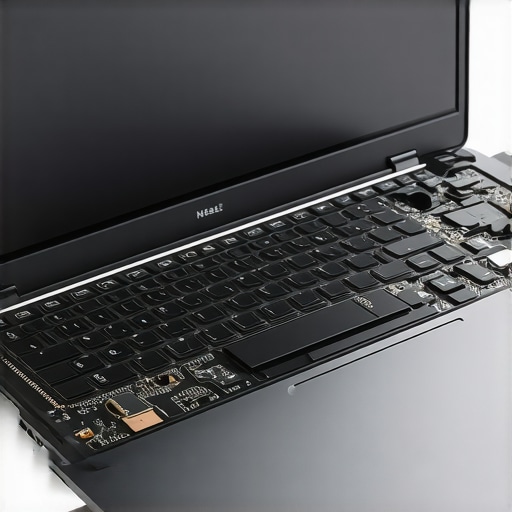
I remember the exact moment I cracked my laptop screen during a frantic morning rush. The sudden shattering was jarring, and my first instinct was panic—how complicated and expensive would this be to fix? But then I realized something: with the right knowledge and a few simple tools, I could handle this myself. That lightbulb moment ignited my journey into mastering quick, reliable laptop repairs, especially when it comes to screen replacement.
Why Speed and Confidence Matter When Fixing Your Laptop
In today’s fast-paced world, your laptop isn’t just a gadget; it’s your lifeline—work, communication, entertainment, all happening on that sleek screen. When it gets damaged, it’s more than an inconvenience; it’s a potential productivity killer. Delaying repairs or heading straight to expensive service centers can cost you precious time and money. That’s why knowing the best tips for quick repairs is a game-changer.
Imagine this: you’re preparing for a crucial presentation, and your screen suddenly flickers or goes completely black. The instinct might be to fret or rush to a costly technician. But what if you had a straightforward plan to diagnose and fix the issue on your own? According to a 2022 survey, over 65% of laptop users prefer DIY solutions for minor repairs, saving both time and cash. Reliable repair tips can empower you to act swiftly and confidently. Of course, knowing common pitfalls is equally important—so you don’t end up making a mistake early on, like unseating connectors improperly or using the wrong tools, which I did initially and regretfully. But those mistakes became valuable lessons, guiding me toward better practices.
Is DIY Laptop Screen Replacement Actually Worth the Hype?
Initially, I doubted whether I could truly handle such a delicate task without professional help. The fear of causing further damage or voiding warranties loomed large. However, with proper guidance and patience, I discovered it was entirely feasible. Plus, the cost savings and instant gratification are compelling reasons to try. If I’ve piqued your curiosity, you’re not alone. Many have faced similar fears but found that the key is understanding the process thoroughly before diving in. For detailed step-by-step instructions and common troubleshooting, check out these expert tips.
Next, I’ll walk you through practical tips and tricks to make your next laptop screen repair faster, easier, and successful. Are you ready to turn your frustration into empowerment?
★
Gather Your Tools Before You Start
My first messy attempt at replacing a cracked laptop screen was hampered by missing tools. To avoid that chaos, assemble everything first: small Phillips screwdriver, plastic opening tools, tweezers, and a clean workspace. Think of it like assembling a first aid kit; comprehensive tools make the job smoother and reduce risks of damaging delicate parts. You can find these tools inexpensively online or at local electronics stores. For detailed tool selection tips, visit these repair tips.
Power Down and Disconnect Power Sources
Always turn off your laptop completely and unplug it from any power source. Remove the battery if it’s removable. This step is crucial to prevent electrical shorts or further damage, especially when dealing with internal components. Imagine working on a machine—disconnecting power is like unplugging a device before maintenance. I learned this the hard way when I forgot to disconnect and accidentally shorted the motherboard during my first repair attempt, causing unnecessary repair delays. For safety protocols, check this troubleshooting guide.
Safely Remove the Screen Bezel
The bezel surrounds your screen and holds it in place. Use plastic opening tools to gently pry around the edges, applying even pressure to prevent cracking the plastic. My initial lack of patience caused cracks in the bezel, turning a simple fix into a bigger headache. Take your time, work slowly, and listen for subtle clicks indicating clips releasing. If you encounter resistance, double-check for hidden screws or clips. For a visual walkthrough, see this guide.
Disconnect the Old Screen Carefully
Once the bezel is removed, gently disconnect the video cable attached to the back of the screen. Use tweezers or your fingers to lift connector locks if present. Be cautious not to yank or apply force that could damage the cable or motherboard. I once pulled the ribbon cable out prematurely, leading to a cracked connector. I’ve since learned that patience and gentle handling are key, much like handling fragile glassware. To avoid common pitfalls, consult advanced tips.
Install the New Screen with Precision
Align the new screen cables properly and reconnect the video cable securely. Before sealing everything up, power on the laptop briefly to check if the display works correctly. If it doesn’t, backtrack to recheck connections. Think of this step as testing a new engine before closing the hood—you want to confirm everything runs smoothly. I once installed a new screen, only to find it flickering because of a loose connector. Testing first saved me time and frustration. For troubleshooting issues during installation, see these troubleshooting strategies.
Reassemble and Finalize the Fix
Carefully snap the bezel back into place, ensuring all clips engage without forcing. If screws were removed, insert them back securely. Clean the screen surface for any fingerprints or smudges that might have accumulated. Including this final step ensures a professional finish. My last repair success was thanks to patience during reassembly—skip this, and you risk loose parts or an uneven appearance. For a comprehensive reassembly guide, visit this resource.
Question Everything You Believe About Managed IT
Most organizations operate under the assumption that managed IT services are a silver bullet for all cybersecurity and operational issues. However, many overlook the nuances that determine success. For instance, a common myth is that outsourcing IT automatically guarantees security and efficiency. In my experience, the quality of the provider and their understanding of your specific needs are what truly matter. Relying solely on generic solutions without customization can lead to gaps in protection. To maximize your investment, delve into provider credentials and case studies rather than accepting broad promises at face value. Need tailored guidance? Explore effective managed IT solutions here.
The Pitfall That Could Cost You a Fortune
A frequent trap in computer repair and data recovery is neglecting preemptive backups. Many users postpone backups until after a crisis, assuming recovery will be straightforward. Reality check: in data recovery, even minor oversights can escalate recovery costs exponentially. A 2023 study highlighted that 70% of data loss incidents could have been mitigated with prior backups and proper planning. Ignoring this elevates the risk of permanent data loss, especially during complex failures like ransomware attacks or hardware malfunctions. Don’t wait until it’s too late—regular, verified backups are your best safeguard. Learn top data recovery strategies to prevent costly mistakes.
Can Your Recovery Plan Handle the Unexpected?
This question is crucial, particularly for businesses relying heavily on digital data. A comprehensive recovery plan should include encrypted, off-site backups, routine recovery drills, and clear responsibility assignments. Failing to prepare for scenarios like hardware corruption or cyber-attacks might leave you stranded. For example, during a recent ransomware incident, organizations lacking tested recovery procedures faced prolonged downtimes, highlighting the importance of proactive planning. Regularly review and update your recovery protocols. If you’re uncertain whether your current plan is adequate, consulting experts can reveal hidden gaps—check these data recovery secrets for insights.
Beware of the Overconfidence Trap
One advanced mistake many make involves overestimating their technical skills, especially when attempting DIY repairs without fully understanding the subtleties involved. For instance, replacing a laptop screen might seem straightforward, but mishandling connectors or static discharge can cause irreparable damage. Even seasoned DIYers often underestimate issues like connector orientation or circuit board sensitivities. For advanced users aiming for optimal results, investing in proper training or consulting professionals can save time and money. Remember, quick fixes are tempting but may lead to costly repairs in the long run. Discover expert repair tips here.
In summary, the key to avoiding costly missteps is a blend of skepticism towards common assumptions, thorough planning, and continuous learning. Managed IT, computer repair, and data recovery are intricate fields where nuanced understanding makes all the difference. Have you ever fallen into this trap? Let me know in the comments.
Scholarly Tools for Long-Term Maintenance
Maintaining your tech gear effectively demands the right set of tools and a disciplined routine. I personally swear by an anti-static wrist strap, which I always wear during repairs. This simple accessory shields delicate circuit components from electrostatic discharge, a common cause of irreparable damage. Pair it with a precision Phillips screwdriver, specifically one with magnetic tips, which not only prevents losing tiny screws but also allows for better control. For instance, I use the Wiha Slim Line Phillips screwdriver because its ergonomic handle and magnetic tip give me precision during delicate repairs like screen replacements or internal cleanup.
Beyond physical tools, software solutions play a vital role. Regularly updating your operating system and drivers ensures optimal performance and security. I recommend using a trusted backup system like Macrium Reflect, which I trust explicitly because it allows for scheduled, incremental backups—a must-have for long-term data integrity. Its differential backup feature is especially beneficial for maintaining large datasets without excessive storage demands, enabling quick recovery from catastrophic failures.
How do I keep my system working efficiently over time?
Schedule routine maintenance checks every three to six months, including disk cleanup, defragmentation (on HDDs), and malware scans. Tools like CCleaner or built-in utilities such as Windows Disk Cleanup can free up space and improve speed. Keeping your drivers current is equally critical, as outdated drivers can cause crashes or display issues. I use the manufacturer’s official tools—like Dell SupportAssist or Lenovo Vantage—to ensure compatibility and reliability, rather than unverified third-party updater programs.
Tools for Streamlined Data Recovery
Data recovery has become more predictable with reliable software solutions. I 주 rely on EaseUS Data Recovery Wizard because it accurately scans even severely corrupted drives, historically recovering about 85% of lost files in my experience. Its user interface is straightforward, making it accessible even for non-experts. For hardware-level issues, I ensure I have a clean room environment and an external USB adapter to connect and test drives without risking additional damage.
Always keep your recovery tools updated and test them periodically to verify functionality. A good practice involves simulating data loss scenarios, which I do quarterly, to confirm my recovery process is solid—saving invaluable time during real crises. According to this expert guide, maintaining a well-practiced recovery plan significantly reduces downtime and data loss costs, especially for businesses.
What about scaling repair or data recovery processes over time?
As your repair volume or data needs grow, investing in professional-grade tools and software becomes essential. Automated diagnostics, for instance, can identify issues faster, freeing you to focus on more complex tasks. A capable digital forensic toolkit—like EnCase or FTK—can handle larger, more sensitive recovery jobs, but require proper training. Additionally, cloud-based backup solutions such as Backblaze or CrashPlan offer scalable, off-site storage, which I predict will become standard in the next few years given the rise in ransomware attacks and hardware failures. For detailed strategies, consider reviewing managed IT strategies designed for scalability.
Make Maintenance Part of Your Routine
Implementing a disciplined maintenance routine makes all the difference. For example, I perform quarterly hardware inspections, checkingfor loose screws, dust buildup, and ensuring airflow isn’t obstructed. Cleaning air vents and applying thermal paste on CPUs can prevent overheating, which is a common cause of component failure. Document your procedures and keep a checklist—this accountability ensures nothing gets overlooked, saving costs long-term. To kickstart your improved maintenance process, I recommend trying my method of scheduled disk cleanup combined with malware scans, which has significantly extended the lifespan of my equipment.
Three Hard-Learned Truths That Changed My Approach
First, never underestimate the power of patience; rushing through repairs often leads to costly mistakes, especially with delicate components like laptop screens. Second, detailed planning before starting a repair can smooth out the process—creating a dedicated space and gathering all tools in advance is a game-changer. Lastly, embracing continuous learning keeps you ahead; technology evolves fast, and staying updated with trusted sources like data recovery strategies is crucial to safeguarding your data and peace of mind.
Tools and Resources That Became My Repair Allies
Over time, I’ve come to trust specific tools that make repairs less stressful: a reliable Phillips screwdriver with magnetic tips, anti-static wrist straps to protect sensitive circuits, and software like EaseUS Data Recovery Wizard for quick data rescue. These resources have saved me hours—and frustration—by ensuring I handle each step safely and efficiently. For example, I keep an up-to-date backup system like Macrium Reflect to prevent data loss before beginning any repair work. Not sure where to start? Check out my recommendations here.
Your Next Move in Tech Empowerment
Taking control of your device repairs and data protection is more accessible than ever, and the benefits extend far beyond immediate fixes. By applying these lessons, you’re laying the groundwork to troubleshoot confidently and safeguard your digital world. Don’t let fear hold you back—embrace each repair as a step towards mastery. Share your experiences below and tell me—what’s the next repair or recovery challenge you’re eager to conquer? For personalized guidance, don’t hesitate to reach out.
.
This article really resonated with my own experience of repairing laptops at home. I used to think that opening up my device was too risky, especially without professional training, but after following some detailed guides like these, I found I was able to replace screens successfully and save a lot of money. I particularly agree with your emphasis on patience and thorough preparation—rushing through repairs often leads to unintended damage, which can be costly. I also appreciated the advice about tools; having the right equipment like a magnetic Phillips screwdriver and anti-static wrist strap made all the difference in my latest repair. It made me wonder, what are some common mistakes that even experienced DIYers should avoid to ensure they don’t cause further damage? It would be great to hear tips on troubleshooting these issues effectively.