

I stood there, staring at a spinning circle for so long I actually started counting the dust motes dancing in the sunlight. It was 8:52 AM, and my computer was still “applying group policy.” My coffee was getting cold, and my motivation was evaporating. I used to think this was just the “cost of doing business” with Windows, but I was dead wrong. That agonizing wait while your desktop slowly stutters into life is more than a minor annoyance; it is a symptom of a deeper rot in your system’s configuration.
Why Your Morning Routine Starts with a System Stall
Early in my career, I made a classic rookie mistake: I assumed that adding more memory would fix everything. I spent a weekend upgrading every machine in the office, convinced I’d be the hero on Monday morning. I didn’t realize then that the easiest way to upgrade a slow PC often has nothing to do with the hardware specs themselves. Monday came, and the login time didn’t budge. The bottleneck wasn’t the RAM; it was a bloated mess of login scripts and roaming profiles that were trying to sync over a congested network. According to a study by Microsoft, digital debt—the heavy load of digital tasks and inefficiencies—can cost employees over two full days of work per month. That ten-minute wait is a prime example of that debt coming due. Today, we are going to peel back the curtain on why your computer takes ten minutes to reach the desktop screen and finally reclaim your morning productivity.
Does a slow login actually mean I need a new computer?
You might be worried that the only solution is a massive invoice for a fleet of new machines. I get it; budgets are tight. But before you panic, consider this: many times, the lag is caused by slow file transfers or outdated managed IT policies that haven’t been touched since 2018. Have you ever sat there watching the clock, wondering if you should just work from your phone instead? It’s a frustrating spot to be in, and frankly, you shouldn’t have to tolerate it. We’re going to look at everything from your network’s DNS health to those sneaky startup apps that act like digital barnacles on your operating system. Whether you are dealing with troubleshooting common computer repair issues or trying to figure out if your server is the culprit, the answers are usually hiding in plain sight.
Scrub the Digital Barnacles Off Your Startup
To start, you need to look at your Task Manager like it is a crime scene. Most people have a dozen apps—Spotify, Steam, printer helpers, cloud syncers—all shouting for attention at the exact same moment. This is why the hardware upgrade that actually speeds up your daily workflow isn’t always a new CPU; it is often just a cleaner boot sequence. Disable everything that isn’t essential. If you aren’t sure what a process does, search for it before you kill it. I remember a chaotic Tuesday at a law firm where they had installed five different PDF helpers over five years. The computers weren’t old; they were just suffocating under the weight of redundant code. After we pruned the startup list, their 8-minute boot time vanished.
Stop the Silent Resource Hogs
Look for applications with a High startup impact. Even a simple chat app can keep the disk at 100% usage for several minutes if it is trying to update itself while your profile is still loading.
Kill the Phantom Network Drives
One of the sneakiest reasons for a stall is a mapped drive that no longer exists. Your computer is like a loyal dog trying to find a bone you threw away years ago. It will sit there, sniffing the network and waiting for a response from a server that has been in a landfill since 2019. This creates massive lag in how to speed up a file transfer between two office computers because the system will not move on until the connection request times out. If your office recently moved or changed servers, check your This PC section. If there is a red X on a drive, disconnect it immediately.
Stop the Group Policy Tug-of-War
If you are in a corporate environment, your machine is likely governed by Group Policy Objects (GPO). This is a core pillar of managed IT solutions streamlining operations for small businesses, but it can backfire if mismanaged. I once spent six hours troubleshooting a single workstation that took 15 minutes to log in. I thought it was a hardware failure. It turned out the system was trying to sync a massive 40GB folder from a remote server every time the user logged in because a policy was configured incorrectly. It is like trying to rebuild your house every time you walk through the front door.
Is Your Hard Drive Physically Dying?
Sometimes the lag isn’t about code; it is about physics. A traditional spinning hard drive (HDD) has a mechanical arm that has to physically move to find data. As these drives age, they get tired and slow down significantly. If you hear a faint clicking or a rhythmic whirring while you wait, you are likely dealing with troubleshooting common computer repair issues effectively. Switching to an SSD is the single most transformative thing you can do for an aging PC. 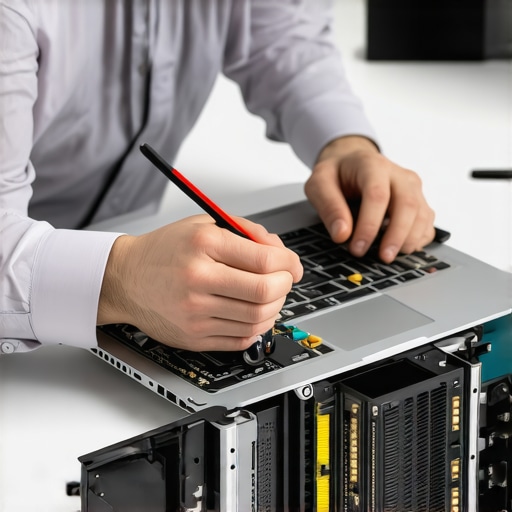 Even if your hardware is fine, a corrupted file system can cause the same symptoms. Always ensure you have the move that protects your files when a windows update fails in place—usually a solid off-site backup—before you start running deep disk repairs like chkdsk commands.While chkdsk is a handy tool, relying on it too heavily is where many ‘power users’ stumble into the first major trap. Everyone tells you that software can fix anything, but in my experience, running aggressive repair scripts on a failing drive is the fastest way to turn a minor data recovery job into a total loss.
Stop Trusting Every Optimization App You See
Most ‘PC Cleaner’ apps are nothing more than digital placebo. In fact, they often delete registry keys that your custom business software needs to function. This is why computer repair for beginners often leads to more costly mistakes than if the machine had been left alone. I’ve seen countless owners try to ‘optimize’ their way out of a slow boot only to end up with a blue screen because they nuked a critical driver. If a pop-up claims your system is infected and offers a one-click fix, close it; the truth about the system fix pop-up on your desktop is that it is usually the malware itself. 
How Managed IT Prevents the Silent Productivity Bleed
There is a common belief that managed services are just an outsourced helpdesk. That is a mistake. Real managed IT strategies to keep your business secure in 2025 focus on proactive architecture rather than reactive patches. According to a 2024 report by Gartner, the average cost of IT downtime is roughly $5,600 per minute. That ten-minute morning stall isn’t just a nuisance; it is a massive financial drain when aggregated across a team. Expert-level IT management doesn’t just fix the ‘spinning circle’; it ensures the circle never appears by auditing your network’s DNS health and pruning ‘technical debt’ before it accumulates through regular quarterly audits.
Will Software Ever Fix a Physically Clicking Drive?
The short answer is no. This is the biggest nuance people miss: the difference between logical and physical failure. If your drive is making noise, software tools will only cause more physical damage as the read-heads scrape across the platters. You need to understand data recovery secrets and expert techniques to save your files fast, which often involve clean-room environments. In these cases, why Drive Savers remains the only choice for physically damaged drives becomes clear—they handle the hardware mechanics, not just the code.
The Hidden Trap of DIY Screen Swaps
Finally, let’s talk about that ‘dim’ or ‘flickering’ display. You might think you can just order a panel off the internet and swap it. But I have seen many DIYers fry their motherboards because they didn’t disconnect the internal battery before touching the eDP cable. Even if you follow a guide for laptop screen repair at home, a slight misalignment can send a surge through the backlight circuit. Expertise isn’t just knowing how to turn the screw; it is knowing the order of operations that prevents a $500 mistake. Have you ever fallen into this trap? Let me know in the comments.It is tempting to think that once that spinning circle is gone, you are in the clear forever. But in the world of IT, if you aren’t moving forward, you are decaying. This is where most business owners get stuck—they treat IT like a plumber you only call when the pipes burst. Real efficiency comes from building a system that self-heals or at least alerts you before the flood happens.
Stop the Slow Decay of Your Office Hardware
I have seen too many companies let their infrastructure rot because they are afraid of the disruption of an update. This is the definition of technical debt. To stay ahead, you need to be brutal about your software environment. I personally recommend using tools like Ninite for bulk-patching common apps; it skips the ‘do you want a toolbar?’ nonsense and just gets the job done. If you are managing more than five machines, you should be looking at effective managed IT solutions for growing companies rather than trying to touch every keyboard yourself. It is about moving from being a firefighter to being a fire marshal.
The Toolset That Keeps Me Sane
For my own daily workflow, I rely heavily on Remote Monitoring and Management (RMM) dashboards. These tools allow me to see that a hard drive is reaching its thermal limit before the user even notices a slowdown. According to the Backblaze 2023 Drive Stats, the annualized failure rate for older mechanical drives can jump significantly after the four-year mark. If you aren’t tracking the age of your fleet, you are essentially playing Russian Roulette with your data. This is why I always suggest that why your managed IT provider should be doing quarterly audits to catch these hardware lifecycles before they hit a wall. 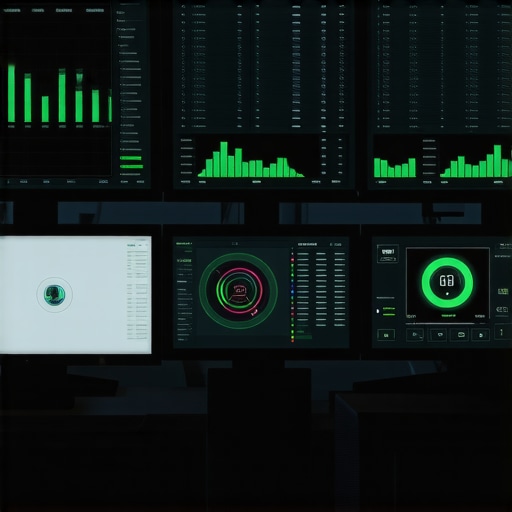
Moving Beyond the Local Server Trap
Scaling your business often means admitting that the server humming in your broom closet is a liability. It’s loud, it’s hot, and it’s a single point of failure. I’ve helped dozens of firms transition to a more resilient setup by following the checklist for moving your business to the cloud without data loss. Moving to the cloud doesn’t just solve the ‘slow login’ problem; it removes the physical constraints of your office. However, don’t just jump in blindly. You need to how to audit your business software to find hidden security gaps before you migrate, or you’ll just be moving your problems to a more expensive neighborhood.
How do I maintain peak system performance over time?
The secret isn’t a one-time fix; it’s a rhythm. You should have an automated script that clears temporary system caches once a week and a policy that forces a full restart at least every 48 hours. Most ‘mysterious’ bugs are just memory leaks from apps that haven’t been closed in a month. If you want to keep your screen crisp and your hardware happy, follow laptop screen repair DIY tips for clearer displays and keep the dust out of your intake fans. In the near future, I predict we will see AI-driven predictive maintenance become the standard for even small shops, where your OS will automatically reconfigure its startup sequence based on your predicted morning schedule. For now, take ten minutes today to open your Task Manager, click the Startup tab, and disable everything you don’t recognize. Your future self will thank you at 8:52 AM tomorrow.
Lessons from the Trenches: What Actually Breaks Your Workflow
After two decades in the field, I’ve realized that the biggest enemy of speed isn’t just old hardware; it is the ‘set it and forget it’ mentality. Most business owners think their systems are static, but software is a living organism that constantly evolves and, unfortunately, bloats. If you aren’t actively pruning your environment, you are essentially letting digital weeds take over your garden. I’ve seen six-month-old machines crawl because of poor computer repair for beginners attempts that left registry fragments everywhere.
Another hard lesson? Never underestimate the power of a clean desktop. Loading hundreds of individual icons requires the operating system to pull metadata for every single file before it hands you control of the mouse. It sounds trivial, but for a system already struggling with why your computer takes ten minutes to reach the desktop screen, it is the final straw. Move those files to a single folder and watch your login time drop instantly.
The Daily Carry Tools for a Zero-Lag Office
If you want to move from reactive fixing to proactive mastery, you need a better toolkit than just the default Windows ‘Reset’ button. I swear by Ninite for keeping basic apps updated without the ‘bundleware’ and toolbars. For deeper dives, I always recommend looking into effective managed IT solutions for growing companies that utilize RMM tools. These allow you to see a failing power supply or a thermal spike before it causes a hard crash.
I also suggest keeping a close eye on your hardware lifecycle. Instead of waiting for a total blackout, use the data from industry reports to justify your budget for refreshes. Knowing how to choose between repairing an old workstation and buying a new one is the difference between a productive team and a frustrated one that spends half their morning at the coffee machine waiting for an inbox to load.
Stop Letting Technology Dictate Your Productivity
Your computer should be a tool that serves your goals, not an obstacle you have to overcome before you can even start your day. Reclaiming those ten minutes every morning adds up to an entire work week of found time over the course of a year. Whether you are streamlining a single PC or overhauling your entire network, the key is consistency. Don’t wait for a crisis to build a managed IT strategy that works. You have the power to stop the lag and get back to what actually matters: growing your business. Have you ever found a specific app that was secretly killing your startup speed? Let me know in the comments below.