

It happened on a Tuesday afternoon, just as I was hitting my stride on a massive spreadsheet. My screen suddenly flashed a jarring, professional-looking window that practically screamed for attention. “System Fix: 47 Critical Errors Found!” it barked in bold, red letters. I’ll be honest—even as someone who spends my weekends tinkering with circuit boards and prides myself on knowing my way around a motherboard, my heart did a little jump. I almost clicked that big ‘Repair All’ button. That split second of raw panic is exactly what these digital vultures are banking on. They don’t want you to think; they want you to react with your wallet. It reminded me of the time I tried to troubleshoot laptop screen problems and ended up making things worse because I rushed the process. Whether it is a fake alert or a legitimate hardware glitch, keeping a cool head is the only way to save your data and your sanity.
Those Scammers Want You to Panic
Let’s get one thing straight: these pop-ups aren’t actually scanning your hardware. Your browser doesn’t have the permission to reach deep into your CPU and tell you that your registry is “corrupted.” They are clever pieces of social engineering designed to bypass your common sense. If you’ve ever dealt with a fake tech support call, you know the drill: urgency, fear, and a “convenient” solution that usually involves your credit card or remote access to your machine. Years ago, before I had my expert badge, I actually fell for it. I downloaded one of these system optimizer tools thinking it would solve my lag issues. It didn’t fix my slow PC. Instead, it added three more toolbars to my browser and made my laptop fan scream like a jet engine. I learned the hard way that computer repair for beginners often starts with learning what not to click. It’s embarrassing to admit, but that mistake taught me more about digital security than any textbook ever could. It’s why I’m so passionate about helping you avoid the same trap.
Is this pop-up actually a virus or just an annoying ad?
This is the question I get asked most often at neighborhood BBQs. It’s usually a bit of both. Technically, many of these are classified as potentially unwanted programs (PUPs) or browser hijackers. They hitch a ride on free software downloads and then take your browser hostage. However, the financial stakes are massive and very real. According to the FBI’s Internet Crime Complaint Center (IC3), tech support fraud losses skyrocketed to over $800 million in a single year recently. That is a staggering amount of money stolen just by tricking people into clicking a button. If your computer is truly freezing or lagging, you are much better off looking into hardware swaps that stop freezing rather than trusting a random window. If you’re running a business, this is where managed IT solutions become your best friend, acting as a shield against these opportunistic attacks. Today, I’m going to show you exactly how to stop a persistent pop-up for good and reclaim your desktop. Have you ever had a warning appear out of nowhere that made you genuinely afraid to touch your computer?
Force the Browser to Quit Immediately
When that loud, blaring alert takes over your screen, your first instinct is to find the ‘X’ in the corner. Don’t do it. Many of these scripts are written so that the ‘Close’ button actually triggers a download or a redirection to a malicious site. Think of it like a trap door; the exit sign is painted on the floor. Instead, you need to cut the legs out from under the program. On Windows, hit Ctrl + Shift + Esc to pull up the Task Manager. On a Mac, it’s Command + Option + Escape. Locate your browser—whether it’s Chrome, Edge, or Firefox—and select ‘End Task.’ This kills the process at the system level, bypassing whatever tricks the webpage is trying to play. I remember a frantic call from a client, Sarah, who thought she needed a laptop screen replacement because her display was completely locked behind a ‘FBI Warning’ screen. It looked permanent. I had her use the Task Manager trick, and within ten seconds, her desktop was back to normal. It wasn’t a broken screen; it was just a browser tab holding her pixels hostage. 
Reset Your Browser to Factory Settings
Once you’ve killed the process, the danger isn’t necessarily gone. Some of these scripts are ‘sticky’ and will try to reload the moment you reopen your browser. To prevent this, don’t allow the browser to ‘Restore Tabs’ when you relaunch it. If the pop-ups persist, you need to go into your settings and perform a reset. This is the digital equivalent of a deep-clean after a pest infestation. It will disable all your extensions and clear your temporary data. This is often more effective than generic troubleshooting common computer repair issues because it targets the specific environment where the malware lives.
Audit Your Extensions for Hidden Spies
If you find that your browser is still acting possessed—redirecting your searches or showing strange ads—an extension is likely the culprit. These ‘mini-apps’ often look helpful, like a coupon finder or a PDF converter, but they can function as gateways for adware. Go to your extensions menu and remove anything you don’t 100% recognize. This is one of the most vital computer repair for beginners tips I can give: if you didn’t install it, delete it. Sometimes, these issues are symptoms of a deeper problem, like a failing drive that allows files to become corrupted, making you think you have a virus when you actually need expert data recovery techniques to save your work before the hardware dies.
Let the Experts Shield Your Office
For business owners, the stakes of a single accidental click are much higher. A simple pop-up can be the precursor to a ransomware attack. This is where managed IT solutions prove their worth. Instead of you having to play digital janitor, a professional team monitors your network for these ‘rogue’ connections before they ever reach an employee’s screen. They can implement strategies to keep your business secure by white-listing safe sites and blocking known malicious IPs at the server level. It’s the difference between wearing a helmet and trying to fix a head injury after the fact. If your system is already lagging or showing signs of strain, it might be time for hardware swaps that stop freezing, ensuring your hardware is as resilient as your software.Most people think a glitchy display is a death sentence for the hardware. I’ve seen countless users rush into a laptop screen replacement step-by-step repair guide when their panel was actually perfectly fine. Here is the nuance: your screen is just a ‘dumb’ output device. The real brain behind the image is the T-CON board or the LVDS cable. If you see a faint red glow around the edges or a singular flickering line, it is often a seating issue with the internal ribbon cable. Pulling the bezel off and reseating that connector can save you $200 in parts. Don’t fall for the ‘replace it all’ mentality that most big-box stores push; they aren’t looking to save you money, they are looking to move inventory. Following laptop screen repair diy tips can often reveal that a simple cleaning of the internal contacts is all you need for a crystal-clear display.
The Software Trap That Kills Your Hard Drive
This is where the ‘Oops’ factor hits hardest. When a computer starts acting up, the average person’s first move is to download a ‘fix-it’ utility. If your hard drive is making a physical clicking or scraping sound, running software is the absolute worst thing you can do. Every second that platter spins while the read-write head is malfunctioning, you are physically carving your data out of existence. I’ve seen DIYers use generic tools that stress the drive, turning a recoverable $300 job into a $3,000 forensic nightmare. This is why Drive Savers remains the only choice for drives that have suffered a physical mechanical failure. According to a long-term study by Backblaze, drive failure rates don’t just happen because of ‘age’; they often spike due to thermal stress. Trying to ‘force’ a recovery on a hot, failing drive is a recipe for permanent data loss. If you find yourself in this spot, step away from the keyboard and look into expert data recovery techniques before you lose your family photos or business ledgers forever. 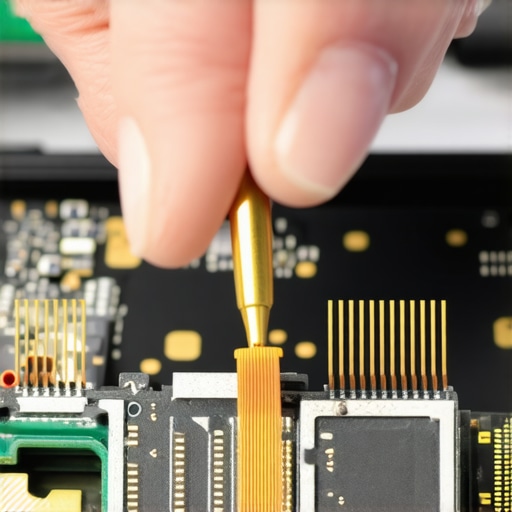
What happens when your ‘unlimited’ cloud backup meets a corrupted file system?
Many business owners tell me, ‘I don’t need a recovery plan, I have cloud sync.’ That is a dangerous myth. Syncing is not the same as a backup. If a piece of ransomware encrypts your local files, your ‘unlimited’ cloud service will happily sync those encrypted files, overwriting your good data in seconds. A true professional setup involves ‘versioning’ and an air-gapped copy. This is exactly the reason your managed IT provider needs a disaster recovery plan that goes beyond simple cloud storage. You need an immutable record of your data that scammers can’t touch.
Audit Your Provider Before the Crisis Hits
If you are paying for support, don’t just assume they are watching your back. Many providers set up a firewall and then never look at it again. You should be asking for quarterly proof that your system is actually being defended. This is why your managed IT service should be doing regular security audits to catch the small vulnerabilities—like a dormant extension or an outdated firmware—before a hacker does. The truth is that most ‘advanced’ computer problems are actually just a series of ignored simple ones. Have you ever fallen into the ‘software will fix it’ trap only to find out it was a hardware disaster? Let me know in the comments.
I’ve spent thousands of hours at a workbench, and if there is one thing I’ve learned, it’s that heat is the silent killer of every laptop on the market. Most people wait until their device is thermal throttling—that’s when the CPU slows down to protect itself from melting—before they even think about maintenance. If you want to avoid that panicked search for a pro, you need to learn how to clean a laptop fan without pushing dust deeper inside. I personally use a small ESD-safe vacuum and a specialized spudger from an iFixit Pro Tech Toolkit because canned air often just compacts the debris into a ‘dust felt’ that chokes the heat sink even more. According to the 2023 Backblaze Drive Stats report, while SSDs are more reliable than HDDs, they still face significant failure risks from heat-induced controller wear. This is why keeping your airflow clear isn’t just about speed; it’s about preventing a total data catastrophe.
Clean Your Internal Components Before They Cook Your Motherboard
When a client comes to me with a ‘slow’ computer, nine times out of ten, it’s not a virus—it’s physical friction or thermal fatigue. Beyond just the fan, the thermal paste between your processor and the heat sink eventually dries out and turns into a brittle, useless crust. Replacing this every two years is the single most effective computer repair for beginners step that actually adds years to a machine’s life. If you aren’t comfortable opening the chassis, at least ensure you are making the move that keeps your laptop from overheating on your lap, which usually involves a hard, flat surface to allow those bottom vents to breathe. 
How do I keep my workstation running like new for five years?
The secret isn’t a magical piece of software; it’s a rigorous schedule of hardware audits and software hygiene. For my business clients, I tell them that managed IT can elevate your business security by automating the boring stuff like firmware updates, which often contain critical patches for your screen controller and power management chips. If you’re flying solo, I recommend performing a ‘hardware health check’ every quarter. Check your drive’s S.M.A.R.T. status to see if sectors are failing, and look into hardware swaps that stop freezing, such as upgrading to a higher-grade NVMe drive or adding a fresh stick of RAM. These are the small, deliberate steps that prevent the ‘blue screen of death’ from ruining your Monday morning.
The Future of Repair Is Modular and Predictive
I predict that in the next three to five years, we are going to see a massive shift toward AI-driven predictive maintenance. Instead of your laptop just dying, your OS will likely give you a three-week warning that your battery cell is expanding or your SSD’s NAND flash is nearing its end-of-life. We are already seeing the beginning of this with tools that offer expert data recovery techniques that can clone a dying drive before it officially gives up the ghost. Scaling your IT needs—whether for a home office or a growing company—means moving away from ‘break-fix’ culture and toward a model where your managed IT provider is doing quarterly audits to catch these failures in the lab, not on your desk. I want you to try one thing today: download a free tool like HWMonitor and check your ‘Package Temp’ while watching a 4K video. If it’s over 90°C, it’s time to stop ignoring the dust.
What I Finally Realized About the True Cost of Delay
After years of fixing everything from shattered displays to hijacked servers, I’ve had a few ‘lightbulb moments’ that changed my entire approach. First, never let a software solution try to fix a mechanical scream; if your drive is clicking, turn it off immediately. Second, I’ve learned that how managed IT can elevate your business security isn’t just about antivirus, it’s about having a professional who knows your hardware’s limits. Finally, data is only ‘safe’ if it exists in three places at once. If you’ve ever felt the panic of a disappearing folder, you know that the reason your managed IT provider needs a disaster recovery plan for you is to sleep better at night.
My Go-To Kit for Saving Your Data and Sanity
I don’t leave my workbench without a few specific tools. I always keep a copy of HWMonitor open to catch thermal spikes before they solder a chip to the board. For physical recovery, I trust the specialized clean-room environments of the pros, which is why Drive Savers remains the only choice for drives that have actually suffered a drop or a dunk. If your machine is just feeling sluggish, sometimes the hardware upgrade that actually speeds up your daily workflow is as simple as a fresh NVMe drive rather than a whole new laptop.
The Future of Your Desktop Is in Your Hands
Taking care of your tech doesn’t have to be a full-time job, but it does require you to be an active participant. Whether you are learning computer repair for beginners to save a few bucks or auditing a provider for your growing firm, your curiosity is your best defense. Don’t be afraid to open a settings menu or peek inside a fan vent; that knowledge is what keeps the scammers and the hardware failures at bay. Have you ever ignored a strange computer noise only to regret it later? Let me know in the comments below!