

I remember it vividly. It was 2 AM, I was finishing a client report, and suddenly the corners of my screen looked like they were caught in a permanent sunset. Not a pretty one, though. It was a fuzzy, annoying red glow that made everything look like a horror movie. My first thought? “Well, there goes my paycheck.” I tried to ignore it, but when the red started creeping toward the center, I knew I was in trouble. If you are seeing that same crimson bleed right now, don’t panic just yet. I have spent years tinkering with hardware, and I can tell you that this “red halo” effect is a specific signal from your hardware that it needs a little attention.
That Weird Sunset Glowing on Your Display
When your screen starts acting up, it feels personal. You wonder if you bumped it too hard in your bag or if you have been working too many hours. Trust me, I have been there. This specific red tint on the edges is often a classic symptom of a failing backlight or an aging panel. If you have already tried laptop screen repair diy tips for clearer displays, you might be frustrated that the red won’t budge. It is different from a dead pixel or a cracked screen; it is a shift in the very light source that powers your visual experience. It is visceral, distracting, and usually indicates that your CCFL (Cold Cathode Fluorescent Lamp) is on its last legs.
Is this the end for my laptop?
This is the fear that keeps us up at night. Is the whole machine destined for the scrap heap? Not necessarily. While it is true that a screen shifting colors can be a precursor to total failure, many people live with a slight red tint for months. However, you need to know what you are dealing with. According to experts at DisplayMate Technologies, color shifts in older LCDs often occur because the phosphors in the backlight are degrading, which naturally pushes the light toward the red spectrum. It is essentially a biological clock for your tech. If you are worried about the cost, laptop screen repair how to fix common issues at home can often be more affordable than a whole new rig.
Why You Should Not Start Poking the Pixels
I am going to share a mistake I made back when I first started repairing computers. I saw a red glow on an old workstation and thought, “Maybe the layers of the screen are just loose.” I pressed down hard on the edge with my thumb, hoping to ‘reseal’ whatever was leaking light. Big mistake. I did not fix the tint; I created a permanent black ink-stain effect. If you are looking at how to fix a laptop screen that has a faint red glow around the edges, please, keep your fingers off the glass. Physical pressure is almost never the cure for a color shift. We are going to look at settings, cables, and display drivers instead. Have you noticed the red tint getting worse when your laptop gets hot, or is it there from the second you press the power button? Tell me your experience below.
Rule Out the Software Glitch First
Before you reach for the screwdriver, you need to determine if your operating system is simply having a bad day. I once worked on a Dell that looked like it was bleeding from the edges, and the owner was convinced the screen was smashed. We booted into the BIOS (the screen that appears before Windows or macOS starts), and the red tint disappeared. It turned out a recent update had corrupted his color profile. If you see the glow only after the desktop loads, you are likely looking at a software conflict. Check out why your computer monitor is displaying the wrong colors after an update to see if a simple driver rollback can save you hundreds of dollars.
Run the External Monitor Stress Test
Grab an HDMI cable and plug your laptop into a TV or a desktop monitor. If the red glow stays on the laptop but the TV looks perfect, your graphics card is fine, and the problem is definitely the laptop panel or its internal cable. This is actually good news—replacing a screen is far easier than replacing a motherboard. If both screens are red, your GPU is overheating or failing, which is a much bigger headache. Using tips for troubleshooting laptop screen problems seamlessly can help you narrow this down in under five minutes.
Reseat the Video Cable Ribbon
The most common cause of a red-tinted border that flickers when you move the lid is a loose LVDS or eDP cable. This is the thin, fragile ribbon that carries data from the motherboard to the screen. It passes through the hinges, which means every time you open or close your laptop, that cable is being flexed. Over time, it can wiggle out of its socket just enough to lose the connection for specific color signals.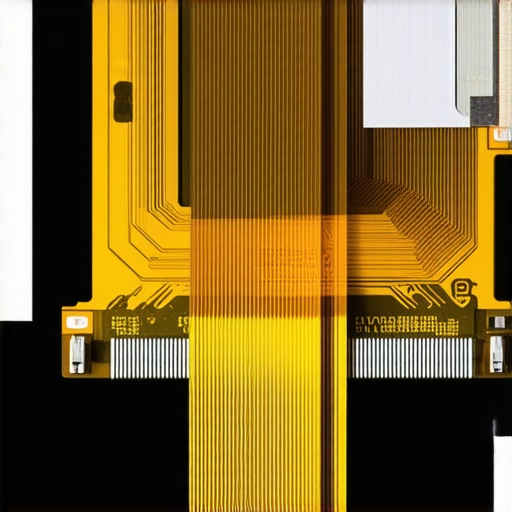
The Hinge Wiggle Method
I remember a specific repair on an old MacBook where the screen would go perfectly clear if I held the lid at exactly a 45-degree angle. The second I opened it fully, the red halo returned. This confirmed the cable was the culprit. If you are brave enough to open the casing, you can often just unplug the cable, blow out any dust, and snap it back in. It is one of those computer repair for beginners avoid costly mistakes moments where patience beats brute force. If the glow is persistent regardless of the lid angle, the cable itself might be frayed inside the hinge.
Determine if the Backlight is Failing
If the red glow is accompanied by a slight flickering or a faint buzzing sound, your backlight is likely the issue. On older laptops with CCFL tubes, the gas inside the bulb changes color as it nears the end of its life, shifting from white to a sickly orange or red. Learning how to tell if your laptop screen backlight is actually failing is crucial because a failing backlight can eventually pull too much power and pop the inverter board.
Prepare for a Panel Swap
If you have tried software fixes and cable reseating to no avail, you are looking at a hardware replacement. Don’t let that intimidate you. You can find a laptop screen replacement step by step repair guide online that matches your specific model. I once replaced a screen on a kitchen table using nothing but a guitar pick and a Phillips #00 screwdriver. While you can follow laptop screen repair how to fix common issues at home, remember that modern ultrabooks often have the screen glued to the frame, making the job a bit more surgical than it used to be.Most technicians will tell you to swap the panel and be done with it, but in my experience, jumping straight to a replacement is often a waste of money if you have not checked the inverter’s output first. If you have been following computer repair for beginners avoid costly mistakes, you know that diagnosis is 90% of the battle. A red tint can actually be caused by the system undervolting the CCFL or LED strip, which happens when your power management settings are corrupted or your battery is struggling to provide a consistent current. Speaking of power issues, I have seen people destroy perfectly good screens by using knock-off power bricks; the truth about using third-party batteries in professional laptops applies to power adapters too. Poorly regulated power leads to component ghosting and color shifts that look like hardware failure but are actually environmental.
The Trap of Software Over-Calibration
One specific trap to avoid is the Calibration Loop. You notice the red, so you go into your graphics settings and crank the blue and green channels to compensate. While this works for an hour, you are essentially forcing the pixels to work harder to mask a physical deficiency. According to research published by the IEEE Reliability Society, operating hardware at adjusted peak levels to compensate for degradation actually accelerates the rate of thermal failure by up to 30%. You are not fixing it; you are speeding up its retirement. 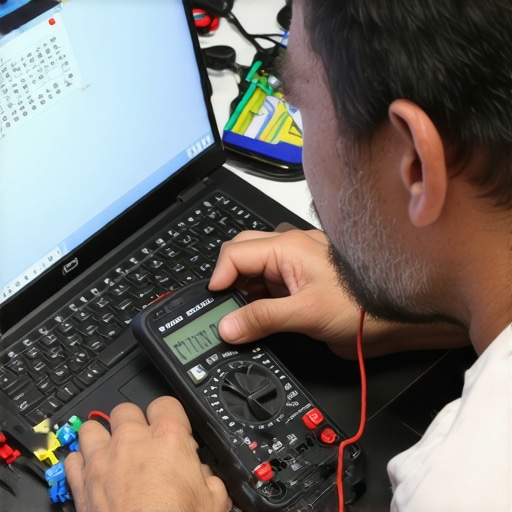
Can a red tint signal a deeper motherboard issue?
In some rare cases, yes. If the red glow is localized to one corner and is accompanied by a high-pitched whine, your motherboard’s display capacitors might be leaking or failing. For a single user, this is a headache; for a company, it is a productivity killer. This is why effective managed IT solutions for growing companies focus on proactive hardware monitoring. They can often catch these voltage fluctuations before the screen ever turns red. For larger operations, integrating managed IT strategies to keep your business secure in 2025 includes hardware lifecycle management to prevent these failures from causing downtime. If you do reach the point of total failure, do not forget that your data is still there. Knowing data recovery secrets expert techniques to save your files fast is your safety net when the hardware finally gives up. Have you ever fallen into the trap of trying to software fix a clearly physical problem? Let me know in the comments.
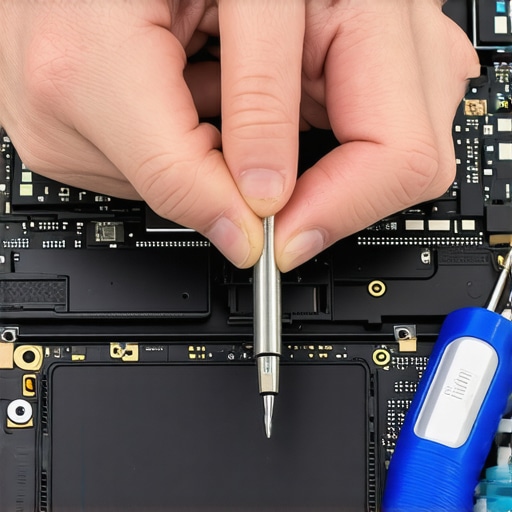
If you are serious about keeping your machine alive, you need a toolkit that is not just a random drawer of screws. Personally, I never travel without a set of precision tweezers and a high-grade plastic spudger. Using metal to pry open a screen frame is a recipe for disaster; I have seen too many people accidentally short out their motherboard because they used a steel screwdriver where a plastic tool belonged. For deeper issues, I rely on professional-grade diagnostic environments to check for disk health and memory errors. Understanding the power of data recovery tools what you need to know is essential if you want to avoid that 2 AM panic I felt during my first hardware failure.
How do I maintain my display and hardware over time?
Maintenance is about more than just wiping the dust off your keys. It is about heat management. Heat is the number one killer of display panels and backlights. According to technical documentation from DisplayMate Technologies, even a five-degree Celsius increase in consistent internal operating temperature can reduce the lifespan of an LED backlight by nearly 15% over three years. I make it a habit to perform a deep clean every six months. Learning how to clean a laptop fan without pushing dust deeper inside is the single most effective thing you can do to prevent the thermal stress that leads to color shifts. Additionally, be mindful of how you handle the device. I always suggest the move that keeps your laptop from overheating on your lap—using a hard, flat surface instead of a blanket or pillow ensures the air intake stays clear and the screen components stay cool.
For those of you running a business, maintenance becomes a logistics game. You cannot afford to wait for a screen to turn red before you take action. This is why how managed it can elevate your business security in 2025 often includes hardware health monitoring as a core feature. A proactive approach means checking the physical integrity of your fleet regularly. For example, knowing how to tell if your laptop hinges are about to snap the frame can save you from a snapped display cable that eventually causes the very red glow we are trying to fix. I strongly believe that why your managed it provider should be doing quarterly audits is because these sessions catch the early warning signs of hardware degradation that an average user might ignore.
The Future of Laptop Displays and Repairability
Looking ahead, I expect we will see a massive shift toward OLED and Mini-LED panels in even the mid-range consumer laptops. While this eliminates the specific CCFL red glow issue, it introduces new challenges like organic degradation and pixel burn-in. The trend is moving toward thinner devices, which unfortunately makes laptop screen repair how to fix common issues at home significantly harder due to the increased use of industrial adhesives. However, with the rise of “Right to Repair” movements, some manufacturers are starting to release official guides and modular parts. My best advice for right now? Try the external monitor stress test I mentioned earlier to see if your red glow is a software ghost or a hardware reality before you spend a dime on parts. If you are still seeing that crimson haze, it might be time to look into a laptop screen replacement step by step repair guide to see if you are ready to handle the surgery yourself.
The Realities of Hardware Decay I Wish I Had Accepted Sooner
After repairing hundreds of displays, I have realized that a red halo is rarely a death sentence, but it is always a wake-up call. One thing I learned early on is that ignoring small flickers leads to massive bills. If you catch it while it is just a faint glow, you are usually just looking at a cable adjustment or a minor voltage tweak. Wait too long, and the heat from a failing backlight can actually warp the surrounding plastic frame or damage the panel beyond repair. I also realized that perfect color is a moving target; every panel starts shifting the day it leaves the factory. Don’t obsess over surgical precision unless you are a professional colorist. For the rest of us, computer repair for beginners avoid costly mistakes starts with knowing when good enough is better than risking a shattered panel during an unnecessary disassembly.
My Trusted Arsenal for Tackling Display Dramas
When I am faced with a stubborn red tint, I do not just guess; I use a specific set of tools that have never failed me. First, I always have a digital copy of calibration charts to see exactly where the color gamut is falling off. For physical work, I rely exclusively on nylon spudgers and suction cups rather than metal tools. Trust me, one slip with a steel screwdriver and you will wish you had stuck to basic laptop screen repair diy tips for clearer displays. I also highly recommend keeping a known good HDMI cable and a cheap external monitor in your closet. It is the fastest diagnostic tool in existence. If you are managing a whole office of aging machines, look into managed it strategies to keep your business secure in 2025 to help automate hardware health checks before your team even notices the sunset creeping onto their screens.
Taking the Final Step Toward a Clear View
Dealing with tech issues can be mentally draining, but most of these problems are solvable with a bit of patience and the right diagnostic path. Whether you decide to perform a full panel swap or just manage the software settings to compensate, you are now equipped to handle that how to fix a laptop screen that has a faint red glow around the edges scenario without the 2 AM panic I once felt. If the hardware is truly too far gone, do not forget it is an opportunity to evaluate how to choose between repairing an old workstation and buying a new one. Your data is safe, your options are clear, and that red glow does not have to define your productivity. Have you ever successfully fixed a screen issue only to have a new one pop up a week later? Let me know your repair stories in the comments below!