

I’ll never forget the Tuesday afternoon I almost threw my router out the window. I had just paid for a ‘Lightning Fast’ gigabit plan, expecting my downloads to fly. Instead, I was watching a simple PDF crawl like it was being delivered by a carrier pigeon. I went through the usual checklist: I checked for background processes, tried to identify a memory leak, and even wondered if my hard drive was encrypted and slowing things down. Nothing worked. Then, I looked down at the dusty, thin grey wire snaking across my floor. It was a Cat5 cable from 1999. I felt like a total amateur. That tiny piece of plastic was the only thing standing between me and the speed I was paying for. Today, I want to help you avoid that same ‘facepalm’ moment. We’re going to figure out if that plastic-coated string is the bottleneck holding back your entire network. Whether you’re trying to speed up a file transfer between two office computers or you’re tired of why your office internet speed drops during video conference calls, the cable is often the hidden culprit.
Your Ethernet Cable Has an Expiration Date
The mistake I made early on—and one I see people make all the time when trying to avoid costly computer repair mistakes—is assuming that if the ‘click’ happens when you plug it in, the cable is fine. It’s not. Cables degrade. They get stepped on, the internal copper frays, and the standards evolve. If you’re still using the cable that came with a router you bought ten years ago, you’re basically trying to push a fire hose worth of data through a cocktail straw. It might be the one move that doubles your office file transfer speeds overnight just by swapping a five-dollar cord.
Is it actually worth the hype to upgrade every cable?
I get the skepticism. You don’t want to spend fifty bucks on ‘premium gold-plated’ cables if you don’t have to. The truth is, you don’t need the most expensive stuff, but you do need the right category. According to networking experts at Fluke Networks, nearly 80% of network performance issues can be traced back to cabling and physical layer problems rather than the hardware itself. That is a massive margin for such a cheap fix. Have you ever felt like your ‘high-speed’ internet was lying to you only to find out it was a hardware issue? I’d love to hear your stories in the comments. Before we dive into the technical specs, let’s look at the physical red flags that mean your cable is headed for the bin.
Read the Fine Print on the Jacket
To stop guessing why your network feels sluggish, you need to find the text printed along the length of your ethernet cable. It is usually small and faint, but it tells you everything you need to know. You are looking for a label like ‘Cat5’, ‘Cat5e’, ‘Cat6’, or ‘Cat6a’. If your wire says ‘Cat5’ (without the ‘e’), you are strictly limited to 100 Mbps. In a modern office where most ISPs offer 300 Mbps to 1 Gbps, that cable is a hard bottleneck. Upgrading to Cat6 or Cat6a is the most effective way of troubleshooting common computer repair issues effectively related to local network lag. 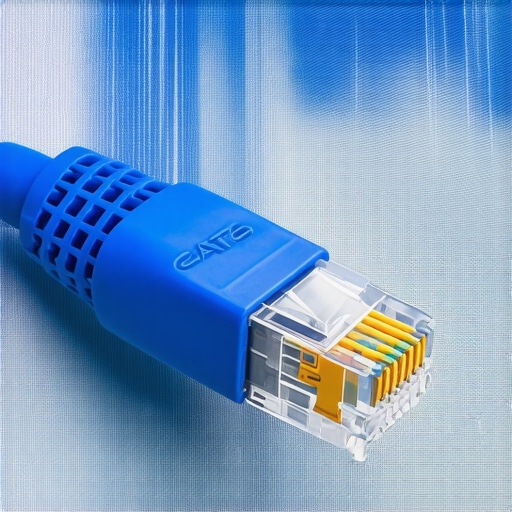
What those numbers actually mean for your speed
Think of these categories like the number of lanes on a highway. Cat5 is a single-lane road that gets congested the moment more than one person tries to use it. Cat5e is a two-lane road that can handle a gigabit, but only if the distance is short and there is no electromagnetic interference. Cat6 is a four-lane freeway, and Cat6a is a ten-lane superhighway designed for 10-Gigabit speeds. If you are trying to speed up a file transfer between two office computers, jumping from Cat5e to Cat6 can reduce your transfer times significantly, especially if you are moving massive video files or daily database backups.
Hunt Down the Kinks and Frays
I once spent four hours troubleshooting a server that kept dropping its connection to the NAS. I was deep into researching why your workstation keeps losing its connection to the NAS drive, checking software logs and IP conflicts for hours. It turned out the cable was pinched behind a heavy metal filing cabinet. The outer jacket looked fine, but the internal copper pairs were crushed. Replacing that one five-dollar cable solved a problem that I originally thought required managed IT solutions for streamlining operations.
Don’t ignore the broken plastic tab
If the little plastic locking tab on the connector is snapped off, the cable can shimmy out just enough to lose sync without actually falling out of the port. This causes intermittent ‘no internet’ errors that disappear the moment you wiggle the cord. It is surprisingly similar to how to fix a laptop screen that shows a check cable message; if the physical seat of the connector is not perfect, the signal fails entirely. Inspect the gold pins inside the clear plastic head. If they look dull or have a greenish tint, corrosion has set in, and you are losing data packets every second.
Put Your Connection to the Test
Before you buy a whole box of new cables, run a hardwired speed test to confirm the bottleneck. Connect your laptop directly to the router with the cable in question and use a tool like Speedtest.net. If you are paying for 1000 Mbps but the test tops out at exactly 95 Mbps, you have a 10/100 bottleneck. This is a classic sign of an old Cat5 cable or a damaged wire that has ‘negotiated’ down to a lower speed just to maintain a connection.
The ‘Short Cable’ comparison trick
If you suspect a long cable run through the walls is failing, grab a short, factory-made 3-foot Cat6 cable and run the same test. If the short cable hits your full ISP speeds, you know the long run is the culprit. Identifying these physical layer issues is the first step in avoiding costly computer repair mistakes like replacing expensive network switches when a simple cord was the true problem.While finding the right cable is a great start, professional network management goes much deeper than just physical wires. A common mistake I see is business owners assuming their files are ‘safe’ just because they use cloud storage. This is a dangerous myth. As the experts at Backblaze highlight in their annual data loss reports, nearly 80% of data incidents are caused by human error or software conflicts that a simple cloud sync cannot always resolve. This is why you need data recovery secrets every business should know today to distinguish between a basic folder sync and a robust disaster recovery plan.
Avoid the Formatting Trap When Error Messages Pop Up
I have seen too many people lose everything because they saw a ‘Drive is not formatted’ error and clicked ‘Yes’ in a panic. Usually, this happens when you are recovering data from a drive with a cyclic redundancy check error. Clicking format does not fix the hardware; it simply destroys the file directory that tells the computer where your data lives. 
Why does data recovery fail on modern SSDs more than old hard drives?
On an old mechanical hard drive, deleted data stayed on the physical platter until it was overwritten by a new file. Modern SSDs use a specific command called TRIM that proactively wipes deleted data blocks to maintain high performance. If you are currently learning how to tell if your SSD is wearing out, be aware that recovery on these drives is a race against the clock. Once TRIM executes, that data is often unrecoverable even by specialized forensic laboratories.
The Hidden Clauses in Unlimited IT Support
In the business world, one of the most significant nuances involves service level agreements. Many companies jump into unlimited IT support contracts thinking every task is covered, only to realize later that ‘on-site visits’ or ‘security audits’ are billed as extra projects. Effective managed IT strategies to keep your business secure in 2025 require a clear understanding of what constitutes maintenance versus strategic growth. This logic applies to hardware too; people often rush to follow laptop screen repair DIY tips when the issue is actually a pinched ribbon cable in the hinge. Using tips for troubleshooting laptop screen problems seamlessly can save you from replacing an expensive panel that wasn’t actually broken. Have you ever fallen into the ‘unlimited’ support trap or formatted a drive by accident? Let me know in the comments.I’ve learned the hard way that a physical toolbox is only half the battle. If you want to stop reacting to emergencies and start preventing them, you need a software-defined approach to maintenance. For me, that starts with a ‘Doctor Drive.’ I use a ruggedized USB-C stick loaded with a tool called Ventoy. It allows me to boot into dozens of diagnostic ISOs without ever having to reformat the drive. My most-used utility on there is a portable version of CrystalDiskInfo. I use it because it exposes raw S.M.A.R.T. data that Windows often obscures, which is the only way to know how to tell if your SSD is wearing out from too many writes before the drive simply disappears from BIOS. This proactive check is a cornerstone of the ultimate guide to data recovery after accidental deletion; if the hardware is failing, software recovery becomes a secondary concern. 
Stop the heat before it kills your motherboard
Beyond software, the biggest silent killer is thermal accumulation. I make it a habit to crack open my case every six months. According to hardware reliability data from Puget Systems, workstations that are regularly cleaned of dust and have their thermal interface material refreshed every few years maintain significantly more stable voltage levels. If you notice why your laptop fan makes a grinding noise only when moved, don’t wait. That physical vibration can eventually damage the bearing and lead to a total cooling failure. While you are in there, look for ‘the bulge.’ Knowing how to tell if your laptop battery is swelling before it breaks the case can save you from a permanent chassis warp or, worse, a lithium fire on your desk. Using these troubleshooting common computer repair issues effectively involves looking for these physical symptoms before they escalate.
How do I keep my workstation running like new for five years?
Maintenance isn’t just about the parts you can see; it’s about the systems that manage them. For businesses, this is where how managed IT can elevate your business security in 2025 comes into play. You move from being the ‘fix-it person’ to having an automated system that monitors heat, disk health, and patch levels 24/7. This is why managed IT is a game-changer for growing companies—it scales your expertise so you aren’t manually checking every cable in the office. Looking ahead, I predict we will see AI-integrated firmware that uses predictive modeling to ‘self-heal’ or at least warn users of impending capacitor failure weeks before it happens. For now, my best tip is to be your own detective. Try this today: Download a free hardware monitor and check your CPU idle temperatures. If you’re idling above 50°C, it’s time to look at how to tell if your laptops overheating is caused by dust or a dead fan and take action before your performance throttles into the ground.
What Two Decades of Tech Disasters Taught Me About Reliability
Over the years, I’ve realized that the physical layer is almost always the silent saboteur. Whether it’s a frayed wire or a failing capacitor, hardware issues frequently mask themselves as complex software bugs. I’ve seen businesses spend thousands on software licenses while their core hardware was literally choking on dust. The biggest lightbulb moment for me was accepting that prevention is significantly cheaper than recovery. Using managed IT solutions for streamlining operations isn’t just for big corporations; it’s a vital mindset for anyone who values their time and productivity.
Another hard truth: ‘The Cloud’ is just someone else’s computer. Relying solely on sync services without a local, air-gapped backup is playing Russian roulette with your documents. Understanding the power of data recovery tools is essential, but knowing how to avoid needing them is even better. Finally, never underestimate the power of a five-dollar part. A high-quality Cat6 cable or a fresh battery can solve problems that look like catastrophic system failures from the outside.
The Minimalist Toolkit I Use to Keep Systems Running
If you want to handle these issues like a pro, you don’t need a van full of gear. Here are the three things I never leave home without and why I trust them personally:
- CrystalDiskInfo: This is my first line of defense for disk health. It tells me exactly when a drive is about to give up the ghost before Windows even notices, allowing for a stress-free migration.
- Ventoy: This tool turns any USB drive into a Swiss Army knife of diagnostics. It’s the easiest way to avoid costly computer repair mistakes by testing hardware in a clean, pre-boot environment.
- A Physical Cable Tester: You don’t need a thousand-dollar professional unit. Even a twenty-dollar basic LED tester can tell you if a wire in your wall has a split pair or a bad crimp.
Build a Digital Environment That Works for You
Technology should serve you, not the other way around. By taking these small, proactive steps—swapping out that old Cat5 cable, monitoring your temps, and setting up real backups—you transition from being a victim of tech failures to being a master of your domain. Whether you are scaling a startup using effective managed IT solutions for growing companies or just trying to keep your home office stable, the fundamentals remain the same. Don’t be afraid to open a case or run a diagnostic; the more you know about the ‘pipes’ of your digital life, the faster you can get back to what really matters. Computer repair doesn’t have to be a scary, expensive mystery when you have the right tools and a bit of curiosity. Have you ever found a tiny, overlooked cable that was ruining your whole office’s workflow? Let me know in the comments below!