

I was sitting at my desk, finishing a client’s database project that had taken me three grueling weeks. Suddenly, the cursor froze. Then came that sound—a tiny, rhythmic click-click-click coming from my desktop tower. My heart sank. I knew exactly what it was, and I knew I had skipped my own advice. I hadn’t checked the drive’s health in months. By the time I realized the drive was toast, I was already looking for the ultimate guide to data recovery, praying I could get my work back. It was a classic “do as I say, not as I do” moment, and it cost me a weekend of sleep and a lot of pride. [image placeholder]
Don’t Wait for the Click of Death
If you’ve ever noticed your mechanical hard drive makes a high-pitched whining noise, your computer is literally screaming for help. Most people think hard drives just “die” one day without warning, like a lightbulb blowing out. But that is rarely the case. Your hardware is actually keeping a secret diary of its own health called SMART data (Self-Monitoring, Analysis, and Reporting Technology). It tracks everything from how many hours the drive has been spinning to how many times it has struggled to read a single bit of data.
Does monitoring SMART data really save your files?
You might be skeptical. Is it really worth the effort to poke around in system logs? I used to think it was overkill until I realized that ignoring a clicking external drive is the fastest way to lose your precious family photos or work documents. Early in my career, I made the amateur mistake of assuming a new drive was a healthy drive. I didn’t bother checking the stats because “it’s only six months old.” That drive failed on month seven. According to drive reliability experts at Backblaze, certain SMART attributes like reallocated sectors are massive red flags that a crash is coming. Today, we are going to fix that. I’ll show you how to pull this data in seconds so you aren’t left wondering if your data is safe. It’s the single most important habit you can pick up in computer repair for beginners. Have you ever heard a weird noise from your PC and just hoped it would go away, or are you proactive about your backups? Let’s get into the nitty-gritty of how to read these digital tea leaves before your screen goes black.
Get Your Hard Drive to Talk to You
Working with SMART data isn’t just for IT pros; it is the cornerstone of troubleshooting common computer repair issues effectively. To see what is happening under the hood, you need a reader. For Windows users, I always recommend CrystalDiskInfo. It’s free and translates those cryptic hex codes into a simple “Good,” “Caution,” or “Bad” status. If you prefer the command line, you can type wmic diskdrive get status into PowerShell. It’s less detailed, but it gives you a quick “OK” or “Pred Fail” message. Knowing how to pull this info is the first step in avoiding a panic-stricken search for data recovery secrets after the hardware has already given up the ghost.
Spot the Red Flags Before the Crash
Once you have the tool open, don’t get overwhelmed by the wall of numbers. Think of these stats like a medical chart. Most numbers are boring, but a few can indicate a digital heart attack. The most critical attribute is the “Reallocated Sectors Count.” Imagine your hard drive is a massive library. A reallocated sector is like a shelf that collapsed. The drive is smart enough to move the books (your data) to a spare shelf, but it only has so many spares. When that number starts climbing, your drive is literally falling apart. I once ignored a count of 5 on a client’s laptop, thinking it was a fluke. Three days later, it hit 1,400, and the OS wouldn’t even boot. 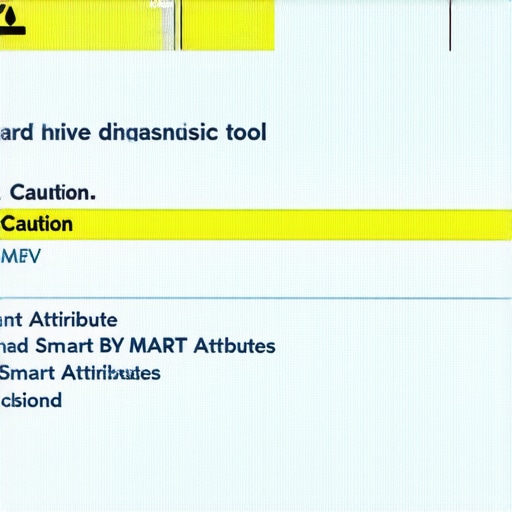
Reallocated Sectors are Like Potholes on a Highway
Another big one to watch is the “Current Pending Sector Count.” These are the sectors the drive is suspicious of but hasn’t “retired” yet. If this number is anything other than zero, you are in the danger zone. It’s the digital equivalent of a bridge showing visible cracks while you’re still driving over it. In these cases, your first move shouldn’t be to run a “repair” tool; it should be to get your files off the drive immediately. Using the power of data recovery tools at this stage is often the difference between a ten-minute copy-paste and a $2,000 professional recovery service.
Fix the Communication Before You Toss the Drive
Sometimes the drive isn’t failing, but the communication is breaking down. Look for “UDMA CRC Error Count.” If this number is high, it usually means the SATA cable connecting your drive to the motherboard is damaged or loose. It’s like trying to listen to someone through a static-heavy phone line; the message is there, but it keeps getting garbled. I’ve seen people throw away perfectly good hardware because they didn’t realize a $5 cable was the culprit. This is a classic example of why computer repair for beginners starts with checking the simplest physical connections first. Always verify the cable before you assume you need a whole new system.
Stop Everything When the Status Changes to Caution
If you see a “Caution” status, stop writing new data to that drive. Do not install new programs or run intensive Windows updates. Every spin could be its last. This is especially true for businesses where managed IT solutions usually automate this monitoring, but for a home user, you are the IT department. If the drive is external and clicking, you might be looking at recovering data from a drive with a cyclic redundancy check error, which requires specialized software to bypass the damaged areas. I remember a wedding photographer who brought me a drive that was “stuttering.” We caught the SMART failure just in time to clone it before the read-head physically crashed into the platter. It was a close call that saved a couple’s memories.
While most guides tell you that a hard drive is a hard drive, the industry has shifted, and the rules of the game have changed. One of the biggest myths I encounter is that SSDs are ‘safer’ because they lack moving parts. In reality, from a recovery standpoint, SSDs are often far more treacherous. While a mechanical drive might give you a fighting chance to grab files from a non-damaged platter, the TRIM command on modern SSDs essentially ‘zeroes out’ deleted data to maintain high speeds. This means that once a file is gone, it is often physically purged from the NAND cells within seconds. This makes the ultimate guide to data recovery a race against the controller’s internal garbage collection, not just a matter of running software.
Why Your Modern SSD is Actually Harder to Save
Another nuance people miss is the ‘Total Bytes Written’ (TBW) metric. Most users think their SSD will last forever, but every write operation physically wears down the drive. If you are a video editor or heavy downloader, you might be hitting that wall faster than you think. Experts at Ontrack point out that while HDDs give you auditory warnings, SSDs tend to fail ‘quietly’ and completely, often due to controller firmware corruption. If your system stops recognizing the drive entirely, you aren’t looking at a simple fix; you are looking for data recovery secrets that involve hardware-level chip-off techniques.
The Dangerous Mistake of Running CHKDSK on a Failing Drive
Let’s talk about the ‘oops’ factor. I have seen hundreds of people realize their drive is acting up and immediately run chkdsk /r or a similar ‘repair’ utility. This is a catastrophic mistake if the drive has physical damage. Think of your hard drive like a record player. If the needle is scratching the record, you don’t keep playing the music to ‘fix’ it. CHKDSK forces the drive to stress-test every sector, which can turn a minor head-alignment issue into a full-blown head crash that grinds the magnetic coating right off the platter. If you are already recovering data from a drive with a cyclic redundancy check error, the last thing you want is a utility hammering the hardware. Your first move must always be a ‘raw’ clone of the drive to a healthy one before you attempt any logical repairs.
Can You Truly Rely on ‘Unlimited’ IT Support Contracts?
For those managing offices, there is a common belief that ‘unlimited’ support covers everything. In the world of managed IT strategies to keep your business secure in 2025, ‘unlimited’ is often a marketing term. The nuance lies in the Service Level Agreement (SLA). Many businesses find out too late that their contract covers remote support but bills $200 an hour for ‘on-site emergency hardware replacement.’ Always check the fine print for data recovery exclusions. Most managed services will keep your backups running, but they won’t pay the $3,000 lab fee if your local NAS fails. It’s better to look for the truth about unlimited IT support contracts for businesses before you sign on the dotted line. This same skepticism applies to hardware repair. If your laptop screen is dim even at maximum brightness, don’t just assume the panel is toast. A seasoned tech will check the backlight fuse or the lid sensor first—a $10 fix vs. a $200 screen replacement. Have you ever fallen into this trap where a ‘simple’ fix ended up making the problem worse? Let me know in the comments.
Moving beyond the immediate panic of a crash, I want to talk about the long game. Maintenance isn’t just about avoiding a $2,000 recovery bill; it’s about ensuring your hardware performs at peak capacity for five or six years instead of two or three. One of the biggest silent killers I see in my shop isn’t a virus—it’s dust. If you have ever wondered how to tell if your laptop’s overheating is caused by dust or a dead fan, you are already thinking like a pro. Heat causes the delicate solder joints on your motherboard to expand and contract until they eventually crack. This is why why your computer feels hot but the fan isn’t spinning is an emergency situation. I personally blow out my workstations every six months with specialized electronics-safe compressed air. It’s a five-minute task that prevents a catastrophic logic board failure.
How do I maintain my system health without spending hours on it?
The secret is automation. For my business clients, we implement effective managed IT solutions for growing companies that handle the heavy lifting. We use RMM (Remote Monitoring and Management) tools like NinjaOne or Atera to track CPU temperatures and disk health in real-time across dozens of machines. For the home user, you can achieve something similar by setting up a task in Windows Task Scheduler to run a weekly health check. This proactive approach is exactly why managed IT is a game changer for growing companies; it turns ’emergency repairs’ into ‘scheduled maintenance.’ 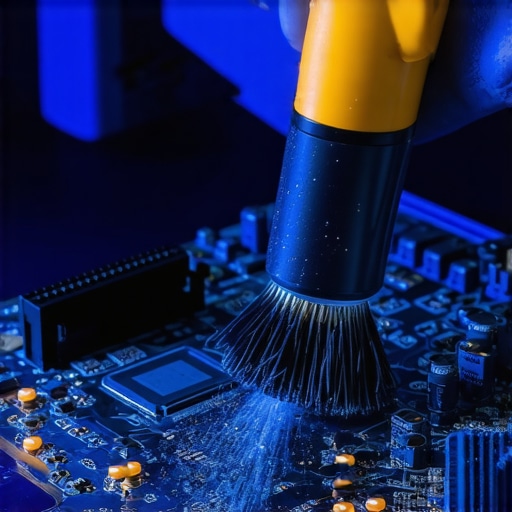
Upgrade Your Hardware Before it Becomes a Bottleneck
Maintenance also means knowing when to upgrade pieces of the puzzle rather than the whole box. If your office feels sluggish, the move that doubles your office file transfer speeds overnight is usually upgrading to 10Gbps networking or moving from SATA SSDs to NVMe drives. Even your display needs love. Following laptop screen repair DIY tips for clearer displays, such as cleaning with 70% isopropyl alcohol and a microfiber cloth, can prevent the degradation of the polarizing layer. I’ve seen screens that looked ‘dead’ simply because they were covered in a layer of oils that had begun to chemically etch into the plastic.
Looking ahead, I predict we are entering the era of AI-driven predictive failure. According to the latest Backblaze Drive Stats, hardware failure patterns are becoming more predictable with machine learning. In the next few years, your OS will likely tell you exactly which day your drive will die with 99% accuracy. Until then, you need to be your own advocate. My challenge to you: Download a trial of Hard Disk Sentinel today. Don’t just look at the SMART data—look at the ‘Health’ percentage. If that number is anything less than 90%, stop what you are doing and back up your data immediately. It is the single most effective way to ensure you never have to call me for an emergency recovery.
The Lessons Only a Decade of Dead Drives Can Teach
Over the years, I have seen every type of digital disaster imaginable. While some are unavoidable, most could have been stopped with a little foresight. Here are the hardest truths I have learned from the repair bench:
- Redundancy is not the same as a backup. Many of my clients think a RAID setup or a mirrored drive means they are safe. It is not. If a virus hits or you accidentally delete a folder, that mistake is mirrored instantly. You still need an off-site, disconnected backup.
- Trust the software more than your ears. Modern drives are engineering marvels that can be dying internally while remaining whisper-quiet. If your health monitor throws a warning, do not wait for a noise that might never come.
- The ‘Wait and See’ approach is a gamble you will lose. In my experience with computer repair for beginners, every hour a failing drive stays powered on, the chances of a successful recovery drop by double digits.
Tools That Help Me Sleep Better at Night
I am often asked what I use to keep my own systems running. I don’t rely on luck; I rely on these specific resources:
- Backblaze Drive Stats: I never buy a new hard drive without checking their quarterly reports first. They provide real-world failure data on tens of thousands of drives, helping me choose the most reliable models on the market.
- Macrium Reflect: When a drive shows signs of a corrupted file system or SMART errors, I use this to create a bit-for-bit clone. It is the gold standard for moving your data to safety before the hardware fails completely.
- HWiNFO: This is my preferred tool for monitoring thermal health. It helps you quickly identify how to tell if your laptop’s overheating is caused by dust or a dead fan, which is the number one cause of premature drive failure.
Take Control of Your Digital Future Today
Don’t let the complexity of hardware intimidate you. Whether you are managing a home office or looking into how managed IT can elevate your business security in 2025, the fundamental habit is the same: stay proactive. If you suspect your external case is acting up, check the signs your external hard drive’s enclosure is failing, not the drive, before you give up on the data. Mastering the basics of computer repair doesn’t just save you money—it preserves your digital legacy. Have you ever had a drive fail right when you needed it most, or did you catch the warning signs just in time? Let me know your experiences in the comments below.