

It was 2 AM when the realization hit me like a bucket of ice water: my entire digital life was trapped behind a “Server Not Found” error. My NAS—the “reliable” central hub of my home office—had decided to go on an indefinite strike. I could hear the fans spinning, but the network interface remained stubbornly dark. That sinking feeling in your gut? I’ve lived it. It’s that moment when you realize every photo, every client invoice, and every backup is currently inaccessible. I spent the next four hours making every classic mistake in the book before I finally calmed down enough to approach the problem logically.
The Sudden Silence of Your Network Storage
If you’re reading this, you’re likely staring at a blinking orange light or a mounting error that won’t go away. It’s frustrating because we buy these units specifically for peace of mind. We’re told they are the ultimate safeguard for our digital existence. But when the connection drops, that peace of mind turns into a frantic search for data recovery secrets that actually work. I’ll be honest with you: my first instinct years ago was to start frantically pressing the physical reset button and swapping cables like a madman. I even tried rebuilding a RAID 5 array without properly diagnosing which drive had actually kicked the bucket. That was a massive mistake. I almost wiped a decade of family videos because I was impatient. Today, we’re going to slow down and fix this the right way.
Can you really fix a dead NAS without a pro?
You might be wondering if you’ve just turned a five-hundred-dollar box into a very expensive paperweight. The skepticism is fair. Most “tech gurus” tell you to just restore from a cloud backup—but let’s be real, if your cloud backup was current and complete, you wouldn’t be sweating this hard right now. The good news is that many NAS “failures” are actually simple network connection issues or external enclosure hiccups rather than a total disk meltdown. Don’t throw in the towel until we’ve checked the basics.
Why Your NAS Chose This Moment to Quit
Technology has a cruel sense of timing. Usually, these drives stop responding because of a cumulative series of small glitches that finally hit a breaking point. According to a long-term study by Backblaze, which tracks thousands of hard drives, failure rates often spike significantly after the third year of continuous operation. This is usually right when most of us stop checking our system health logs. Maybe your office network needs a physical firewall that is currently mismanaging your IP assignments, or perhaps the enclosure is failing and not the internal disks themselves. The “Why” matters because it dictates whether you need a screwdriver or just a software patch. Before we dive into the nitty-gritty of the ultimate data recovery guide, have you ever experienced that moment where everything worked fine until you touched one single “optimization” setting? Drop a comment below—I want to know if I’m the only one who breaks things by trying to make them faster. Let’s look at the first steps to triage your device safely.
Check the Physical Lifelines First
First things first: we need to isolate the variables. Think of your NAS like a car that won’t start. You don’t immediately replace the engine; you check the battery and the fuel lines. In our world, those are your power cables and Ethernet connections. I once drove forty miles to a frantic client who thought their entire database was gone, only to find a vacuum cleaner had snagged the power cord during the night. It was embarrassing for them, but a massive relief for the budget. Check your status lights before doing anything else. If they’re completely off, your power supply might be the culprit. If they’re blinking amber, your disks are trying to tell you something. The first rule of troubleshooting common computer repair issues is to never assume any step is too basic to be the cause.
Hunt Down Your Missing Network Address
If the lights are on but nobody’s home, you need to see if the device is even visible on your local network. Use a tool like Advanced IP Scanner or your router’s admin page to see if an IP address is currently assigned. Sometimes, the Ethernet cable is the reason for the connection drop-out, and a quick swap restores everything instantly. If the NAS shows up but you can’t access the folders, the file system might be ‘dirty’—tech speak for ‘I shut down improperly and now I am confused.’ This is very common in managed IT solutions where high-traffic servers lose power suddenly and the RAID metadata gets slightly scrambled.
Read the SMART Data to Stop the Guesswork
Don’t start pulling drives yet. Log into the web interface—if you can—and look for the S.M.A.R.T. (Self-Monitoring, Analysis, and Reporting Technology) data. This is the black box of your hard drive. Using SMART data to check health is the most reliable way to tell if a drive is physically dying or just having a software tantrum. I remember a case where the NAS dashboard showed ‘Normal’ status, but the SMART raw values for ‘Reallocated Sector Count’ were through the roof. The drive was the ‘walking dead,’ and the dashboard was just being polite. If you see ‘Pending Sector Count’ numbers climbing, stop everything and start your backup immediately.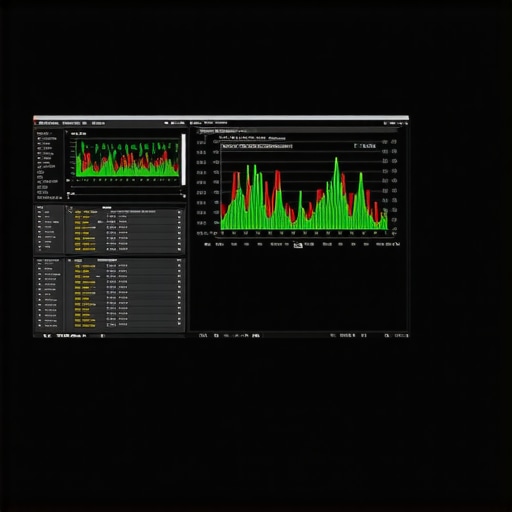
Swap the Enclosure to Save the Data
If the unit is completely unresponsive but the drives sound like they are spinning smoothly without any clicking or grinding, the problem is likely the controller board inside the NAS box. This is actually great news. It means your data is likely intact. You can often pull the drives and put them into a different enclosure or use a PC with a Linux boot disk to mount them. However, be careful with proprietary RAID configurations. Knowing if the enclosure is failing rather than the drives themselves saves you from buying expensive expert data recovery techniques you might not actually need. Always verify the hardware before assuming the data is gone.
Respect the Proprietary RAID Wall
Many consumer NAS brands use a specialized version of Linux RAID (mdadm). If you pull those drives and stick them into a Windows PC, Windows will tell you the drives are blank and ask to format them. **DON’T.** This is how most people lose their data forever. I once saw a DIY-er lose 4TB of photos because they clicked ‘Initialize’ on a drive that just needed to be mounted in a Linux environment. If you aren’t comfortable with the command line or mounting foreign partitions, this is where you stop and consider professional help. Patience is the best tool in your kit right now.That patience is exactly what separates a successful recovery from a permanent loss of data. One of the biggest mistakes I see—even among seasoned IT pros—is the ‘Software-First’ trap. Most people assume that if the drive is recognized by the BIOS, they should immediately fire up a scanning utility. In my experience, this is often the ‘kiss of death’ for a struggling mechanical drive. Professional data recovery secrets dictate that you never perform a file-level scan on a suspect drive. Instead, we use block-level cloning to create an identical image on a healthy disk before doing anything else. A landmark study by Google on over 100,000 disk drives confirmed that while SMART metrics are helpful, over 56% of drive failures happen without any predictive warning at all. If you are scanning the live drive, you are literally grinding away the last remaining hours of its life. 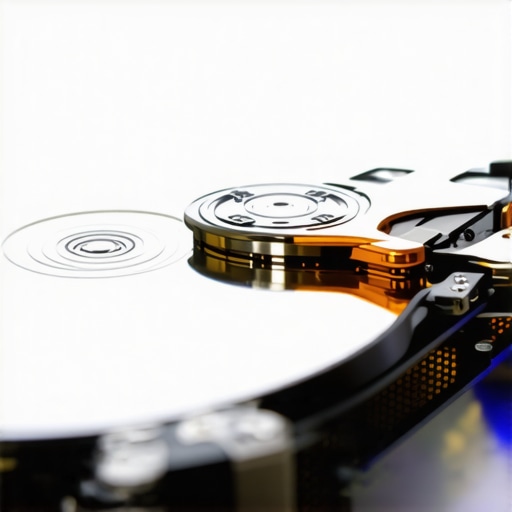
Is Your Managed IT Provider Actually Testing Your Backups?
Moving beyond the hardware, let’s talk about the ‘Managed IT’ safety net. Many business owners sleep soundly because they pay for effective managed IT solutions, assuming the ‘green checkmark’ in their portal means they are safe. But here is the hidden nuance: a successful backup and a successful restore are two very different things. If your provider isn’t doing a monthly test-restore, your backup is just a theory. This is exactly why your IT provider should be testing your backups monthly rather than just checking a log file. I once worked with a firm that had three years of ‘successful’ backup logs, only to find the encryption key had been lost two years prior, rendering the entire archive useless.
The Myth of the ‘Simple’ Screen Swap
We see this in hardware repair too. People think laptop screen replacement is just about matching a model number. But if you ignore the subtle differences in connector pinouts or the ‘yellow tint’ calibration, you can blow a backlight fuse on the motherboard. This is a common trap in laptop screen repair where a five-minute fix turns into a two-week wait for a board-level technician. Another nuance that DIY-ers miss is ‘silent corruption.’ Even if your RAID array is healthy, the files themselves might be slowly degrading. This is why why your managed IT service should be auditing your cloud permissions and file integrity. If you’re not using a file system like ZFS that performs regular ‘scrubs,’ you might find that your decade-old photos are now 50% gray boxes. Professional managed IT strategies to keep your business secure in 2025 focus on proactive integrity checking, not just reactive fire-fighting. Have you ever fallen into this trap of assuming a fix was simpler than it really was? Let me know in the comments. We need to stop treating these complex systems as plug-and-play and start respecting the underlying architecture. Before you click ‘Start’ on that recovery tool or pull that screen cable, ask yourself: do I have a bit-for-bit clone, or am I working on my only copy? If it’s the latter, stop and reconsider the truth about hard drive recovery services before the choice is taken away from you.
Stop the Bleeding with the Right Toolkit
I am often asked what is actually inside my technician bag when I head to a critical recovery site. It is not the generic, all-in-one kits you see at big-box retailers. For serious disk work, I rely heavily on R-Studio—the specialized data recovery version, not the coding IDE. It handles damaged partitions and complex RAID reconstruction with a surgical precision that free utilities simply cannot match. Understanding the power of data recovery tools is about knowing which ones will protect your metadata instead of overwriting it. When I am troubleshooting a display issue, I am not just looking for cracks; I am checking the voltage at the inverter. Many times, you will find the screen is too dim because of a failing backlight or a pinched ribbon cable rather than a total panel failure. This is where computer repair for beginners often goes sideways—people spend hundreds on a new screen when a five-dollar cable was the culprit.
How do I keep my hardware alive for years to come?
Maintenance is more than just a quick blast of compressed air every few months, though keeping dust out of your heat sinks is vital. Real longevity comes from software hygiene and environmental control. I personally schedule a ‘Data Scrub’ on my NAS every 30 days. This process forces the system to read every single bit of data to identify and repair ‘bit rot’ before it becomes permanent. According to Seagate’s technical white paper on storage reliability, even a 5-degree Celsius increase in consistent operating temperature can reduce a mechanical drive’s life expectancy by nearly 25%. This is why you must monitor if your SSD is wearing out by checking the Total Bytes Written (TBW) metric. For a growing business, managing these granular details manually is impossible. That is exactly when managed IT is a game changer, as it provides the enterprise-grade monitoring tools to catch these failures weeks before they result in downtime.
AI will fix your computer before it breaks
Looking toward the next few years, I see a massive shift toward ‘Predictive Remediation.’ We are moving away from the reactive era where we wait for the ‘Click of Death’ or a blue screen to take action. Future systems will likely integrate localized AI models that analyze the specific vibration patterns of your cooling fans and the subtle latency spikes in your RAM modules. It sounds like science fiction, but it is the natural evolution of the SMART data we use today. By 2030, your operating system will likely alert you to a hardware failure and schedule a technician before you even notice a performance lag. For now, the responsibility is still on us to be vigilant. My advanced tip for you today: Download a utility like CrystalDiskInfo and check your SSD’s remaining life percentage tonight. If you find your hardware is nearing the end of its rated cycle, do not wait for the crash—start your migration while the data is still healthy. Making the right move now is the only way to ensure your digital life remains intact.
What I Learned the Hard Way While Digging for Lost Data
Over the years, I have realized that data loss is rarely a single catastrophic event; it is usually a series of small oversights. Here are a few lightbulb moments from my career that might save your files today. First, impatience kills more data than hardware failure ever will. Most people start clicking ‘initialize’ or ‘repair’ without knowing the cause, which often overwrites the very file system they are trying to save. Second, RAID is not a backup—it is a high-availability tool. Relying on it as your only copy is a recipe for disaster. Finally, I’ve learned that computer repair for beginners often starts with a screwdriver but should always end with a verified clone of the failing drive.
The Gear That Keeps Me Sane During a Crisis
If you want to move beyond basic troubleshooting, you need a specialized kit. I personally swear by R-Studio for complex RAID reconstruction; it provides a level of forensic detail that consumer tools simply cannot match. For daily monitoring, I keep CrystalDiskInfo running to watch for those subtle shifts in SMART data before they become crashes. I also suggest every business owner read the annual Backblaze Drive Stats to see which brands are actually surviving the three-year mark in real-world conditions. Mastering the power of data recovery tools is the difference between a minor hiccup and a business-ending loss.
The Peace of Mind You Deserve
You don’t have to live in fear of the next 2 AM server error. By implementing proactive managed IT strategies to keep your business secure in 2025, you can ensure that your hardware is monitored and your backups are actually functional. Remember, the goal isn’t just to fix things when they break, but to build a system that alerts you before the failure happens. This level of foresight is why your IT provider should be testing your backups monthly—it turns a theoretical safety net into a proven recovery plan. Take the first step today by checking your drive health, and you’ll sleep much better tonight knowing your data recovery plan is solid. Have you ever had a drive fail at the absolute worst possible moment? Let me know your story in the comments below.