

There I was, hunched over my desk at 2 AM, trying to hit ‘save’ on a document that had taken me six hours to write. Suddenly, my cursor started dancing. It clicked ‘minimize,’ then ‘close,’ and then—the ultimate betrayal—it clicked ‘Don’t Save’ before I could even blink. I sat there in the dark, staring at my reflection in the black screen, wondering if my laptop was haunted. Dealing with a trackpad that has a mind of its own isn’t just annoying; it’s a productivity killer that can lead to some pretty frustrating repair scenarios.
Look Beneath the Surface for Physical Pressure
Today, we are going to put an end to the ghost in the machine. I’m going to walk you through the exact steps to diagnose and fix a trackpad that clicks on its own, ranging from simple software tweaks to hardware inspections. We’ll look at everything from erratic and jumpy behavior to the physical causes you might have overlooked.
Is it even possible to fix this without a pro?
I’ll be honest with you: when I first started tinkering with laptops, I made the huge mistake of thinking every ‘click’ problem was a software virus. I spent a whole weekend running deep scans and wiping my drive, only to find out it was a crumb from a granola bar wedged in the corner of the pad. It was an embarrassing lesson in laptop repair basics. You don’t need to overcomplicate it like I did. Often, phantom clicks aren’t a digital glitch at all—they’re a physical cry for help. One of the most common, yet overlooked, causes is internal pressure. According to a study by lithium-ion safety experts at iFixit, batteries can swell due to age, heat, or manufacturing defects, often doubling in thickness. This expansion pushes against the underside of your trackpad, triggering the click mechanism. You absolutely have to know if your battery is swelling because it’s not just a trackpad issue; it’s a safety risk. Have you noticed your laptop not sitting flat on the table lately, or perhaps the trackpad looks slightly raised in the middle? Leave a comment and let me know if your machine is acting up like mine did!
Clean the Surface Before You Crack the Case
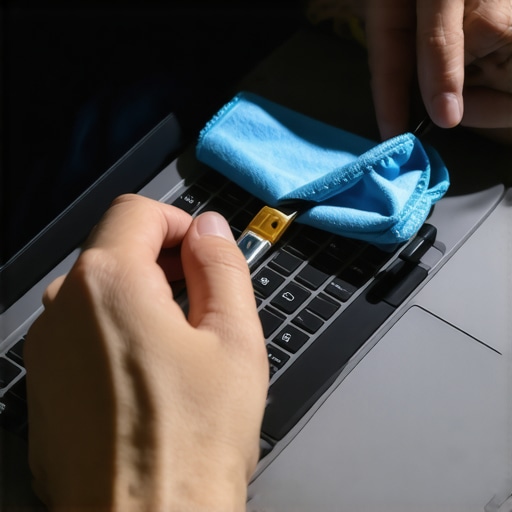
Before you start downloading new software or taking out the screws, you have to ensure the exterior is pristine. Dust, moisture, and skin oils can create a thin, conductive layer that fools the capacitive sensor into thinking a finger is resting there. I once spent an hour trying to debug a ‘software glitch’ for a friend, only to realize their toddler had spilled a tiny bit of apple juice on the edge of the pad. The juice had dried into a sticky, invisible residue that was constantly triggering the click mechanism. To avoid these costly mistakes, take a microfiber cloth slightly dampened with 70% isopropyl alcohol and wipe the trackpad thoroughly while the laptop is off. Use a soft-bristled toothbrush to gently clear the gap between the trackpad and the palm rest.
Check the Driver Before Blaming the Hardware
If cleaning doesn’t stop the phantom clicks, the issue is likely the ‘translator’ between your hardware and the operating system—the driver. Sometimes a Windows update can corrupt the existing driver, making it interpret static as a legitimate click. To test this, go to your Device Manager, find ‘Mice and other pointing devices,’ and uninstall the touchpad driver. Restart your machine, and Windows will automatically reinstall a fresh version. While you are at it, use the simple way to check your pc for hidden background processes to ensure there isn’t a third-party utility or a macro tool fighting for control of your cursor. I’ve seen automation scripts get stuck in a loop, clicking the same pixel every three seconds until the user felt like they were losing their mind.
Look for the Tells of a Swelling Battery
This is the most critical physical check you can perform. Most modern laptops place the lithium-ion battery directly beneath the trackpad to save space. When these batteries fail, they don’t just stop holding a charge; they physically expand like a Jiffy Pop bag. This internal pressure pushes against the trackpad’s click-plate from the inside out. If you notice that your trackpad feels harder to click manually, or if it has physically popped up out of its housing, you must tell if your laptop battery is swelling immediately. Continuing to use a laptop with a swollen battery is like carrying a small, unpredictable fire hazard in your bag. If you do need a replacement, be wary of using third-party batteries in professional laptops as they often lack the thermal sensors required to prevent this from happening again.
Tweak Your Sensitivity Settings
Sometimes the hardware is fine, but the software is just too sensitive. Modern trackpads use ‘Palm Rejection’ to ignore accidental touches while typing. If this setting is too low, the heat from your palms can register as a click. Go into your Windows or macOS settings and search for ‘Touchpad Sensitivity.’ Set it to ‘Low sensitivity’ and see if the ghost clicks vanish. If you are dealing with a trackpad that has become erratic and jumpy, disabling ‘Tap to Click’ entirely is a great way to isolate whether the issue is the physical button mechanism or the touch-sensing layer itself. I personally keep ‘Tap to Click’ off on my work machine because my heavy typing style used to send my cursor flying across the screen mid-sentence.
There I was, hunched over my desk at 2 AM, trying to hit ‘save’ on a document that had taken me six hours to write. Suddenly, my cursor started dancing. It clicked ‘minimize,’ then ‘close,’ and then—the ultimate betrayal—it clicked ‘Don’t Save’ before I could even blink. I sat there in the dark, staring at my reflection in the black screen, wondering if my laptop was haunted. Dealing with a trackpad that has a mind of its own isn’t just annoying; it’s a productivity killer that can lead to some pretty frustrating repair scenarios.
Look Beneath the Surface for Physical Pressure
Today, we are going to put an end to the ghost in the machine. I’m going to walk you through the exact steps to diagnose and fix a trackpad that clicks on its own, ranging from simple software tweaks to hardware inspections. We’ll look at everything from erratic and jumpy behavior to the physical causes you might have overlooked.
Is it even possible to fix this without a pro?
I’ll be honest with you: when I first started tinkering with laptops, I made the huge mistake of thinking every ‘click’ problem was a software virus. I spent a whole weekend running deep scans and wiping my drive, only to find out it was a crumb from a granola bar wedged in the corner of the pad. It was an embarrassing lesson in laptop repair basics. You don’t need to overcomplicate it like I did. Often, phantom clicks aren’t a digital glitch at all—they’re a physical cry for help. One of the most common, yet overlooked, causes is internal pressure. According to a study by lithium-ion safety experts at iFixit, batteries can swell due to age, heat, or manufacturing defects, often doubling in thickness. This expansion pushes against the underside of your trackpad, triggering the click mechanism. You absolutely have to know if your battery is swelling because it’s not just a trackpad issue; it’s a safety risk. Have you noticed your laptop not sitting flat on the table lately, or perhaps the trackpad looks slightly raised in the middle? Leave a comment and let me know if your machine is acting up like mine did!
Clean the Surface Before You Crack the Case
Before you start downloading new software or taking out the screws, you have to ensure the exterior is pristine. Dust, moisture, and skin oils can create a thin, conductive layer that fools the capacitive sensor into thinking a finger is resting there. I once spent an hour trying to debug a ‘software glitch’ for a friend, only to realize their toddler had spilled a tiny bit of apple juice on the edge of the pad. The juice had dried into a sticky, invisible residue that was constantly triggering the click mechanism. To avoid these costly mistakes, take a microfiber cloth slightly dampened with 70% isopropyl alcohol and wipe the trackpad thoroughly while the laptop is off. Use a soft-bristled toothbrush to gently clear the gap between the trackpad and the palm rest.
Check the Driver Before Blaming the Hardware
If cleaning doesn’t stop the phantom clicks, the issue is likely the ‘translator’ between your hardware and the operating system—the driver. Sometimes a Windows update can corrupt the existing driver, making it interpret static as a legitimate click. To test this, go to your Device Manager, find ‘Mice and other pointing devices,’ and uninstall the touchpad driver. Restart your machine, and Windows will automatically reinstall a fresh version. While you are at it, use the simple way to check your pc for hidden background processes to ensure there isn’t a third-party utility or a macro tool fighting for control of your cursor. I’ve seen automation scripts get stuck in a loop, clicking the same pixel every three seconds until the user felt like they were losing their mind.
Look for the Tells of a Swelling Battery
This is the most critical physical check you can perform. Most modern laptops place the lithium-ion battery directly beneath the trackpad to save space. When these batteries fail, they don’t just stop holding a charge; they physically expand like a Jiffy Pop bag. This internal pressure pushes against the trackpad’s click-plate from the inside out. If you notice that your trackpad feels harder to click manually, or if it has physically popped up out of its housing, you must tell if your laptop battery is swelling immediately. Continuing to use a laptop with a swollen battery is like carrying a small, unpredictable fire hazard in your bag. If you do need a replacement, be wary of using third-party batteries in professional laptops as they often lack the thermal sensors required to prevent this from happening again.
Tweak Your Sensitivity Settings
Sometimes the hardware is fine, but the software is just too sensitive. Modern trackpads use ‘Palm Rejection’ to ignore accidental touches while typing. If this setting is too low, the heat from your palms can register as a click. Go into your Windows or macOS settings and search for ‘Touchpad Sensitivity.’ Set it to ‘Low sensitivity’ and see if the ghost clicks vanish. If you are dealing with a trackpad that has become erratic and jumpy, disabling ‘Tap to Click’ entirely is a great way to isolate whether the issue is the physical button mechanism or the touch-sensing layer itself. I personally keep ‘Tap to Click’ off on my work machine because my heavy typing style used to send my cursor flying across the screen mid-sentence.
The Grounding Myth That Costs You Money
The common wisdom says that if a driver update doesn’t fix it, the hardware is fried. I’m here to tell you that’s an expensive lie. I’ve seen too many people spend hundreds on replacements when the culprit was a $20 accessory. Let’s talk about Electromagnetic Interference (EMI). Most users don’t realize that their trackpad is essentially a massive antenna. If you’re using a low-quality, unshielded power adapter, it can leak ‘electrical noise’ directly into the laptop’s chassis. This noise confuses the capacitive sensors, leading to those infuriating phantom clicks. I’ve seen this happen frequently in companies that skip managed IT solutions streamlining operations for small businesses and let employees buy their own accessories.
Why do ghost clicks only appear when your charger is plugged in?
If the erratic behavior stops the moment you pull the plug, you’ve found your smoking gun. This is where most people fall into the ‘Oops’ trap: they assume the laptop’s internal power regulation is failing. In reality, it’s often the result of the truth about using generic chargers on expensive business laptops. These knock-off chargers lack the proper ferrite beads and filtering capacitors found in original equipment parts. According to technical documentation from Synaptics, a leading manufacturer of touch interfaces, capacitive sensors rely on a specific signal-to-noise ratio; when a ‘noisy’ charger fluctuates the ground plane, the sensor can’t distinguish between your finger and a stray electron.

You might hear people say you need to ‘de-magnetize’ your laptop or ‘reset the RAM’ to stop the clicks. That’s pure tech-voodoo. The actual nuance is often a loose grounding screw inside the chassis. If the trackpad isn’t properly grounded to the metal frame, static electricity builds up and discharges as a ‘click’ event. If you decide to open the case to tighten things up, remember that static can also kill your data. Before you start poking around, make sure you know data recovery secrets expert techniques to save your files fast just in case a stray spark clears your drive. For business owners, this is why why your managed IT service should be doing regular security audits and hardware checks is vital. It’s not just about software; it’s about ensuring the physical environment isn’t sabotaging your hardware. Have you ever fallen into this trap where a simple cable was the real villain? Let me know in the comments.
Once you’ve ruled out the crumbs and the cables, you have to look at the long game. If you’re anything like me, you don’t want to be opening your laptop every three months just to tighten a screw. Real reliability comes from a combination of the right tools and a proactive mindset. For my personal kit, I never go anywhere without a high-quality magnetized screwdriver set and an anti-static wrist strap. According to technical documentation from Dell regarding Electrostatic Discharge (ESD) prevention, even a discharge you can’t feel—less than 30 volts—can latent-damage a trackpad controller, leading to those phantom clicks weeks later. This is why I always preach about laptop repair basics like grounding yourself before touching the motherboard.
The Tools That Saved My Sanity And My Screws
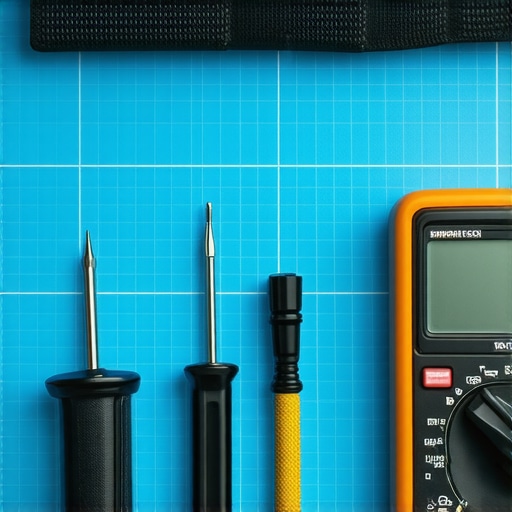
I’ve learned the hard way that using a ‘close enough’ screwdriver size will strip a head faster than you can say ‘replacement parts.’ I personally use the iFixit Pro Tech Toolkit because the bits are hardened steel and won’t deform under pressure. If you are serious about maintaining your gear, a multimeter is your best friend. I use mine to verify that the trackpad’s ground path actually reaches the chassis. If the resistance is too high, those phantom clicks are inevitable. If you find yourself in over your head with hardware that just won’t behave, sometimes it’s better to contact a professional before a small glitch turns into a dead machine. For those of you managing more than just one laptop, this level of detail is exactly why managed IT strategies to keep your business secure in 2025 are shifting toward predictive hardware monitoring.
How do I keep my laptop hardware healthy for the long haul?
Maintenance isn’t a one-and-done event; it’s a rhythm. Every six months, I perform a ‘deep clean’ that goes beyond the screen. This involves using compressed air to blow out the vents and checking for any signs of early battery expansion. If you are running a growing company, you can’t expect your staff to do this themselves. This is where managed IT is a game changer because it offloads the hardware lifecycle management to experts who know the warning signs of a failing component. Whether it’s a flickering backlight or a trackpad that acts up during heavy CPU loads, catching these early prevents the need for desperate data recovery expert techniques later on. I predict that in the next few years, we will see AI-driven BIOS updates that can actually detect ‘noisy’ electrical signals from failing chargers before they ever cause a ghost click.
Don’t Let Your Business Tech Become a House of Cards
As you scale, the ‘ghosts’ in your machines become more expensive. A single executive with a jumping cursor during a board presentation is more than an annoyance; it’s a loss of professional momentum. This is why I always suggest that businesses transition away from consumer-grade hardware. Professional-grade machines often have better internal shielding and more robust grounding paths. If you’re still using a fleet of varied laptops, consider managed IT solutions streamlining operations for small businesses to standardize your hardware. It makes troubleshooting a breeze when every laptop has the exact same driver stack and internal layout. My best advice? Try this one advanced tip tonight: Download a hardware monitor and check your battery’s ‘wear level.’ If it’s over 20%, that battery might already be starting to put pressure on your trackpad.
What My Most Embarrassing Repair Fails Taught Me
Over a decade of troubleshooting common computer repair issues effectively has taught me that the simplest solution is usually the right one, but it’s the one we ignore the most. I used to think I was a genius for reformatting a hard drive, only to find out a single cat hair was the culprit behind a jumpy cursor. I’ve learned that ignoring a laptop battery swelling under the trackpad is a recipe for a literal explosion, not just a missed click. Most importantly, I realized that my environment—the cables I use and the power I plug into—is just as important as the silicon inside. Using a cheap power brick is never worth the risk, especially considering the truth about using generic chargers on expensive business laptops; they aren’t just slow, they are noisy enough to break your hardware’s sensors.
#IMAGE_PLACEHOLDER_E#
The Gear That Keeps My Workspace Ghost-Free
I don’t leave my hardware health to chance, and neither should you. My toolkit is built on reliability, not bargains. I swear by the iFixit Pro Tech Toolkit because it’s the gold standard for anyone serious about computer repair for beginners or pros. I also keep a bottle of high-purity isopropyl alcohol and a stack of lint-free cloths at my desk to prevent oil buildup before it becomes a capacitive nightmare. For business owners, my biggest recommendation isn’t a physical tool, but a strategic one: look into managed IT solutions streamlining operations for small businesses. Having a professional team handle your hardware lifecycle ensures you never have to deal with these ‘ghosts’ in the first place.
Reclaim Your Focus from Failing Hardware
A laptop that clicks on its own is more than a glitch; it’s a thief of your time and peace of mind. Whether you decide to clean the surface, swap the charger, or finally replace that bulging battery, taking action today prevents a total system failure tomorrow. Computer repair isn’t just about fixing what’s broken—it’s about maintaining your edge in a digital world. If you’ve tried the basics and the ghost is still in the machine, don’t hesitate to contact us for expert help before things get worse. Your productivity is worth the investment.
Have you ever had your trackpad click ‘delete’ or ‘close’ at the worst possible moment? Let me know your horror stories in the comments below!