

I’ll never forget the cold sweat I broke into when I realized my laptop was no longer mine. It was a Tuesday night, and I was just trying to finish some client work when I noticed a tiny, flickering icon in my system tray that disappeared the moment I hovered over it. I ran my expensive, “all-in-one” antivirus. It gave me a green checkmark. “No threats found,” it chirped. But I could see my network lights blinking like crazy while the computer sat idle. I was being watched by a rootkit that had burrowed so deep, it was basically part of the operating system’s DNA.
Don’t Trust the Green Checkmark
It’s a hard pill to swallow, but most antivirus software operates on the surface level. They look for files that “look” like viruses. Rootkits are different. They don’t just hide; they subvert the very tools you use to find them. If you’ve ever felt like your PC was possessed despite a “clean” scan, you aren’t crazy. You might just be dealing with a threat that survives a standard Windows reset by hiding in the boot records. I learned this the hard way years ago. In my panic, I did what I thought was the “pro” move: I formatted my drive and reinstalled Windows from scratch. I thought I was a genius until, three hours later, that same flickering icon returned. I had wasted a whole day because I didn’t realize that some infections can actually live in your hardware’s firmware. It was a humbling moment that taught me to stop buying expensive antivirus when free settings often do more to protect your core system.
Is My Computer Actually Beyond Saving?
The short answer is no, but you have to stop playing by the virus’s rules. If the infection is running, it’s controlling what you see. According to reports from the Cybersecurity & Infrastructure Security Agency (CISA), sophisticated rootkits can manipulate kernel-level data to mask their presence from the operating system entirely. This means we have to step outside of Windows to get the job done. Whether you are trying to stop a malware infection before it encrypts your data or you’re just tired of your fan spinning at max speed for no reason, we’re going to get your control back. Before we dive into the nitty-gritty tools, have you ever seen a process in your Task Manager that just didn’t “feel” right, even if the name looked official? We’re going to look at how to spot a suspicious process that’s actually a mask for something darker. It’s time to stop being the victim of a silent squatter on your hard drive.
Get Your Hands Dirty with a Bootable USB
To kill a rootkit, you have to stop the OS from lying to you. Think of your infected Windows install like a house where a burglar has rewired the security cameras. If you look at the monitor, everything looks fine, but the burglar is still in the kitchen. You have to step outside the house and look through the windows from the yard. In the tech world, that means booting from a trusted, external environment like a Linux Live USB or a WinPE recovery disk. When I first dealt with a stubborn firmware infection, I spent hours trying to delete files while Windows was running. Every time I hit delete, the file reappeared a second later like a digital ghost. It wasn’t until I booted from a USB stick that I could finally see the malicious code for what it was—completely exposed and unable to protect itself. 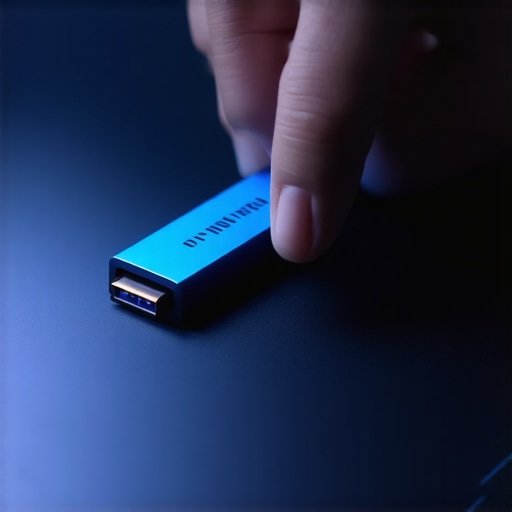
Flash the BIOS to Evict Persistent Squatters
If you’ve wiped your hard drive and the infection returns, you’re likely dealing with a threat living in your UEFI or BIOS. This is the ‘foundation’ of your computer. Most users never touch this, but if you’re serious about security, you need to re-flash your firmware using a clean update from your manufacturer’s website. If your machine is being particularly stubborn during this phase, you might need to know how to fix a computer that wont go past the bios screen to regain manual control. I once had a laptop that would simply ‘ignore’ my boot commands because the malware had altered the boot order priorities at a level the OS couldn’t even see. Reflashing the BIOS is like bulldozing the house and rebuilding on clean soil.
Protect Your Files Before You Nuke the Drive
Before you go nuclear and wipe the entire partition table, you need your data. But be careful: copying files from an infected drive is like rescuing clothes from a burning building—you don’t want to bring the embers with you. Use the power of data recovery tools from within your clean boot environment to pull only the essential documents. Avoid executables or system files. I remember a specific case with a local law firm where their server was caught in a reboot loop. We had to use advanced techniques to recover a deleted partition without losing your file structure because the rootkit had tried to hide the client data as a last-ditch effort.
Watch Out for Hardware Mimicry
Sometimes, what looks like a deep-seated virus is actually your hardware giving up the ghost. I’ve seen people spend days running malware scans when the real culprit was a failing motherboard component. Learning how to spot a hardware failure masquerading as a software bug will save you from chasing shadows. For businesses, this level of technical debt is why managed IT strategies to keep your business secure in 2025 are shifting toward hardware-level attestation. You shouldn’t have to be a forensics expert just to send an email securely.Most people think that having their files in the ‘cloud’ means they are safe from malware. This is a dangerous misconception. In reality, why your business backup plan is actually just a sync plan explains the difference: if a rootkit encrypts your local files, your cloud service will dutifully sync those ruined files, overwriting your good versions. True data protection requires ‘versioning’ and air-gapped copies. I’ve seen business owners lose years of work because they trusted a sync client to do a backup’s job.
The Fatal Mistake of DIY Physical Recovery
When a hard drive starts making a rhythmic ‘click-click-click’ sound, the instinct is to open it up and see what’s stuck. Stop right there. This is the biggest ‘oops’ in the industry. Why you should never open a clicking hard drive in a normal room is simple: a single speck of dust is like a mountain to a drive head flying nanometers above the platter. Once you break that seal, your chances of recovery drop from 90% to near zero. You need data recovery secrets that involve cleanrooms and head-swap tools, not a screwdriver from your kitchen drawer. 
Why Does Your Lightning Fast SSD Suddenly Feel Sluggish?
If you’ve noticed your boot times creeping up, it might not be software at all. Solid State Drives have a finite lifespan measured in ‘terabytes written’ (TBW). According to data longevity studies by specialists like Backblaze, SSD performance can degrade significantly as cells wear out, long before the drive actually ‘fails.’ Recognizing the sign your ssd is reaching its write limit and about to die is crucial for preventing a catastrophic loss. Don’t wait for the blue screen; check your SMART data now.
Screens Are Rarely Just Software Glitches
I often hear clients say their screen ‘needs a driver update’ because it flickers when moved. In my experience, it’s almost never the driver. If the image changes when you adjust the lid, you’re looking at a frayed LVDS cable. Learning how to fix a laptop screen that only works at specific angles involves delicate hardware routing, not just clicking ‘update’ in Device Manager. Similarly, for businesses, security isn’t a one-and-done setup. This is why your managed it service should be providing quarterly security audits to catch these hardware and software drifts before they become outages. Have you ever fallen into the ‘it’s just a software bug’ trap when it was actually hardware? Let me know in the comments.
To stop guessing whether a problem is software or hardware, you need a toolkit that provides hard data. Scaling up from a single infected laptop to a whole office network changes the game; you can’t rely on gut feelings or “green checkmarks” anymore. When I’m managing dozens of machines, I build systems that prevent the “firefighting” loop from ever starting. One of the first things I do is implement the hardware swap that gives old office pcs five more years of life by moving everything to enterprise-grade SSDs. But before I even touch a screwdriver, I run a full diagnostic suite. If you’re seeing glitches or sluggish performance, use the easiest way to clone a failing hard drive to a new ssd to get a safety copy of your entire environment before the physical hardware fails completely.
Keep Your Gear Alive for the Long Haul
Maintenance isn’t just about running a disk cleanup; it’s about physical health and thermal management. Every six months, I make it a point to open the chassis of my primary workstations. Dust is the silent killer of high-end silicon because it traps heat and causes components to throttle their clock speeds. You might think your fan is dying, but often you just need to know how to fix an overheating laptop with a simple can of compressed air. Just a quick pro-tip from my years at the bench: always hold the fan blades still with a toothpick or your finger while spraying; spinning them with high-pressure air can turn the motor into a generator, sending a reverse current that fries your motherboard headers.
How do I maintain my hardware performance over time?
Consistency is key, especially with user permissions and environment variables. On the software side, I’m a stickler for the principle of least privilege. This is exactly why your business should never use a shared admin account. If the person using the PC doesn’t have administrative rights, a piece of malware or a rootkit usually can’t get the “hooks” it needs to hide in the system kernel or modify the registry. For businesses, I predict the future is moving toward mandatory “Zero Trust” hardware. According to the Microsoft Digital Defense Report, basic security hygiene protects against 99% of common attacks, but the next step is hardware-level attestation. We’re moving toward a world where your laptop will verify its own BIOS integrity against a cloud-based “golden image” before it even allows a login or network connection. This will make rootkits that survive resets a relic of the past.
Why the Future of Security is Hardware-First
If you’re feeling overwhelmed by the sheer volume of updates and patches, this is how managed IT can elevate your business security in 2025. You stop reacting to individual crashes and start designing a resilient infrastructure that heals itself. Before you close this tab, do me a favor and run a quick health check. Download a tool like CrystalDiskInfo or HWInfo. Check your SSD’s “Health Percentage” immediately. If it’s below 80%, you are effectively on borrowed time. Start planning your migration today—don’t wait for the blue screen to tell you it’s too late.
Lessons I Learned While Staring into the Digital Abyss
The most humbling lesson I’ve learned in fifteen years of tech support is that software is a pathological liar once it’s compromised. If a rootkit has reached the kernel, your Task Manager is essentially a work of fiction. This is why I always preach that computer repair for beginners should start with learning how to boot from external media. You cannot ask a suspected criminal to guard the evidence room. Another ‘lightbulb moment’ for me was realizing that thermal stress mimics malware. A CPU that is down-clocking due to dust can cause the same stuttering as a crypto-miner. I’ve seen people spend hundreds on security software when they really just needed to know how to troubleshoot common computer repair issues effectively with a screwdriver and a steady hand.
What I Keep in My Emergency Repair Kit
I don’t go anywhere without a few non-negotiable tools that provide the ground truth about a machine’s health. First, CrystalDiskInfo is the only way to see past the operating system’s ‘OK’ status and look at the raw sector counts. Second, a write-protected USB drive containing a clean Linux environment is my ‘source of truth’ for file recovery. If you are managing a team, understanding data recovery secrets every business should know today is more valuable than any insurance policy. I also highly recommend keeping a physical log of your BIOS settings—when a CMOS battery dies, having those custom boot priorities written down saves hours of trial and error.
#IMAGE_PLACEHOLDER_E#
Stop Being a Host to Your Own Hardware
You don’t have to be a victim of your own devices or live in fear of the next ‘flicker’ or slow-down. Whether you’re dealing with a screen that only works at odd angles or a silent malware infection, the path forward is always the same: verify with hardware-level data, isolate the threat, and rebuild on a clean foundation. For those running a company, managed IT solutions streamlining operations can provide that continuous oversight so you aren’t constantly firefighting digital flares. Remember, your computer is a tool meant to serve you, not a mystery box that demands your constant anxiety. Have you ever had a hardware glitch that you were convinced was a virus? Let me know in the comments below.