

I remember the smell of stale coffee at 2 AM, staring at a router dashboard like it was a ticking time bomb. I had just enabled WPA3 security on our main office hub, thinking I was finally the tech hero my small team deserved. Ten minutes later, my phone exploded with messages. The CEO’s legacy laptop couldn’t connect. The vintage label printer in the warehouse had vanished into thin air. It was a classic ‘security vs. sanity’ showdown that almost cost me my weekend.
The Day My Printer Decided to Quit the Internet
We’ve all been there—trying to do the right thing for our network while fighting with hardware that belongs in a museum. Transitioning to WPA3 is essential because WPA2 has been vulnerable to ‘KRACK’ attacks for years. However, if you just flip the switch, you’ll quickly realize why your small business should stop using consumer-grade routers that don’t offer nuanced control. I made the rookie mistake of choosing ‘WPA3-Only’ mode, effectively ghosting every device made before 2018. It was a mess. In the world of how managed IT can elevate your business security in 2025, we talk a lot about ‘Transition Mode.’ This is the secret sauce that allows your shiny new MacBook to use the latest encryption while letting that old Windows 7 workstation limp along on WPA2.
Is WPA3 actually worth all this hassle?
You might be skeptical. After all, if it’s going to cause connectivity headaches, why bother? According to the Wi-Fi Alliance, WPA3 provides much stronger protections against offline dictionary attacks, which means even a weak password is much harder for a hacker to crack. It’s a non-negotiable for a modern office. But balancing security with functionality is an art. Sometimes, you’ll encounter frustrating glitches where why your office Wi-Fi signal is strong but web pages won’t load becomes a daily mystery because of a handshake mismatch between old and new protocols. Have you ever flipped a security switch only to have your entire staff lose their minds because the internet died? Drop a comment and tell me your horror story. To avoid these pitfalls, we need to look at the move that secures your guest Wi-Fi from your internal network while keeping your legacy hardware operational. Let’s dive into the settings you actually need to change to make this work without a single support ticket.
Ditch the All-or-Nothing Approach
The biggest mistake I see is the ‘Security Purist’ play—switching to WPA3-SAE (Simultaneous Authentication of Equals) and expecting the world to follow. It won’t. Instead, you need to enable ‘WPA3 Transition Mode.’ Think of this as a bilingual translator at a global summit; it tells your network to speak WPA3 to the modern devices that understand it, while still whispering WPA2 to that trusty old printer in the corner. If your current equipment doesn’t offer this, it’s a glaring sign of why your small business should stop using consumer-grade routers that limit your granular control.
Setting Up a Security Buffer Zone
When you enable transition mode, your router broadcasts a single SSID that supports both protocols. Attempting a full WPA3 switch without this buffer is like trying a laptop screen replacement step-by-step repair guide without the right screwdrivers; you’ll technically be working, but you’re going to break something along the way. I once had a client who insisted on ‘WPA3-Only’ to be as secure as possible. Within an hour, their entire fleet of 2017-era tablets went dark. We spent the afternoon performing troubleshooting common computer repair issues effectively just to realize the hardware literally couldn’t ‘see’ the new encryption. To avoid this, always verify that your ‘PMF’ (Protected Management Frames) setting is set to ‘Capable’ rather than ‘Required,’ as some older NICs are allergic to PMF. 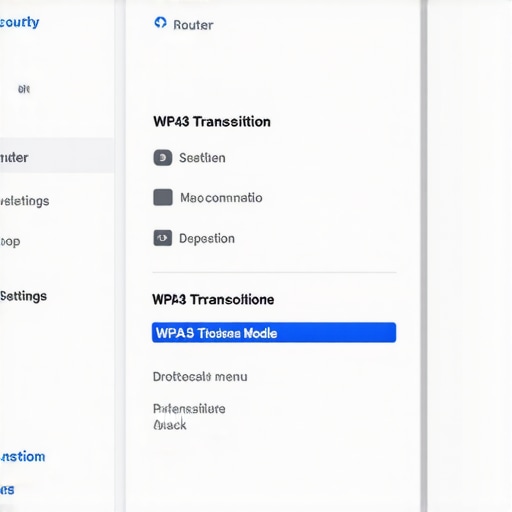
Find the Devices That Will Break Before Your Users Do
Before you flip the switch, audit your hardware. Look for anything that doesn’t support 802.11ax (Wi-Fi 6) or 802.11ac (Wi-Fi 5) Wave 2. These are your high-risk targets. If you find a device that refuses to connect even in transition mode, you might be dealing with a driver issue. Sometimes, computer repair for beginners involves just updating a wireless card driver from 2015 to something modern.
The Secret to Fixing Handshake Failures
Handshake failures happen when a device tries to connect using WPA2 but the router keeps trying to force the WPA3 handshake. I remember a particularly stubborn laptop that would connect and then immediately drop. The user was convinced they needed a repair because the screen was flickering, but really it was the OS hanging while the network card struggled with the handshake. In cases like that, you often have to forget the network on the device and reconnect from scratch to clear the ‘old’ security profile. This is where managed IT strategies to keep your business secure in 2025 become invaluable; a managed system can push these profile updates automatically across an entire fleet.
Give Your Legacy Gear a Safe Place to Land
If you have truly ancient hardware—like that CNC machine in the back that runs on Windows XP—don’t force it onto your main WPA3 network. The smartest move is the move that secures your guest Wi-Fi from your internal network. Create a dedicated, isolated VLAN with lower security specifically for these legacy ‘relics.’ This keeps your primary data safe while allowing the old gear to function without compromising the rest of the office.
The ‘Unlimited’ Contract Trap Everyone Falls Into
Most business owners believe that signing a contract for ‘unlimited support’ means their IT provider will fix any issue at any time without extra cost. In my experience, this is the biggest myth in the industry. These contracts often focus on ‘reactive’ labor—fixing things after they break—rather than preventing the breakage in the first place. This is the truth about unlimited IT support contracts for businesses: if your provider isn’t spending time on proactive maintenance, you’re actually losing money in downtime. You might find that why your IT budget is leaking money on unused software is a direct result of a provider who just ‘ticks boxes’ instead of auditing your stack. Real managed IT isn’t about having a guy to call when the Wi-Fi dies; it’s about engineering the network so it never dies in the first place. Have you ever fallen into this trap of paying for ‘unlimited’ help only to find yourself still waiting hours for a callback? Let me know in the comments.
Why does professional data recovery cost more than a $50 app?
I get this question once a week. Someone accidentally deletes a folder, tries a cheap piece of software they found online, and ends up making the problem ten times worse. Here is the nuance: modern Solid State Drives (SSDs) use a command called ‘TRIM.’ According to data from storage experts like Backblaze, once TRIM is executed, the data is often scrubbed from the NAND flash cells almost instantly to maintain drive performance. If you run a generic recovery tool, you might just be overwriting the very sectors you’re trying to save. When we look at data recovery secrets and expert techniques to save your files fast, we’re talking about physical chip-off recovery or firmware manipulation, not just clicking ‘scan.’ You also need to know how to tell if your SSD is wearing out from too many writes before the controller fails completely, as a dead controller often requires a specialized donor board to even see the data. 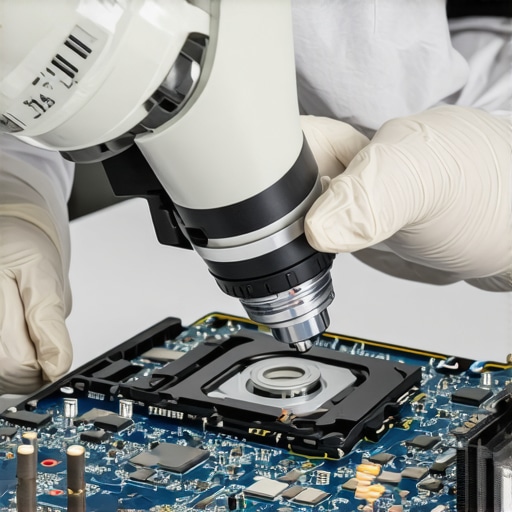
Stop Blaming Windows for Your Dim Screen
Another common mistake involves hardware diagnostics. I often see users trying to reinstall drivers or update BIOS because their display is fading. While software can cause issues, advanced repair requires looking at the hardware rail. For instance, why your laptop screen is dim even at maximum brightness is frequently a failure of the backlight fuse on the motherboard, not a Windows setting. If you’ve been troubleshooting common computer repair issues effectively, you know that a ‘software fix’ for a hardware voltage problem is just a waste of time. I’ve seen people spend days on forums only to realize they had a blown capacitor. This same principle applies to managed IT strategies to keep your business secure in 2025; you can’t solve a physical infrastructure weakness with a better password policy. You have to address the root layer first.I don’t go anywhere without my ‘digital survival kit.’ When you’re deep in the weeds of a network outage or a laptop that refuses to post, the right software makes the difference between a ten-minute fix and a four-hour headache. For software diagnostics, I swear by Hiren’s BootCD PE. It isn’t just a collection of tools; it’s a portable Windows environment that lets you run hardware tests without ever touching the client’s original operating system. If you are trying to figure out how to identify which ram stick is causing your blue screen errors, the MemTest86+ utility inside that environment is my go-to gold standard. It’s brutal, thorough, and never lies.
The Physical Tools You Can’t Ignore
On the hardware side, specifically when tackling laptop screen repair how to fix common issues at home, a digital multi-meter is your best friend. Most people assume a black screen means a dead panel, but I always check the 19V rail on the LVDS connector first. If that voltage isn’t hitting the backlight circuit, a new screen won’t solve a thing. For data issues, I use a standalone StarTech drive duplicator. Why? Because it performs sector-by-sector clones without needing a computer. If a drive has a corrupted file system, software often hangs while trying to read bad sectors. A hardware cloner just pushes through, which is one of the data recovery secrets and expert techniques to save your files fast that I’ve used to rescue thousands of photos from failing mechanical drives.
How do I keep my hardware from failing prematurely?
Consistency is the boring but essential secret to tech longevity. It’s about moving beyond reactive fixes and into proactive auditing. This is why managed IT is a game changer for growing companies; it automates the health checks you’d otherwise forget. For instance, you should be using S.M.A.R.T. monitoring tools like CrystalDiskInfo to see how to tell if your ssd is wearing out from too many writes. If you catch a drive at 10% remaining life, you can migrate the data in twenty minutes. If you wait until it hits 0%, you’re suddenly researching the power of data recovery tools what you need to know while sweating over a looming deadline. 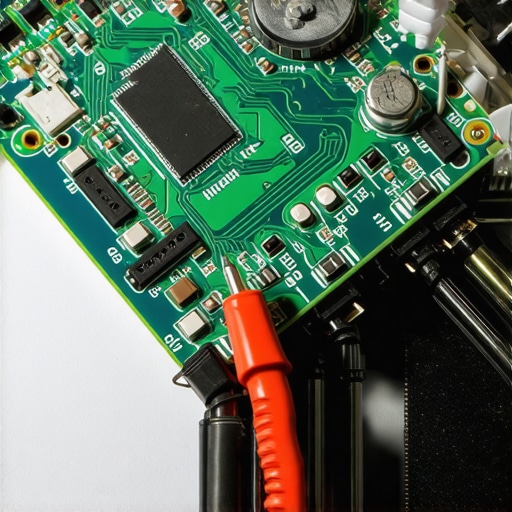
Where the Tech Industry is Heading
According to the latest technical specifications from the Wi-Fi Alliance regarding WPA3 enhancements, we are rapidly moving toward ‘Opportunistic Wireless Encryption’ (OWE) as a global standard. This means that in the very near future, even ‘open’ guest networks will be encrypted individually for every user, finally killing the risk of side-jacking in coffee shops. I predict that within five years, we will see AI-driven ‘self-healing’ motherboards that can reroute power around a blown capacitor to keep a workstation running until a part arrives. Until then, you need to stay sharp. My best advice for right now? Download a copy of CrystalDiskInfo and check your main drive’s health today. If it’s anything less than ‘Good,’ back it up immediately. It’s the simplest way to practice computer repair for beginners before a real disaster strikes.
Hard Lessons from the IT Trenches
Over the years, I’ve realized that the most secure network in the world is useless if it stops your team from actually working. My biggest lightbulb moment came when I stopped treating security as a simple checkbox and started treating it as a nuanced conversation between modern protocols and aging hardware. You can implement WPA3 with the best intentions, but without effective managed IT solutions for growing companies, you’re just building a faster car with no steering wheel. Consistency beats intensity every time. Checking your backup logs once a week is far better than a massive data rescue mission once a year, and recognizing that legacy gear needs its own space is the first step toward true stability.
Tools That Make You Look Like a Wizard
If you want to stay ahead of the curve, you need to know exactly what’s happening under the hood. I never start a diagnostic workday without checking my monitoring alerts first. For anyone diving into the technical weeds, I highly recommend keeping a copy of CrystalDiskInfo nearby to watch for those early warning signs of SSD exhaustion. If you are dealing with critical business information, you should also internalize these data recovery secrets every business should know today to avoid panic when a drive inevitably clicks its last breath. For those dealing with visual glitches or flickering panels, I always refer back to tips for troubleshooting laptop screen problems seamlessly before I ever pick up a screwdriver or order expensive parts. #IMAGE_PLACEHOLDER_E#
Take Control of Your Technology Today
The transition to better security doesn’t have to be a nightmare if you approach it with a plan rather than a single switch. Whether you are tackling a complex network upgrade or just trying to handle a laptop screen repair DIY tips for clearer displays, the secret is patience and using the right diagnostic data. Technology is a tool meant to serve you, not the other way around. By staying proactive and keeping your hardware healthy, you can avoid the emergency calls and downtime that plague most offices. Modern computer repair is just as much about preventing the fire through auditing as it is about putting it out with expertise. Have you ever had a piece of legacy hardware completely derail your security upgrade? Let me know in the comments below!