

I was sitting in my home office last Tuesday, coffee stone-cold, watching a progress bar that refused to budge. My 2-terabyte external drive, which I knew for a fact had nearly a terabyte of breathing room, had just thrown a digital tantrum. “Disk Full,” it claimed. I felt that familiar pit in my stomach—the same one you get when you realize you might need data recovery secrets because a backup failed at the worst possible moment. I almost fell for the trap of buying a brand-new drive right then and there. But before you reach for your wallet, let me tell you about the expensive mistake I made years ago: I assumed “full” meant “no physical space left,” when really, it was just my settings being greedy. Today, we are going to fix that.
The Secret Gremlins Eating Your Storage Space
It is a frustrating riddle. You check the properties of your files, and they add up to 500GB, yet the drive says it is packed to the gills. Usually, the first thing I tell my neighbors to check isn’t the files they can see, but the ones the system is hiding in the shadows. System Restore points and Volume Shadow Copies are notorious for this. They act like a digital attic, stuffing away old versions of files until there is no room for the new stuff. I once spent three hours troubleshooting common computer repair issues only to realize my backup software was keeping ten different versions of a single 50GB video project. It was a classic computer repair for beginners blunder. We often over-complicate things, looking for a failing motherboard or a virus when the culprit is just a poorly configured settings menu. According to research by Western Digital, file system overhead and “slack space”—small gaps created when many tiny files are stored—can actually consume up to 10-15% of a drive’s capacity depending on the cluster size. That is a massive chunk of real estate to lose to thin air.
Is my drive actually broken or just messy?
I get it. You are worried the drive is physically failing. You might have seen the signs your business is outgrowing its current IT infrastructure and you think this is just another piece of hardware giving up the ghost. But nine times out of ten, your hardware is fine; it is the “housekeeping” that is the problem. Have you ever had a drive tell you it was full when you knew it should not be? Drop a comment or reach out if you have faced this, because it is often a software glitch rather than a real hardware warning like a S.M.A.R.T. status bad warning. We are going to look at the hidden files culprit first, as it is the most common reason for early storage warnings, and it is surprisingly easy to fix without needing a complex managed IT service agreement. Let’s dig into how you can reclaim that lost space right now.
Tame the Ghost Files Hiding in System Protection
The first place I always look is the ‘System Protection’ tab. Think of it like a safety net: Windows takes snapshots of your system so you can go back in time if a driver update goes south. But if you do not set a limit, it is like a digital attic where the door is jammed shut with old junk.
Put a Cap on How Much Windows Can Hoard
Right-click on ‘This PC,’ hit Properties, then find ‘System Protection.’ Once you select your drive and click ‘Configure,’ you will likely see a slider. On a client’s machine last month—a laptop that was supposedly ‘dying’ from lack of space—this slider was set to 50%. On a 1TB drive, Windows was reserving 500GB just for restore points! I slid that down to 5% (about 50GB), clicked ‘Delete all restore points,’ and instantly reclaimed 450GB. It felt like finding a forgotten stash of cash in an old suit. If you are managing several machines, this is where managed IT solutions streamlining operations for small businesses become a life-saver, as these settings can be audited and restricted across the whole network. 
Nuke the Hidden Shadow Copies with a Simple Command
Sometimes the standard Windows menus hide the truth. There are things called Volume Shadow Copies that do not always show up in the basic System Protection menu. If you have ever seen the sign your office server is running out of disk space despite having very few actual files, this is the most likely culprit.
Use the Command Line to Force a Cleanup
Open your Command Prompt as an Administrator and type: vssadmin list shadowstorage. This reveals exactly how much space is being consumed in the shadows. I once had a workstation where the ‘Used’ space was 400GB, but the ‘Max’ was set to ‘Unbounded,’ meaning it would eat the whole drive eventually. To fix this, you can run a resize command to force Windows to purge the old ghosts. It is a much safer alternative than using ‘free’ junk tools that might lead you toward needing data recovery secrets expert techniques to save your files fast.
Purge the Windows Update Graveyard
Every time Windows updates, it keeps the old files in a hidden area called the ‘Component Store.’ This is the bane of small SSDs everywhere.
Clean Up the Component Store Safely
Do not ever manually delete files from the Windows folder; that is a recipe for a broken OS. Instead, use the ‘Disk Cleanup’ tool and click ‘Clean up system files.’ This is one of the most effective troubleshooting common computer repair issues effectively habits I recommend. I have seen this clear up 30GB of space in five minutes. If you are still seeing errors after this, it is wise to how to check if your hard drive is about to fail using s-m-a-r-t-data to ensure it is not a physical failure. Reclaiming this space is always better than panicking and searching for the power of data recovery tools what you need to know because you mistakenly thought the drive was toast.
A Cracked Screen is a Ticking Time Bomb
Everyone tells you that a cracked laptop screen is just an eyesore you can live with until you are ready to upgrade. I disagree. In my fifteen years of repairing hardware, I have seen ‘minor’ cracks turn into a total system failure overnight. The nuance most people miss is that a physical breach in the glass allows moisture and debris to seep into the sensitive digitizer layers. Even worse, the physical pressure from a crack can eventually cause the thin display ribbon to pinch, leading to a short circuit. This is why a cracked laptop screen can eventually damage your motherboard. It is not just about the pixels; it is about the electrical integrity of the entire machine. Have you ever fallen into the trap of ignoring a small crack? Let me know in the comments, because I have seen it end in a very expensive paperweight. 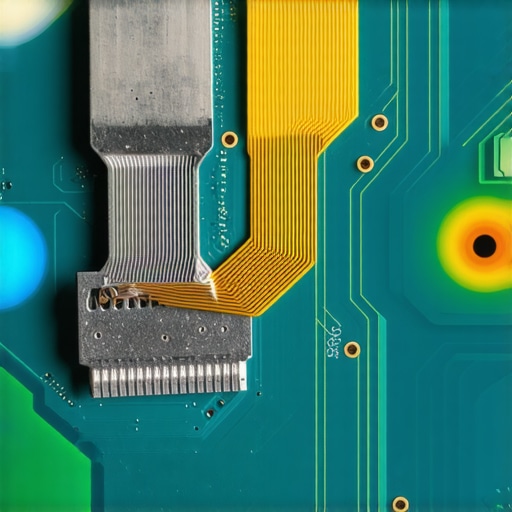
The Dangerous Allure of Cheap Replacement Panels
When you finally decide to fix that display, the temptation is to grab the cheapest panel on eBay. This is the ultimate ‘oops’ factor. Most budget-friendly screens lack the electromagnetic interference (EMI) shielding found in original equipment. Without this, your laptop might suffer from ‘ghosting’ or weird signal noise every time your phone rings nearby. I always tell my clients that knowing how to choose between a glossy or matte laptop screen replacement is secondary to ensuring the panel meets OEM specifications. According to display industry analysts at Omdia, the move toward thinner bezel designs has made modern laptop panels significantly more susceptible to structural fatigue than their bulkier ancestors, meaning high-quality components are more critical now than ever before.
Why does your screen only flicker when you unplug the charger?
This is a question I get from power users all the time. They assume the screen is dying, but often it is a conflict between the display’s refresh rate and the laptop’s power-saving PWM (Pulse Width Modulation) settings. If you find yourself needing to fix a laptop screen that flickers only when the brightness is low, you are likely dealing with a software-controlled voltage drop rather than a hardware failure. Adjusting your ‘Intel Graphics Command Center’ or ‘AMD Software’ power settings can usually solve this without a screwdriver.
Stop Running Recovery Software on Clicking Drives
The biggest myth in computer repair is that you should always try ‘free recovery software’ first. If your drive is making a clicking or grinding sound, running software is the fastest way to kill it forever. Software forces the physical ‘heads’ of the drive to move across the platter repeatedly. If those heads are damaged, they act like a lathe, carving permanent grooves into your data. I cannot stress enough the danger of using free file recovery tools on a failing mechanical drive. When the hardware is physically crying for help, you need a cleanroom, not a download button. If you are a business owner, this is where why managed IT is a game-changer for growing companies—having a professional who knows when to stop before the data is gone forever is worth every penny of the service fee.
To reach that professional level of reliability, you must stop reacting to failures and start preventing them. I have found that the difference between a five-year-old laptop that feels snappy and one that belongs in a dumpster is often just twenty minutes of physical maintenance a year. It starts with the one thing most people ignore until it is too late: heat. I always keep a tube of high-performance thermal paste, specifically Thermal Grizzly Kryonaut, in my desk drawer. Over time, the factory-applied paste dries out and turns into a brittle insulator, forcing your processor to work harder and hotter.
Swap Your Thermal Paste Before the Fans Start Screaming
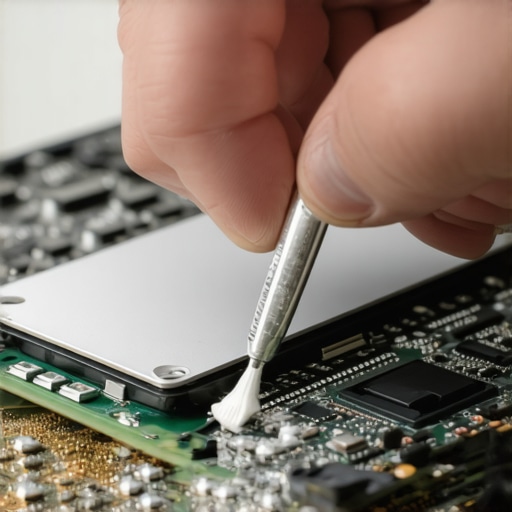
If your fans are constantly revving up even when you are just checking email, your laptop is begging for a cleaning. Opening the chassis and using a small electric duster to blow out the heatsinks is the hardware upgrade that actually speeds up your daily workflow more than any software tweak ever could. According to technical documentation from Intel, thermal throttling can slash your CPU performance by up to 50% to prevent permanent silicon damage. By keeping those pathways clear, you are not just making the machine faster; you are extending the life of the motherboard and the battery, which hates heat more than any other component.
Watch Your SMART Data Like a Hawk
Preventing a data disaster is much cheaper than paying for a cleanroom recovery. I personally use tools like CrystalDiskInfo or smartmontools to monitor the health of my NVMe and SATA drives. You need to learn how to check if your hard drive is about to fail using s-m-a-r-t-data because it gives you a head start. For instance, the ‘Reallocated Sectors Count’ is a huge red flag; once that number starts climbing, your drive is essentially a ticking time bomb. This proactive monitoring is a core pillar of effective managed IT solutions for growing companies. Instead of losing a week of work to a crash, you swap the drive on a Tuesday afternoon during your lunch break. This is also why I advocate that the power supply is the hardware part you should never buy used for your business, as a dirty voltage ripple can corrupt data faster than a virus.
How do I keep my workstation running like day one for years?
Maintenance is a habit, not a one-time event. For my business clients, I recommend a quarterly ‘digital hygiene’ day. This involves auditing permissions, updating the BIOS, and ensuring that managed IT strategies to keep your business secure in 2025 are actually being followed. We are moving toward a future where AI-driven predictive maintenance will likely alert us to a failing capacitor before it even pops, but for now, the human eye and a few good diagnostic tools are your best defense. If you want to scale your operations without a massive IT bill, understanding why managed it is a game changer for growing companies is key—it is about having the systems in place to catch the small stuff before it becomes a crisis. My advanced tip for you today? Download a SMART monitoring tool right now and check your ‘Power On Hours’—you might be surprised how hard your gear has been working for you.
What Fifteen Years at the Repair Bench Taught Me
Over the last decade, I’ve seen the same pattern repeat: people replace hardware when all they needed was a maintenance schedule. The hardest lesson I learned is that “cheap” fixes are often the most expensive in the long run. If you ignore a flicker or a slight slowing down, you aren’t saving money; you’re just deferring a larger bill. I’ve seen businesses fold because they didn’t have a plan for expert data recovery techniques when a server finally quit. The lightbulb moment for me was realizing that reliability isn’t a feature of the device; it’s a result of how you treat it. This is why computer repair for beginners should always start with physical cleaning before touching any software settings.
The Tools I Keep in My Digital First-Aid Kit
I don’t believe in magic software, but I do believe in having the right data at your fingertips. To keep my systems running, I rely on a few essentials. First, I always refer back to my DIY tips for clearer displays whenever I see a visual glitch, as it helps me rule out cable issues before buying a new panel. For drive health, CrystalDiskInfo is my go-to for checking SMART status. If things get truly messy, I look into effective managed IT solutions for growing companies to automate the boring stuff like backups and security patches. These resources are what I personally trust because they focus on transparency and long-term stability rather than quick fixes.
Take the Reins Before Your Hardware Fails
Technology should work for you, not the other way around. Don’t let a “Disk Full” warning or a tiny screen crack ruin your week. By being proactive with your computer repair habits today, you are essentially buying yourself a smoother, faster future. If you’re feeling overwhelmed by the technical side, don’t hesitate to reach out to us for a professional opinion. Your hardware is an investment—let’s make sure it lasts as long as possible. Have you ever ignored a small computer problem that turned into a total disaster? Let me know in the comments below!