

I sat down with a fresh cup of coffee, ready to finally crush my inbox, and the second my butt hit the cushion, my screen went pitch black. I jumped up in a panic—and the screen flickered back to life. I sat down again. Blackness. I felt like I was being pranked by an invisible poltergeist living in my gas-lift piston. For weeks, I convinced myself that my graphics card was dying or that I needed some serious computer repair help. I even went as far as buying a new HDMI cable, thinking the old one was frayed. Spoiler alert: it wasn’t the cable. This weird, maddening phenomenon is actually a common headache caused by electromagnetic interference (EMI) triggered by the simple act of moving your chair. It sounds like science fiction, but it’s a very real technical glitch that can drive even the most patient person to the brink of a breakdown. I remember thinking my entire home office was cursed, checking the outlets for faulty grounding and even wondering if my floorboards were shifting too much. It’s that visceral fear that your expensive gear is failing you when, in reality, it is just a physics problem that needs a human solution.
The Secret Science of Your Disappearing Display
Most of us assume that if a screen goes dark, it is a hardware failure. I made the exact same mistake early on. I spent nearly three hundred dollars on a replacement display because I was convinced the backlight was failing, much like when you are trying to figure out if a backlight is truly dead. It turns out, I was just dealing with a high-voltage discharge from my seat. When you sit down or stand up, the friction between your clothes and the chair—specifically those with gas-lift cylinders—can create a burst of energy. This is not just a static shock you feel on your finger; it is a burst of EMI that confuses the sensitive electronics in your monitor’s internal controller. According to research cited by the Video Electronics Standards Association (VESA), low-quality or poorly shielded cables are susceptible to these transient pulses, which can cause the digital link to reset instantly. It is basically a momentary brain-freeze for your monitor caused by your upholstery.
Is this actually a real problem or just a coincidence?
I know what you are thinking. It sounds like a tinfoil hat theory. How could a chair possibly affect a digital signal without even touching the computer? But if you have ever noticed your monitor flickering only when you move, you are experiencing a documented hardware quirk. I have seen this happen in corporate offices where entire rows of desks would flicker because of the carpet choice and the specific brand of chairs being used. Today, I am going to show you how to ground your setup and shield your cables so you can sit down in peace. Have you ever had a piece of furniture seemingly attack your electronics or felt that weird dread when a screen goes dark? Drop a comment and let me know—I promise you are not crazy, and you definitely are not alone in this digital struggle. If you are worried about other weird display glitches, you might want to check out my tips on fixing moving lines or even battery-related screen issues. But for the Chair Ghost, we need to look at specific shielding techniques and grounding hardware to keep that picture steady.
Swap Your Bargain Bin Cables for VESA Certified Shielding
The first and most effective fix is to throw away the generic cable that came in your monitor’s box. Most cheap cables have thin foil shielding that is about as thick as a gum wrapper. When you move your chair and that burst of EMI hits, it penetrates the thin foil and corrupts the signal. You need a cable with thick braided shielding. Think of this like the difference between a screen door and a solid oak door—one lets the wind (and interference) right through, while the other stops it cold. I once had a setup where every time I adjusted my posture, my screen went white, similar to initial laptop screen failure signs. I swapped to a high-quality, VESA-certified DisplayPort cable, and the problem vanished instantly. This is a classic move in computer repair for beginners: always rule out the weakest link in the chain first.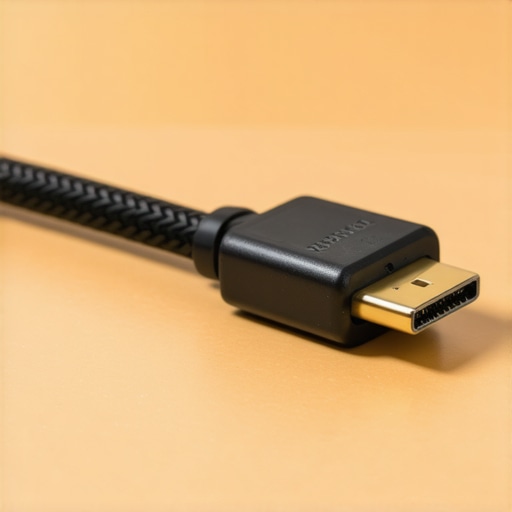
Add a Ferrite Bead to Kill the Noise
If you do not want to buy a new cable yet, you can try adding a ferrite bead. You have probably seen these—they are the little plastic cylinders clamped near the ends of some power cords. They act like a filter, soaking up high-frequency noise before it reaches your monitor. It is like wearing noise-canceling headphones in a crowded room; the bead lets the music (your data) through while blocking out the chatter (the EMI). You can buy clip-on ferrite cores for a few dollars. I used this trick for a client using managed IT solutions whose screens were flickering every time the office printer started up. It is a low-cost hack that often provides a permanent fix for common display issues without needing to tear apart your hardware.
Is Your Floor Rug Creating a Lightning Storm?
Sometimes the chair isn’t the only culprit; it is the friction between the chair wheels and your flooring. If you have a synthetic carpet or a cheap plastic chair mat, you are basically building up a massive static charge every time you roll back. When you touch the desk or the gas-lift engages, that charge has to go somewhere. I recommend switching to an anti-static glass mat or a grounded rubber mat. In one particularly messy case, a user’s screen was flickering so badly we thought they needed a full laptop screen replacement. It turned out to be their polyester gaming rug. We removed the rug, and the hardware failure disappeared. If you are managing a larger office, this is why business-grade IT strategies often include specific requirements for anti-static flooring in server rooms and high-density workstations.
Reroute Your Cables to Prevent Cross-Talk
Finally, look at your cable management. If your video cables are bundled tightly with power strips or high-voltage power bricks, you are inviting interference. This is called cross-talk. Keep your data cables, like HDMI and DisplayPort, at least a few inches away from power cables whenever possible. If they have to cross, make them cross at a 90-degree angle rather than running them parallel to each other. I spent a whole afternoon once troubleshooting a flickering desktop only to find the HDMI cable was wrapped five times around the main power lead. Separation is the key to a clean signal and a stable display.
Why Swapping Parts Randomly is a Money Pit
Most people assume that technical troubleshooting is a linear path—if the screen flickers, buy a new screen. But after years in the trenches, I have learned that jumping straight to a hardware replacement is the most expensive mistake you can make. It is a classic ‘Oops’ factor: I have seen users spend hundreds on a laptop screen replacement only to find the new one flickering too because the real culprit was a $10 power strip or a noisy air conditioner on the same circuit. Before you crack open the case, you have to rule out the environment. This is a core pillar of computer repair for beginners that even pros forget when they are frustrated. Another trap? Falling for the truth about the system fix pop-up that promises to optimize your hardware with software. Hardware problems require physical solutions, not ‘one-click’ registry cleaners that often do more harm than good.
Can a Failing Power Supply Mimic a Broken Monitor?
The short answer is a resounding yes. One of the most nuanced ‘hidden’ triggers for display issues isn’t the monitor or the chair—it is the power supply unit (PSU) inside your computer. If your PSU is struggling to maintain a steady voltage, any external EMI spike (like the chair spark we discussed) can push it over the edge, causing a momentary reset of the GPU. Learning how to spot a failing power supply is critical because a dying PSU can eventually take your entire motherboard with it. According to research by the Electrical Power Research Institute (EPRI), transient voltage surges—even those too small to trip a breaker—account for over 80% of unexplained electronic equipment failures. If you are troubleshooting common computer repair issues effectively, always look upstream at your power source before blaming the display.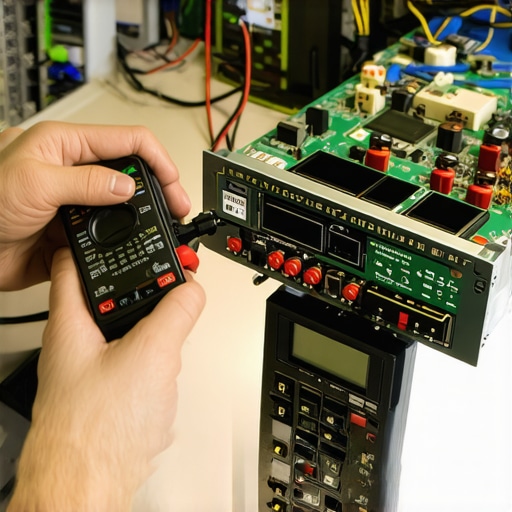
The Software Myth in Data Recovery
Everyone tells you that if you lose a file, you just need to download a ‘recovery tool’ and hit scan. In my experience, this is the most dangerous advice you can follow if your drive is physically clicking or scraping. If the hardware is failing, running recovery software is like forcing a person with a broken leg to run a marathon to ‘fix’ it—the more you spin that drive, the more damage you do to the platters. You need data recovery secrets and expert techniques that prioritize physical stability first. I have had clients bring in drives that were 100% recoverable until they ran a ‘deep scan’ for twelve hours, effectively grinding the data into dust. If you hear a noise, stop. The risk of ignoring a clicking external drive is the permanent loss of your digital life. Real data recovery is 90% physics and 10% software. Have you ever fallen into this trap of trying to fix a hardware problem with a software ‘solution’? Let me know in the comments—I have definitely been there, and the lessons are usually expensive.
I have spent years building and breaking systems, and if there is one thing I have learned, it is that the best repair is the one you never have to perform. When I am deep in a session of troubleshooting common computer repair issues effectively, I rely on a very specific set of tools that go beyond the basic screwdriver. For software diagnostics, I swear by HWiNFO64 because it provides a granular look at sensor data that the Windows Task Manager simply ignores. It allows me to see if a single core is overheating, which often points to a poorly applied thermal paste long before the system starts crashing. This kind of preventative monitoring is the power of data recovery tools in a different light—it is about recovering the health of your machine before the data is actually at risk. If you are handling a fleet of devices, this is exactly why your managed it provider should be doing quarterly audits to catch these thermal trends before they lead to hardware swaps.
My Secret Tool for Predicting Hardware Failure
Beyond software, my physical toolkit always includes a high-quality electric duster and a set of non-conductive nylon spudgers. Most people reach for compressed air cans, but those can actually spray liquid propellant onto sensitive circuits if held at the wrong angle. I prefer a dedicated electronic blower to how to clean a laptop fan without pushing dust deeper inside the chassis. This simple shift in maintenance philosophy has saved my clients thousands in laptop screen repair and motherboard replacements. It is about precision rather than just blasting air and hoping for the best. I also keep a digital multimeter on hand to test voltage rails on power supplies, ensuring that ‘dirty’ power isn’t the silent killer behind a flickering display or a slow boot time. 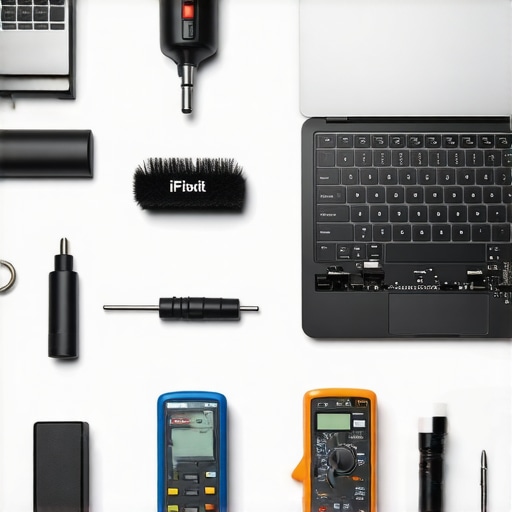
How do I maintain my workstation over time?
Consistency is more important than occasional deep cleans. I recommend a monthly ‘health check’ where you look at your uptime and check for any recurring error logs in the Event Viewer. According to the IEEE 1680.1 standard for the environmental assessment of electronic products, maintaining a stable operating temperature is the single most effective way to extend the lifecycle of semi-conductors. If you are running a business, integrating these checks into your managed IT strategies to keep your business secure in 2025 is non-negotiable. You want to move from a ‘break-fix’ mindset to a ‘predict-and-prevent’ model. This doesn’t just save money on parts; it preserves the most valuable resource you have: uptime. When you aren’t fighting with a black screen or a clicking drive, you can actually focus on the work that matters.
The Future of Self-Repairing Systems
Looking ahead, I predict we are going to see a massive shift toward modularity and AI-driven internal diagnostics. We are already seeing manufacturers move back toward user-replaceable parts, and soon, your computer might actually notify you that a specific capacitor is nearing its end of life before it even fails. This will change the landscape of computer repair for beginners, making it more about following a guided swap than guessing what went wrong. Until then, the burden of care is on us. I want you to try one thing today: download a hardware monitor and check your ‘CPU Package Temperature’ while you have twenty tabs open. If it is consistently hitting 90 degrees Celsius, it is time to crack that case open and address the airflow. It is a small move that could save you from an emergency laptop screen replacement or a total system rebuild next month.
The Brutal Truth About Why Your Tech Keeps Failing
After years of chasing digital ghosts, I’ve realized that the most frustrating glitches usually have the simplest physical causes. Here are the lightbulb moments that changed how I approach every repair. First, expensive hardware is surprisingly fragile when it comes to environmental physics; even a high-end setup can be brought to its knees by the simple static discharge of a gas-lift chair. Second, your cables are not just passive conduits but active antennas that pick up every bit of electrical noise in your room. This is why I always suggest starting with laptop screen repair DIY tips for clearer displays before assuming your panel is dead. Finally, if you are running a business, you have to realize that these “ghost” issues can tank productivity across an entire department, which is precisely why managed IT is a game changer for growing companies looking to maintain peak uptime.
The Hardware Survival Kit I Swear By
I don’t leave my house without a few specific items that have saved more systems than any software ever could. I personally trust the VESA Certified Database to ensure any cable I buy actually meets the shielding standards required to block EMI. For deep diagnostics, HWiNFO64 is my go-to for catching thermal spikes before they cause permanent damage. I also recommend keeping a pack of clip-on ferrite cores in your drawer; they are the cheapest insurance policy against electrical interference you can find. For anyone serious about protecting their information, mastering the power of data recovery tools what you need to know is essential so you aren’t left scrambling when a drive finally gives up the ghost. #IMAGE_PLACEHOLDER_E#
Stop Fighting Your Furniture and Start Working
Technical mastery isn’t just about knowing which buttons to click; it’s about understanding the synergy between your gear and your environment. By grounding your chair, shielding your cables, and keeping an eye on your power supply, you can finally end the cycle of flickering screens and mysterious reboots. Remember that troubleshooting common computer repair issues effectively is a marathon of elimination, not a sprint of replacement. Make sure your team is up to speed on data recovery secrets every business should know today to ensure that even if the hardware fails, your work remains safe. Don’t let a chair or a carpet define your digital experience—take control of your setup today. Have you ever solved a baffling tech problem by simply moving a piece of furniture or changing a cable? Let me know in the comments below!