

I still remember the smell of acrid, metallic smoke wafting from my desk on a frantic Tuesday afternoon. I was in college, prepping for finals, when my original laptop power brick gave up the ghost. Desperate and broke, I ran to the nearest corner store and bought a cheap, unbranded, ten-dollar replacement. It looked the part. It plugged in perfectly. But within three days, my laptop suddenly died with a soft ‘pop’ and never woke up again. My entire term’s worth of notes was locked away on a dead board, forcing me to learn about expert techniques to save your files fast the hard way. I had fell victim to the ultimate tech trap: assuming all chargers are created equal. You see, a charger isn’t just a plastic block with a wire; it is a sophisticated gatekeeper for your laptop’s most delicate silicon. Today, I want to pull back the curtain on cheap aftermarket power supplies and show you exactly what happens inside your machine when you feed it dirty power. We are going to separate online myths from electrical reality so you can protect your expensive gear from an early grave. Have you ever plugged in a cheap charger and noticed your trackpad acting wild or the brick getting dangerously hot? Let me know in the comments below, because those are the first warning signs of a deeper disaster.
The Ghostly Silence of a Fried Motherboard
When we talk about computer damage, we often think of cracked glass or liquid spills. But internal electrical trauma is far more insidious. A bad charger doesn’t just fail quietly; it can actively send a high-voltage surge straight past your laptop’s internal voltage regulators. When I made my rookie mistake years ago, I didn’t realize that name-brand manufacturers build complex safety handshake protocols into their charging systems. Cheap knockoffs skimp on these critical safety components, leaving your motherboard completely defenseless. If you ever find yourself in a similar spot with a machine that won’t post after a power mishap, you might need to check out my guide on the fix for a computer that powers on but wont post to bios to see if your board is truly dead or just stuck in a protective loop. Learning how to avoid costly mistakes early on will save you hundreds of dollars in repair bills.
Is saving twenty bucks on a charger really worth risking a thousand-dollar laptop?
Let’s be completely honest with ourselves: the temptation of a cheap online listing is incredibly strong. However, cheap chargers often lack proper shielding and use substandard capacitors that degrade rapidly under load. According to hardware testing reports by independent laboratories like Underwriters Laboratories (UL), counterfeit and uncertified power adapters frequently fail basic insulation and voltage spike protection tests, presenting real fire and shock hazards. This isn’t just about your battery degrading slightly faster; it is about keeping a miniature, unstable lightning storm away from your CPU. If you’ve already experienced a sudden shutdown and fear the worst, understanding how to tell if your computer power supply is failing is your very first line of defense before you go spending money on replacement laptops.
Decoding the Silicon Handshake
To stop feeding dirty electricity to your machine, you must first decode the electrical specifications printed on the back of your power brick. Think of your laptop’s charging port like a physical gateway that only accepts water at a very specific pressure. If the water pressure is too high, the pipes burst. If it is too low, nothing flows. This is exactly how voltage works. You must match the voltage output of any replacement charger perfectly with the input requirements of your laptop. While the amperage can be higher on a charger—because your laptop will only draw the current it actually needs—the voltage must never deviate.
Step-by-Step Power Verification
The first step is locating the output rating on your old brick, usually written in tiny, light-gray text as something like ’19V – 3.42A’. Once you have those numbers, verify them against the sticker on the underside of your laptop chassis. I remember helping a local business owner who had bought five cheap, identical-looking USB-C chargers for his team’s ultrabooks. Within a month, three of those laptops suffered severe battery swelling. When we opened them up, the physical cells looked like bloated silver pillows. If you notice your machine casing bulging or trackpad keys stiffening, you need to learn how to tell if your laptop battery is swelling before it breaks the case so you can pull that battery out safely before it punctures.
Why Cheap Adapters Ruin Sensitive Touchpads
Have you ever plugged in a third-party charger and suddenly your mouse cursor started jumping erratically across the screen? This is not a software glitch. Cheap chargers lack proper electromagnetic interference shielding and high-quality filtering capacitors. This leaves high-frequency electrical noise running wild through your laptop’s grounding plane, which directly interferes with the capacitive sensors under your keyboard. This dirty power can degrade other components silently over time, including your storage drive. If you suddenly experience corrupted files after using a noisy charger, you will want to read up on the trick to getting files off a drive with a corrupted file system to rescue your critical documents. In more severe cases, bad power regulation can even cause physical damage to your display hardware. If your screen begins to flicker or display odd lines, understanding how to isolate the issue by how to fix a flickering screen by adjusting the display ribbon will help you determine if the damage is structural or purely electrical. Always opt for OEM replacements or reputable third-party brands that carry certified safety marks like UL, CE, or FCC.
When you dive deep into hardware engineering, you quickly realize that the tech industry has sold us a massive lie about how our devices consume power. Most consumer forums will tell you that as long as the barrel plug fits and the voltage matches, your laptop will run perfectly fine. But in my years of handling complex boards, I have learned that the real danger of aftermarket power bricks isn’t a simple hardware mismatch—it is the insidious degradation of your motherboard’s clean power delivery path. Everyone says a charger is just a dumb adapter, but in reality, it is an active firewall managing high-frequency electrical noise that can slowly eat away at your silicon.
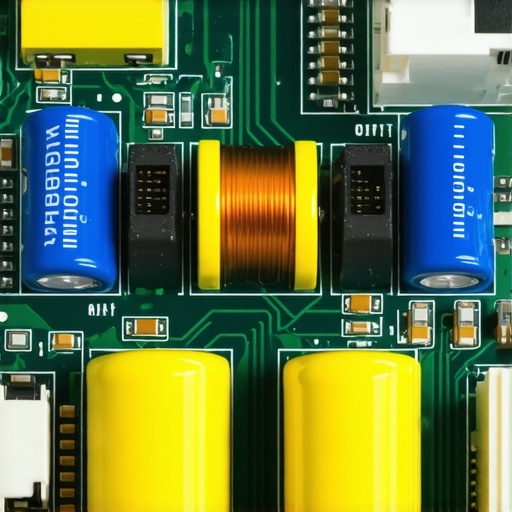
The biggest trap to avoid is assuming that your laptop’s internal power management IC (PMIC) will easily filter out any garbage electricity you feed it. Under sustained load, a cheap capacitor inside an unbranded brick degrades, causing what engineers call high-voltage ripple. This ripple forces your motherboard’s voltage regulator modules (VRMs) to work twice as hard, generating massive internal heat. Eventually, those VRMs fail entirely, leaving you with a bricked machine. When this happens, simple troubleshooting won’t help you, and you might have to learn the fix for a computer that powers on but wont post to bios to determine if your central processing unit is still salvageable.
Why do certified USB-C power supplies behave differently than cheap knockoffs?
According to a detailed technical analysis by the Power Sources Manufacturers Association (PSMA), certified chargers utilize advanced active power factor correction (PFC) circuits and synchronous rectifiers to keep output voltage exceptionally stable. Cheap clones bypass these expensive components entirely to save manufacturing pennies. This lack of active regulation is why a low-quality charger will eventually cook your battery cells from the inside out. If you suspect your power source has already caused structural harm to your physical hardware, you must check for early physical indicators and learn how to tell if your laptop battery is swelling before it breaks the case before a thermal runaway event occurs.
This silent electrical stress does not just stop at your power rails; it migrates through the ground plane of your entire machine, causing secondary failures you would never think to blame on your power adapter. I have seen noisy chargers corrupt SSD partition tables during heavy write cycles, forcing users to frantically seek the trick to getting files off a drive with a corrupted file system just to recover their critical spreadsheets. Have you ever fallen into this trap or noticed your mouse cursor acting erratically when plugged in? Let me know in the comments below, and let’s keep your gear safe from dirty power.
When you look closely at how these small, delicate motherboard components degrade, you realize that prevention is always cheaper than recovery. To truly protect my personal workstations from these invisible electrical hazards, I don’t rely on luck; I rely on a highly specific toolkit. First, I never test a questionable power brick on an active computer. Instead, I use an adjustable digital DC electronic load. This bench tool allows me to safely simulate a laptop drawing maximum current, exposing any hidden voltage ripple or thermal instability before a bad charger ever gets near a real motherboard. If your machine is already exhibiting strange issues, you can learn troubleshooting common-computer repair issues effectively with the right diagnostic mindset.
How do I maintain my laptop’s power delivery system over time?
Maintaining a healthy power delivery system requires regular monitoring. I personally recommend using free diagnostic software like HWMonitor or AIDA64 once a month to inspect your battery’s wear level and monitor live voltage inputs under heavy workloads. If you notice the input voltage fluctuating by more than 5% from its rated specification, it is time to discard that power brick immediately. Furthermore, keeping your charging port clean is vital. Microscopic pocket lint inside a USB-C or barrel jack creates micro-arcs—tiny electrical sparks every time you plug it in—which slowly burns out the metal pins and causes your device to struggle. If your port is already loose, check out my guide on how to fix a laptop that only charges at a specific angle to resolve the connection issues safely.
Looking toward the future, the tech landscape is shifting rapidly. With the rise of GaN (Gallium Nitride) technology, chargers are getting smaller and more efficient, but the market is also flooded with uncertified, highly volatile clones. In the coming years, we will see laptops with smarter firmware that physically locks out uncertified chargers to prevent battery swelling and catastrophic board failure entirely. To safeguard your expensive hardware today, my absolute top recommendation is to grab a basic USB-C multimeter. Plug it between your charger and your laptop to instantly verify if your power brick is delivering the clean, stable wattage your system actually requires.
When you dive deep into hardware engineering, you quickly realize that the tech industry has sold us a massive lie about how our devices consume power. Most consumer forums will tell you that as long as the barrel plug fits and the voltage matches, your laptop will run perfectly fine. But in my years of handling complex boards, I have learned that the real danger of aftermarket power bricks isn’t a simple hardware mismatch—it is the insidious degradation of your motherboard’s clean power delivery path. Everyone says a charger is just a dumb adapter, but in reality, it is an active firewall managing high-frequency electrical noise that can slowly eat away at your silicon.
The biggest trap to avoid is assuming that your laptop’s internal power management IC (PMIC) will easily filter out any garbage electricity you feed it. Under sustained load, a cheap capacitor inside an unbranded brick degrades, causing what engineers call high-voltage ripple. This ripple forces your motherboard’s voltage regulator modules (VRMs) to work twice as hard, generating massive internal heat. Eventually, those VRMs fail entirely, leaving you with a bricked machine. When this happens, simple troubleshooting won’t help you, and you might have to learn the fix for a computer that powers on but wont post to bios to determine if your central processing unit is still salvageable.
Why do certified USB-C power supplies behave differently than cheap knockoffs?
According to a detailed technical analysis by the Power Sources Manufacturers Association (PSMA), certified chargers utilize advanced active power factor correction (PFC) circuits and synchronous rectifiers to keep output voltage exceptionally stable. Cheap clones bypass these expensive components entirely to save manufacturing pennies. This lack of active regulation is why a low-quality charger will eventually cook your battery cells from the inside out. If you suspect your power source has already caused structural harm to your physical hardware, you must check for early physical indicators and learn how to tell if your laptop battery is swelling before it breaks the case before a thermal runaway event occurs.
This silent electrical stress does not just stop at your power rails; it migrates through the ground plane of your entire machine, causing secondary failures you would never think to blame on your power adapter. I have seen noisy chargers corrupt SSD partition tables during heavy write cycles, forcing users to frantically seek the trick to getting files off a drive with a corrupted file system just to recover their critical spreadsheets. Have you ever fallen into this trap or noticed your mouse cursor acting erratically when plugged in? Let me know in the comments below, and let’s keep your gear safe from dirty power.
When you look closely at how these small, delicate motherboard components degrade, you realize that prevention is always cheaper than recovery. To truly protect my personal workstations from these invisible electrical hazards, I don’t rely on luck; I rely on a highly specific toolkit. First, I never test a questionable power brick on an active computer. Instead, I use an adjustable digital DC electronic load. This bench tool allows me to safely simulate a laptop drawing maximum current, exposing any hidden voltage ripple or thermal instability before a bad charger ever gets near a real motherboard. If your machine is already exhibiting strange issues, you can learn troubleshooting common computer repair issues effectively with the right diagnostic mindset.
How do I maintain my laptop’s power delivery system over time?
Maintaining a healthy power delivery system requires regular monitoring. I personally recommend using free diagnostic software like HWMonitor or AIDA64 once a month to inspect your battery’s wear level and monitor live voltage inputs under heavy workloads. If you notice the input voltage fluctuating by more than 5% from its rated specification, it is time to discard that power brick immediately. Furthermore, keeping your charging port clean is vital. Microscopic pocket lint inside a USB-C or barrel jack creates micro-arcs—tiny electrical sparks every time you plug it in—which slowly burns out the metal pins and causes your device to struggle. If your port is already loose, check out my guide on how to fix a laptop that only charges at a specific angle to resolve the connection issues safely.
Looking toward the future, the tech landscape is shifting rapidly. With the rise of GaN (Gallium Nitride) technology, chargers are getting smaller and more efficient, but the market is also flooded with uncertified, highly volatile clones. In the coming years, we will see laptops with smarter firmware that physically locks out uncertified chargers to prevent battery swelling and catastrophic board failure entirely. To safeguard your expensive hardware today, my absolute top recommendation is to grab a basic USB-C multimeter. Plug it between your charger and your laptop to instantly verify if your power brick is delivering the clean, stable wattage your system actually requires.
What Tech Manufacturers Hide About Third Party Power Supplies
Over the years, I have dismantled dozens of fried motherboards, and the pattern is clear: cheap power supplies operate on a knife-edge. Under structural stress, a brand-name charger will gracefully self-destruct its own internal fuse to protect your computer. A ten-dollar clone will instead pass the high-voltage spike forward, literally melting the delicate silicon layers of your processor.
I have learned that the main risk is not immediate failure but the slow, daily thermal wear on your motherboard’s VRM. If your charger hums, buzzes, or makes your cursor jump, it is already leaking high-frequency noise into your hardware. Protecting your laptop means choosing safety certifications over short-term savings every single time.
My Go To Hardware Diagnostics Toolkit
I do not guess when it comes to the safety of my devices. Here are the tools I trust to keep my hardware running flawlessly:
- USB-C Inline Multimeter: This small device measures real-time voltage, amperage, and power delivery handshakes before any current enters my computer.
- Adjustable DC Electronic Load: Used to stress-test power bricks away from expensive laptops to ensure they hold a steady load without dangerous ripples.
- HWMonitor or AIDA64: These software tools let me review live motherboard voltage rails to ensure no dirty electricity is straining internal components.
Keep Your Silicon Safe from Dirty Power
At the end of the day, your laptop is an expensive investment that holds your photos, documents, and livelihood. Saving twenty dollars on a knockoff charger is never worth the risk of a catastrophic, unrecoverable hardware failure. By choosing certified power adapters and practicing basic electrical safety, you can keep your computer running smoothly for years to come. Remember that avoiding computer repair for beginners avoid costly mistakes is always easier than dealing with a dead motherboard.
Have you ever had a cheap charger make your trackpad jump or overheat on your desk? Let me know your experiences in the comments below!