

I’ll never forget the Tuesday morning my phone rang at 5:30 AM with a client screaming that their entire database was encrypted. The culprit? Every single person in their office used the exact same login: ‘Company2024!’. It felt like a smart, ‘helpful’ shortcut until a single laptop was stolen, and the thief had the literal keys to the kingdom. If you’re currently using one password for everyone to ‘keep things simple,’ you aren’t being efficient; you’re just leaving the front door wide open with a sign that says ‘Welcome’ to every hacker on the web. I’ve seen firsthand how this one mistake can lead to a desperate need for expert data recovery techniques after a breach. Today, I’m going to show you how to break this dangerous habit and implement managed IT strategies to keep your business secure without making your team’s life a living hell. We will dive into the psychological traps of convenience and the technical fixes that actually work.
One Key for Every Door is a Security Disaster
I’ll admit, early in my career, I actually suggested a shared password for a tiny bakery because I thought it would save them time during the morning rush. It was a massive oversight on my part. When they let a delivery driver go, he logged in from home and deleted their entire week of orders out of spite. It was a brutal lesson in why individual accountability matters. Beyond the internal drama, the external risks are even higher. According to the 2023 Verizon Data Breach Investigations Report, 74% of breaches involve a human element, including the use of stolen credentials. When everyone shares a password, you can’t even begin to use tools like phishing link tracking to see where your vulnerabilities are. You’re flying blind in a storm.
Does Managing Individual Passwords Actually Kill Productivity?
The biggest pushback I get from business owners is the fear of their staff being constantly locked out. They worry that complex security will grind operations to a halt. But the reality is that managing remote employee computer passwords has never been easier with modern password managers. It’s actually faster than shouting across the office to ask what the new password is after someone finally changes it. Have you ever felt that sinking feeling in your stomach when an employee leaves and you realize they still have access to everything? It’s time to stop that cycle. We need to look at this not as a hurdle, but as the foundation of your company’s survival.
Map Out Who Knows What Before Changing Anything
The first step isn’t buying software; it is knowing where your vulnerabilities actually live. I once spent a full morning with a local law firm that insisted they had ‘tight’ security. Five minutes in, I found a sticky note under the receptionist’s keyboard with the master admin login for their entire cloud storage. We didn’t start by changing the password; we started by listing every single service they used. You need to identify every door before you can decide who gets a key. This audit is the backbone of managed IT strategies to keep your business secure. By mapping out access, you can apply the move that prevents unauthorized devices from joining your network, ensuring that even if a password is leaked, an unrecognized laptop can’t just waltz in.
Pick a Tool That Doesn’t Slow Your Team Down
Once you know what needs protecting, you need a central hub. Using a business-grade password manager like LastPass or 1Password is the only way to kill the ‘shared login’ habit. I remember a specific transition for a marketing agency where the creative director was terrified of ‘more tech.’ We set up a shared vault where she could access client social accounts with one click, without ever actually seeing or typing the password. It took the friction out of the process. This is the simplest way to manage remote employee computer passwords because it replaces memory with automation. 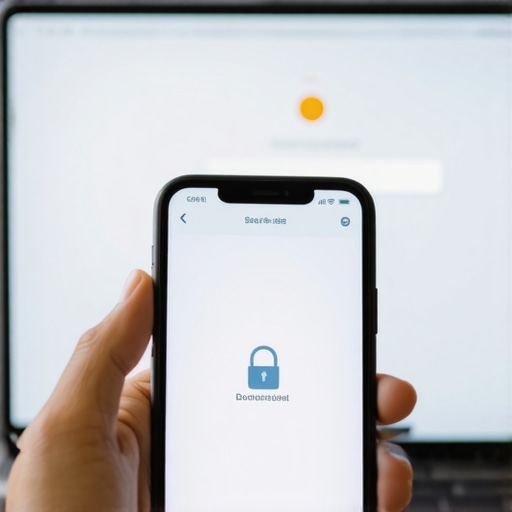
Build a Digital Moat with Multi-Factor Authentication
If you aren’t using Multi-Factor Authentication (MFA), you are basically leaving your keys in the ignition of your car with the engine running. MFA is the single most effective way to stop a malware infection before it encrypts your data. I’ve seen logs where a hacker correctly guessed a password at 3:00 AM, but because the employee’s phone didn’t approve the login, the attack died right there. It turns a potential catastrophe into a minor notification. Think of it like a second lock on your front door that requires a physical key that only you carry. Even if someone picks the first lock, they aren’t getting inside.
Lock the Door Behind Them When They Leave
The messiest situation I ever handled involved a startup whose co-founder left on bad terms. Because they didn’t have individual accounts, he logged in and changed the recovery email on their primary domain. It took us three days of emergency calls to get them back online. You must have a protocol that allows you to revoke access instantly. By using the simple setup that prevents former employees from locking you out of company iphones and other hardware, you ensure the company always owns the ‘master’ rights. Security isn’t just about keeping strangers out; it’s about maintaining control over your own house when internal relationships change.Maintaining strict password hygiene is only the first layer of a professional security posture. To truly establish your expertise in this field, you have to look at the nuances that most business owners—and even some junior IT techs—completely overlook. The real danger often lies in the tools we trust the most. Most business owners I talk to think they have a bulletproof safety net because they use Dropbox or OneDrive. Here is the hard truth: sync is not a backup. In fact, why your business backup plan is actually just a sync plan is a conversation I have at least once a week. If a virus encrypts your local files, those corrupted files instantly sync to the cloud, overwriting your clean data. According to the 2023 Backblaze State of Backup report, 54% of people reported data loss despite having cloud storage, proving that basic syncing doesn’t cut it. Real effective managed IT solutions for growing companies involve off-site, immutable backups that aren’t tied to your live file system.
Is Your Motherboard Actually Dead or Just Playing Possum?
It’s the ultimate nightmare for any professional—pressing the power button and getting nothing but silence. Most people assume the worst and start shopping for a new fleet of laptops, but you might just be dealing with a ‘zombie’ state. Before you panic and spend thousands, you need to know how to test if your motherboard is dead or just sleeping. Sometimes it is just a static buildup in the capacitors that needs a manual discharge. However, if you ignore the subtle early warnings, like random reboots or USB ports that only work intermittently, you’ll eventually need to know how to identify a failing motherboard before it stops working entirely to save your data before the final crash.
Stop Running Recovery Software on Clicking Drives
Here is the ‘Oops’ factor that keeps me up at night: the DIY data recovery enthusiast. I’ve seen well-meaning office managers try to use free ‘deep scan’ software on a hard drive that is physically clicking. This is a fatal mistake. If you hear a mechanical noise, every second that drive is spinning, the internal needle is physically scratching your data off the magnetic platters. You must understand why you should never open a clicking hard drive in a normal room; even a single speck of dust is like a boulder to a hard drive head traveling at 7,200 RPM. These data-recovery-secrets every business should know today can save you thousands of dollars in forensic fees and prevent permanent data loss. 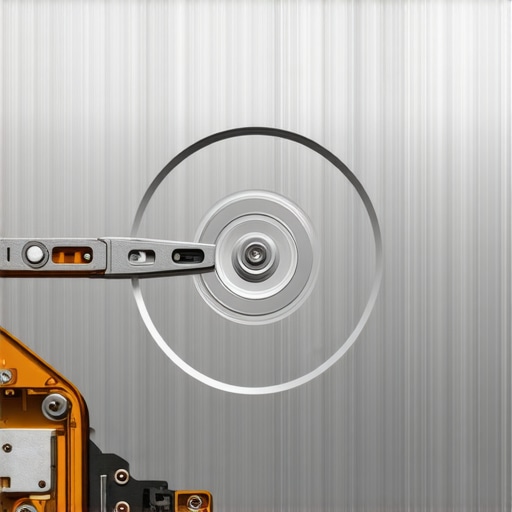
Spot the Hardware Failure Hiding as a Software Bug
We also need to talk about the ‘Ghost in the Machine.’ I often see clients frustrated by what they think are Windows bugs, but they are actually hardware failures in disguise. Knowing how to spot a hardware failure masquerading as a software bug is the difference between a ten-minute component swap and a week of wasted troubleshooting. Whether it’s a flickering screen or a slow-loading application, the root cause might be much deeper than a simple driver update. Have you ever fallen into this trap of chasing a software ghost only to find out a component was dying? Let me know in the comments.I’ve spent years watching people wait until the ‘blue screen of death’ appears to start caring about their hardware. If you wait for the smoke, you’ve already lost. Success in this game is about staying ahead of the physics of failure. For example, I swear by a specific routine: every six months, I run a deep diagnostic on every critical machine I manage. I’m looking for S.M.A.R.T. data anomalies that suggest a motor is wearing out or a platter is degrading. I don’t wait for the ‘click.’ If a drive shows a reallocated sector count above zero, it’s gone. Replacing it then is a $100 fix; waiting for it to die means a $2,000 data recovery bill. This proactive approach is exactly how to extend the life of your office PCs by three years without spending a fortune on new equipment. I personally use HWiNFO64 to watch for voltage dips because if your motherboard isn’t getting steady power, your components are being slowly cooked. 
How Do I Keep My Hardware Healthy for the Long Haul?
Maintenance isn’t just blowing out dust with compressed air, though that is a vital start. You need to watch the electrical and logical health of your components. SSDs, for instance, don’t give you a mechanical warning like hard drives do. You have to actively monitor the sign your SSD is reaching its write limit and about to die, which is often hidden in the percentage of ‘life remaining’ in your diagnostic software. Also, keep an eye on your screen’s subtle behaviors. If you notice the hidden reason your laptop screen brightness keeps flickering, it is often a sign that the backlight inverter or the eDP cable is fraying. Fixing it now is a simple part swap; ignoring it might lead to a short that fries your entire video chip. I’ve also seen people panic because of a fuzzy display, but usually, it’s just a matter of knowing how to fix a blurry laptop screen after a driver update rather than a hardware failure.
Predictive Diagnostics is the Next Big Shift
In the next few years, we are going to see a massive shift from reactive IT to predictive diagnostics. According to technical specifications from the UEFI Forum regarding ‘ACPI Hardware Error Interfaces’ (WHEA), modern chips are becoming much better at reporting specific sub-component failures before the user even notices a glitch. We are moving toward a world where your computer will literally notify you that a fan bearing is about to seize 48 hours before it happens. To stay prepared for this future, you should learn the easiest way to clone a failing hard drive to a new SSD right now. Having that skill in your back pocket makes you bulletproof when the inevitable hardware lifecycle reaches its end. My advanced tip for you today: Download CrystalDiskInfo and check your ‘Power On Hours.’ If you are over 30,000 hours on a mechanical drive, back it up and replace it this week—don’t gamble with your company’s data.
The Hard Truths I’ve Learned After a Decade in the Server Room
If there is one thing I’ve learned from thousands of hours of troubleshooting, it’s that technology rarely fails without a warning; we just aren’t always trained to listen. I’ve seen businesses crumble because they thought a twenty-dollar-an-hour ‘computer guy’ was the same as a professional service, but why choosing the cheapest managed IT plan always leads to more downtime is a lesson usually learned through a very expensive invoice. Another lightbulb moment for me was realizing that most data loss isn’t from sophisticated hackers—it’s from simple, avoidable neglect. You can have the best firewalls in the world, but if your managed IT service should be providing quarterly security audits to catch the small things, you are just waiting for a crash. I’ve also realized that the ‘human factor’ isn’t a problem to be solved with fear, but with better tools that make doing the right thing the easiest thing for your team to do.
My Go-To Kit for Keeping Systems Breathing
I don’t believe in hoarding secrets, so here is exactly what I use to keep my clients’ hardware running until the very last possible second. First, I always have a deep understanding of the power of data recovery tools at the ready, but I use them specifically for logical errors, never physical ones. For hardware monitoring, CrystalDiskInfo is my absolute baseline for drive health. If you are a small business owner, you don’t need a massive IT department; you need managed IT solutions streamlining operations for small businesses that focus on automation rather than just reacting to fires. Finally, for those DIY moments, I always recommend keeping a guide on troubleshooting common computer repair issues effectively bookmarked so you don’t panic when the first error message pops up.
Don’t Let Today’s Silence Become Tomorrow’s Crisis
The transition from a ‘hacker-vulnerable’ office to a secure, high-performance environment doesn’t happen overnight. It happens when you decide that your data and your time are too valuable to gamble with. Whether you are auditing your passwords or checking your SSD health, every small step you take today is a barrier against a catastrophic failure next month. You have the knowledge now; all that is left is to turn that knowledge into a habit. Secure your business, protect your legacy, and never be afraid to ask for professional help before the smoke starts. Have you ever lost sleep over a clicking hard drive or a forgotten master password? Let me know in the comments below!