

I’ll never forget the Tuesday I lost four hours of billing data because my “reliable” office server decided to restart at 2:15 AM for the third time in a week. I was bleary-eyed, staring at a blue screen, and wondering if I should just throw the whole rack out the window. It felt personal. Like the machine was waiting for me to fall asleep before throwing a tantrum. If you’re waking up to “unexpected shutdown” logs, I’ve been in your shoes. It’s a nightmare. Today, I’m going to walk you through exactly why your hardware is acting like a rebellious teenager and how we can pin down the cause before you lose even more sleep.
Stop Guessing and Start Hunting the Reboot Culprit
When this first started happening to me, I made the classic mistake of assuming it was just a Windows Update gone rogue. I spent hours tweaking update schedules, but the reboots kept happening. It turns out, I was looking at the software when the hardware was screaming for help. According to data from the Uptime Institute, nearly 30% of all unplanned outages are caused by power or hardware failures that go ignored until it’s too late. I learned the hard way that you can’t just ignore a hardware failure masquerading as a software bug. It’s often something as simple as your office server running out of disk space or a failing power supply that can’t handle the load of midnight backups.
Is DIY server repair actually worth the risk?
I get it. You’re worried that if you poke around too much, you’ll break something permanently. I used to think the same thing until I realized that waiting for a total crash is much more expensive. If you aren’t ready to dive into the BIOS, you might need to check if you have effective managed IT solutions in place to watch your back. But for those of us who want to get our hands dirty, we have to look at the logs. Have you ever checked your Event Viewer right after a midnight crash? Let me know if you’ve seen the dreaded ‘Kernel-Power’ error 41; it’s a common starting point for this specific headache. We need to ensure you have the right move that keeps your office data safe during these weird power fluctuations. Early on, I overlooked simple maintenance, which is why I now recommend starting with the physical environment before touching a single line of code.
Audit the power path before you buy new parts
Think of your server’s power supply as the heart of your entire operation. If that heart skips a beat—even for a millisecond—the whole system collapses to protect itself. This is often why you see those vague ‘Kernel-Power’ errors. Before you start replacing expensive components, you need to verify the electricity flowing into the machine. I once spent three days troubleshooting a client’s database server that rebooted every afternoon at 3:00 PM. We swapped the RAM, replaced the OS drive, and even updated the BIOS. It turned out the office’s industrial-grade coffee machine was on the same circuit and would trigger a voltage sag every time it kicked in for the afternoon rush. We solved it by simply moving the server to a dedicated circuit and adding a high-quality UPS. If you aren’t sure if your hardware is the problem, you should learn how to spot a hardware failure masquerading as a software bug before you waste money on software licenses you don’t need.
Look for signs of a dying motherboard
If the power is clean but the reboots persist, it’s time to look at the ‘nervous system’—the motherboard. Physical inspection is your best friend here. Grab a flashlight and look for ‘capacitor plague’—bulging or leaking cylinders on the board. Even if they look fine, the board might be failing internally. It’s vital to know how to identify a failing motherboard before it stops working entirely, as a sudden surge can take out your CPU or your data drives with it. If the board smells slightly off, check why your computer smells like burnt plastic to see if a voltage regulator has already given up the ghost.
Stress test your components to force a failure
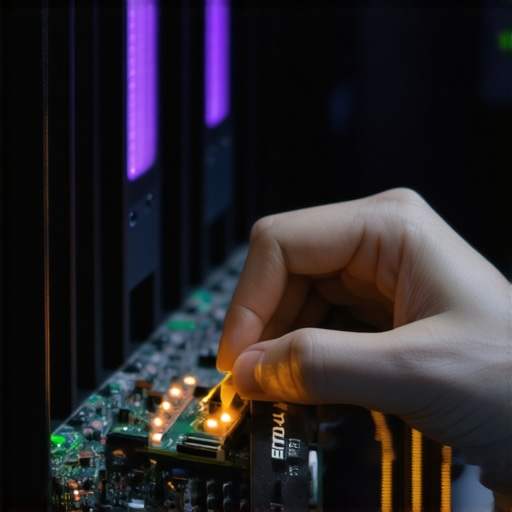
When a server reboots sporadically, it’s often because a component is failing only under heavy load. To find the culprit, you have to break the machine in a controlled environment. I use tools like MemTest86 to hammer the RAM for at least 24 hours. If even one bit of data is miswritten, the server will reboot to prevent corruption. This is a common hurdle in computer repair for beginners; many people assume if it boots, the RAM is fine. That’s rarely the case with server-grade stability. While you’re at it, check the health of your storage. You should regularly check if your hard drive is about to fail using S.M.A.R.T. data, because a drive that ‘hangs’ while waiting for a response can trigger a system-wide watchdog timer reboot.
Keep the heat under control or face a meltdown
Heat is the silent killer of server uptime. If your fans are clogged with dust or the thermal paste has dried into a crusty ceramic, the CPU will throttle and eventually shut down the system to prevent a fire. If you’ve heard a ‘jet engine’ sound coming from the rack lately, check the fix for a noisy fan immediately. Overheating is the most common cause of ‘clean’ reboots where no error message is left behind because the hardware cut the power before the OS could log the event. For growing companies, this kind of physical maintenance is often the first thing to slip, which is why how managed IT can elevate your business security includes environmental monitoring that alerts you to high temperatures before the server decides to take an unscheduled nap.
Your cloud sync is a mirror, not a safety net
One of the most dangerous myths I see in the business world is the belief that because you use OneDrive, Google Drive, or Dropbox, your data is ‘backed up.’ I’ve had to break the news to dozens of heartbroken business owners that your business backup plan is actually just a sync plan. Here is the nuance: if a ransomware attack encrypts your files, the sync tool will ‘helpfully’ upload those encrypted versions to the cloud, overwriting your good files. True backup involves versioning and air-gapping. This is the mistake that makes your backups completely useless. Always ask yourself: if I delete a folder right now, will it be gone from the ‘backup’ in ten seconds? If the answer is yes, you don’t have a backup; you have a convenience tool. Have you ever fallen into this trap? Let me know in the comments.
Stop trying to ‘Fix’ clicking hard drives at home
When a drive starts making that rhythmic clicking sound, the ‘Oops’ factor hits high gear. The internet is full of terrible advice, like putting the drive in a freezer or tapping it with a screwdriver. Let me be clear: why you should never open a clicking hard drive in a normal room comes down to physics. A single dust particle is like a boulder to a drive head flying nanometers above a platter. I’ve seen DIY attempts turn a $300 recovery into a $3,000 nightmare because the user scratched the magnetic coating. If you hear a click, power it down immediately and look for data recovery secrets and expert techniques that prioritize physical integrity over YouTube myths. This is especially critical as the sign your ssd is reaching its write limit and about to die is often much quieter but just as final.

Why the cheapest IT plan usually costs you the most
It’s tempting to go with the lowest bidder for managed services, but why choosing the cheapest managed it plan always leads to more downtime is a matter of economics. A budget provider is reactive; they wait for you to call when things break because they can’t afford the proactive monitoring tools that catch a failing power supply at 2:00 AM. According to a study by the Ponemon Institute, the true cost of downtime for small businesses can exceed $8,000 per hour, making that ‘cheap’ monthly fee irrelevant when your office sits idle for three days. A sophisticated partner will be proactive, which is why your managed it service should be tracking your software licenses and hardware lifecycles before they become emergencies. Real expertise isn’t just about fixing what’s broken; it’s about the nuance of preventing the break in the first place by understanding the silent warnings your hardware is giving off.
Once you’ve moved past the immediate panic of a server crash, you need a strategy that keeps the ‘blue screen of death’ from becoming a recurring guest in your office. I’ve learned that the secret isn’t just buying the most expensive hardware; it’s about having the right telemetry. When I’m on-site, I don’t just look at Windows logs. I rely on specific tools like HWiNFO64 to monitor the rail voltages of the power supply in real-time. If I see a 12V rail dipping to 11.4V under load, I know that power supply is a ticking time bomb, regardless of what the software says. This level of detail is exactly how we provide managed IT solutions streamlining operations for small businesses without the guesswork that plagues most DIY attempts.
The specific tools I use to prevent a total system meltdown
For storage, I don’t trust the built-in Windows disk checker to give me the full story. I use CrystalDiskInfo to pull the raw S.M.A.R.T. attributes. I’m looking specifically at ‘Reallocated Sectors Count’ and ‘Reported Uncorrectable Errors.’ If those numbers are anything other than zero, the drive is retired immediately. According to the 2023 Drive Stats report from Backblaze, certain drive models show a sharp increase in failure rates after just four years of service. This data is why I tell my clients that the best way to phase out old workstations without losing data is to act at the 48-month mark, rather than waiting for the hardware to expire. You should regularly check if your hard drive is about to fail using S.M.A.R.T. data to avoid being a statistic in next year’s data loss reports.

How do I keep my hardware running smoothly for the long haul?
Maintenance isn’t just about software updates; it’s about the physical environment. Every six months, I recommend a ‘deep clean’ that involves more than just a can of compressed air. You need to verify that the thermal interface material on your server’s CPU hasn’t pumped out or dried up. Over time, heat cycles cause microscopic gaps between the chip and the cooler, leading to the very reboots we’ve been discussing. By performing these physical checks, you can actually extend the life of your office PCs by three years, saving thousands in capital expenditure. If you’re managing a larger fleet, this is where managed IT strategies to keep your business secure in 2025 really pay off, as they include scheduled physical inspections that most internal teams overlook.
Predictive tech is changing the repair game forever
Looking ahead, the trend is moving away from ‘break-fix’ and toward AI-driven predictive maintenance. We are starting to see motherboards with built-in sensors that can predict a capacitor failure weeks before it happens by analyzing electrical noise. In the next few years, your server won’t just reboot; it will send you a text message saying its power regulator is operating at 85% efficiency and needs a replacement on Tuesday at 10:00 AM. This is the level of proactive care I strive for today. I want you to take one specific step right now: download a portable copy of CrystalDiskInfo and check your ‘Power On Hours.’ If you’re over 30,000 hours on a mechanical drive or 500TB of writes on an SSD, it’s time to stop wondering and start migrating. Don’t wait for the click of death to prove me right.
Three Silent Red Flags I Never Ignore Anymore
After two decades in the trenches, I’ve realized that troubleshooting common computer repair issues effectively often requires a gut feeling honed by experience rather than just following a manual. First, never ignore a sluggish BIOS; if your system takes five extra seconds to POST, it is likely struggling with a hardware handshake. Second, if you see a single ECC memory error in your system logs, do not wait for the second—replace that DIMM immediately. Finally, remember that software can lie, but voltage rails do not. If you are seeing odd behavior, troubleshooting common computer repair issues effectively starts with examining the physical layers of your infrastructure. Sometimes the most complex-looking software bug is just a capacitor that reached its expiration date.
The Gear That Lives in My Go-Bag
I do not go into any server room without a few specific tools that have saved me more times than I can count. I swear by CrystalDiskInfo for its no-nonsense S.M.A.R.T. readings and HWiNFO64 for watching those motherboard sensors like a hawk. For anyone diving into the deep end of maintenance, understanding the power of data recovery tools is essential, but preventing the need for them is always the cheaper and faster goal. I also recommend keeping a bootable USB drive with MemTest86 ready to go at a moment’s notice. If your machine is already acting up and you cannot even get to your operating system, you might need to learn how to fix a computer that wont go past the bios screen before these diagnostic tools can even begin their work.
Building a Business That Does Not Break
Your office hardware should never be a source of constant anxiety. By shifting your mindset from fixing things when they break to monitoring things so they stay running, you are not just saving money—you are buying back your time. Whether you choose to handle this technical debt yourself or look into effective managed IT solutions for growing companies, the goal remains the same: total stability. Do not let your business be held hostage by a failing power supply or a dusty cooling fan. Take that first step today, audit your power path, and reclaim your peace of mind with a proactive approach to managed IT and hardware maintenance. Your future self, and your bottom line, will thank you for being the one who caught the crash before it happened.
Have you ever had a server crash at the absolute worst possible moment? Let me know your horror stories in the comments below!