

I stared at that dusty beige tower for twenty minutes, gathering the courage to press the power button. It had been sitting in the back of my closet, tucked behind a stack of moth-eaten blankets, for nearly a decade. Inside were the only copies of my daughter’s first birthday photos and a half-finished novel I’d completely forgotten about. I finally pushed it. Click. Nothing. No fan whir, no lights, just the smell of stale air and disappointment. That ‘dead’ feeling is a punch to the gut when you realize your digital history is trapped inside a silent metal box.
Why Your Old Computer Refuses to Wake Up
Most people think a computer that won’t turn on means the files are destroyed. That is rarely the case. Usually, it is just the power supply or the motherboard giving up the ghost. I made a huge mistake early on by repeatedly trying to ‘jumpstart’ an old machine that was clearly failing. I kept cycling the power, hoping for a miracle, but I was actually risking a massive electrical surge that could have fried the drive. It was one of those costly mistakes beginners often make. If the hardware is dead, stop poking it. We need to go straight to the source. The reality is that hardware has a shelf life. Electrolytic capacitors—those tiny cans on your motherboard—can leak or dry out over time, especially if they sit unused. According to industry data from Backblaze, while drives can last quite a while, the mechanical components of older HDDs are far more likely to seize up after years of inactivity than if they were used regularly. But here is the good news: your photos, tax returns, and old music aren’t stored on the motherboard. They live on the hard drive, and that drive is likely still perfectly fine.
Is My Data Actually Gone Forever?
I get this question all the time from neighbors who bring me their ‘bricked’ laptops. They are terrified that a decade of silence has erased the magnetic platters. Rest assured, unless you’ve been storing your PC next to a giant industrial magnet or it was submerged in a flood, the data is usually just ‘sleeping.’ We just need the right power of data recovery tools to wake it up. Have you ever stared at an old machine and hesitated to turn it on because you were afraid of what you would find (or wouldn’t find)?
Your Plan to Rescue Those Forgotten Files
Today, I’m going to walk you through the exact process I use to bypass the ‘dead’ computer entirely. We aren’t going to fix the PC; we are going to perform a surgical extraction. We will talk about how to identify what kind of drive you have and the simple adapter that makes this whole process feel like magic. If you have been struggling with troubleshooting common computer repair issues like this, you are in the right place. If your drive is making a strange noise, though, stop immediately. You shouldn’t try a DIY fix on a hard drive that makes a scratching sound, as that requires a professional clean room. But for most of us with a silent, ‘dead’ PC, the path forward is much simpler than you think. Let’s get that data back.First, we have to get that drive out. Think of the computer case like a protective shell for a pearl. If the shell is cracked or the “nerves” are fried, we just need to pull the pearl out. I remember helping a friend with an old Dell; we couldn’t find the last screw for the life of us. Turns out, manufacturers love hiding screws under those little rubber grip pads on the bottom. It is a classic move that leads to costly mistakes beginners often make, like snapping the plastic casing while trying to pry it open. Always peel those pads back first.
Crack Open the Case and Find the Drive
To start, you will need a small Phillips head screwdriver and a flat surface. If you are working on a desktop, it is usually just two screws on the side panel. For laptops, it is a bit more like surgery. Once you are inside, look for a rectangular metal box (the HDD) or a smaller, flatter plastic-looking piece (the SSD). Before you rip everything apart, make sure you know how to identify a failing motherboard correctly, as it might save you some disassembly time. If you are still unsure if the rest of the computer is truly gone, you can test if your motherboard is dead or just sleeping before committing to the teardown.
Identify Your Drive Connection
Most drives from the last 15 years use a SATA connection—it looks like two “L” shaped slots. Older drives use a long row of pins called IDE. If your system is stuck before Windows even loads, you might also need to know how to fix a computer that wont go past the bios screen. Knowing your specific drive type is vital because you will need a specific USB adapter to bridge the gap between your old drive and your new computer. 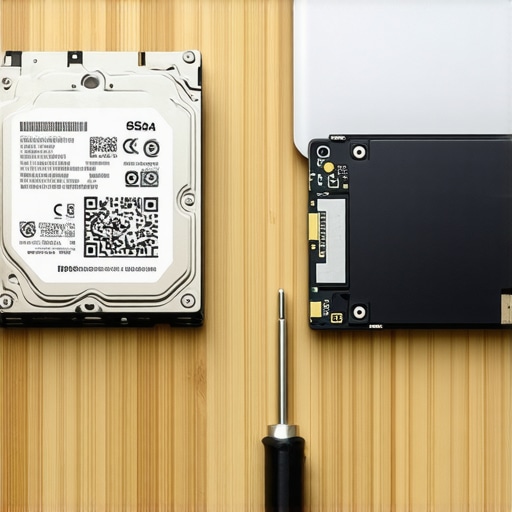
The Magic Adapter That Salvages Your Files
This is where the magic happens. You do not need a whole new computer; you just need a “SATA to USB” adapter or a drive dock. It is essentially a translator that lets your modern laptop talk to your old drive. When I first used one, I was shocked at how simple it was. I plugged the old drive into the adapter, shoved the USB end into my current laptop, and it showed up as an “E:” drive, just like a thumb drive. The adapter you buy matters more than you think. A powered dock is best for 3.5-inch desktop drives because they require more juice than a standard USB port can provide. If you find that the drive connects but the files aren’t visible, you might be looking at how to pull data from a drive that shows up as an unallocated space. This usually happens when the file system is slightly corrupted but the data is still physically there.
Transfer Your Data Without Crashing the System
Once the drive is mounted, do not just “select all” and drag everything at once. Old drives can be finicky. I recommend moving folders in small batches—start with the “Users” folder, where your “Documents” and “Pictures” usually hide. If the drive starts clicking or the transfer speed drops to zero, you are dealing with a physical failure. In those cases, you will need expert techniques to save your files fast before the hardware gives out completely. For those with a working but slow drive, cloning a failing hard drive to a new SSD is often the safest way to preserve every single bit of data without stressing the old motor.
Once you have successfully pulled those files from the ‘dead’ machine, you might feel like a digital wizard. But here is the thing: most people stop there, thinking they have mastered the art of data preservation. In reality, that is when the real danger begins. I often see people move their recovered files to a modern SSD and assume they are safe forever. This is where we need to dig deeper into the nuances of hardware longevity and the myths that keep IT professionals up at night.
Cloud Sync is Not a Real Backup
I see this mistake more than any other. People tell me, ‘I don’t need a recovery plan; I use Dropbox.’ This is a dangerous misunderstanding of how file synchronization works. If a piece of ransomware encrypts your files on your laptop, the sync software dutifully uploads those encrypted versions to the cloud, overwriting your good files in seconds. In my experience, why your business backup plan is actually just a sync plan is a hard lesson that usually costs thousands in recovery fees. A true backup is immutable and disconnected from your live file system. If you aren’t versioning your data, you aren’t backed up; you’re just mirrored.
How do I know if my SSD is about to give up?
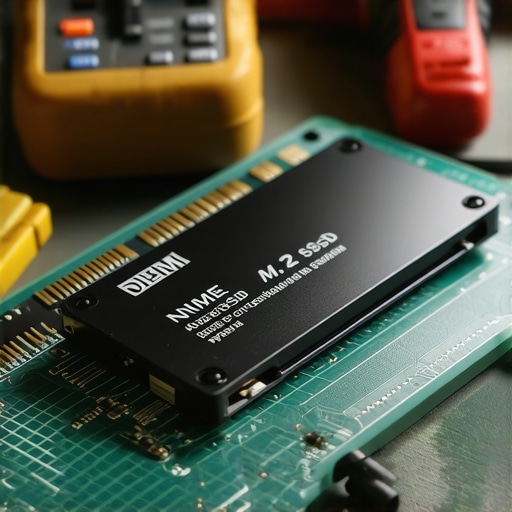
Unlike old hard drives that would groan, click, or slow down, Solid State Drives (SSDs) often fail with zero warning. They have a finite number of ‘write cycles.’ According to research from the University of Toronto on flash memory reliability, SSDs are less likely to be replaced due to age than HDDs, but they are much more likely to experience ‘uncorrectable bit errors’ that lead to sudden data loss. You need to know the sign your ssd is reaching its write limit and about to die before the controller chips lock you out forever. I always tell my clients to how to check if your hard drive is about to fail using s-m-a-r-t-data at least once a month. If those numbers start climbing, your drive is a ticking time bomb.
The Canned Air Trap and Physical Failures
Here is a specific ‘oops’ factor I see constantly: the over-aggressive cleaner. When a computer starts acting up, people grab a can of compressed air and blast the motherboard. Please, stop using canned air on your motherboard until you read this warning. The propellant in those cans can come out as a freezing liquid, causing thermal shock to sensitive components or pushing conductive dust into slots where it creates a short circuit. It is one of those costly mistakes beginners often make that turns a simple software glitch into a hardware nightmare.
Finally, let’s address the ‘clicking’ drive one more time because it bears repeating for the advanced crowd. Some DIYers think they can swap the platters or the heads of a drive in a ‘clean-ish’ room. They can’t. A single speck of dust is like a mountain to a hard drive head flying nanometers above the surface. You must understand why you should never open a clicking hard drive in a normal room. If the data is truly critical, you need expert techniques to save your files fast rather than risking a total head crash. Have you ever fallen into this trap or lost data because you thought a sync was a backup? Let me know in the comments.
After you’ve successfully dodged a data disaster, the goal shifts from rescue to endurance. I’ve seen people treat their laptops like appliances that never need a tune-up, but that’s how you end up back in the ‘click of death’ cycle. My favorite tool for keeping a pulse on hardware isn’t some expensive corporate suite; it’s a tiny, free utility called CrystalDiskInfo. It translates all that cryptic S.M.A.R.T. data into a simple ‘Good,’ ‘Caution,’ or ‘Bad’ rating. I make it a habit to check this every time I do a seasonal cleanup. If you aren’t sure what you’re looking at, learning how to check if your hard drive is about to fail using s-m-a-r-t-data is the place to start. It’s about being proactive so you never have to search for the power of data recovery tools in a state of panic.
Stop Guessing and Start Monitoring Your Hardware
In my personal toolkit, I also swear by specialized bootable environments like Hiren’s BootCD. When a machine is acting up, I don’t trust the OS to tell me the truth. I boot into a neutral environment to run stress tests on the RAM and CPU. This is the gold standard for troubleshooting common computer repair issues effectively. If the hardware passes a four-hour stress test outside of Windows, I know the problem is software-based. According to the Backblaze 2023 Drive Stats report, certain drive models show a significant spike in failure rates after just 30 months of service. This data proves that even ‘new’ equipment needs a watchful eye. If you ignore these early warnings, you’ll eventually need expert techniques to save your files fast when the drive finally gives up the ghost.
Scale Your Business Without Breaking the Bank
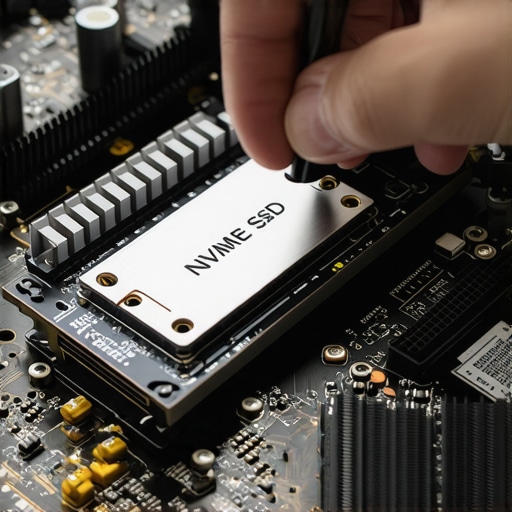
For my business clients, the conversation changes from ‘how do I fix this?’ to ‘how do I scale this without it breaking?’ This is where managed IT strategies to keep your business secure in 2025 become vital. It’s not just about antivirus anymore. It’s about how to pick a server that actually fits your growing office needs so you don’t overspend on hardware that will be obsolete in eighteen months. One specific tip: if you’re still using old workstations, performing the hardware swap that gives old office pcs five more years of life—specifically moving to high-end NVMe drives—is the single best ROI you’ll find. It’s a way how managed IT can elevate your business security by ensuring your fleet is modern enough to handle the latest encrypted updates.
How do I keep my workstation running like new for years?
The secret isn’t just software; it’s physical environment and power quality. I always recommend a high-quality UPS (Uninterruptible Power Supply) for any desktop or server. Micro-surges in the power grid do more damage to motherboards over time than almost anything else. Beyond power, you should learn how to extend the life of your office pcs by three years through proper thermal management. Replacing the thermal paste on a five-year-old CPU can drop temperatures by 10-15 degrees Celsius, instantly reclaiming lost performance. Looking ahead, I suspect we’re moving toward a world where AI models built into the BIOS will predict capacitor failure based on voltage fluctuations before the user even notices a flicker. My challenge to you: download a S.M.A.R.T. monitoring tool today and check your ‘Power On Hours.’ If you’re over 20,000 hours on a mechanical drive, it’s time to start shopping for a replacement before the choice is made for you.
What Decades of Dead Computers Taught Me About Reality
In the world of IT, we often get caught up in the specs, but the most profound realizations happen when the screen stays black. One lightbulb moment for me was realizing that humidity is just as dangerous as a power surge. I once saw a laptop that worked perfectly in a dry office but refused to boot in a coastal home because of micro-corrosion on the RAM contacts. It is a subtle example of computer repair for beginners avoid costly mistakes. Another hard truth? Most people treat their data like it is invincible until it is invisible. I have learned that ‘one copy is no copy.’ If your files do not exist in three separate places, they do not truly exist. This realization is why I tell everyone that the mistake that makes your backups completely useless is often just a lack of redundancy.
The Only Tools I Trust to Touch My Data
If you are serious about never losing a photo or a spreadsheet again, you need a reliable stack. I personally swear by CrystalDiskInfo for daily health checks; it is the early warning system every PC owner deserves. For the heavy lifting, I rely on Backblaze B2 for off-site storage because it is simple and immutable. When hardware acts up, I do not guess—I use Hiren’s BootCD to bypass the local OS entirely. These are not just gadgets; they are the data recovery secrets every business should know today to keep operations running. I trust these tools because they have saved me from the brink of disaster more times than I can count.
#IMAGE_PLACEHOLDER_E#
Take the Fear Out of Technology
Technology should serve you, not scare you. Whether you are extracting a decade of memories from a dusty tower or implementing managed IT strategies to keep your business secure in 2025, the key is consistency. You do not have to be a wizard to keep your hardware alive—you just have to be observant. If you ever feel overwhelmed or stuck with a drive that will not cooperate, remember that there is no shame in reaching out to pros who live for these challenges. You can always contact us if the extraction gets too complex. Your digital history is worth the effort. Have you ever had a ‘near-death’ experience with your data where a simple tool saved the day? Let me know below.