

I sat there in the dark at 2 AM, the only sound in the room being a rhythmic, metallic skritch-skritch-skritch coming from my desktop tower. My stomach didn’t just drop; it evaporated. That sound—the unmistakable ‘click of death’ or, worse, the ‘scrub of the platter’—is the mechanical equivalent of a scream. I had three years of family photos and a half-finished client project on that drive, and I hadn’t backed it up in months. It is a gut-wrenching feeling that every computer owner fears, but when it actually happens to you, the panic is real. I have been through this nightmare more times than I care to admit, and I am here to tell you that while the situation is dire, your files might not be gone forever if you act exactly the opposite of how your panic-brain wants you to act. Today, I am going to walk you through the reality of recovering data from a physically failing drive and how to avoid making the situation terminal. Have you ever sat there staring at a frozen screen, listening to your hard drive grind away and wondered if this was finally the end of your digital life? If so, you are not alone. It is a terrifying moment, but we can manage this.
Why That Scraping Noise Is the Sound of Data Dying
That sound you are hearing is likely the read/write head making physical contact with the spinning magnetic platter. In a healthy drive, those heads hover nanometers above the surface. When they touch, they are not just ‘reading’ poorly; they are physically carving circles into your data. I remember the first time I heard it on an old Seagate. I thought, ‘Maybe if I just restart it one more time, it will catch.’ That was my first big mistake. Every second that drive spins while making that noise, you are losing more files. According to industry experts at Backblaze, mechanical failure is one of the leading causes of total data loss, and physical intervention is almost always required once the hardware starts to grind. The worst thing you can do is run software ‘fixes’ while the hardware is screaming. In fact, the danger of using free file recovery tools on a failing mechanical drive is that they force the drive to work harder, accelerating the physical destruction of the magnetic coating.
Can You Actually Fix a Physical Failure Yourself?
I will be honest with you: the ‘freezer trick’ or opening the drive on your kitchen table is usually a recipe for disaster. I tried the freezer method once back in 2012, thinking I was a genius who could bypass the laws of physics. All it did was create condensation inside the casing, turning a difficult recovery into an impossible one. If the drive is making a scraping sound, the hardware has failed. This is not a ‘corrupted partition’ issue where you can just pull data from a drive with a corrupted file system header using a few lines of code. This is a mechanical emergency. If you have been ignoring that SMART status bad warning for weeks, the scraping is the final result of that negligence. At this stage, your best bet is to shut it down immediately to preserve what is left. For those of you dealing with a drive that has not quite started ‘screaming’ yet but is disconnecting, you might find why your external hard drive keeps disconnecting helpful to read before things get worse. But if the scraping has started, we need to talk about professional expert techniques to save your files fast. In the most severe cases, DriveSavers remains the only choice for physically damaged drives because they have the cleanrooms necessary to open the casing without dust destroying the platters forever.Once you hear that scraping or rhythmic clicking, the clock isn’t just ticking; it’s counting down to a total head crash. Think of the read-write head like a needle on a record player, but instead of playing music, it has turned into a lathe carving a permanent groove into your wedding photos or quarterly tax returns. The absolute first step is to cut the power. Don’t ‘Shut Down’ via the Windows menu—hold that physical power button until the lights go out. Every single rotation of those platters is a gamble you are likely to lose.
Stop the Rotation Before the Damage Becomes Permanent
If you are in the middle of [troubleshooting common computer repair issues effectively](https://computerrepairmasters.com/troubleshooting-common-computer-repair-issues-effectively), you must learn to distinguish between a drive that is ‘tired’ and one that is ‘dying.’ A tired drive might be slow; a dying drive is physically eating itself. I remember a local photographer who brought in a portable drive that sounded like a coffee grinder. He had been trying to ‘scan for errors’ using a Windows utility for six hours straight. By the time it reached my desk, the magnetic dust was actually visible inside the casing vent. We barely saved 20% of his shoot. If he had stopped at the first ‘click,’ we would have recovered everything. This is why [why your business needs a disaster recovery plan before the storm hits](https://computerrepairmasters.com/why-your-business-needs-a-disaster-recovery-plan-before-the-storm-hits) is more than just a suggestion; it is a fundamental survival tactic for your digital life. 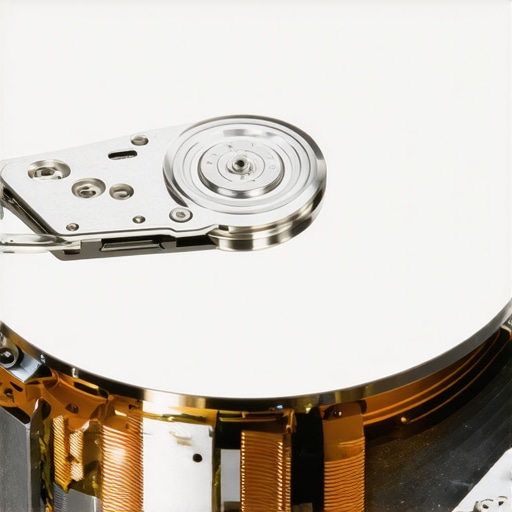
Identify the Difference Between Soft and Hard Failures
If the drive shows up in your BIOS but causes your operating system to freeze the moment you try to open a folder, you are in the danger zone. This usually means the drive is hitting ‘bad sectors’ and the internal controller is getting stuck in a loop trying to read them. I once spent three days trying to help a small law firm that had been [ignoring that SMART status bad warning on your PC](https://computerrepairmasters.com/the-risk-of-ignoring-that-smart-status-bad-warning-on-your-pc) for weeks. They thought it was just a nagging software glitch. By the time they called me, the drive was completely unresponsive to any command.
Cloning is the Only Path to Safety
If you absolutely must try a DIY recovery because the data is not worth a $1,500 professional lab fee, you never, ever work on the original failing drive. You create a bit-for-bit clone first. [The power of data recovery tools what you need to know](https://computerrepairmasters.com/the-power-of-data-recovery-tools-what-you-need-to-know) is that specialized software can often read ‘around’ physical damage. Use a tool like ddrescue on a Linux live USB. It does not care about your file structure; it only cares about the raw ones and zeros. This is often [the move that saves your data when a partition table is corrupted](https://computerrepairmasters.com/the-move-that-saves-your-data-when-a-partition-table-is-corrupted) because it ignores the logical errors and focuses on grabbing every healthy bit left on the platter.
Why You Must Use Block-Level Tools Instead of File Explorers
I recall a specific incident with an old external drive that would stay alive for exactly 45 seconds before the controller overheated and it disconnected. By using a block-level clone tool and a massive industrial cooling fan, I was able to chip away at the data, 45 seconds at a time, over an entire weekend. It was tedious work, but we got the database back. If I had tried to simple copy-paste in Windows, the drive would have timed out and likely died before the first folder even finished indexing. Understanding these [data recovery secrets every business should know today](https://computerrepairmasters.com/data-recovery-secrets-every-business-should-know-today) can be the difference between a minor afternoon setback and a company-ending disaster. Always remember: in the world of physical hardware failure, you only get one real shot at a recovery before the mechanical parts give up for good.Many people assume that moving away from spinning platters to modern SSDs eliminates the risk of catastrophic data loss. In reality, it just changes the nature of the catastrophe. While a mechanical drive gives you a ‘heads up’ with a click or a grind, an SSD often fails silently and instantly. I’ve seen countless professionals lose years of work because they didn’t realize that flash memory has a finite lifespan and no mechanical warning signs. In fact, research from data specialists like Ontrack suggests that while SSDs are resilient to physical shock, their electronic failure modes are far more complex to recover than mechanical ones. This is exactly why computer repair for beginners needs to start with understanding hardware limits. If you aren’t monitoring your drive’s health through deep telemetry, you’re flying blind.
Avoid the PCB Swap Trap Before Bricking Your Data
A common ‘expert’ tip found on old forums is that you can fix a dead drive by simply swapping the printed circuit board (PCB) with an identical one from eBay. This is a massive ‘oops’ factor that usually leads to permanent data loss. In modern drives, each PCB is uniquely tuned to its specific set of platters at the factory with micro-adjustments. Swapping the board without also transplanting the tiny ROM chip that contains the drive’s unique ‘adaptive’ data will likely cause the read-heads to crash or misalign. You aren’t just failing to fix it; you are potentially making the drive unrecoverable even for the pros. This is a classic example of why data recovery secrets and expert techniques are about more than just having the right screwdriver; they’re about the proprietary micro-code that lives on the silicon.
Is it worth replacing a logic board to save a bricked SSD?
Unless you have a professional-grade micro-soldering station for chip-off recovery, the answer is a hard no. It’s much safer to focus on electrical prevention. For instance, did you know that a cheap power supply is the biggest threat to your office hardware because it can send a voltage spike that fries the controller on your ‘invincible’ SSD? Even in managed IT environments, I see businesses skip the small stuff. They think they’re safe because they use OneDrive or Google Drive, but your managed IT provider needs a disaster recovery plan specifically for you to handle local hardware failure. Have you ever fallen into this trap where you thought a ‘quick fix’ was the answer, only to make it worse? Let me know in the comments. 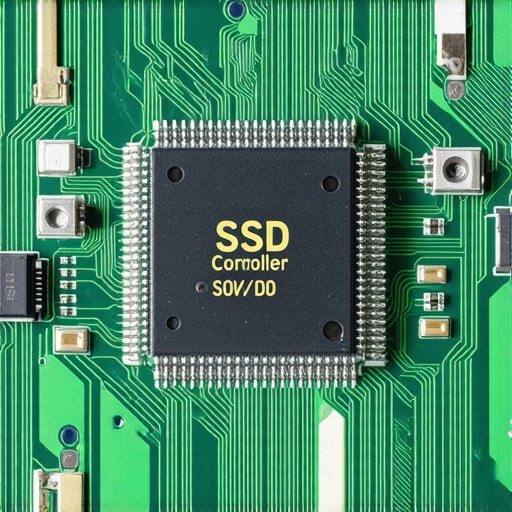
Your Screen Flickering is a Warning Not Just a Glitch
Moving away from storage for a moment, let’s talk about laptop displays. Most people think a flickering screen is just a loose cable or a bad panel. However, I often find it’s actually the early signs of a motherboard VRM failure or an inverter issue. If you don’t know how to identify a dying backlight before your screen goes dark, you might waste hundreds on a replacement panel when the issue is actually the power delivery system on the mainboard. The nuance here is that professional repair is rarely about the part that ‘looks’ broken; it’s about tracing the circuit that feeds it. Understanding these subtleties is what separates a professional technician from a hobbyist who just swaps parts until something works.It is one thing to fix a crisis, but it is another to build a system where the crisis never happens. When I work with growing companies, I tell them that effective managed IT solutions for growing companies are not just about calling a technician when the internet is down. It is about RMM—Remote Monitoring and Management. We use tools that ping your hardware every few minutes. If a fan slows down by 10% or a voltage rail fluctuates, we get an alert before the CPU even starts to throttle. This level of managed IT strategies to keep your business secure in 2025 is what keeps you from having that 2 AM panic I experienced.
Stop Chasing Problems and Start Predicting Failures
If you are scaling a team, managed IT solutions streamlining operations for small businesses is the only way to avoid the inevitable hardware ‘death by a thousand cuts.’ I personally rely on telemetry data because hardware rarely just ‘dies’—it gives off subtle clues. I recommend monitoring your drive’s S.M.A.R.T. data using the raw values defined in the ATA8-ACS specification. Most people look at the ‘Pass/Fail’ status, but by the time that flips to ‘Fail,’ your data is already cooked. I look at the ‘Reallocated Sectors Count.’ If that number moves even once, I retire the drive. There is no middle ground. This is one of those data recovery secrets and expert techniques that pros use to save files before the mechanical failure becomes physical. #IMAGE_PLACE_HOLDER_D#
The Tools That Actually Save Data When Windows Fails
When the operating system is too bogged down to respond, I reach for a specialized Linux-based recovery environment. Windows is too ‘chatty’—it tries to mount every partition and repair every error, which is exactly what kills a dying drive. Using something like ddrescue allows me to focus on the healthy bits first. This is the power of data recovery tools you need to know: they allow for non-linear reading. If the tool hits a bad patch, it skips it and comes back later, rather than grinding on the same spot until the head snaps. It is the same logic we use for laptop screen replacement step-by-step repair; you do not just start pulling; you use specific tools to mitigate collateral damage.
How do I keep my hardware alive for a decade?
Maintenance is about heat and electricity. I have seen laptops last ten years simply because the owner performed a yearly ‘blow out’ of the heatsink and used a high-quality surge protector. Remember, why a cheap power supply is the biggest threat to your office hardware cannot be overstated; ripple voltage will slowly kill the capacitors on your motherboard and SSD. If you want longevity, invest in a pure sine wave UPS.
Why Telemetry is the Future of Computer Maintenance
Looking ahead, I predict that ‘passive’ repair will disappear. We are moving toward AI-driven predictive failure analysis where your computer will essentially order its own replacement parts before they break. This isn’t science fiction; it is already happening in high-end data centers and is trickling down to managed IT to elevate your business security in 2025. Before you close this tab, I want you to do one thing: download a tool like CrystalDiskInfo and check your ‘Reallocated Sectors Count.’ If it is anything other than zero, stop what you are doing and start your disaster recovery plan immediately.
Lessons Bought With the Tears of Corrupted Data
Over the years, I have seen it all, and if there is one thing I have learned, it is that a redundant system that has not been tested is not actually redundant. I used to believe that having a RAID setup meant I was invincible, but RAID is not a backup; it is just uptime insurance. The most painful lesson was realizing that computer repair for beginners often starts after the damage is done because we wait for a sign instead of acting on a trend. If I could go back, I would tell my younger self that silence is not health; it is just the absence of an alarm. Every mechanical drive is a ticking clock, and every SSD is a silent fuse. The moment you stop treating your data as permanent is the moment you actually start protecting it.
The Only Toolkit You Need to Survive a Digital Disaster
I do not just recommend these tools because they are popular; I recommend them because they have saved my career more than once. First, keep a Linux Live USB with ddrescue ready; it represents the power of data recovery tools you need to know when your OS refuses to cooperate. Second, I swear by CrystalDiskInfo for monitoring the S.M.A.R.T. status of my drives. Third, invest in a high-quality UPS—remember, a cheap power supply is the biggest threat to your office hardware, and that extends to the quality of electricity coming from your wall. These aren’t just gadgets; they are the frontline of your digital defense.
Take Control Before the Screeching Starts
The transition from panic to preparedness is the most empowering shift you can make as a computer owner. You do not have to live in fear of the click of death if you have already built a system that anticipates it. Whether you are managing a fleet of workstations or just your personal laptop, the principles of computer repair and data integrity remain the same: monitor early, act fast, and never trust a single point of failure. You have the knowledge now to stay ahead of the curve and keep your digital legacy intact. Have you ever had a hard drive fail at the absolute worst possible moment? Let me know how you handled it in the comments below!