

I’ll never forget the night my desk started smelling like an industrial dryer. I was deep into a gaming session, and my palms were literally sweating—not from the intensity of the boss fight, but from the heat radiating off my keyboard. I reached down to adjust my chair and accidentally touched the bottom casing. I swear, I could have fried an egg on it. That was the moment I realized my expensive gaming rig was slowly committing suicide by heat exhaustion. If you’ve ever felt that localized heat through your jeans or heard your fans screaming for mercy, you know exactly the kind of anxiety I’m talking about. We spend thousands on these machines, yet they often lack the breathing room they desperately need.
Stop Treating Your Laptop Like a Toaster
Most of us treat our laptops like invincible tanks, but they’re more like delicate high-performance engines squeezed into a shoebox. When I first started out, I made the classic mistake of gaming on my bed. I figured since I had a cheap cooling pad from a bargain bin, I was safe. I wasn’t. By blocking the intake vents with my duvet, I forced the machine to recycle its own hot air. This led to a massive performance dip, and eventually, I saw the sign my CPU was thermal throttling just to keep from melting. It’s a terrifying feeling when your investment starts stuttering like a 1990s dial-up modem. The good news? You don’t have to live with a pocket-sized furnace. Today, we’re going to walk through the real-world fixes that actually move the needle, from simple software tweaks to the hardware maintenance that scares most people off. We’ll look at how to tell if your system is just dusty or if there’s a deeper mechanical failure. Have you ever had your laptop shut down in the middle of a match because it got too hot? Drop a comment below; I want to know I’m not the only one who’s faced the thermal shutdown of doom.
Is repasting your CPU actually worth the risk?
This is the big one that keeps people up at night. There’s a lot of fear around opening up a laptop, especially if you’re worried about making costly mistakes during your first repair. But here is a surprising fact: according to hardware performance research by Thermal Grizzly, factory-applied thermal paste is often subpar or poorly applied, and replacing it with a high-quality compound can drop temperatures by as much as 10 to 15 degrees Celsius. That is the difference between your laptop living for three years or ten. It’s also why your computer gets incredibly loud even during basic tasks—it is struggling to move heat away from the core components. We are going to demystify this process and look at airflow physics so you can breathe life back into your machine without the heart palpitations.
Blast out the hidden dust bunnies
Think of your laptop’s cooling vents like a human’s airway; if they’re clogged, the machine is essentially trying to run a marathon while breathing through a cocktail straw. The very first thing you need to do is grab a can of compressed air. Do not—I repeat, do not—use a vacuum cleaner, as the static electricity can fry your motherboard faster than the heat ever could. Aim the nozzle at the intake and exhaust grills. You’ll likely see a grey cloud erupt from the machine. I remember working on an old workstation that hadn’t been cleaned in three years; when I hit it with the air, so much dust flew out that it actually tripped my smoke alarm. This simple act of maintenance is the most effective way to tell if your computer power supply is failing or just dusty. If the fans suddenly quiet down after a good cleaning, you’ve just saved yourself a hundred-dollar repair bill.
The messy reality of repasting your CPU
Once you’ve cleared the airways, it’s time to look at the ‘heart’ of the cooling system. If your laptop is more than two years old, that factory thermal paste has likely turned into a brittle, crusty insulator rather than a conductor. I’ll never forget the first time I tried to repaste my own rig. I was so nervous about computer repair for beginners and making costly mistakes that I used way too much paste. It looked like a marshmallow had exploded under the heatsink. The result? My temps actually went UP because the layer was too thick. You only need a tiny, pea-sized drop in the center. When you tighten the heatsink back down, the pressure spreads it perfectly. This creates a seamless bridge for heat to travel from the silicon to the copper pipes. It is a surgical procedure for your PC, but when done right, it is the single most effective way to stop the sign your CPU is thermal throttling and regaining those lost frames per second.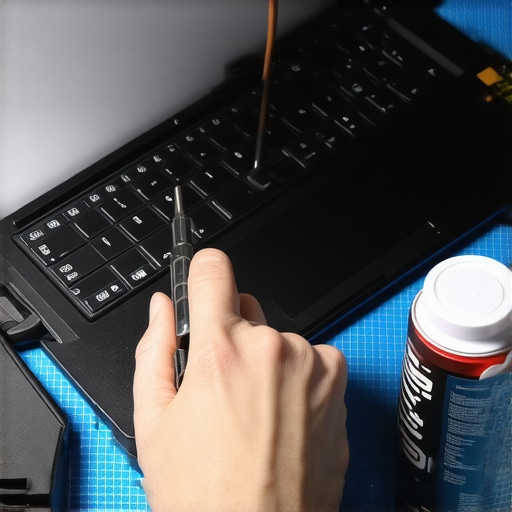
Don’t let a bad fan kill your motherboard
Sometimes the problem isn’t just dirt; it’s mechanical failure. If you hear a grinding, clicking, or rattling noise, that’s a bearing in the fan giving up the ghost. A dying fan can’t maintain the RPMs needed to exhaust heat, which puts immense stress on other components. I’ve seen cases where ignoring a loud fan led to extreme heat that warped the chassis, and in one nightmare scenario, a cracked laptop screen can eventually damage your motherboard because the heat was so intense it weakened the plastic hinges and internal connections. You need to learn how to fix a laptop that keeps telling you the fan has failed before the damage becomes permanent. Replacing a fan is usually a $20 part and thirty minutes of work, which is a small price to pay to protect your entire system.
Why undervolting is a free performance boost
If hardware tweaks aren’t enough, you need to look at the software side. Most laptops are fed more voltage than they actually need to stay stable. This ‘over-volting’ from the factory is a safety margin for the manufacturer, but it generates massive amounts of wasted heat. By using tools like Throttlestop or Intel XTU to ‘undervolt’ your processor, you are essentially telling the CPU to do the same amount of work but with less electricity. The result is a cooler chip and longer battery life without any loss in speed. When I finally dialed in the undervolt on my gaming laptop, my peak temperatures dropped by 12 degrees instantly. It’s one of those troubleshooting common computer repair issues effectively techniques that feels like a cheat code because it costs zero dollars and provides immediate relief to your hardware.
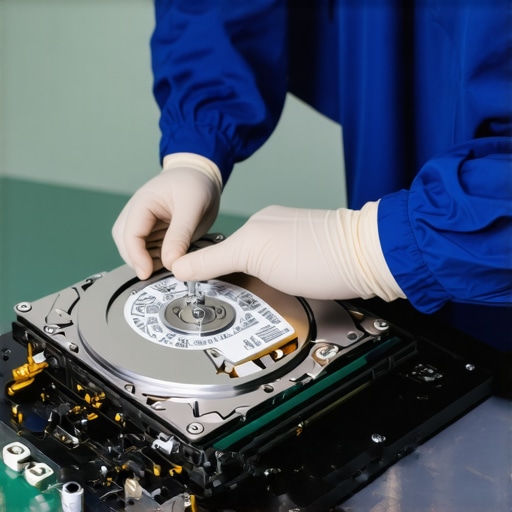
While clearing out dust and undervolting are great first steps, there is a point where ‘DIY’ shifts from helpful to hazardous. Let’s talk about the biggest mistake I see: the belief that software can fix a hardware death spiral. Everyone says you should download a ‘recovery tool’ the moment a drive starts acting up, but in my experience, that is the fastest way to lose your data forever. If your drive is making a clicking or grinding noise, it is experiencing a mechanical failure. Running software on it keeps the drive spinning, which literally grinds the data off the platters. You have to recognize the danger of using free file recovery tools on a failing mechanical drive before you turn a $300 recovery into a $3,000 cleanroom nightmare. According to data recovery experts at Ontrack, up to 90% of home-recovery attempts on physically damaged drives result in permanent data loss because people don’t know when to stop. Sometimes, why DriveSavers remains the only choice for physically damaged drives becomes painfully clear only after it’s too late.
Managed IT is more than just a remote help desk
For those running a business, the nuance shifts from individual components to entire ecosystems. Most owners think Managed IT is just a fancy way of saying ‘guy I call when the printer breaks.’ This is a dangerous misconception. True why managed IT is a game changer for growing companies lies in proactive threat hunting and business continuity. If you are waiting for something to break before you fix it, you’ve already lost money. Modern managed IT strategies to keep your business secure in 2025 focus on zero-trust architectures and automated backups. I’ve seen small firms lose weeks of work because they thought a single cloud sync was a ‘backup.’ It isn’t. You need data recovery secrets and expert techniques to save your files fast when the worst happens, but you’d much rather have a system that never fails in the first place. Have you ever fallen into the ‘reactive’ IT trap where you only fix things once they smoke? Let me know in the comments.
Can a simple cracked screen actually destroy your motherboard?
This is the ‘Oops’ factor that catches almost everyone off guard. People see a small crack in the corner of their laptop and think it’s just a cosmetic annoyance. They keep using it, opening and closing the lid dozens of times a day. What they don’t see is that a cracked screen often compromises the structural integrity of the hinges. As those hinges stiffen or misalign, they put immense pressure on the thin plastic or magnesium frame that holds your motherboard in place. I have seen countless units where a cracked laptop screen eventually damaged the motherboard because a hinge snapped and took a piece of the PCB with it. Whether you are dealing with a screen or trying to recover critical documents from a water damaged desktop tower, the nuance is always in the physical stress points. Don’t ignore the small signs. If you’re just starting, check out our guide on computer repair for beginners to avoid costly mistakes that could end up costing you the whole machine.
Now that we’ve covered the catastrophic ‘oops’ moments, let’s talk about the gear that keeps those disasters from happening in the first place. You don’t need a professional lab to maintain your machine, but you do need to stop using the butter knife from your kitchen drawer to pry open cases. I personally swear by a dedicated precision toolkit like the iFixit Pro Tech kit because it includes ESD-safe spudgers. These little plastic tools are the difference between a clean repair and accidentally shorting out a connector because you used a metal screwdriver to move a ribbon cable. If you are following a laptop screen replacement step-by-step repair guide, having the right suction cups and opening picks makes the job a breeze instead of a nightmare. Beyond the physical tools, you need to be troubleshooting common computer repair issues effectively by using a bootable environment like Hiren’s BootCD PE. This allows you to test your hardware without even loading your main operating system, which is a lifesaver when you’re trying to isolate a software glitch from a hardware failure.
Don’t trust your luck to generic screwdrivers
Most people don’t realize that laptop screws are incredibly soft. Using a slightly-off-size Phillips head will strip the screw head in seconds, turning a simple maintenance task into a drilling operation. When you are looking for the hardware upgrade that actually speeds up your daily workflow, like adding more RAM or a faster NVMe drive, the ease of that upgrade depends entirely on your entry tools. I always recommend a magnetic screw mat to keep track of where everything goes. I once lost a single internal screw that found its way into my cooling fan; the rattling sound it made sounded like a woodchipper. #IMAGE_PLACE_HOLDER_D#
How can I keep my machine running for five years or more?
Maintenance is a marathon, not a sprint. Every six months, you should be checking your drive health. I follow the advice of Steve Gibson, the creator of SpinRite and a legend in the data maintenance world, who emphasizes that data integrity relies on the physical health of the storage media. You should use an ultimate guide to data recovery after accidental deletion if the worst happens, but proactive scanning for bad sectors can warn you months before a drive actually dies. If you see a weird color shift or a lingering dot, you can often fix a laptop screen with a stuck pixel using software tools that cycle colors rapidly to ‘wake up’ the transistor. It doesn’t always work, but it’s a free fix that saves you a $200 panel replacement. As we look toward the next few years, I predict we will see more ‘self-healing’ firmware in consumer laptops—systems that can automatically detect a failing fan bearing or a swelling battery and throttle performance to prevent a fire or total board failure before the user even notices a problem. For now, the best thing you can do is download a S.M.A.R.T. monitoring tool today and check your drive’s ‘Power-On Hours’ and ‘Reallocated Sectors Count.’ It is the single most accurate crystal ball we have for hardware longevity.
The Hardest Truths I Learned While Keeping Machines Alive
After years of tearing down laptops and rescuing fried components, I’ve realized that the most expensive repairs are almost always the most preventable. If there is one piece of advice I can give, it is that your computer speaks to you long before it dies; you just have to listen to the fan speeds and the click of the drive. I learned the hard way that ignoring a slight rattle in the casing or a warm palm rest is just an invitation for a total system failure. Another lightbulb moment was realizing that performance isn’t just about the CPU speed—it is about the environment. A clean machine in a cool room will outlive and outperform a ‘spec-monster’ that is suffocating in its own dust. Finally, I’ve seen too many people lose everything because they trusted a failing drive to ‘last one more week.’ When the hardware tells you it is tired, believe it.
The Gear I Keep in My Laptop Emergency Bag
You don’t need a lab, but you do need these essentials to handle troubleshooting common computer repair issues effectively. First, I always carry a precision toolkit with ESD-safe spudgers to avoid shorting out delicate boards. Second, I rely on monitoring software like HWiNFO to catch thermal issues before they lead to permanent damage. Third, I keep a dedicated external drive for immediate local backups, because relying solely on the cloud is a gamble during a hardware crisis. These tools have saved my data and my wallet more times than I can count, especially when the hardware upgrade that actually speeds up your daily workflow is simply keeping your current gear running at peak efficiency.
Take Control of Your Hardware Today
It is easy to feel intimidated by the complexity of modern electronics, but you have more power than you think. Whether you are learning computer repair for beginners to avoid costly mistakes or just cleaning your vents for the first time, every small act of maintenance extends the life of your tech. Don’t wait for the blue screen or the smell of smoke to take action. From managing your temps to knowing when to call in the pros for data recovery secrets and expert techniques, you are now equipped to be the master of your machine rather than its victim. Keep it cool, keep it clean, and your hardware will serve you for years to come. Have you ever had a laptop get so hot it actually left a mark on your desk? Let me know your thermal horror stories in the comments below!