

I was sitting in my favorite worn-out armchair, the house silent except for the hum of my laptop, when the display just vanished. One second I was typing an urgent email; the next, I was staring at a black reflection of my own confused face. I panicked. I poked every key, held the power button until my finger hurt, and even started worrying about data recovery because I was sure the whole machine had fried. It turns out, I was looking at the problem all wrong. My laptop wasn’t dead; it was just ‘blind.’ I ended up wasting a fortune on a replacement I didn’t need because I didn’t recognize the classic signs of a failing backlight. Today, I’m sharing the shortcut to knowing if your hardware is actually toast or just needs a simple fix. Have you ever stared at a dark screen and felt that sinking feeling in your gut?
My Expensive Mistake and Why You Should Keep Your Wallet Closed
Early in my career, I misdiagnosed a dim screen as a catastrophic GPU failure. I stripped the machine down, replaced the motherboard, and still had the same issue. It was a humbling, expensive lesson. Most of the time, troubleshooting common computer repair issues effectively starts with the simplest check possible. According to industry data from LEDs Magazine, while LED backlights are rated for up to 50,000 hours, heat and physical stress often cut that life short. If you can still see a ‘ghost’ image of your windows by shining a bright flashlight directly against the glass, your backlight is the culprit, not your expensive internal chips. You might even notice that your laptop screen flickers only when the brightness is low, which is often the hardware’s way of crying for help before it gives out entirely. [image_placeholder]
Does a dark screen mean I have to buy a whole new laptop?
I get this question from my neighbors all the time. They see a dark display and assume the ‘brain’ of the computer is gone. In reality, laptop screen repair is almost always cheaper than a new machine. It’s a bit like a lightbulb burning out in your fridge; the fridge still keeps the milk cold, you just can’t see the cheese. Before you go shopping, we need to distinguish between a backlight that’s totally dead and other oddities, like the reason your laptop screen is white or why it shows strange horizontal black bars. Let’s walk through the exact steps I use now to save my friends from making the same expensive blunder I did years ago.
Master the Flashlight Trick to Save Your Sanity
The very first thing I do when a screen goes dark is grab my smartphone and turn the flashlight on high. Think of your laptop screen like a piece of stained glass; it has the colors and the shapes, but without a light shining from behind it, everything looks black. By pressing your flashlight directly against the glass at a steep angle, you are providing that missing light manually. If you can see the faint, ‘ghostly’ outline of your desktop icons or a browser window, your LCD is actually working fine, but your backlight or inverter has died. In this scenario, laptop screen replacement is usually the only permanent solution, but it is a targeted fix rather than a blind guess. I remember a client who brought in a high-end workstation convinced they needed how to rescue files from a laptop with a damaged motherboard because the screen was pitch black. We did the flashlight test right there on the counter, saw his wallpaper, and his face went from pure panic to total relief. It wasn’t a dead brain; it was just a dark room inside the display. 
Connect to a Second Screen to Rule Out the GPU
If the flashlight test shows nothing but black void, the next step is to bypass the laptop screen entirely. Plug your machine into a TV or an external monitor using an HDMI cable. This is the ultimate ‘sanity check’ for computer repair for beginners. If the image pops up perfectly on your TV, you know your graphics card and motherboard are healthy. However, if the external monitor stays black too, you might be dealing with a deeper hardware failure or a strange software glitch, such as why your laptop screen goes black when you plug in a monitor. This simple cable connection separates a $100 screen fix from a $1,000 motherboard replacement.
Don’t Ignore the Early Warning Signs
Hardware rarely just ‘dies’ without a fight. It usually sends out SOS signals weeks before the final blackout. One of the most common signs is when your display starts acting up only under specific power conditions. For instance, your laptop screen flickers only when the brightness is low, which often indicates that the voltage going to the backlight is unstable. I once spent three hours debugging software for a friend whose screen was flickering, only to realize the ribbon cable inside the hinge was frayed. Every time he opened the lid, he was physically pinching the ‘veins’ of his monitor.
Check for Physical Frame Stress
Another thing I always look for is the physical integrity of the machine. If you notice a gap in the plastic around your screen, you should learn laptop screen repair DIY tips before that pressure snaps the internal glass. A loose hinge can put immense pressure on the delicate display cables, causing intermittent blackouts that eventually become permanent. By catching these physical shifts early, you prevent the hardware from reaching the point of no return.Let’s dig deeper into the mechanics of why a display fails because, in my years of bench work, I’ve found that the hardware itself is often a scapegoat for other culprits. Everyone says that a black screen is a hardware death sentence, but in my experience, software conflicts can mimic a total component failure with terrifying accuracy. I’ve seen users spend hundreds on new LCD panels when the real issue was a corrupted driver or a malicious script. One of the most common traps is falling for the truth about the system fix pop-up on your desktop. These rogue programs can hijack your display settings or even disable the backlight via software to extort a ‘repair fee.’ Before you assume the glass is broken, ensure you aren’t being held hostage by a clever bit of code.
Why Cheap Power Bricks Are Screen Killers
Another nuance that most beginners miss is the relationship between your power supply and your display’s health. You might think a charger is just a charger, but the truth about using generic chargers on expensive business laptops is that they often deliver unstable voltage. This ‘dirty’ power can cause the inverter or the LED driver on your motherboard to overheat and fail. I once saw a high-end gaming rig start displaying a strange aura because of a $15 knock-off charger; knowing how to fix a laptop screen that has a faint red glow around the edges usually starts with checking your power source, not the screen itself. According to a study by SquareTrade, nearly 31% of laptops fail within the first three years, and a significant portion of those failures are linked to power-related issues that cascade into display and motherboard damage. 
Why Does the Screen Work in BIOS but Fail in Windows?
This is the ultimate ‘pro’ question I get. If you can see your computer’s startup logo or access the BIOS settings, but the screen goes black the moment Windows tries to load, your hardware is actually 100% healthy. This is a classic ‘handshake’ failure between your operating system and your graphics chip. It’s a software trap that leads many to buy a new machine. In these cases, your data is perfectly safe, so don’t rush into data recovery secrets expert techniques to save your files fast just yet. You simply need to boot into Safe Mode and roll back your display adapters.
Stop Treating Data Recovery Like a Last Resort
Most people wait until their laptop is a literal brick before they think about their files. This is a massive mistake. When a screen starts acting up—maybe it flickers or shows lines—your priority should be securing your information. If the screen failure is caused by a short circuit, it can easily jump to the storage drive. Understanding the move that stops an SSD from failing during a power surge can save your professional life. For small business owners, this is where managed IT solutions streamlining operations for small businesses become invaluable. Instead of reacting to a dead screen, a managed service ensures your data is mirrored in real-time, so a hardware ‘blackout’ is a minor hardware swap rather than a business-ending catastrophe. If you find yourself in a spot where the screen is gone and you can’t get an external monitor to work, you’ll need to know how to rescue files from a laptop with a damaged motherboard. Have you ever fallen into this trap of misdiagnosing a simple software glitch as a hardware disaster? Let me know in the comments.
The Three Tools That Live in My Repair Pouch
Whenever I’m tackling a screen issue, I don’t just reach for a generic toolkit. I’ve learned the hard way that the wrong pry tool can turn a $50 backlight fix into a $300 full-panel replacement. I swear by the iFixit Jimmy and a high-quality digital multimeter. The Jimmy is essential because it has the perfect flex for slicing through the stubborn adhesive found in modern ultrabooks without putting pressure on the LCD substrate. According to technical documentation from iFixit, many manufacturers now use Tesa 61395 high-strength tape to secure displays, which requires surgical precision to release. Using a multimeter allows me to test the pins on the display cable before I even order parts; if the motherboard isn’t sending 19V to the backlight circuit, a new screen won’t solve anything. Learning laptop screen repair DIY tips starts with having the right gear so you aren’t fighting the hardware. I also keep a dedicated USB-C tester to ensure the power delivery isn’t spiking, as unstable voltage is the silent killer of display inverters. Knowing the power of data recovery tools is great for emergencies, but these physical diagnostic tools are what prevent the emergency from happening in the first place. 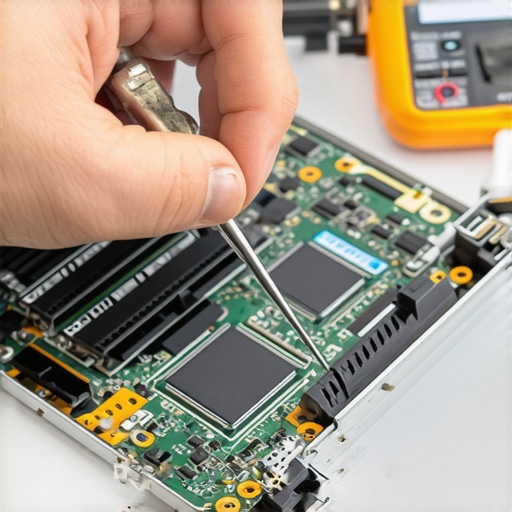
How can I keep my screen crisp for the next five years?
Maintaining a display is less about software and more about physical habits. First, stop cleaning your screen with glass cleaner; the ammonia can strip the anti-glare coating and seep into the bottom layers of the LCD, causing permanent streaks. I only use a dry microfiber cloth or a 50/50 mix of distilled water and isopropyl alcohol if things are really grimy. Second, you have to watch your hinges. I always tell people to how to tell if your laptop hinges are about to snap the frame by looking for ‘ghost’ movement when you adjust the angle. If the hinge is stiff, it’s pulling on the screen’s internal board every time you open it. For those of you in a professional setting, looking into managed IT strategies to keep your business secure in 2025 often includes hardware lifecycle management, which ensures you aren’t running machines into the ground. Looking ahead, I predict we will see more ‘self-healing’ display cables and Micro-LED tech that eliminates the backlight failure point entirely, but until then, physical care is your best defense.
Why managing a fleet requires a different playbook
If you are responsible for more than five laptops, you can’t just react to black screens as they happen. You need to scale your approach. This is where effective managed IT solutions for growing companies save the day. Instead of individual repairs, we look at telemetry data to see which models are prone to flicker or heat issues. If you’re a beginner, don’t let the technical jargon scare you off; computer repair for beginners is all about systematic observation. I want you to try this one advanced tip today: go into your display settings and check your refresh rate. If your screen feels ‘choppy’ or flickers slightly, manually dropping it from 144Hz to 60Hz can sometimes stabilize a dying display cable and buy you weeks of time to back up your data. Give that a shot and see if your display feels a little more stable.
The Hardest Lessons I Learned on the Repair Bench
I’ve spent thousands of hours staring at flickering panels, and if there is one thing I’ve realized, it’s that patience saves more money than a credit card ever will. First, never trust your eyes alone—use the tools. I once assumed a motherboard was dead when it was just a loose ribbon cable; taking five minutes to learn laptop screen repair how to fix common issues at home would have saved me a week of downtime. Second, data is fragile. Before you even unscrew the first bolt, ensure your files are safe, as the ultimate guide to data recovery after accidental deletion proves that even ‘dead’ machines have secrets worth saving. Finally, for my fellow business owners, remember that hardware is a tool, not a burden. Scaling up requires effective managed IT solutions for growing companies so you can focus on your work while experts handle the hardware hiccups. [image_placeholder]
Gear and Guides That Saved My Career
If you are serious about maintaining your tech, you need more than just a screwdriver. I personally rely on three specific resources to keep my gear running and my stress levels low. First, the iFixit teardown database is the gold standard for seeing inside a machine before you open it. Following laptop screen repair DIY tips for clearer displays helped me realize that most modern screens are held together by specialized adhesive, not just screws. Second, I use digital multimeters to monitor real-time voltage. If your power delivery is spiking, the power of data recovery tools becomes your only safety net when that power surge eventually hits the drive. Lastly, I always recommend keeping a roadmap for the future. Looking into managed IT strategies to keep your business secure in 2025 ensures that your hardware lifecycle is planned, preventing those 2 AM ‘black screen’ panics entirely.
Stop Fearing the Black Screen
A dark laptop is not a funeral; it is a puzzle waiting to be solved. Whether it’s a failed backlight, a loose hinge, or a simple driver conflict, you now have the diagnostic roadmap to identify the culprit and save your wallet. This journey into computer repair for beginners avoid costly mistakes is about more than just fixing a screen; it’s about taking control of the tools you use every day. Don’t let a hardware failure dictate your productivity or your mood. Have you ever successfully brought a ‘dead’ laptop back to life using the flashlight trick or an external monitor? Let me know in the comments below!