

I’ll never forget the smell of scorched dust and hot plastic. It was well past midnight, and I was deep into a project when I realized my palms were literally sweating against the laptop casing. The bottom of the machine felt like it was ready to melt through my mahogany desk, yet when I leaned in to listen for that comforting, familiar whir of the cooling fan, I heard absolutely nothing. Just the eerie, heavy silence of a machine that was cooking itself from the inside out. It is a helpless, gut-wrenching feeling watching a thousand-dollar investment turn into a portable space heater before your eyes, and honestly, I thought my motherboard was a goner. Today, I am going to share the hard-won lessons from that night and show you why silence isn’t always golden when it comes to your hardware.
The Eerie Silence of a Melting Motherboard
Most of us associate a broken computer with loud, scary noises. We expect to hear why your laptop fan is screaming even when you are not using it or perhaps a rhythmic clicking that signals a dying hard drive. But silence? Silence is a sneaky killer. When your computer feels hot but the fan isn’t spinning, you are usually dealing with a software glitch, a physical obstruction, or a total mechanical failure. Years ago, while I was first learning about computer repair for beginners avoid costly mistakes, I made a classic rookie move. I assumed that because I couldn’t hear the fan, the sensors must just be wrong and the machine was fine. I kept pushing it, rendering high-definition video, not realizing I had accidentally disabled my fan controller while ‘optimizing’ my system settings. That mistake cost me a perfectly good processor. I want to help you avoid that expensive paperweight scenario by troubleshooting common computer repair issues effectively before the damage becomes permanent.
Is your hardware actually built to survive this heat?
You might be skeptical and think that surely these machines are smart enough to save themselves. After all, shouldn’t it just shut off? Well, yes and no. According to official technical documentation from Intel, most modern CPUs have a maximum operating temperature—often called the T-junction—of around 100°C (212°F). Once you hit that threshold, the system is designed to ‘throttle’ or slow down to prevent an immediate fire, but it doesn’t always stop the heat from baking your battery or warping your chassis. If you have already tried the move that keeps your laptop from overheating on your lap and it is still scalding, the problem is internal. We need to find out if you just need to learn how to clean a laptop fan without pushing dust deeper inside or if it is time to look into more serious repairs. Have you ever felt that creepy warmth on your keyboard while your computer stays dead quiet? If so, you are in the right place to fix it. Let’s dive into the ‘why’ so you don’t end up needing data recovery secrets expert techniques to save your files fast after a total system meltdown.
Stop the Heat Before it Fries Your Board
The first step in any thermal emergency isn’t grabbing a screwdriver; it’s ruling out a software ‘brain fart.’ Sometimes your Operating System simply loses its grip on the hardware. Think of it like a thermostat in your house that’s stuck on ‘cool’ while the furnace is blasting. You need to verify if the hardware is actually dead or just being told to stay quiet. I remember a frantic call from a local shop owner who was convinced their server was possessed because it was burning hot but silent. It turned out a simple Windows Update had borked the proprietary fan drivers. Knowing how to fix a laptop that keeps telling you the fan has failed starts with checking your BIOS or UEFI settings. Restart your machine and mash the F2 or Delete key to enter that blue-and-grey underworld. Look for ‘Hardware Monitor’ or ‘PC Health Status.’ If the fan speed shows 0 RPM despite the heat, we have a problem.
Rule Out Digital Glitches First
Before you commit to a hardware teardown, try a hard EC (Embedded Controller) reset. Shut down the laptop, unplug the power, and hold the power button for a full 30 seconds. This drains the capacitors and forces the hardware controllers to reboot from scratch. If that doesn’t kickstart the blades, you might be looking at the hardware component that causes the most blue screens of death: failing thermal management. 
Blast Out the Hidden Dust Traps
If the software is fine, we move to the lungs of the machine. Dust is the silent assassin of the tech world. It doesn’t just block air; it acts like a wool sweater, trapping heat directly against the silicon. When I first started learning computer repair for beginners avoid costly mistakes, I once used a high-powered vacuum to clean a vent. Big mistake. The static electricity generated by the plastic nozzle created a spark that killed a motherboard instantly. Now, I only use short, controlled bursts of compressed air. You need to learn how to clean a laptop fan without pushing dust deeper inside by holding the fan blades steady with a toothpick while you spray. This prevents the motor from over-spinning and generating a back-current that can fry the circuit.
Spin the Blades Manually to Check for Life
If you’ve cleaned the vents and the fan still won’t budge, it’s time to get physical. A fan is just a tiny electric motor. Like any motor, the bearings can seize up. If you can see the fan through the bottom intake, gently nudge it with a non-conductive tool. If it feels stiff or gritty, the bearing is shot. This is often the secret to cooling down a gaming laptop that feels like a stove—replacing a five-dollar mechanical part rather than a thousand-dollar machine. If the fan spins freely but won’t turn on, the PWM (Pulse Width Modulation) wire might be loose. I’ve seen countless laptops where a simple drop jarred the tiny four-pin connector just enough to break the connection. Reseating that plug is a five-minute fix that saves hours of frustration.Everyone says that cranked-up fans are the ultimate solution to heat, but in my experience, a screaming fan is sometimes a symptom of a much deeper failure that a can of compressed air won’t touch. It is the ‘placebo effect’ of computer repair: you hear the noise, so you assume work is being done. In reality, the heat might be trapped behind a wall of ‘thermal pump-out’—where the thermal paste has literally been squeezed out from between the chip and the cooler over hundreds of heat cycles. This is the secret to cooling down a gaming laptop that feels like a stove; it isn’t about more air, it is about maintaining optimal contact between the silicon and the copper. One major ‘oops’ I see even tech-savvy users make is jumping straight to liquid metal TIM (Thermal Interface Material) without checking their materials. If your heatsink is made of aluminum, gallium-based liquid metal will cause a reaction called ‘liquid metal embrittlement,’ essentially turning your cooler into a brittle, gray powder within hours. This is why computer repair for beginners avoid costly mistakes often recommends sticking to high-quality, non-conductive ceramic pastes instead.
Why does your CPU throttle even when the fan is at 100%?
It is highly likely that your Voltage Regulator Modules (VRMs) are overheating. Most people ignore these tiny cubes surrounding the processor, but they handle the grueling task of converting power. If they get too hot, your system will slow down to a crawl to protect them, even if the CPU itself stays at a frosty 60°C. This is why managed IT strategies to keep your business secure in 2025 emphasize hardware longevity through consistent airflow across the entire board, not just the main chips. According to detailed component stress tests by Puget Systems, these secondary components are often more prone to long-term heat-related degradation than the processor itself. 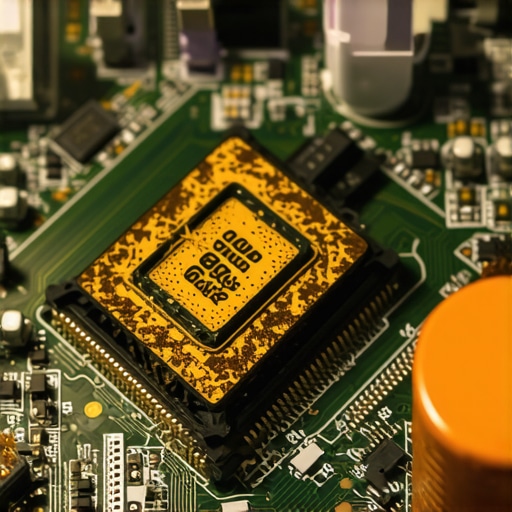 Heat also has a nasty habit of migrating to places you’d never expect. I’ve seen laptops where the internal heat was so intense it actually warped the display cables or damaged the LCD panel from the inside out. If you notice strange visual artifacts or shifting colors, you might need to look into laptop screen repair how to fix common issues at home or specifically check how to fix a laptop screen that flickers only when the brightness is low. Thermal stress can weaken the thin-film transistors in your screen, leading to permanent ghosting. Furthermore, persistent heat often triggers the hardware component that causes the most blue screens of death—the RAM. When memory modules get too hot, they start throwing bit-flip errors that crash your OS instantly. In the professional world, waiting for a fan to fail is a disaster, which is why managed IT is a game changer for growing companies. Proactive monitoring can catch a rising temperature trend weeks before a total hardware meltdown occurs. Have you ever fallen into this trap? Let me know in the comments.If you are serious about keeping your machine alive, you need more than just a screwdriver and hope. I personally swear by HWiNFO64; it is a free, highly specific diagnostic tool that provides granular sensor data most people never see. I use it to monitor individual core temperatures and look for ‘Thermal Throttling’ flags. If those flags are tripping even during light browsing, you know your thermal paste has dried into a useless crust. This is where the power of data recovery tools what you need to know becomes a secondary concern because you are actively preventing the need for them in the first place. I have found that high-quality ceramic pastes offer the best balance of longevity and performance without the risks of electrical shorts associated with liquid metals.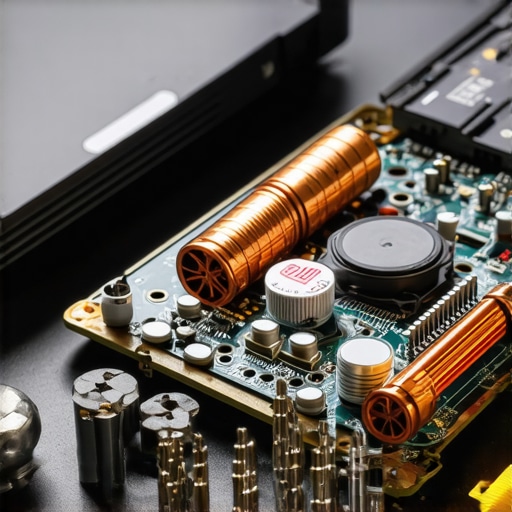
How do I maintain peak performance over the years?
Keeping a computer running smoothly is not a ‘one and done’ task. You need a schedule. Every six months, I do a deep clean that involves more than just blowing air into the vents. I check the fan bearings for resistance and inspect the capacitors for any signs of bulging. This level of detail is exactly why why managed IT is a game changer for growing companies. Scaling hardware maintenance across twenty or fifty workstations requires a centralized system to flag overheating units before the fan bearings seize completely and cause a workspace fire. In my experience, a machine that is kept clean and correctly ‘undervolted’—slightly reducing the voltage to the CPU to reduce heat output—can easily outlast its expected lifespan by several years. This is one of those managed IT strategies to keep your business secure in 2025 that saves companies thousands in unnecessary capital expenditure. Looking forward, I predict we are moving toward a world where ‘smart’ cooling systems will use local AI to predict fan failure before it happens by analyzing vibration patterns. Companies like Noctua are already experimenting with advanced fluid dynamic bearings that can self-stabilize. For now, you have to be the smart part of the system. If you really want to level up your machine, try learning how to safely upgrade your RAM without voiding the warranty while you have the case open for cleaning. It is the easiest way to give an old machine a second life without spending a fortune. I challenge you to download a sensor monitor tonight and check your ‘Delta T’—the difference between your room temperature and your CPU idle temp. If that gap is widening, it is time to act before the silence of a dead motherboard takes over.
Hard Lessons from the Silicon Graveyard
Over a decade of opening up toasted machines has taught me that hardware doesn’t just quit; it usually sends a series of frantic, whispered warnings first. Here are a few things I learned the hard way while mastering computer repair for beginners avoid costly mistakes. First, “Silent Modes” in laptop software are often the enemy of longevity. They prioritize a quiet room over a healthy processor, often allowing temperatures to spike before the fan even nudges. Second, if you aren’t using the power of data recovery tools what you need to know before a thermal event, you’re playing a dangerous game with your files. Finally, never assume a “dead” fan is a dead motherboard; I’ve seen many fans spring back to life after a simple BIOS reset or a careful cleaning.
The Hardware Saving Toolkit I Never Leave Home Without
To keep my machines from ever reaching that “smell of scorched dust” phase again, I rely on a very specific set of tools. I always recommend HWiNFO64 for any professional environment because it flags thermal throttling in real-time, which is a core part of managed IT strategies to keep your business secure in 2025. For the physical side, I trust Noctua NT-H2 thermal paste for its long-term stability and compressed air canisters with a plastic straw to reach those deep-set fins. If you really want to be thorough, a non-conductive grounding strap is essential to ensure you aren’t the one delivering the static shock that kills your board while you try to save it. These aren’t just gadgets; they are the difference between a five-minute fix and needing data recovery secrets expert techniques to save your files fast after a total meltdown.
#IMAGE_PLACEHOLDER_E#
Stop Waiting for the Smoke and Take Control Today
You don’t need to be a certified technician to prevent your laptop from turning into an expensive space heater. It starts with awareness and a willingness to poke around your settings before the hardware forces your hand. By staying proactive and learning troubleshooting common computer repair issues effectively, you extend the life of your investment and keep your data safe from thermal degradation. Whether you are managing one home laptop or fifty workstations for a firm, thermal health is the foundation of digital reliability. Have you ever felt your keyboard getting uncomfortably warm while your computer stayed eerily silent? Let me know what happened in the comments below!