

I remember the exact moment I almost threw my Synology out the second-story window. It was a Tuesday. I had three deadlines, a cold cup of coffee, and a workstation that suddenly decided my network-attached storage simply didn’t exist anymore. One minute I was editing a 4K timeline; the next, the dreaded red ‘X’ appeared over my mapped drive. It’s a special kind of hell when you know your data is sitting in a box three feet away, but your PC acts like it’s on the moon. If you have ever stared at a ‘Network Location Unavailable’ error while your blood pressure hit triple digits, you are not alone. This isn’t just a tech glitch; it is a workflow killer. Today, I am going to help you stop that cycle of disconnects once and for all.
Stop Blaming the Hard Drives
Most people immediately assume their expensive drives are failing. I did. I wasted a whole weekend running SMART tests and swapping cables, only to find out the disks were perfect. In reality, the connection between your workstation and your NAS is a delicate handshake. If your PC lets go of that hand for even a millisecond, Windows often gives up entirely. This is why troubleshooting common computer repair issues effectively requires looking at the network logic, not just the hardware. Early on, I made the classic rookie mistake of relying on the default settings of a cheap ISP router. I didn’t realize that my router was constantly reshuffling IP addresses like a deck of cards. Every time my NAS got a ‘new’ identity, my workstation got confused and dropped the link. This is one of the biggest computer repair for beginners traps you can fall into.
Is a NAS actually worth the headache?
Some of my neighbors ask if they should just go back to external USB drives. I get the skepticism. But the truth is, once you fix the underlying handshake issues, a NAS is life-changing. According to data from the IEEE, nearly 20% of local network drops in small offices are actually caused by ‘Energy Efficient Ethernet’ settings that put network ports to sleep during active data transfers. You are likely fighting a ‘smart’ feature that is actually being quite stupid. By implementing proper managed IT solutions, you can force these devices to stay awake and alert. Have you ever had your drive disappear right in the middle of a big file transfer? It’s the worst feeling, isn’t it? We are going to fix that by looking at how your router talks to your workstation. Often, the why your small business should stop using consumer-grade routers argument comes down to exactly this: stability. We are also going to look at the move that doubles your office file transfer speeds overnight while keeping that connection rock-solid. Let’s dive into the settings that actually matter.
Ditch the DHCP Roulette Once and for All
The first thing you have to do is stop letting your router decide where your NAS lives. Think of your router as a distracted receptionist. By default, it uses DHCP, which means it hands out IP addresses like temporary guest passes. If your NAS reboots, it might get a different pass, and suddenly your PC is looking for a guest who isn’t in that room anymore. I once spent six hours tearing apart a server rack for a client because their files kept ‘vanishing.’ It wasn’t a disk failure or a virus; the DHCP lease time was set to a ridiculous 300 seconds. Every five minutes, the handshake reset, and the database connection shattered. Fixing this requires assigning a static IP. Go into your NAS settings, find the Network tab, and manually set an address—something like 192.168.1.200—that stays outside your router’s normal range. This simple move is one of those troubleshooting common computer repair issues effectively habits that saves hours of future frustration.
Why Mapping by IP Address Beats Discovery Every Time
When you map a drive in Windows, you usually browse for the device name, like ‘\\MySynology’. Stop doing that. DNS and NetBIOS—the systems that translate names to numbers—are notoriously flaky on local networks. If the name resolution fails for even a second, Windows marks the drive as disconnected. Instead, map the drive using the static IP you just created, like ‘\\192.168.1.200\Files’. By bypassing the name search, you remove a huge point of failure. If you are already dealing with lost files from a previous crash, you might want to look into data recovery secrets expert techniques to save your files fast before you reset everything. Direct IP mapping is a cornerstone of managed IT strategies to keep your business secure in 2025 because it prioritizes reliability over convenience.
Kill the Green Ethernet Features That Murder Your Connection
The biggest hidden culprit in the ‘disappearing drive’ mystery is Energy Efficient Ethernet (EEE). It sounds great for the planet, but it’s a nightmare for data stability. Your network card thinks it’s being helpful by putting the port to sleep during micro-lulls in traffic. When your NAS tries to send a heartbeat signal and the port is asleep, the connection drops. Go to your Device Manager, right-click your Network Adapter, select Properties, and head to the ‘Power Management’ or ‘Advanced’ tab. Uncheck ‘Allow the computer to turn off this device to save power’ and disable anything labeled ‘Green Ethernet’ or ‘Energy Efficient Ethernet.’ 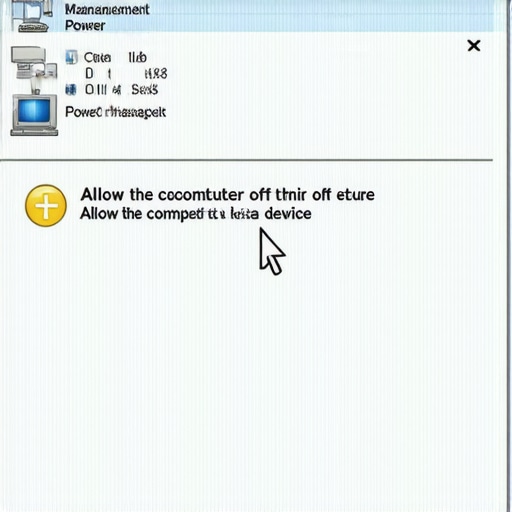 This is often the real reason behind why your office pcs are taking ten minutes to log in, as the system hangs while trying to wake up a sleeping network link.
Clear Out the Junk in Your Windows Credential Manager
Sometimes the hardware is fine, but the software is holding a grudge. Windows has a ‘Vault’ where it stores your NAS passwords. If you’ve ever changed your NAS password or updated your firmware, the Vault might be trying to log in with stale data. When the login fails silently in the background, Windows just shows the drive as disconnected. Open your Control Panel, search for ‘Credential Manager,’ and look under Windows Credentials. Delete any old entries related to your NAS IP or name. Then, remap the drive and check ‘Remember my credentials.’ This ensures a clean, fresh handshake every time you boot up. If you manage a larger team, these small tweaks are essential components of managed IT solutions that keep workflows from grinding to a halt. You may also want to ensure your traffic is handled by a proper gateway, which is why your office network needs a physical firewall not just software for better traffic prioritization.
Once you have cleared out your credentials, you might think you are out of the woods, but this is where most ‘pro’ advice actually starts to fail. We need to talk about the RAID trap. Most people believe that having a RAID 5 or RAID 6 setup means their data is ‘safe.’ In my experience, this is the most dangerous assumption you can make. RAID is an uptime tool, not a backup strategy. I have seen countless users ignore a single failing drive because they think the parity will save them, only for the stress of the rebuild process to kill a second, aging drive. According to a 2023 report by Backblaze, the annualized failure rate of drives can spike significantly during high-load operations like parity syncing. If your drives disappear during a rebuild, you are no longer looking at a simple network fix; you are looking at data recovery secrets expert techniques to save your files fast to avoid total loss.
Why RAID is a productivity tool, not a safety net
The nuance that beginners miss is that RAID doesn’t protect against file corruption, accidental deletion, or ransomware. If you delete a folder on your mapped drive, it is gone from all the disks in the array instantly. This is why managed IT solutions streamlining operations for small businesses always emphasize ‘3-2-1’ backup rules over hardware redundancy. Have you ever fallen into the trap of thinking your NAS was ‘invincible’ just because it had multiple drives? Let me know in the comments. Relying solely on RAID for safety is a classic mistake that keeps data recovery labs in business.
Can Jumbo Frames actually break your network performance?
Here is a sophisticated mistake I see all the time: enabling Jumbo Frames (MTU 9000). On paper, it sounds great—larger packets mean less overhead and faster speeds. But here is the catch: if your workstation is set to 9000 and your cheap office switch is still at 1500, your packets will fragment. This leads to ‘jitter,’ where your mapped drive stays connected but feels incredibly sluggish or times out during large transfers. If you want the move that doubles your office file transfer speeds overnight, you are better off investing in a dedicated 10GbE switch than messing with MTU settings that aren’t supported end-to-end. 
The silent killer of modern network file shares
Another nuance involves the SMB (Server Message Block) version. Windows 10 and 11 have essentially killed off SMB 1.0 for security reasons, yet many older NAS units still try to use it. If your drive disappears every time your PC sleeps, it might be a protocol mismatch. Forcing your NAS to use SMB 3.1.1 is one of the more effective managed IT solutions for growing companies that prioritize both speed and security. If you are still using legacy hardware, you might be keeping your network vulnerable to the same exploits that powered the WannaCry attacks. Always check your ‘Windows Features’ and ensure you aren’t enabling SMB 1.0 just to ‘make it work’—it’s a massive security hole.
Stop Treating Your Network Storage Like a Static Appliance
Once you have locked down your protocols, the real work shifts from fixing to monitoring. Most of us are guilty of ‘set it and forget it’ syndrome, but a NAS is a living breathing server that needs eyes on it. I personally use a lightweight tool called Uptime Kuma. I have it set to ping my internal NAS IP every 60 seconds. Why? Because it sends an instant alert to my phone the moment latency spikes. If I see my response time jump from 1ms to 100ms, I know a cable is fraying or my switch is struggling before the drive actually disconnects. This kind of proactive troubleshooting common computer repair issues effectively prevents that 3:00 PM meltdown when you are trying to ship a project. If you are managing a fleet of machines, these managed IT strategies to keep your business secure in 2025 are what separate the pros from the people constantly calling support.
How do I maintain my network storage health over the long haul?
Maintenance is not just about vacuuming dust out of the fans. It is about data scrubbing and SMART monitoring. I schedule a full Data Scrub once a month—this is a deep-level check where the NAS looks for ‘bit rot’ or silent corruption. For my SSD-based caches, I keep a very close eye on the TBW (Total Bytes Written) metrics. Knowing how to tell if your SSD is wearing out from too many writes is critical because once an SSD hits its limit, it often fails without the warning clicks of a mechanical drive. According to the Backblaze 2023 Drive Stats report, drive failure rates can stay low for years and then quintuple overnight as they hit the four-year mark. If you aren’t looking at these numbers, you are gambling with your data. Don’t wait until you need data recovery secrets expert techniques to save your files fast; replace the drive when the health reaches 10% remaining life.
Get Remote Access Without Punching Holes in Your Firewall
The moment you want to access your files from a coffee shop, most people start messing with port forwarding. Stop. Opening port 5000 or 443 on your router is like leaving your front door unlocked in a crowded city. I swear by Tailscale for this. It’s a zero-config VPN that creates a private, encrypted ‘mesh’ network between your devices. It bypasses the need for a physical firewall to handle complex routing rules for remote staff. This is the gold standard for computer repair for beginners who want pro-level security without a degree in networking. Looking ahead, I predict that ‘spinning rust’ hard drives will be almost entirely phased out of small office NAS units by 2027, replaced by high-density NVMe arrays that make these current 1GbE connection bottlenecks feel like dial-up. If you want to future-proof now, the move that doubles your office file transfer speeds overnight is to upgrade your workstation and NAS to 10GbE SFP+ cards. Here is my advanced tip for the day: if you do go 10GbE, use direct-attach copper (DAC) cables for anything under 5 meters; they run cooler and have lower latency than traditional RJ45 copper transceivers.
The Hard Truths About Network Storage I Learned the Hard Way
Over the years, I have realized that the most expensive equipment in the world is worthless if your setup lacks basic hygiene. Here are three things I wish someone had told me years ago:
- The ‘Good Enough’ Cable is a Lie: I once spent weeks chasing a phantom disconnect only to find a Cat5e cable from 2005 was the culprit. Use high-quality shielded cables; it is a cheap insurance policy.
- A UPS is Not Optional: If your NAS loses power during a write cycle, you aren’t just dealing with a reboot; you are risking a corrupted file system. A battery backup gives your server time to shut down gracefully.
- Documentation Beats Memory: Write down your static IPs and login credentials. When the network goes down at 2 AM, your brain will forget the simplest details. This is why why your business needs a documented disaster recovery plan today to avoid total panic.
Gear That Actually Kept My Sanity Intact
If you are looking to build a rock-solid environment, these are the tools I personally swear by. First, Tailscale is the only way I access my files remotely now because it eliminates the complexity of VPN configuration. Second, for offsite backups, I rely on Backblaze B2; it integrates perfectly with most NAS brands and is much more reliable than the truth about unlimited backup plans for small businesses which often have hidden throttle limits. Finally, I always suggest a proper Netgate or Ubiquiti gateway, as why your office network needs a dedicated firewall appliance becomes clear the moment you need to prioritize traffic for multiple users.
Take Control of Your Data Before It Controls You
Setting up a NAS can feel like an uphill battle, but once you move past the ‘consumer’ mindset and embrace these pro-level habits, the reliability is incredible. You don’t have to be a networking genius to have a stable system; you just need to be intentional with your settings. By applying effective managed IT solutions for growing companies, you can ensure that your files are always there when you need them. Remember to have your why your managed IT service should be auditing your cloud permissions checked regularly to keep your data safe. Have you ever lost an entire day’s work because a drive just vanished? Let me know in the comments below.