

I remember sitting at my kitchen table, coffee getting cold, while my laptop fan roared so loudly I couldn’t hear the morning news. I was just reading a simple blog post, yet my machine acted like it was trying to calculate the trajectory of a SpaceX launch. That was the moment I realized I wasn’t just browsing the web; I was being used. It’s a visceral kind of frustration when your cursor starts lagging across the screen for no apparent reason. Between you and me, I actually made the expensive mistake of thinking my hardware was failing. I almost pulled the trigger on a new machine before I realized I was just a victim of a drive-by mining script. Have you ever felt your laptop get suspiciously hot just by opening a single browser tab?
The Day I Realized My Browser Was Mining Crypto Behind My Back
Back when I was first getting serious about tech, I made a classic [computer repair for beginners mistake](https://computerrepairmasters.com/computer-repair-for-beginners-avoid-costly-mistakes) by assuming a slow PC always meant bad parts. I spent hours [troubleshooting common computer repair issues](https://computerrepairmasters.com/troubleshooting-common-computer-repair-issues-effectively) and even considered a [laptop screen replacement](https://computerrepairmasters.com/laptop-screen-replacement-step-by-step-repair-guide) because the flickering was so bad during these lag spikes. The reality was much sneakier. A website I frequented had been compromised, and it was using my CPU power to mine cryptocurrency without my permission. This is called cryptojacking, and Interpol has reported that these attacks are surging because they are so difficult for the average user to spot. Today, I am going to show you the exact ‘move’—a simple browser configuration and a specific extension—that kills these scripts instantly. We are going to stop the lag and reclaim your hardware.
Is this actually worth worrying about in 2024?
You might think your antivirus has you covered, but many of these scripts run entirely in the memory of your browser, bypassing traditional file scans. I learned the hard way that you need to be proactive. If you don’t take this step, you aren’t just dealing with a slow browser; you are literally paying the electricity bill for a stranger’s crypto farm. You might even find yourself searching for [how to identify a memory leak](https://computerrepairmasters.com/how-to-identify-a-memory-leak-that-is-slowing-down-your-workstation) when the real culprit is a hidden miner. The good news is that once you know [how to detect and remove a hidden browser miner](https://computerrepairmasters.com/how-to-detect-and-remove-a-hidden-browser-miner-from-your-network), the fix takes less than sixty seconds. It’s the ultimate ‘set it and forget it’ move for anyone who values their sanity and their computer’s lifespan.
Kill the scripts and get your CPU back
Think of your computer’s processor like a car engine. When you are idling at a red light, the engine should be quiet and cool. Cryptojacking is like a stranger sneaking into your garage while you sleep and revving your engine to the redline just to charge their own phone. You are the one paying for the gasoline and the wear-and-tear, while they get all the benefit. To stop this, we need to move past general [troubleshooting common computer repair issues](https://computerrepairmasters.com/troubleshooting-common-computer-repair-issues-effectively) and look at the live data your system is screaming at you. The most direct way to spot a thief is to open your system’s monitor—Ctrl+Shift+Esc on Windows or Cmd+Space ‘Activity Monitor’ on a Mac. If you see your browser consuming 80% or 90% of your CPU while you are just looking at a static webpage, you have found your culprit. This is often more effective than standard scans when you are [computer repair for beginners](https://computerrepairmasters.com/computer-repair-for-beginners-avoid-costly-mistakes) and don’t know where to look first.
Peek under the hood with the Browser Task Manager
Most people don’t realize that Chrome, Edge, and Brave have their own internal task managers separate from the operating system. If your whole computer is lagging, hit Shift + Esc while your browser is active. This opens a window that lists every single tab and extension along with its real-time resource usage. I remember a specific Tuesday afternoon helping a small law firm that thought they needed [managed-it-strategies-to-keep-your-business-secure-in-2025] because their entire network felt sluggish. It wasn’t a server failure; it was a single legal assistant’s browser tab running a ‘background helper’ for a sketchy PDF converter. The CPU usage for that one tab was pegged at 100%. As soon as we killed that process, the entire office network ‘speed’ returned to normal. It is a much faster fix than [troubleshooting-common-computer-repair-issues-effectively](https://computerrepairmasters.com/troubleshooting-common-computer-repair-issues-effectively) across the whole network. 
The one extension that actually works
While many ‘security’ extensions are bloated and slow you down further, a well-configured content blocker is your best defense. I personally swear by uBlock Origin. Unlike basic ad blockers, it has specific ‘Resource Abuse’ filter lists designed to catch scripts that [how-to-detect-and-remove-a-hidden-browser-miner-from-your-network](https://computerrepairmasters.com/how-to-detect-and-remove-a-hidden-browser-miner-from-your-network) would otherwise miss. You should also look into ‘NoCoin’ or ‘MinerBlock,’ which specifically target the communication lines these scripts use to send your hashes back to the attacker’s server. This is the ‘set it and forget it’ move I mentioned earlier. If you are worried about other background drains, you can use [the-simple-way-to-check-your-pc-for-hidden-background-processes](https://computerrepairmasters.com/the-simple-way-to-check-your-pc-for-hidden-background-processes) to ensure no other stowaways are hitching a ride on your hardware.
Why your browser settings are lying to you
Modern browsers try to be helpful by ‘pre-loading’ pages they think you might visit. While this sounds great, it can actually allow a malicious script to start running before you even click a link. Go into your browser settings, search for ‘Performance’ or ‘Preload pages,’ and turn it off. It might make your initial click a millisecond slower, but it stops ‘drive-by’ mining in its tracks. If you still find your machine struggling, you might be dealing with a genuine [how-to-identify-a-memory-leak-that-is-slowing-down-your-workstation](https://computerrepairmasters.com/how-to-identify-a-memory-leak-that-is-slowing-down-your-workstation), which requires a different approach. However, for 90% of ‘hot laptop’ cases, killing the miner and hardening your browser settings is the silver bullet that saves your hardware from an early grave.
Your hardware probably isn’t failing as fast as you think
Everyone tells you that a slow computer means you need a RAM upgrade or a whole new machine. In my experience, that is one of the most expensive lies in tech. Before you even think about a laptop screen replacement or a motherboard swap, you have to look at the ‘invisible’ workload. I have seen hundreds of users make the computer repair for beginners mistake of throwing away perfectly good hardware because of a software parasite. These scripts don’t just slow you down; they create heat that physically degrades your battery and processor. If you don’t address the root cause, your brand-new $2,000 laptop will feel just as sluggish as the old one within a month.
Why is your IT support waiting for things to break?
The biggest nuance that small business owners miss is the difference between ‘break-fix’ and true managed support. Most companies operate on a ‘call when it’s broken’ model, but by then, you have already lost money in downtime. This is why managed IT solutions for small businesses are moving toward proactive monitoring. A sophisticated provider isn’t just checking for viruses; they should be looking for anomalies like the browser miners we discussed. According to a report by the SANS Institute, fileless malware—which includes many browser-based miners—frequently bypasses traditional antivirus because it resides entirely in the system’s memory. If your IT team isn’t auditing your cloud permissions and browser health, they are leaving the front door wide open for resource thieves. 
The trap of thinking backup is the same as recovery
Here is a specific ‘oops’ factor I see all the time: a business owner has a cloud backup and thinks they are safe. But backup is just the data; recovery is the process of getting back to work. Without a documented disaster recovery plan, you might have your files, but you could still be offline for days trying to rebuild the environment. This applies to hardware too. I once saw a client spend a fortune on expert data recovery techniques for a drive that wasn’t even dead; the enclosure’s power supply had simply failed. If they had checked the signs of a failing external hard drive enclosure first, they would have saved $800.
Is consumer-grade hardware actually saving you money?
You might be tempted to grab a router or a laptop from a big-box retail store for your office. This is a classic trap. Consumer hardware is not designed for the 24/7 load of a business environment. This is why your small business should stop using consumer-grade routers immediately. They lack the sophisticated traffic shaping needed to prioritize your Zoom calls over a background browser script. When you invest in effective managed IT solutions, you are paying for the peace of mind that your network won’t choke when the workload gets heavy. Have you ever fallen into this trap of buying cheap gear only to have it fail when you needed it most? Let me know in the comments. We can’t let these scripts and sub-par parts dictate how we work. It’s time to take control of your workstation’s health for good.
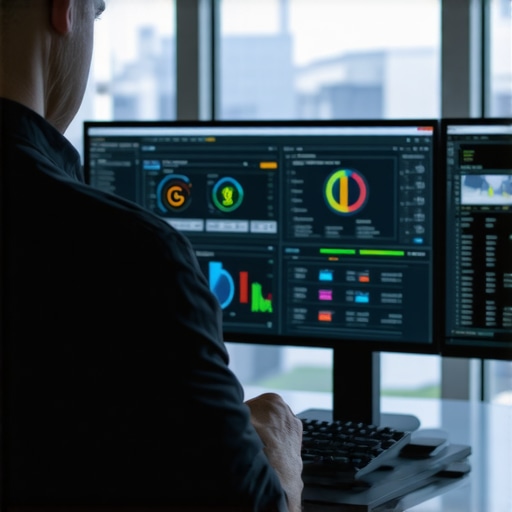
I learned the hard way that fixing a problem once doesn’t mean it stays fixed. If you want to avoid the cycle of constant troubleshooting common computer repair issues effectively, you have to transition from a reactive mindset to a proactive one. For me, that meant building a personal dashboard of tools that tell me the truth before the OS even realizes something is wrong. I don’t just wait for a blue screen; I watch the telemetry.
Why I Trust My Own Data Over Windows Warnings
Most people rely on the built-in system alerts, but by the time Windows tells you a drive is failing, it’s usually too late for a simple copy-paste. I use CrystalDiskInfo or HWiNFO64 to keep a constant eye on my hardware’s thermals and life expectancy. For example, knowing how to tell if your SSD is wearing out from too many writes is the difference between a planned afternoon migration and a 2 AM data recovery nightmare. I’ve seen countless users commit a computer repair for beginners mistake by ignoring a 5-degree rise in average temperature, only to have their motherboard fry a month later.
How do I keep my gear alive for ten years?
Maintenance isn’t just about software; it’s about physical and environmental respect. I make it a habit to check the easy way to check your hard drive’s health using SMART data every quarter. According to the Backblaze 2023 Drive Stats report, drive failure rates can vary wildly by model and age, proving that ‘hoping for the best’ is not a strategy. If you are running a business, this is why why managed IT is a game changer for growing companies. You aren’t just paying for someone to fix a broken laptop; you are paying for the tools that predict when a fan will seize or a screen will dim before it happens. Speaking of displays, keeping your visuals crisp involves more than a microfiber cloth; you should occasionally check for laptop screen repair diy tips for clearer displays to catch loose ribbon cables before they cause permanent flickering.
The Tools That Actually Save My Sanity
When I’m dealing with a machine that feels ‘off,’ I don’t just look at the Task Manager. I go deeper into the kernel levels. If your machine is dragging and you’ve already cleared the browser miners, use the simple way to check your pc for hidden background processes to see if a legitimate-looking service is actually a zombie process. I personally use Process Explorer (from the Sysinternals suite) because it lets me see the exact file path and digital signature of every running thread. If a client tells me their office is slow, we check managed IT strategies to keep your business secure in 2025, which usually involves deploying hardware-level monitoring across the whole network. This level of oversight is why effective managed IT solutions are no longer a luxury—they are a necessity for anyone whose livelihood depends on a screen. My advice? Download a portable version of HWiNFO64 right now and check your ‘Current’ vs ‘Maximum’ CPU temperatures while you have your usual twenty tabs open. If you are consistently hitting 90°C, your hardware is aging twice as fast as it should. Take a moment to see if how to tell if your laptop’s overheating is caused by dust or a dead fan can save you from a total system meltdown.
Lessons from the Repair Bench: Why Your PC Is Not the Enemy
After years of fixing systems, I have realized that 90% of ‘slow’ computers are actually just overwhelmed by invisible tasks. A common computer repair for beginners mistake is to assume the processor is dying when it is actually just fighting off a miner. My biggest lightbulb moment happened when I stopped looking at the age of the machine and started looking at the ‘silent noise’—those background processes that eat cycles while you sleep. If you want to stop troubleshooting common computer repair issues effectively, you have to start by trusting your own data over a generic ‘system is healthy’ notification.
- Software is often heavier than hardware: Your SSD is probably fine, but your browser settings might be a mess.
- Heat is the ultimate killer: A laptop running at 95°C because of a script will die years before one that stays at 60°C.
- Proactive beats reactive: Waiting for a crash means you are already behind the curve.
The Hardware Guardian’s Toolkit
I do not leave my system’s health to chance. My first line of defense is always a hardened browser configuration coupled with uBlock Origin (ensure the ‘Resource Abuse’ filters are checked). For deep dives into what is actually happening under the hood, I rely on the simple way to check your pc for hidden background processes using Process Explorer. It is significantly more detailed than the standard Task Manager. For businesses, this is exactly why managed IT is a game changer for growing companies; it moves the burden of monitoring from your plate to an expert’s dashboard, ensuring you never have to guess why the network is lagging during a pitch.
Reclaim Your Power Today
Your computer should be a tool that serves you, not a gold mine for someone else. By taking these small steps—killing the scripts, watching the temps, and hardening your settings—you extend the life of your hardware and keep your sanity intact. Do not let a drive-by script turn your expensive workstation into a space heater. Whether you are managing a single laptop or looking for effective managed IT solutions for an entire office, the goal remains the same: total control over your digital environment. Have you ever noticed your computer fan revving up for no reason only to find a specific tab was the culprit? Let me know in the comments below!