

I remember sitting in my home office at 3 AM, staring at a screen that looked like it belonged in a 1990s hacker movie. My computer hadn’t just crashed; it had developed amnesia. Instead of my familiar Windows logo, I was greeted by a wall of text screaming about a ‘CMOS Checksum Error’ and ‘Date/Time Not Set.’ All my custom BIOS settings—the ones I spent hours tweaking for peak performance—were wiped clean. I felt that cold pit in my stomach, thinking my motherboard had finally kicked the bucket. It turns out, the culprit was a tiny, five-cent silver coin called a CR2032 battery. I made the mistake of ignoring the subtle hints my PC had been dropping for weeks, and I don’t want you to do the same. Today, I am going to walk you through the early warning signs of a failing CMOS battery so you can swap it out before your settings vanish into thin air.
Your Computer is Trying to Tell You Something via the System Clock
The first sign is usually so subtle you’ll want to blame it on a software glitch or a Windows Update. You might notice your system clock is a few minutes slow every time you boot up. You sync it, go about your day, and think nothing of it. But if that clock keeps drifting, it’s not the internet time server’s fault; it’s your CMOS battery losing its ability to keep time while the power is off. This is one of those common computer repair issues that people often overlook until it’s too late. When that battery dips below a certain voltage, your BIOS loses the juice it needs to maintain the volatile memory where your hardware configurations live. Have you ever noticed your PC clock lagging behind after a long weekend of being unplugged?
Is a Tiny Battery Actually Capable of Crashing My Entire System?
It sounds ridiculous that a part the size of a nickel can bring a high-end workstation to its knees, but it’s the literal heartbeat of your motherboard’s firmware. According to technical documentation from Intel, a CMOS battery typically lasts between three and ten years, but high heat inside a case can significantly shorten that lifespan. Early in my career, I actually advised a friend to buy a whole new machine because I assumed his ‘no-boot’ issue was a catastrophic board failure. That was a huge E-E-A-T lesson for me: always check the simple things first. This is a classic example of how to avoid costly mistakes in computer repair. A dead battery can cause your PC to forget which drive to boot from, leading to a computer that powers on but won’t post to BIOS. It’s a terrifying symptom for a very cheap problem. We’re going to look at the weird hardware glitches that happen next, from disappearing peripherals to those cryptic beeps at startup, so you can stay ahead of the reset.
Listen for the Motherboard’s SOS Beeps
Before you get the dreaded ‘Checksum Error,’ your motherboard might start chirping at you. Think of these beeps like a smoke detector with a low battery; it’s an annoying but necessary alert. Each manufacturer uses a different ‘language’ of beeps, but a series of short, repetitive tones during the initial power-on sequence is a classic cry for help. If you ignore these, you might find yourself stuck with a computer that powers on but won’t post to BIOS. I once worked with a client who thought their office was haunted because a workstation would beep three times every morning at 8 AM. They were ready to call an electrician, but it was just the CMOS battery reaching its end of life. This is why many companies transition to managed IT solutions for small businesses; having a pro monitor hardware health prevents these ‘haunted’ office scenarios from slowing down productivity.
Find the Silver Coin on Your Motherboard
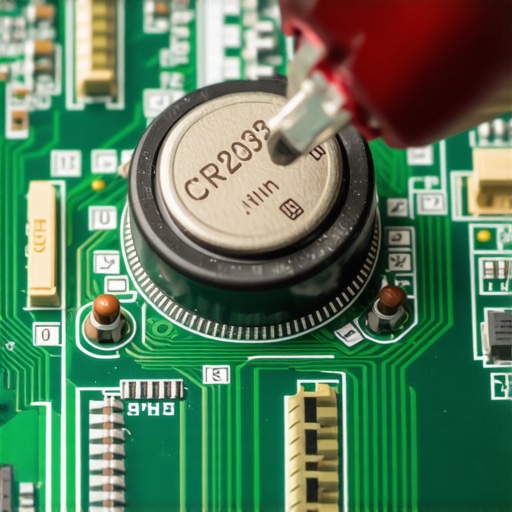
To fix this, you have to go inside the machine. If you’re on a desktop, it’s a breeze. For laptops, it’s a bit more surgery-intensive, similar to the delicacy required for a laptop screen replacement. You’re looking for a shiny, circular battery—usually a CR2032—tucked into a small plastic socket. It looks like a larger version of what you’d find in a car key fob. Before you touch anything, ground yourself to avoid static discharge. A static shock to a motherboard is like a lightning strike to a tree; it’s game over. In my early days of computer repair for beginners, I once tried to pry a battery out with a metal screwdriver while the PC was still plugged in. I saw a spark, heard a pop, and let’s just say I learned a very expensive lesson about safety that day.
The Right Way to Pop the Clip
Most CMOS batteries are held in place by a tiny metal tension tab. Don’t pull on the battery itself. Instead, use a non-conductive tool (like a plastic spudger or even a fingernail) to gently push the tab away from the battery. The coin should pop up like a toaster pastry. If it feels stuck, stop. Some modern ultrabooks use a battery wrapped in shrink-wrap with a small wire connector leading to the board. In those cases, you’ll need to follow a guide on how to replace a soldered-in battery or a specialized connector battery. While you’re in there, it’s a good habit to check for other physical issues. For instance, how to tell if your laptop battery is swelling is a vital skill because a bloated main battery can actually press against the motherboard and dislodge smaller components like the CMOS socket.
What to Do After the Swap
Once the new battery is seated, your work isn’t quite done. Since the old battery died, your BIOS settings have likely reverted to ‘Factory Defaults.’ This means your boot order might be wrong, your RAM XMP profiles might be disabled, and most importantly, your system clock is wrong. You’ll need to enter the BIOS (usually by tapping Del or F2 during startup) and manually set the time and date. This is more than just aesthetics; many security protocols and websites will block your connection if your system time doesn’t match the real world. It’s a bit like trying to board a plane with a ticket from last year—the system just won’t let you in.
While that silver coin is often the hero of the story, I’ve seen far too many people stop there and assume every other glitch is a death sentence for their hardware. There is a common belief in the tech world that if a drive isn’t showing up or a screen stays black, you’re looking at a total hardware replacement. But in my experience, jumping to the ‘it’s broken’ conclusion is the most expensive mistake you can make. Often, what looks like a catastrophic hardware failure is actually a complex logical error or a simple configuration drift that can be reversed without buying a single new part. This is where you move from basic troubleshooting to true expertise.
Don’t Assume Your Hardware Is Dead Just Because It’s Silent
Everyone says a clicking hard drive is a ‘paperweight,’ but that’s not always the case. I’ve seen drives that sound like a bag of marbles actually be saved through specialized firmware resets rather than physical platter swaps. However, the ‘oops’ factor here is massive: the moment you hear an unusual noise, stop. The biggest trap I see beginners fall into is running ‘chkdsk’ or other ‘auto-repair’ software on a drive that is physically struggling. These tools are designed for healthy drives with messy files, not dying drives with mechanical issues. Running them on a failing motor is like forcing a person with a broken leg to run a marathon to ‘see if it still works.’ You are likely to cause permanent data loss by trying to ‘fix’ it too aggressively. If you’re in a situation where the stakes are high, understanding the truth about hard drive recovery services and pricing can save you from a DIY disaster that wipes your life’s work.

Why Does Your BIOS Still Reset After Swapping the Battery?
This is the question that separates the hobbyists from the pros. You’ve replaced the CR2032, but every morning your settings are gone again. It’s infuriating, right? This often points to a failing capacitor on the motherboard that can no longer hold a charge, or a ‘leaky’ diode that is draining your brand-new battery in hours instead of years. In more complex office environments, this is why managed IT solutions for small businesses are so vital. A pro doesn’t just swap the battery; they look for the root cause of the power drain. If you’re dealing with a system that just won’t behave, you might be looking at the fix for a computer that powers on but won’t post to BIOS which involves clearing the CMOS jumpers—a step many forget. Have you ever fallen into this trap? Let me know in the comments.
The Nuance of Logical vs. Physical Recovery
There is a massive difference between ‘I deleted a file’ and ‘My drive won’t spin.’ According to the experts at Ontrack, nearly 40% of data loss is caused by human error or logical corruption rather than hardware failure. This means your data is usually still there; the ‘table of contents’ for your drive is just ripped out. If you’re tackling this yourself, you need to use the right data recovery secrets and expert techniques to clone the drive before you attempt any repairs. Never work on the original source. If you mess up the clone, you can try again. If you mess up the original, it’s gone forever. Whether you’re following an ultimate guide to data recovery after accidental deletion or trying to revive a legacy server, the rule is always the same: preserve the state of the drive first. Don’t let a five-minute mistake turn into a permanent loss. Have you ever managed to save a drive everyone else told you was dead?
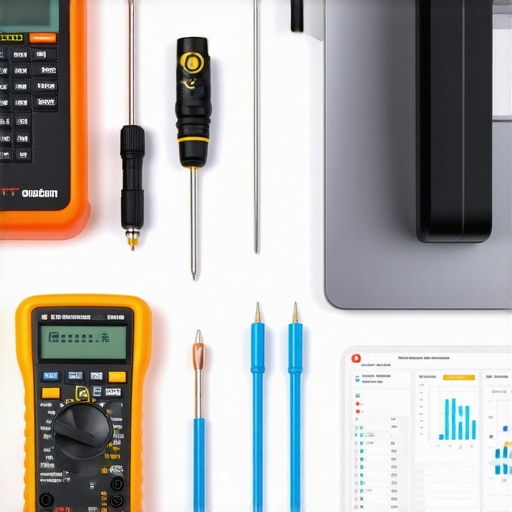
Preserving the state of your drive is just the beginning of professional-grade maintenance. To do this right, you need a toolkit that does more than just open a case. I’ve seen too many enthusiasts rely on luck when they could be using data. When I’m at my bench, my first move isn’t grabbing a screwdriver; it’s launching a suite of diagnostic software to see what’s happening under the hood. I personally swear by HWiNFO64 for thermal monitoring and CrystalDiskInfo for storage health. These aren’t just for show—they give you the raw telemetry that Windows often hides. Using the power of data recovery tools early in the process allows you to see if a drive is physically failing or just suffering from a logical hiccup.
My Go-To Toolkit for Hunting Down Gremlins
If you’re serious about staying ahead of failures, you need to know the easy way to check your hard drive’s health using SMART data. I check my ‘Reallocated Sectors Count’ and ‘Current Pending Sector Count’ monthly. If those numbers are anything other than zero, I’m already moving my data to a fresh drive. For memory issues, I don’t trust the built-in Windows Memory Diagnostic. I use MemTest86 on a bootable USB. It’s the gold standard for learning how to identify which RAM stick is causing your blue screen errors without the guesswork. When you stop guessing and start measuring, you stop being a victim of technology and start being its master. This level of detail is exactly why many growing firms lean on managed IT solutions for small businesses; it’s about having someone watch those numbers so you don’t have to.
How do I maintain my hardware’s longevity over the long haul?
Maintenance is a habit, not a one-time event. Every six months, you should be checking your thermals. High heat is the silent killer of both silicon and batteries. According to the annual drive stats report from Backblaze, drive failure rates increase significantly as they age and operate outside of optimal temperature ranges. I always tell people that learning how to tell if your laptop’s overheating is caused by dust or a dead fan is the single best way to extend your machine’s life by years. Beyond the physical, keep your software lean. I use the ‘Startup’ tab in Task Manager religiously to disable anything that doesn’t need to be there. The less strain you put on your components daily, the longer that CMOS battery and your primary SSD will last. This is a core part of how to avoid costly mistakes in computer repair—preventing the wear and tear before it requires a replacement.
Where Hardware Reliability is Heading in 2025
In the next few years, I expect we will see a massive shift toward AI-integrated firmware. Instead of just a CMOS battery failing and giving you a cryptic beep, your system will likely send a push notification to your phone weeks in advance, predicting the voltage drop before it happens. We’re already seeing ‘predictive failure’ in enterprise servers, and that tech is trickling down to consumer laptops. While we wait for the machines to get smarter, we have to stay sharper. My best advice? Check your own drive’s health right now using a free tool like CrystalDiskInfo—catching a high ‘Reallocated Sectors Count’ today could save you thousands in recovery fees tomorrow. If you see a warning, don’t wait. Backup, replace, and keep moving.
Hard-Won Secrets from the Tech Bench
One thing most motherboard manuals skip is that your BIOS isn’t just about the date and time; it often stores your RAID configurations. If the battery dies and the storage controller resets from RAID to AHCI mode, your boot drive will suddenly appear empty or unformatted. Before you panic and start researching data recovery secrets and expert techniques, check your BIOS settings first. Another ‘lightbulb’ moment for me was realizing that high environmental humidity can actually corrode the battery contacts, leading to intermittent ‘dead’ signals even when the battery has plenty of charge. Finally, always keep a spare CR2032 in your desk drawer. It is the cheapest insurance policy against a 3 AM hardware panic you will ever find. These small habits are the foundation of computer repair for beginners that actually saves money.
The Tools That Make My Troubleshooting Faster
I never start a hardware diagnostic without HWiNFO64 running in the background. It provides raw telemetry on motherboard voltages that Windows simply ignores. For storage health, I trust CrystalDiskInfo to give me the easy way to check your hard drive’s health using SMART data before the physical clicking starts. If you suspect memory is the culprit, I personally use MemTest86 for a deep soak test to find those elusive errors. In a professional office setting, I always recommend moving toward effective managed IT solutions for growing companies so you can focus on your business while a pro monitors these hardware heartbeats for you.
#IMAGE_PLACEHOLDER_E#
Reclaim Your Power Over the Hardware
Your PC is a sophisticated tool, not a black box of mystery. By paying attention to the system clock and those tiny motherboard beeps, you are taking the most important step in successful computer repair. Don’t wait for the inevitable blue screen or a total failure to post. Open the case, blow out the dust, and check that silver coin battery every few years. You now have the insider knowledge to keep your system stable and your data secure for the long haul. If you run into a hardware mystery that doesn’t make sense, don’t hesitate to contact us for a professional diagnostic. Have you ever experienced a bizarre computer glitch that turned out to be a simple five-dollar battery fix? Let me know in the comments below!