

I still remember the cold sweat that broke out on my forehead at 2:14 AM. I had been working on a massive inventory spreadsheet for three days straight, and then, the unthinkable happened: Excel froze, my screen flickered, and when I tried to reboot, I was greeted with that soul-crushing message: ‘Excel cannot open the file because the file format or file extension is not valid.’ I felt like I’d been punched in the gut. My first instinct—and my biggest mistake—was to frantically download the first ‘free repair’ tool I found on a shady forum. It didn’t fix the file; it just made my computer sluggish and reminded me why the danger of using free file recovery tools is a lesson best learned through someone else’s misfortune. Today, I want to walk you through the exact steps I use now to rescue corrupted spreadsheets without the panic.
Stop Staring at That Error Message and Take a Breath
Look, I know it feels like your hard work just evaporated into the digital ether, but I’ve learned that Excel files are surprisingly resilient if you don’t mess them up further by clicking ‘Save’ on a corrupted version. Most of the time, the data is still sitting there; the ‘table of contents’ for the file is just scrambled. This happens more often than you’d think. In fact, a study by Ontrack suggests that software corruption and human error account for nearly 24% of all data loss incidents. Whether your laptop died mid-save or your drive had a minor hiccup, we can usually pull those cells back from the brink. It’s a lot like knowing the move that stops an ssd from failing during a power surge—prevention is great, but knowing the recovery dance is what saves your weekend.
Is Your Spreadsheet Really Lost for Good?
It is the question everyone asks when they call me in a panic. The short answer? Probably not. Unless your hard drive has physically shattered, there is almost always a breadcrumb trail. We are going to look at internal repair tools, hidden temp files, and even some clever ways to pull data from a drive with a corrupted file system header if things are truly dire. Have you ever had a file just vanish right when you needed it most? Let’s make sure that never happens again. We’ll start with the simplest built-in fixes and work our way up to the more advanced ‘surgical’ methods. Stick with me, and we will get those numbers back.
Force Excel to Rebuild Your Broken Workbook
The very first move in your recovery playbook should always be the native ‘Open and Repair’ feature. Most people overlook this because it feels too simple to work, but it is effectively the ‘safe mode’ for your spreadsheets. Instead of just double-clicking the file icon, open a blank instance of Excel first. Go to File, then Open, and navigate to your corrupted file. Here is the trick: don’t just click the ‘Open’ button. Click the small arrow next to it and select ‘Open and Repair.’ I used this exact method for a local non-profit last year that thought they had lost their entire donor list. When prompted, I chose ‘Repair’ first. If that fails to revive the formatting, you can run the process again and select ‘Extract Data’ to pull out the raw values and formulas. It’s a foundational skill, much like knowing computer repair for beginners to avoid costly mistakes; you always start with the least invasive procedure before bringing out the heavy tools.
The External Link Trick for Stubborn Files
When the ‘Open and Repair’ tool throws another error in your face, it’s time to get a bit more creative. This technique essentially tricks Excel into looking at the corrupted file as a data source rather than a program it needs to execute. Open a brand-new workbook. In cell A1, type an equals sign, the name of your corrupted workbook in square brackets, and the sheet name with an exclamation point—something like ‘=[BrokenFile.xlsx]Sheet1!A1’. Then, drag that cell across and down to cover the range of your original data. It’s like using a long-distance telescope to read a book through a window when the front door is locked. I once spent four hours trying to fix a client’s corrupted sales forecast only to realize that the ‘file system header’ was the only thing broken. By using this external link method, we bypassed the corruption entirely. This is one of those data recovery secrets expert techniques to save your files fast that separates the pros from the people who just give up and restart from scratch. 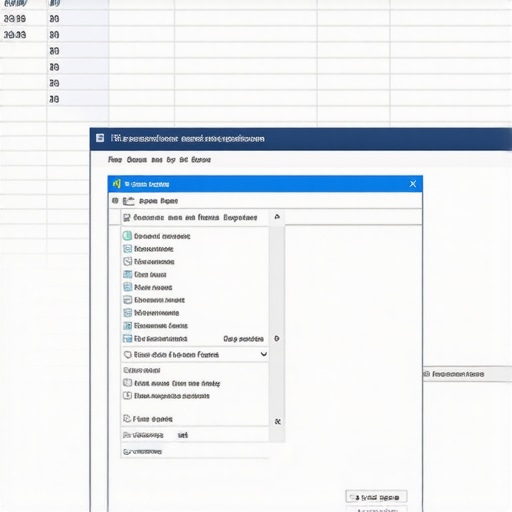
Hunt Down Hidden Auto-Recovery Folders
If the file itself is too far gone, we need to find its digital twin. Excel is constantly taking snapshots of your work in the background, but it doesn’t always tell you where it puts them. You need to dive into the ‘AppData’ folder—a place most users never see. Navigate to your local user folder, then ‘Roaming’, ‘Microsoft’, and finally ‘Excel’. You might find a series of files with cryptic names ending in ‘.tmp’ or files that look like ‘((WorkbookName))’. Change those extensions back to ‘.xlsx’ and try to open them. This logic is very similar to how to recover a word document you closed without saving. I remember a frantic Friday afternoon where a law firm’s server glitched, and their primary billing sheet went dark. We couldn’t repair the file, but we found a temp version from exactly twelve minutes before the crash hidden in that directory. It saved them forty hours of re-entry work. Relying on these manual ‘finds’ is why why your business needs a disaster recovery plan before you need it, because you never want to depend on luck alone when your core data is on the line.Most people assume that more software equals a better chance of success. They’ll download three different ‘pro’ suites and run them all at once, thinking they are being thorough. In reality, you are likely suffocating your data. If your spreadsheet disappeared because of a mechanical failure rather than a simple software bug, every spin of that disk is a high-stakes gamble. This is why the risk of ignoring that smart status bad warning on your pc is the most common reason for total data loss in my shop. You need to distinguish between a logical error, where the file system is just confused, and a physical error, where the hardware is actively dying. If you hear a faint clicking or if your laptop feels unusually hot, you must stop immediately. Trying to how to rescue files from a laptop with a damaged motherboard using standard consumer software won’t just fail; it could physically gouge the disk platters, making the data unrecoverable even for experts.
Why Deep Scanning Is Often a Death Sentence for Hard Drives
There is a dangerous myth floating around IT forums that ‘Deep Scans’ are the gold standard for recovery. While they are great for accidentally deleted photos on a healthy drive, they are brutal on a failing one. A deep scan forces the read-arm to travel across the entire surface of the platter for hours. If there is a microscopic piece of debris inside the drive—which happens when a drive begins to fail—that scan acts like a piece of sandpaper. According to a study by storage giant Seagate, the ‘Mean Time Between Failures’ (MTBF) drops drastically once a drive enters a period of high-heat vibration. By running an intensive scan, you are essentially accelerating the drive’s death. This is one of the most important data recovery secrets expert techniques to save your files fast: sometimes the best recovery technique is to turn the machine off.
Is Your Recovery Software Overwriting the Very Data You Need?
This is the ultimate ‘oops’ factor that I see every single week. When you download a recovery tool, where do you save it? If you save it to your ‘Downloads’ folder on the same laptop that lost the file, you might have just written that new software directly over the sectors where your corrupted Excel file was living. Windows doesn’t see ‘deleted’ or ‘corrupted’ space as occupied; it sees it as a blank canvas ready for new data.  To do this right, you should always run your recovery tools from an external ‘bootable’ USB drive. This keeps the internal drive in a ‘read-only’ state. It’s a nuance that separates a successful troubleshooting common computer repair issues effectively session from a permanent loss. Furthermore, if you are dealing with a modern SSD, you are fighting against a feature called TRIM. A study from the University of California, San Diego, found that SSDs handle data deletion so aggressively that traditional recovery methods often return nothing but zeros if the drive isn’t isolated immediately. This is why for truly critical business data, why drive savers remains the only choice for physically damaged drives becomes a reality; they have the clean-room environments to bypass these automated ‘self-destruct’ protocols. Have you ever fallen into this trap of ‘just one more scan’ only to have the drive die mid-way? Let me know in the comments below, and let’s make sure your next recovery attempt is a success.Once you’ve moved past the initial panic of a single corrupted file, you start to realize that reactive fixing is a young man’s game. In my shop, the goal isn’t just to rescue one spreadsheet; it’s to build a system where the phrase ‘I lost my work’ simply disappears from your vocabulary. I’ve transitioned my entire workflow to a proactive imaging model using tools like Macrium Reflect. Unlike basic file copies, this creates a ‘bare-metal’ clone of your entire drive. If your OS decides to eat itself on a Tuesday, you can be back up and running in minutes using their Rapid Delta Restore (RDR) feature. This is one of those the power of data recovery tools what you need to know moments—it’s not just about finding a lost cell; it’s about restoring the entire environment that holds it.
Proactive Disk Imaging Stops the Bleed
For my business clients, I tell them straight up: if you are manually hitting ‘save as’ and putting files on a thumb drive, you are already behind. We implement managed IT strategies to keep your business secure in 2025 that automate the redundancy. We use the 3-2-1 backup rule—three copies of your data, on two different media types, with one offsite. This often involves the checklist for moving your business to the cloud without data loss, ensuring that even if your laptop is run over by a truck, your Excel formulas are safely tucked away in an encrypted data center. 
How do I keep my hardware from failing in the first place?
Maintenance isn’t just about software updates; it’s about physical longevity. Most data loss is preceded by heat. If your laptop is running hot, the solder joints on your motherboard can expand and contract until they crack, leading to the dreaded intermittent freeze. I make it a point to perform a deep clean every six months. Knowing how to clean a laptop fan without pushing dust deeper inside is arguably more important than knowing any recovery software. If the air can’t move, the hardware dies—it’s that simple. Furthermore, you should be checking for the 3 hardware swaps that stop your office pc from freezing every hour, such as upgrading to an NVMe SSD with a dedicated heatsink to prevent thermal throttling during heavy data processing.
Predictive Failure Analysis is the Next Frontier
Looking ahead, we are moving away from ‘waiting for things to break.’ The industry is shifting toward AI-driven predictive failure. According to the 2023 Backblaze Drive Stats report, drive failure rates jump significantly as temperature fluctuates and as the ‘raw_read_error_rate’ in SMART data begins to climb. In the near future, your operating system won’t just tell you a file is corrupted; it will tell you that your drive has a 92% chance of failing within the next 48 hours. This is why managed IT is a game changer for growing companies—having a professional monitor those telemetry logs means we replace the drive before you even notice a flicker on your screen. I also recommend that you insist on why your managed it provider should be doing quarterly audits of your backup integrity. A backup that hasn’t been tested is just a dream. My challenge to you today: download a tool like CrystalDiskInfo, check your SMART status, and if that health bar is anything but a bright blue ‘Good,’ stop what you’re doing and clone that drive immediately.
The Hardest Lesson I Learned Saving Corrupted Data
After years of digging through binary wreckage, I’ve realized that the most dangerous moment isn’t the crash itself—it’s the five minutes after the crash when panic sets in. Most users accidentally finalize the destruction of their data by trying to ‘fix’ it on a drive that is physically failing. I’ve seen data recovery jobs go from simple $200 software fixes to $2,000 clean-room nightmares because of one bad reboot. Always assume the worst about your hardware and hope for the best from your software. Another lightbulb moment for me was realizing that ‘temporary files’ are often more stable than the originals because they haven’t been touched by the corruption event yet. If you can’t find your file, look for the ghosts it left behind in your temp folders.
My Personal Arsenal for Digital Emergencies
When I’m in the trenches, I don’t rely on flashy ‘one-click’ miracles. I stick to tools that provide transparency. For hardware health, CrystalDiskInfo is my go-to for monitoring those critical SMART status alerts. For actual recovery, TestDisk is an incredible open-source tool if you are comfortable with a command line, though it requires a bit of computer repair for beginners to avoid costly mistakes knowledge to navigate safely. For businesses, I always recommend moving toward effective managed IT solutions for growing companies to ensure that backups aren’t just happening, but are being verified daily. Lastly, if you are working on a high-stakes project, never underestimate the power of a simple the hardware upgrade that actually speeds up your daily workflow like an external NVMe drive for real-time mirroring. #IMAGE_PLACEHOLDER_FINAL#
Take Control of Your Digital Future Today
You don’t have to live in fear of the next blue screen or file error. By implementing the steps we’ve discussed—from using ‘Open and Repair’ to setting up proactive disk imaging—you are building a fortress around your hard work. Data loss is a choice, not an inevitability. It starts with one small change, like verifying your first backup or learning more data recovery secrets every business should know today. Go ahead, take that first step and secure your spreadsheets for good.
Have you ever successfully pulled a file back from the brink using a weird trick? Let me know in the comments below!