

I remember the smell of hot plastic hitting me before I even opened the server room door. It was 2 AM, and the primary database server for a client was screaming. Well, it was screaming until it wasn’t. One of the main intake fans had seized, and the internal temperature was climbing so fast I could practically hear the solder melting. In my early days, I made the classic rookie mistake of ripping the side panel off and pointing a desk fan at the motherboard. I thought I was being a hero, but I actually disrupted the internal pressure and caused the secondary drives to overheat. It was a mess. Today, I want to show you the exact protocol I use now to keep a machine breathing when the hardware fails you. We are going to look at how to manage thermal loads without hardware and the ‘secret’ setting in your BIOS that buys you the time you need to source a replacement part. Have you ever walked into your office and realized your server felt like a toaster oven?
The Night I Almost Fried the Company Database
The reality is that hardware fails, and it usually happens at the worst possible moment. When a fan dies, most people panic and shut everything down, but if you are running a business, 24/7 uptime isn’t just a goal; it is a requirement. If you’ve noticed why your server keeps rebooting on its own at night, it might not be a software update—it could be a thermal emergency. I’ve learned the hard way that cooling is about airflow paths, not just cold air. This is why managed IT strategies to keep your business secure in 2025 now prioritize environmental monitoring alongside cybersecurity. You can have the best firewall in the world, but it won’t save you from a melted CPU. According to the Uptime Institute, cooling failures remain a top cause of unplanned downtime in data centers globally, often exacerbated by a lack of redundant airflow systems. My goal today is to give you a ‘break glass in case of emergency’ plan that keeps your data accessible even when the hardware is protesting.
Is it Really Possible to Keep a Server Alive Without a Fan?
You might be skeptical. After all, heat is the enemy of all silicon. But modern hardware is surprisingly resilient if you know how to talk to it. The move involves forcing the system into a low-power state that prioritizes survival over speed. This isn’t just about ‘turning things down’; it is about surgical precision with your clock speeds. When you see the sign your cpu is thermal throttling and slowing down your work, that is actually your server trying to save itself. Instead of letting it fight the battle alone, we can take manual control of the power envelopes. We will also dive into why how to tell if your computer power supply is failing or just dusty is the first step in any thermal audit, because a dust-clogged PSU is often the silent killer that takes your fans down with it. Let’s get into the specifics of the ‘Low-Power Survival’ configuration.
Force the BIOS to Limit the Speed
First things first: we need to kill the performance to save the silicon. Imagine your server is a marathon runner whose water supply just got cut off. If they keep sprinting, they will collapse. If they walk, they might make it to the next station. Your BIOS is the governor here. Most modern motherboards have a ‘Power-Saving’ or ‘Eco’ mode, but you need to go deeper. Find the CPU Core Ratio and manually lock it to its lowest possible multiplier. Then, look for the ‘Offset Voltage’ and drop it by 0.100V. This is undervolting. It reduces the ‘friction’ of electricity moving through the chip, which drops the core temperature instantly without actually stopping the work. I once used this exact trick on a database server in a dusty warehouse. The main fan had shredded itself, and the CPU was hitting 98°C. By dropping the clock speed to 1.6GHz and undervolting, I got it down to 68°C. It was slow as molasses, but the data remained accessible until the replacement parts arrived the next morning. 
Set a Digital Ceiling in Your OS
Next, you need to handle the OS level. If you are on Windows, the ‘Balanced’ power plan is your enemy right now. You need to create a custom plan and set the ‘Maximum Processor State’ to something like 40%. This acts like a digital ceiling. Even if a background process decides to spike, the OS won’t let the hardware ramp up its heat production. This is often the difference between a system that stays up and one where you see the sign your cpu is thermal throttling and slowing down your work until it eventually crashes. If you’re worried about long-term damage, knowing how to identify a failing motherboard before it stops working is vital, because consistent overheating will eventually pop your capacitors and turn a simple fan repair into a total motherboard replacement.
Keep the Case Closed to Save the Pressure
My mistake with the desk fan in that server room was a classic rookie error. Think of your server case like a wind tunnel. It is designed for ‘laminar flow’—smooth, predictable air movement. When you open the side and blast it with a huge fan, you create massive turbulence. Hot air gets trapped in stagnant ‘dead zones’ around the RAM and VRMs because the internal pressure is gone. Instead of opening the case, keep it closed and use a cold pack—wrapped in a towel to prevent condensation—against the intake grill. It sounds primitive, but it lowers the ambient air temperature entering the case without ruining the internal pressure paths. If you already smell something off, check out why your computer smells like burnt plastic and what to check first to ensure you haven’t already crossed the point of no return. This is the same level of care you should apply to troubleshooting common computer repair issues effectively, focusing on the root cause rather than just the symptoms. If you can maintain that internal pressure, the remaining fans can often pull enough ‘borrowed’ air through the system to prevent a total meltdown.
One of the biggest lies in the tech world is that ‘colder is always better.’ I’ve seen admins turn their server rooms into meat lockers, thinking they are extending hardware life. But here is the nuance: thermal cycling—the constant expansion and contraction of components as they heat up and cool down—is often more damaging than a steady, slightly higher temperature. A famous study by Google’s engineers, titled ‘Failure Trends in a Large Disk Drive Population,’ revealed that higher temperatures weren’t the primary driver of failure they once thought. Instead, it was the inconsistency and the age of the drive that mattered most.
Stop adding more fans to your server rack
Another massive ‘oops’ I see is focusing entirely on the CPU while ignoring the VRMs (Voltage Regulator Modules). You might have the best liquid cooler on your processor, but if there’s no airflow over the motherboard’s power delivery system, you’re asking for a blowout. This is exactly why a cheap power supply is the biggest threat to your office hardware; poor power regulation creates ripple currents that cook those VRMs from the inside out. When the power delivery gets too hot, it doesn’t just crash; it can send a surge that makes data recovery secrets expert techniques to save your files fast your only remaining option.
Why does your system throttle when the CPU seems perfectly cool?
If you’ve ever looked at your monitor and seen the sign your cpu is thermal throttling and slowing down your work despite the core temp being a chilly 50°C, you’re likely hitting a thermal limit elsewhere. Modern motherboards monitor the MOSFETs and the chipset just as closely. If your ’emergency cooling’ plan only targets the chip, you’re missing half the battle. This level of granularity is why managed IT is a game changer for growing companies. They don’t just look at ‘is it on?’; they look at the telemetry of the entire hardware ecosystem to prevent failures before they happen.
The hidden danger of extreme cooling
When you’re deep in the weeds of troubleshooting common computer repair issues effectively, remember that your goal isn’t to reach absolute zero. It’s to reach stability. If you force a server to stay at 30°C in a room that fluctuates every time the AC kicks on, you’re stressing the solder joints through expansion cycles. This is the hidden nuance that separates the hobbyists from the pros. 
If you get this wrong, you aren’t just looking at a slow computer; you’re looking at hardware fatigue. Have you ever fallen into the trap of over-cooling your equipment only to have it fail anyway? Let me know in the comments.
Why HWiNFO64 Is My Eyes and Ears Inside the Case
When I’m in the thick of it, I don’t trust the basic Windows sensor readouts. They are too slow and often mask the micro-spikes that kill components. Instead, I rely on HWiNFO64. I use it specifically because it exposes the ‘VRM MOS’ and ‘Chipset’ sensors that other tools ignore. If you want to check if your hard drive is about to fail using s-m-a-r-t-data, this tool gives you the raw hex values that let you see the actual reallocated sector count before the OS even realizes there is a problem. It’s about catching the whisper of a failure before it becomes a scream.
How do I maintain my hardware’s longevity over several years?
Consistency is the secret sauce. I tell my clients that maintenance isn’t a weekend project; it’s a telemetry-driven habit. For small offices, this often means streamlining operations for small businesses by automating these checks. Beyond software, you need to physically inspect the ‘exhaust plume.’ If the air coming out of your server or high-end workstation feels restricted even after a dusting, you likely have ‘carpeted’ fins inside the heat sink that a can of compressed air won’t fix. You have to pull the shroud. This is often one of the hardware swaps that stop your office pc from freezing—simply replacing an old, clogged heatsink with a fresh unit can drop temps by 20 degrees instantly.
Spotting Silent Killers with a Thermal Camera
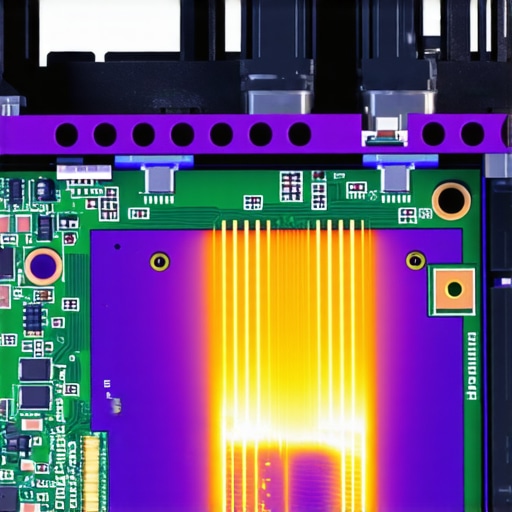
If you really want to scale your repair game, get a FLIR thermal camera. I don’t use it for the ‘wow’ factor; I use it to find the ‘glowing’ capacitor that is about to pop. In a server rack, a thermal camera can show you a failing power cable that is heating up due to internal resistance—something no software sensor will ever catch. This proactive approach is a cornerstone of managed IT strategies to keep your business secure in 2025. You aren’t just protecting the data; you are protecting the physical investment. According to Backblaze’s 2023 Drive Stats report, environmental factors and age are the most consistent predictors of failure, but a thermal camera lets you see the ‘pre-fail’ heat signature of a motor bearing before it seizes.
The future of this niche is moving toward AI-driven predictive cooling. We are already seeing enterprise-grade software that moves virtual machine workloads between physical blades based on localized temperature fluctuations—a process called ‘Thermal Load Balancing.’ Soon, your PC might move your chrome tabs to different cores specifically to let one side of the chip cool down. Until then, you need a disaster recovery plan before the storm hits to ensure that even if the hardware fails, the business doesn’t. Try this: Download HWiNFO64 today and look for your ‘CPU Die (Average)’ vs ‘CPU Package’ temperature. If they differ by more than 15°C under load, your thermal paste has likely suffered from ‘pump-out’ and needs a fresh application to prevent permanent silicon degradation.
The Hard Truth About Nursing Dying Hardware
In over a decade of handling hardware emergencies, the most important lesson isn’t about the technology—it’s about the physics of the environment. I’ve realized that computer repair is often 90% air management and 10% actual component swapping. First, never assume a ‘clean’ office is dust-free; those tiny particles act like insulation on your motherboard, trapping heat precisely where it shouldn’t be. Second, always keep a tube of high-quality thermal paste in your desk, because computer repair for beginners avoid costly mistakes starts with having the right materials on hand before the emergency happens. Finally, if you hear a bearing start to click or whine, don’t wait for the failure. That sound is a ticking clock, and every hour you wait increases the risk of needing data recovery secrets every business should know today to save your files.
The Checklist That Keeps My Systems Frosty
When you want to move beyond basic troubleshooting and into professional-grade maintenance, you need a specific set of tools. I personally swear by HWiNFO64 for its ability to show me individual sensor voltages that Windows Task Manager hides. For physical inspections, I use a thermal camera to find hot spots on power cables before they melt. #IMAGE_PLACEHOLDER_E# If you are scaling up, effective managed IT solutions for growing companies usually involve installing environment monitors like the Govee WiFi Thermometer to alert you the moment your server room AC fails. These aren’t just gadgets; they are the early warning systems that keep your hardware from reaching the point of no return.
You Can Handle the Heat
The next time you walk into a hot server room or feel your laptop keyboard burning your fingertips, take a breath before you pull the power cord. With undervolting, clock-speed limits, and proper airflow management, you have the power to stabilize a crisis long enough to make a safe exit or a successful repair. Mastering the art of computer repair is about staying calm when the silicon gets hot. Have you ever faced a thermal emergency that almost took down your entire network? Let me know your survival story in the comments below.