

I will never forget the rainy Tuesday I finally decided to give my trusty old workstation a second life. I had ordered what looked like the perfect replacement cell, popped it in with the pride of a seasoned pro, and hit the power button. Nothing. I plugged it in, only to see that dreaded message: “0%, plugged in, not charging.” I felt like I had been ghosted by my own hardware. It is a total gut punch when you spend forty bucks and thirty minutes only to realize your laptop acts like the new battery does not even exist. If you have ever felt that sting, you are not alone.
The Day My Laptop Refused to Recognize Its New Heart
It is a common story, and honestly, I have been there more times than I would like to admit. Early in my career, I made the mistake of assuming a battery was just a dumb plastic brick filled with chemicals. I bought the absolute cheapest generic I could find on a sketchy marketplace, thinking I was a genius for saving money. Big mistake. I quickly learned the truth about using third-party batteries the hard way—the laptop simply refused to handshake with the non-existent firmware on the cheap knockoff. Modern laptops are incredibly picky. They do not just want power; they want a digital ID badge from the battery management system. If that handshake fails, the motherboard shuts down the charging circuit to protect the system, which usually just results in you staring at a dim screen in frustration. Whether you are dealing with a simple handshake issue or something more serious like how to tell if your laptop battery is swelling, the software side is usually where the battle is won or lost.
Does the Manufacturer Really Block Third-Party Parts?
You might be wondering if this is all just a conspiracy to make you buy overpriced OEM parts. While there is definitely a gatekeeping aspect to it, there is also a vital safety component. According to Battery University, an authoritative resource on battery technology, the Battery Management System (BMS) is critical for preventing thermal runaway and ensuring the cells stay balanced. Your laptop is not just being stubborn; it is trying to ensure it does not turn into a literal fireball on your desk. The secret to getting things working is not always in the hardware itself, but in how you introduce the new part to the Windows drivers and the BIOS. Have you ever installed a new part only for your computer to act like nothing changed? It is incredibly annoying, but I promise we can get those two talking again. Today, I am going to walk you through the exact recalibration and driver reset steps I use in my shop to force a stubborn motherboard to accept its new power source. We are not just going to plug and pray—we are going to fix the communication breakdown for good.
Force Windows to Listen to the New Battery
The most common reason for the dreaded 0% status is that Windows is still trying to talk to the old battery using cached data. It is essentially using an old map for a new city. To fix this, you need to strip away the software layer and let the operating system rediscover the hardware from scratch. Go to your Device Manager and find the ‘Batteries’ section. You will see something called ‘Microsoft ACPI-Compliant Control Method Battery.’ This is the translator between your hardware and your software. Right-click it and select ‘Uninstall device.’ Do not worry, you are not deleting your battery; you are just clearing the confusion. Once you restart your laptop, Windows will realize the driver is missing and automatically reinstall a fresh version that actually looks at the new cells.
Flush Out the Corrupted Drivers First
I remember a client, Sarah, who brought in a high-end Dell that she had almost thrown away. She had already replaced the battery twice, and both times the laptop refused to charge. She was convinced the motherboard was fried. I sat her down, performed this exact driver reset, and within three minutes, the charging light turned from a blinking amber to a solid white. It is a classic move when troubleshooting common computer repair issues effectively because software glitches are often more likely than hardware death. 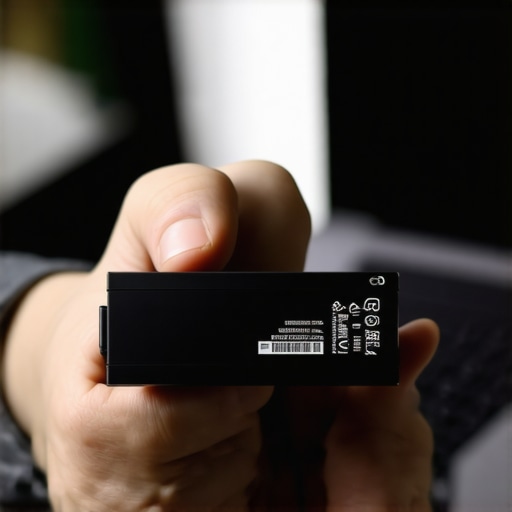
Draining the Ghost Power from the Motherboard
If the driver reset did not work, you likely have ‘flea power’—residual static electricity trapped in the capacitors of your motherboard—tricking the system into thinking the circuit is unstable. This is a common hurdle for those practicing computer repair for beginners to avoid costly mistakes. Shut down the laptop, unplug the power adapter, and, if your model allows it, remove the battery. Hold the power button down for a full sixty seconds. This sounds like an old wives’ tale, but it physically drains the remaining charge from the motherboard’s components, forcing the Battery Management System (BMS) to reset its handshake protocol. Reinsert the battery, plug in the wall charger, and wait. Often, this is the exact moment the charging animation finally kicks in.
Check the Physical Path and BIOS Version
Sometimes the issue is not the battery at all, but the port it connects to. If you find yourself wondering how to fix a laptop that only charges at a certain angle, the problem is likely a loose DC jack rather than a software handshake. However, if the physical connection is solid and the resets failed, your last line of defense is a BIOS update. Manufacturers frequently release firmware patches specifically to improve battery compatibility with newer third-party cells. I once had a Lenovo that flat-out refused to recognize an OEM battery until I flashed the BIOS to the latest version. The BIOS is the gatekeeper; if it does not have the updated definitions for the power controller, it will block the charge as a safety precaution. Use the manufacturer’s official support site to check for any ‘Power Management’ or ‘System Firmware’ updates that might bridge that communication gap once and for all.
While the driver reset works for about sixty percent of the cases I see, there is a much deeper nuance that many tech bloggers completely miss. Most people assume that if a battery is not charging, the chemical cells inside are dead. In my experience, it is rarely the cells that give up first; it is the logic board. Every modern laptop battery has a small computer inside called the Battery Management System (BMS). This chip is the real brain, and it can be incredibly pessimistic. If the voltage in a single cell drops just a fraction below a safety threshold, the BMS might permanently ‘brick’ itself to prevent a fire. This is why you see a perfectly fine-looking battery suddenly report 0% and refuse to take a charge.
Why does the battery health report show 100% health when it lasts ten minutes?
This is the question that drives my advanced clients crazy. You run a report, and Windows tells you the battery is healthy, yet the laptop dies the moment you unplug the charger. The truth is that Windows is often reading cached design capacity rather than real-time performance. This is similar to how the power of data recovery tools depends on reading raw data rather than just trusting the file explorer. To get the truth, you need to look at the ‘Full Charge Capacity’ versus ‘Design Capacity’ in a command-line power report. If those numbers are wildly different, your software is essentially lying to you to keep you from panicking. According to technical teardowns by iFixit, many manufacturers program a ‘permanent failure’ bit into the firmware that can be triggered by simple static discharge, effectively killing the battery even if the lithium-ion cells are still pristine.

One of the biggest ‘oops’ factors I see in the shop involves people trying to force-charge a dead battery using high-voltage ‘revival’ kits found online. This is incredibly dangerous. Unlike older NiCad batteries, Lithium-ion cells can become unstable if you try to bypass the BMS. If your battery has entered a protective sleep mode, you are much better off performing a ‘deep cycle’—leaving the laptop plugged in for 48 hours straight without turning it on—than trying to hack the hardware. I have seen enthusiasts try to save a buck by DIYing a repair, only to end up needing a full laptop screen replacement because the battery swelled and cracked the chassis from the inside out.
For those of you running a business, this kind of hardware volatility is exactly why regular security audits and hardware lifecycle management are so important. You do not want your lead designer’s workstation to fail during a pitch because of a five-dollar controller chip. We often treat laptops like appliances, but they are more like high-performance engines that require precise timing. If you are struggling with a screen that flickers or won’t turn on during these power issues, you might actually be looking at a backlight problem rather than a battery one. Check out my guide on laptop screen repair if your display is acting as stubborn as your charger. Have you ever fallen into this ‘0% plugged in’ trap only to find out it was a simple software glitch? Let me know in the comments below!
The Software Toolkit I Use Every Single Day
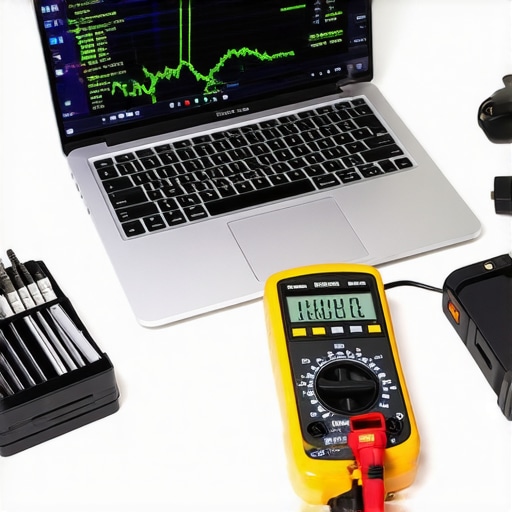
When clients ask me for a professional recommendation, I always point them toward BatteryInfoView by NirSoft. It is not flashy, and it looks like it belongs in the Windows 95 era, but it gives me the raw ‘Wear Level’ percentage that Windows hides deep in its system logs. I use it because it shows the exact milliwatt-hour capacity currently available versus what the battery had the day it left the factory. If you see a wear level over 20%, you are going to start noticing those random shutdowns. For those managing a whole fleet of devices, this is why managed IT is a game changer for growing companies. Instead of reacting to a dead battery on a Monday morning, a solid provider uses telemetry tools to spot a failing cell weeks before the employee even notices a dip in performance.
How Do I Keep My Hardware Healthy for the Long Haul?
Maintenance is not just about software; it is about environment. I have seen countless batteries cook themselves because of poor airflow. While you are troubleshooting power, it is a great time to learn how to clean a laptop fan without pushing dust deeper inside. If your fan is clogged, the internal temperature rises, and heat is the absolute silent killer of lithium-ion chemistry. I also recommend setting a ‘Battery Charge Threshold’ if your laptop supports it. Tools like Lenovo Vantage or Dell Power Manager allow you to stop charging at 80%. According to the ‘Dell Battery Technology White Paper,’ keeping a lithium-ion battery at a constant 100% state of charge while plugged into a dock significantly accelerates chemical aging. By capping the charge, you can often double the usable lifespan of the hardware.
AI and Serialized Parts Are Changing the Game
Looking ahead, the world of repair is getting more complicated. We are seeing a massive trend toward ‘parts pairing’ or serialization. This means that even if you swap a genuine battery from one identical laptop to another, the software might still reject it because the unique ID does not match the motherboard’s registry. It is a hurdle we are constantly jumping over when implementing managed IT strategies to keep your business secure in 2025. However, I predict that AI-driven power management will soon become the standard. Future laptops will likely use machine learning to analyze your specific usage patterns—knowing exactly when you usually unplug—to time the final 20% of charging perfectly, minimizing stress on the cells.
If you are already opening your laptop to check the battery connection, you might as well maximize your time. It is the perfect opportunity to learn how to safely upgrade your RAM without voiding the warranty. Getting that extra speed while fixing a power issue is the ultimate win for any DIYer. I strongly encourage you to download a dedicated battery monitor today and check your wear level; knowing the health of your ‘heart’ is the first step to preventing a total system heart attack. Also, be careful with your power source, as the truth about using generic chargers on expensive business laptops is that they often provide ‘dirty’ power that can fry a new battery in weeks.
The Brutal Lessons My Repair Bench Taught Me
After a decade of cracking open cases, I have realized that the biggest myth is that a battery is either ‘good’ or ‘dead.’ In reality, most issues are a misunderstanding between the firmware and the operating system. I have seen people throw away perfectly good hardware when they could have simply learned computer repair for beginners to avoid costly mistakes. Another lightbulb moment was realizing that ‘OEM-equivalent’ is often marketing speak for ‘cheap cells with no safety chip.’ Investing in quality is not just about longevity; it is about protecting your data from a sudden surge or thermal event. Finally, do not be afraid to admit defeat. Sometimes you have to weigh the cost and how to choose between repairing an old workstation and buying a new one if the charging circuit on the motherboard itself is what is failing.
My Personal Gear for Taming Power Issues
I do not just guess; I use data. My first go-to is always the manufacturer’s native diagnostic tool—think Lenovo Vantage or HP Support Assistant—because they have direct access to the BMS logs. For a deeper dive, I swear by NirSoft’s BatteryInfoView to see the real-time wear level. For business owners, I recommend managed IT solutions streamlining operations for small businesses to track battery health across an entire fleet automatically. And for physical cleaning, nothing beats a can of high-pressure air and 99% isopropyl alcohol to ensure those battery pins are making a perfect connection.
#IMAGE_PLACEHOLDER_E#
Take Back Your Laptop’s Freedom
You do not have to be tethered to a wall outlet forever. Most of the time, the fix is sitting right inside your software settings or a simple driver refresh. Be patient, stay methodical, and remember that your hardware wants to work just as much as you want it to. If you hit a wall and the screen stays dark, feel free to contact us for a professional look at the internals. You have got this! Have you ever managed to fix a ‘dead’ battery with just a software reset? Let me know in the comments below!